

Insert values from the profile and request
Instead of typing names and details by hand, you insert placeholders, e.g.
{{sender.fullname}} for your name. actaSIGN replaces them with the right
values: when the request starts, from your profile and from the request, and
for each recipient with their own details.
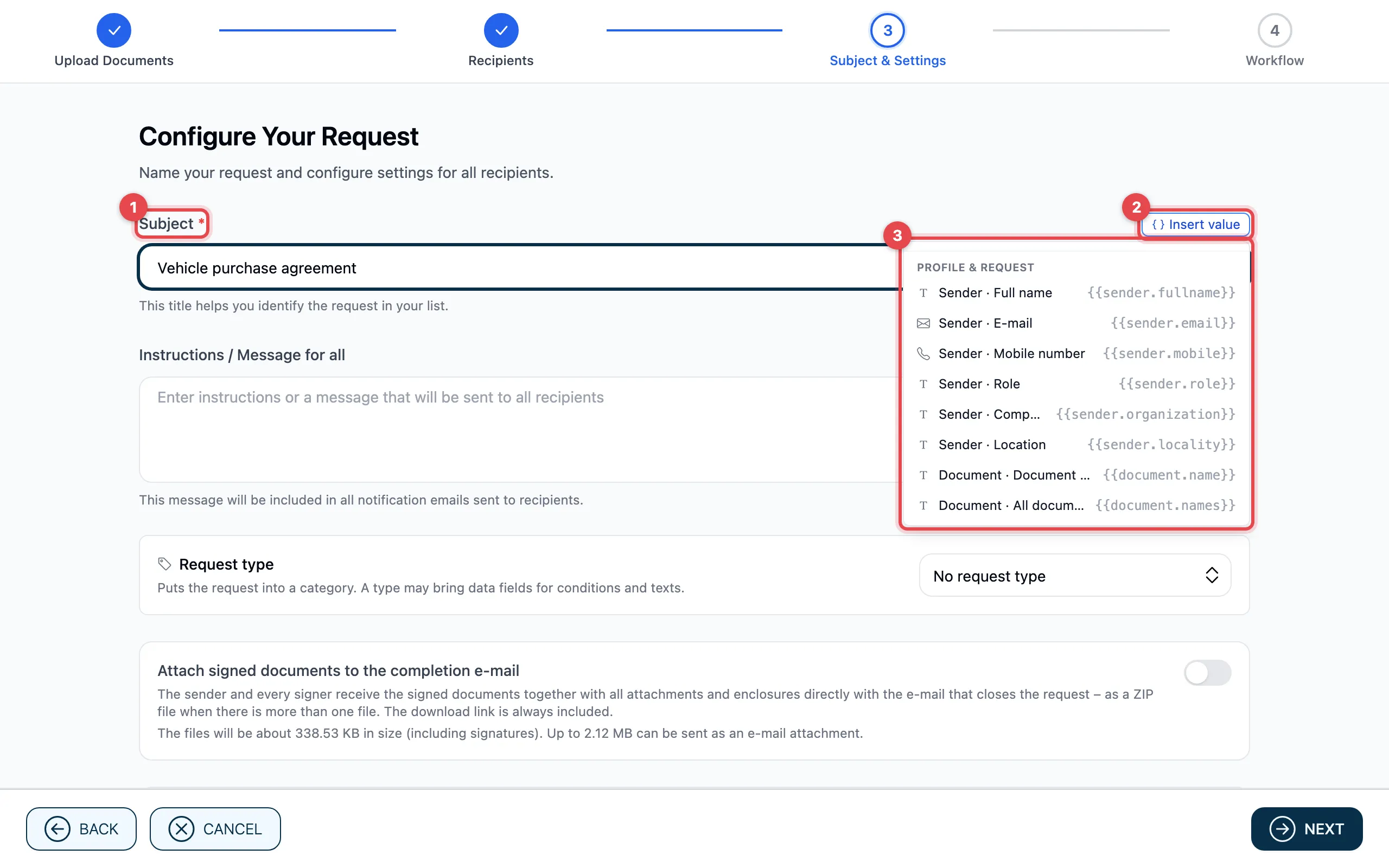
- Click in the text field where the value should go.
- Click Insert value.
- Choose a value. At the top are the request’s
workflow data (if there are any), below
them under Profile & request the values every request knows.
actaSIGN inserts the placeholder at that point, e.g.
{{sender.fullname}}.
The menu only shows values that fit at that point.
Which values fit where
Section titled “Which values fit where”| Value | Subject | Message for all | Personal message | File name | Field (Studio) |
|---|---|---|---|---|---|
| Sender: Full name, E-mail, Mobile number, Role, Company, Location | yes | yes | yes | yes | yes |
| Request: Subject | – | yes | yes | – | yes |
| Document: Document name, All document names | yes | yes | yes | yes | yes |
| Recipient: Full name, E-mail, Mobile number, Language | – | – | yes | – | yes |
| Recipient: Role, Company, Location | – | – | – | – | yes |
- The sender’s values come from your profile, as it is when the request starts. If a detail is missing there, the place stays empty.
- The recipient’s values come from the task, that is, from what you entered in the Workflow step.
- The recipient’s Role, Company and Location come from their own profile. actaSIGN fills them in when they open the task, and again when they change their profile. That is why they are only available in fields.
In fields and file names (Studio)
Section titled “In fields and file names (Studio)”In Studio you also use these values in the document: click the field → Properties → Value from data → Content (for text and date fields), with the Insert variable icon. You put together file names and the texts of a form template in the Data tab, see Serial documents.
Good to know
Section titled “Good to know”- These values are available in every plan, even without workflow data.
- A placeholder that actaSIGN does not know is left exactly as you wrote it.
- You can also type a placeholder by hand, e.g.
Hello {{recipient.fullname}}. - In a mass send each person gets their own values.