

Two-factor authentication
Two-factor authentication protects your sign-in, even if someone knows your password. Besides your password, you then also need a code from an app on your phone.
Set up an authenticator app
Section titled “Set up an authenticator app”- In actaPASS, open Security in the menu.
- Enter your password under Your password.
- Click Set up authenticator app.
- Scan the code under Scan this code with your app. Or enter the key under Or enter this key manually.
- Type the code from the app under Code from your app and click Finish setup.
- Keep the recovery codes shown in a safe place (print them or store them in your password manager) and click I have saved them.
New phone
Section titled “New phone”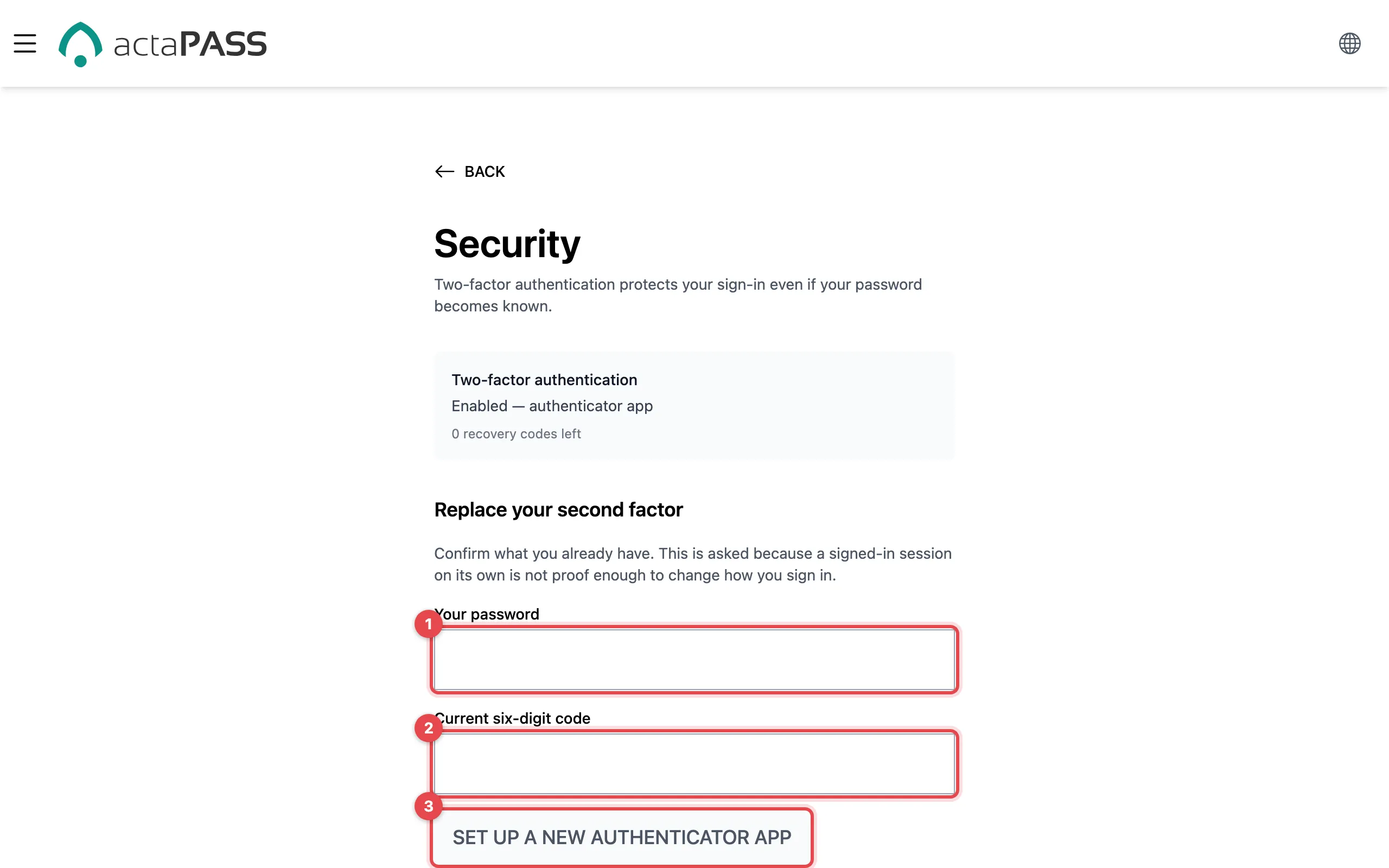
Open Security. Enter Your password (1) and the Current six-digit code from the old app (2). Then click Set up a new authenticator app (3). If the old app is no longer available, reset your sign-in security.
Passkey
Section titled “Passkey”You set up a passkey when you sign up or when you reset your sign-in security. The Security page only shows a note. actaPASS has no page to show or remove passkeys or signed-in devices later.
Good to know
Section titled “Good to know”- Turn off two-factor switches the second factor off. This only works if you also have a password, and not if your organization requires a second factor.
- The top of the page shows the status, e.g. “Enabled — authenticator app”, and how many recovery codes you have left.
- This setting protects your sign-in. For protected signing tasks in actaSIGN, there is strong authentication.