

Edit, send or delete prepared requests (drafts)
A request that you have started but not sent yet is listed under Prepared. From there you continue, send it or delete it.
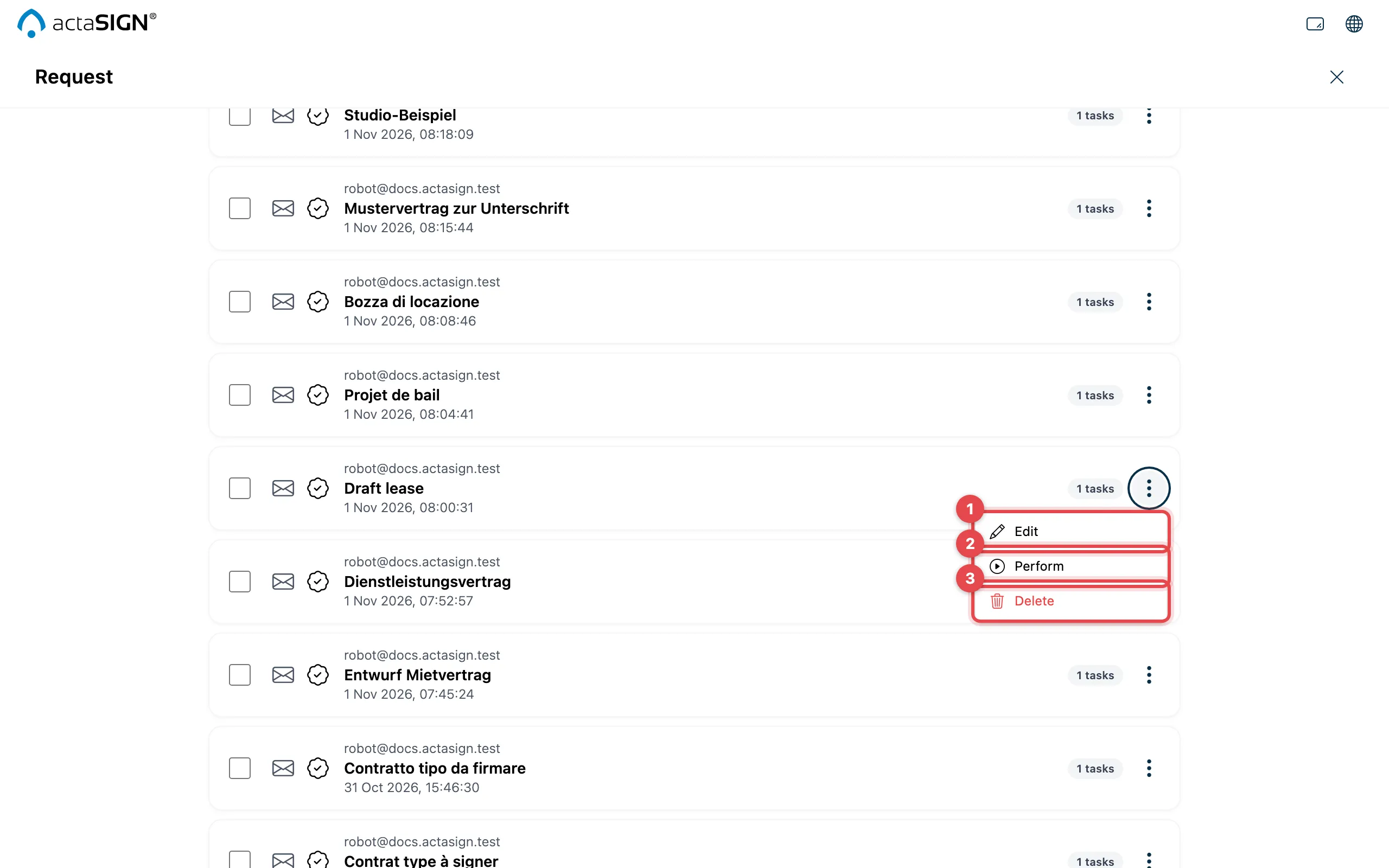
- Edit: opens the assistant with all your details. You can change everything and then click Send in the document.
- Perform: starts the request right away, as it is, without opening the document again.
- Delete: removes the draft after asking you to confirm.
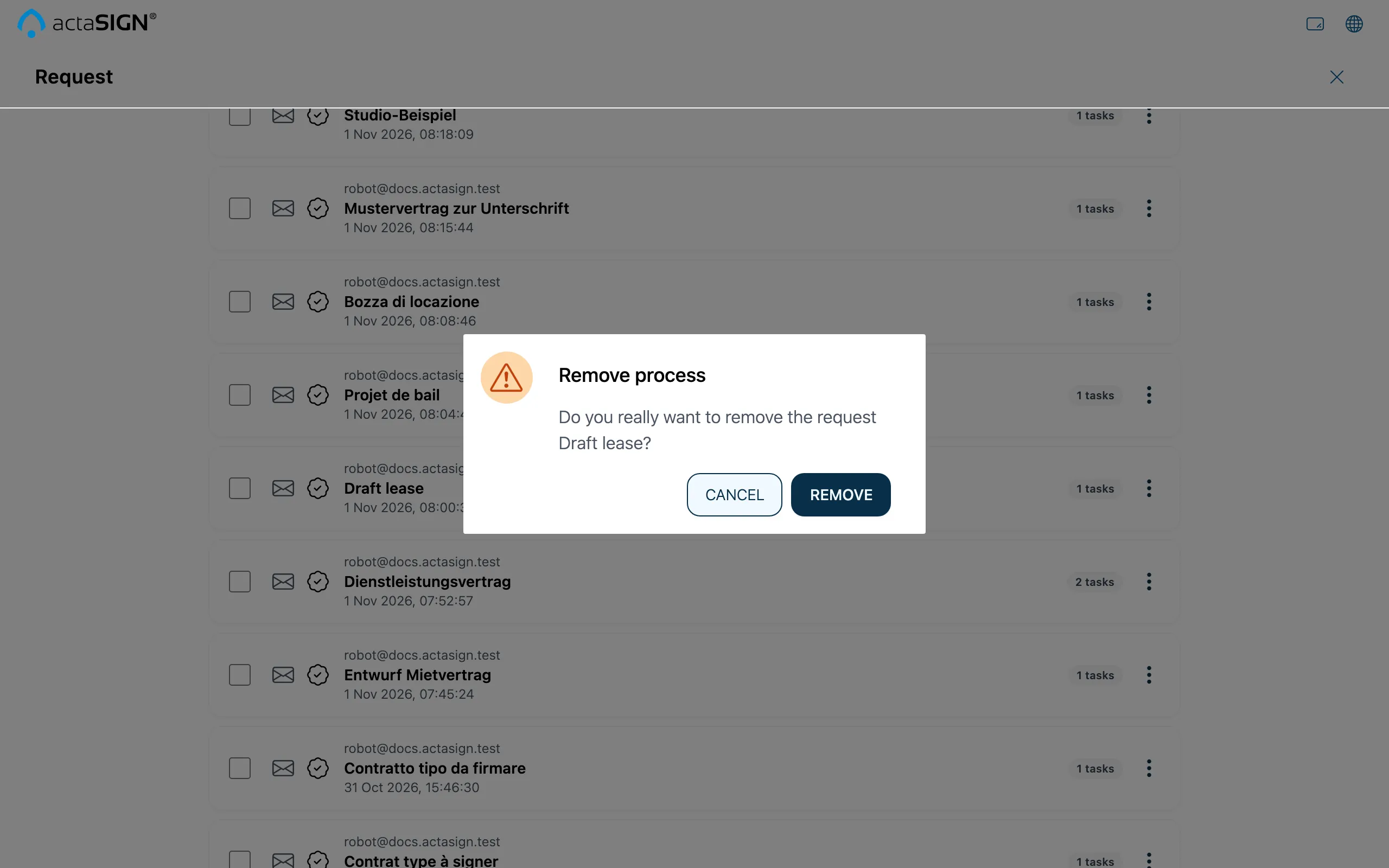
Confirm the deletion with Remove, or click Cancel.
Good to know
Section titled “Good to know”- A draft is created when you choose Keep while cancelling, when sending fails, or with Reuse.
- Only use Perform if the fields and recipients are already correct. If in doubt, open the draft with Edit.
- To delete several drafts: tick the rows and choose Delete in the bar at the top.
- A draft has no history and no protocol yet.