

Enter an absence
Enter when you are away. Anyone who wants to send you a request then sees a notice. With a deputy, your tasks can go to that person automatically if you wish.
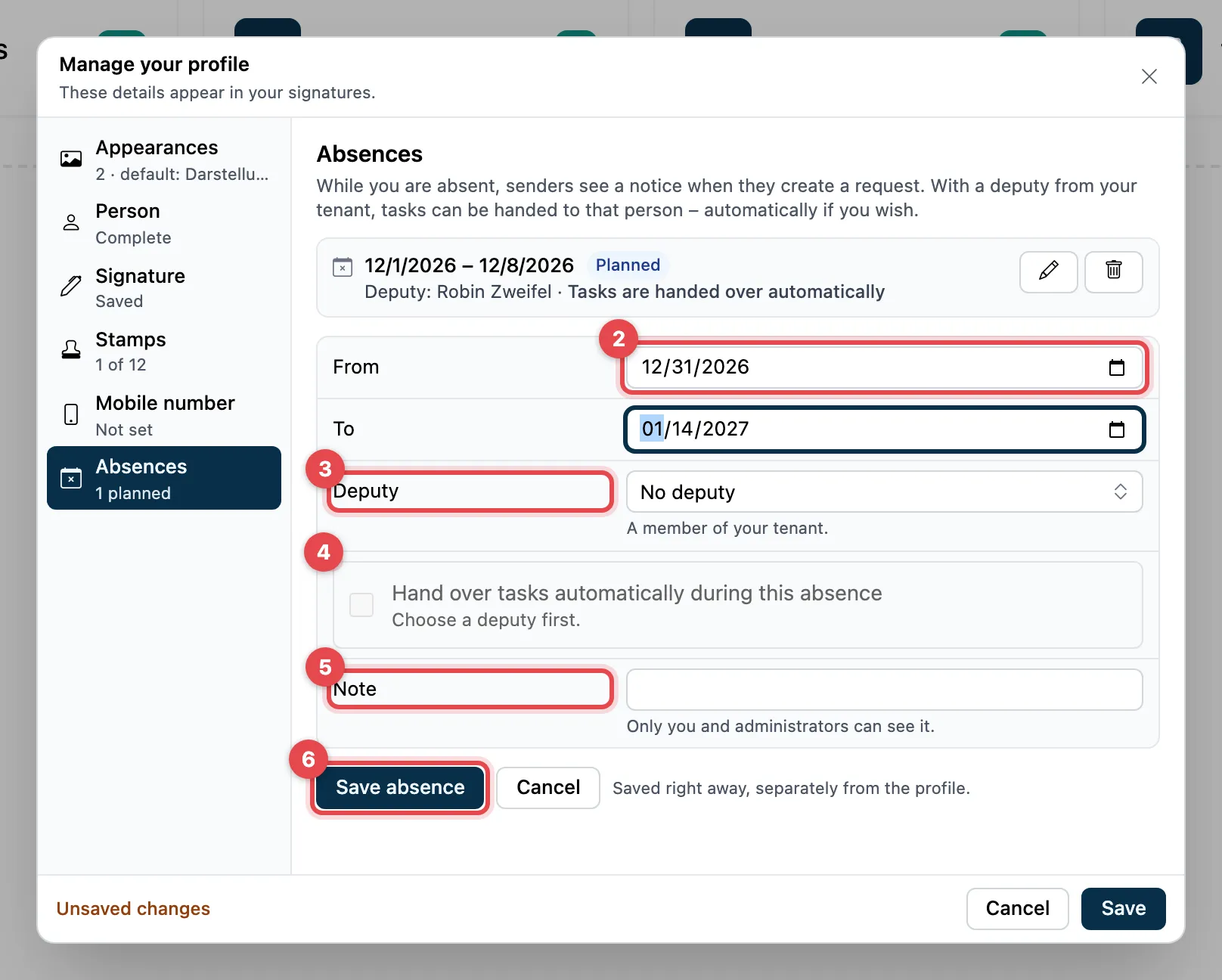
- Click Add absence.
- Choose From and To.
- Under Deputy, choose a member of your organization, or No deputy.
- Optional: Hand over tasks automatically during this absence. This only works with a deputy.
- Optional: a Note. Only you and the administration can see it.
- Click Save absence. It is saved right away; you do not need to click Save as well.
Your absences
Section titled “Your absences”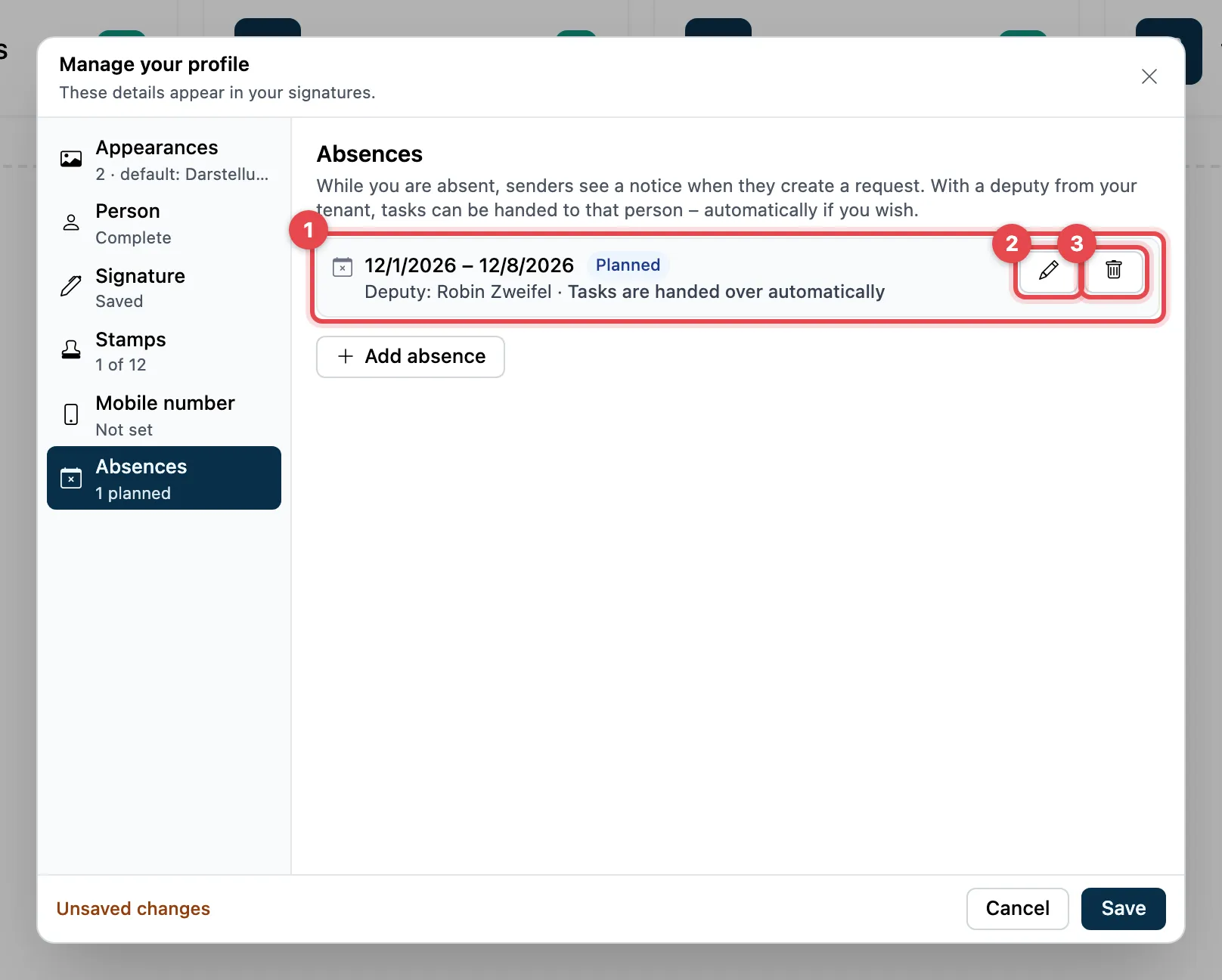
- Each absence shows its dates, its status (Running, Planned or Ended) and the deputy.
- With the pencil (Edit absence) you change an absence that is not over yet.
- With the bin (Delete absence) you remove it right away.
What is handed over, and what is not
Section titled “What is handed over, and what is not”With automatic handover, new and open tasks go to your deputy. Your deputy signs with their own name and their own mobile number; both people appear in the protocol. Your deputy sees tasks taken over with the label Deputy for …. Your absence shows how many tasks were handed over.
These stay with you:
- Tasks with a Password or Seal
- AES and QES tasks if your deputy has not stored a mobile number (for AES CH: no Swiss number)
- Tasks with strong authentication that your deputy has not set up yet
- Tasks if your deputy is away as well
Absences from your calendar
Section titled “Absences from your calendar”- These absences are marked from Outlook or from Google Calendar. You change or delete the dates in your calendar, not in actaSIGN.
- Under Default for absences from Outlook (or from Google Calendar) you choose the deputy and whether tasks are handed over. This applies to every absence taken over from now on.
Good to know
Section titled “Good to know”- An absence lasts one year at most and cannot be in the past.
- At most 20 absences that are not over yet.
- You cannot be your own deputy.
- Senders see your absence when they create a request and can hand the task over to your deputy themselves.