

Sign in, switch organization, language and display
Here you see how you get into actaSIGN, how you switch the organization and where you set the language and the size of the toolbars.
Sign in
Section titled “Sign in”- Open my.actasign.ch and click Sign in. actaPASS opens.
- Enter your Email address, click Next and then enter your password and second factor. The details are under Sign in.
- If you are a member of several organizations, choose one.
- You then see the actaSIGN home page.
Switch organization
Section titled “Switch organization”If you are a member of several organizations, the menu on the left of the home page shows Switch tenant (building icon).
- Click Switch tenant.
- «Your account has access to multiple tenants. Please select one to continue.» appears. Click the organization you want.
- In the footer of the home page, after Tenant, you see which organization you are working in.
With Sign in with a different account you switch to another actaPASS account.
Language and toolbars
Section titled “Language and toolbars”
- Toolbar size: makes buttons and icons larger. Choose Automatic, Normal, Large or Extra large.
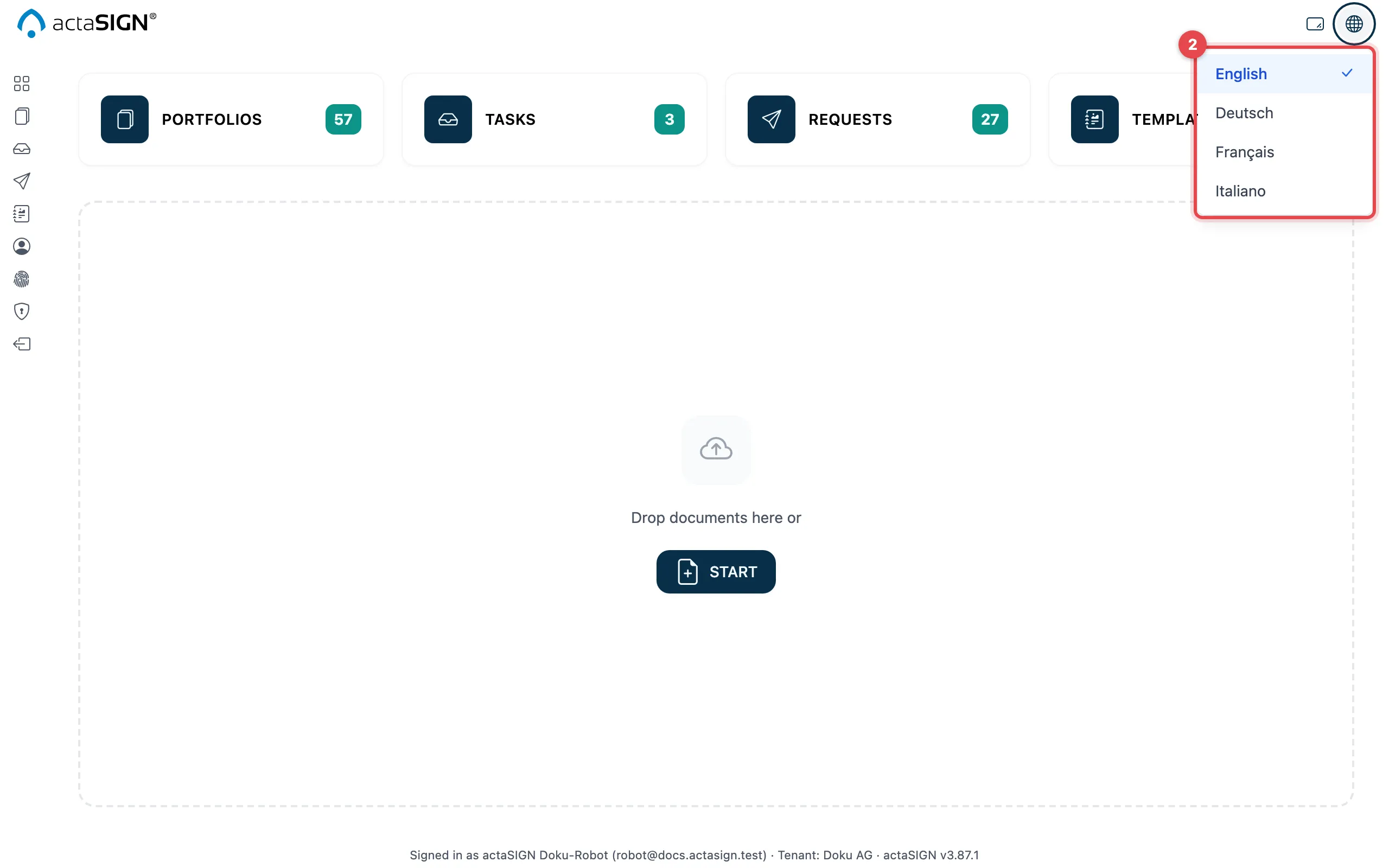
- Language: chooses English, Deutsch, Français or Italiano for the interface.
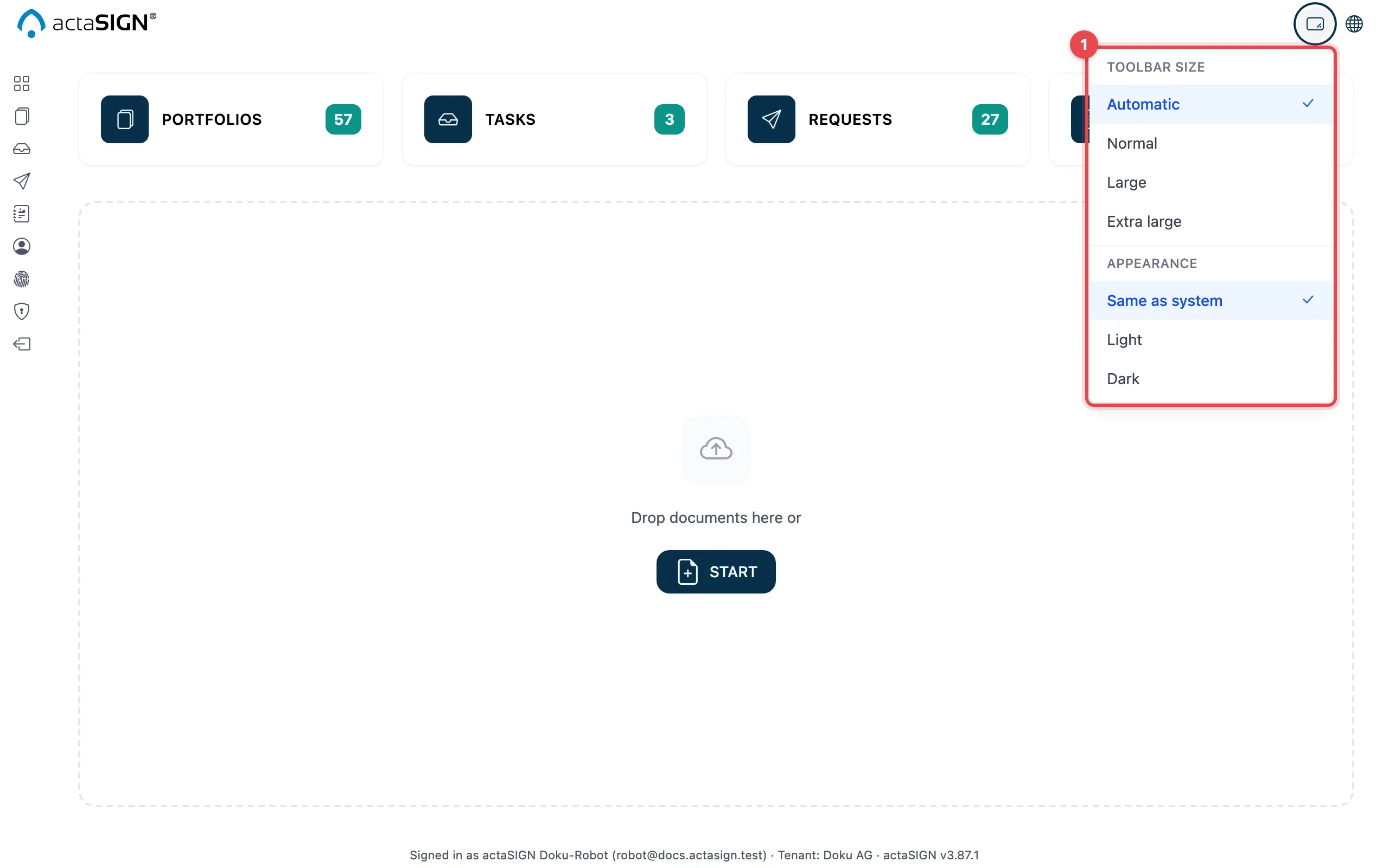
If your organization works with the new document screen (Studio), the same menu also shows Appearance: Same as system, Light or Dark.
Good to know
Section titled “Good to know”- The language at the top right applies to this browser. You set the language of your signing pages and e-mails in your profile, see Language and display.
- If you open a task that was sent to you in another language, actaSIGN switches to that language. Afterwards, set your language again at the top right.
- Switch tenant is missing if you are in only one organization.
- If an organization can only be reached from certain networks, it shows IP address not whitelisted. Ask your administration.