

Only me: sign your own document
If you only want to sign a document yourself, for example a quote or a confirmation, you do not need any recipients. You upload it, choose the signature quality and sign.
Upload the document and choose “Only me”
Section titled “Upload the document and choose “Only me””Drag the PDF into the large box on the start page or click Start. Upload Documents opens. Click Next.
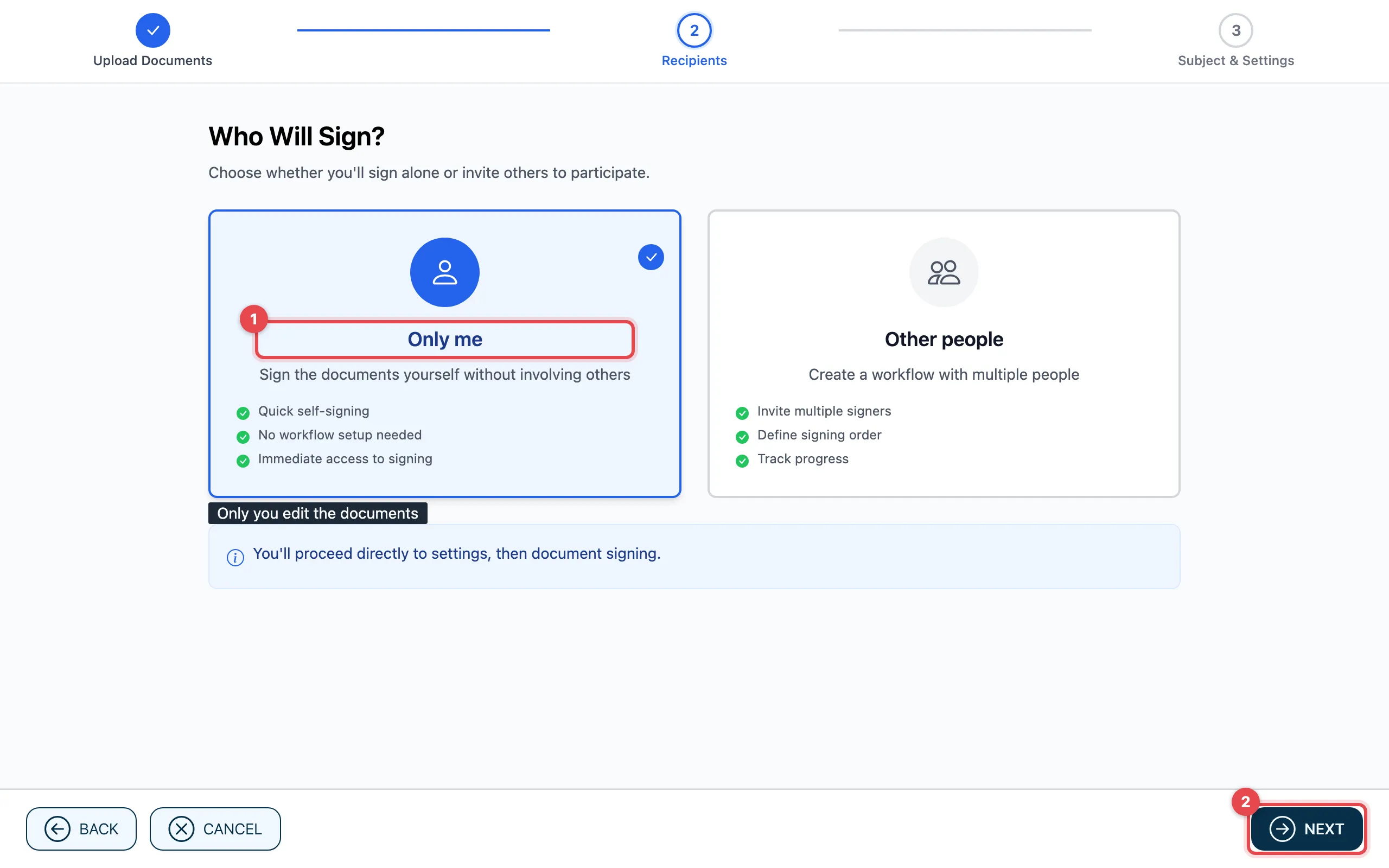
- Choose Only me.
- Click Next.
Name the document and choose the signature quality
Section titled “Name the document and choose the signature quality”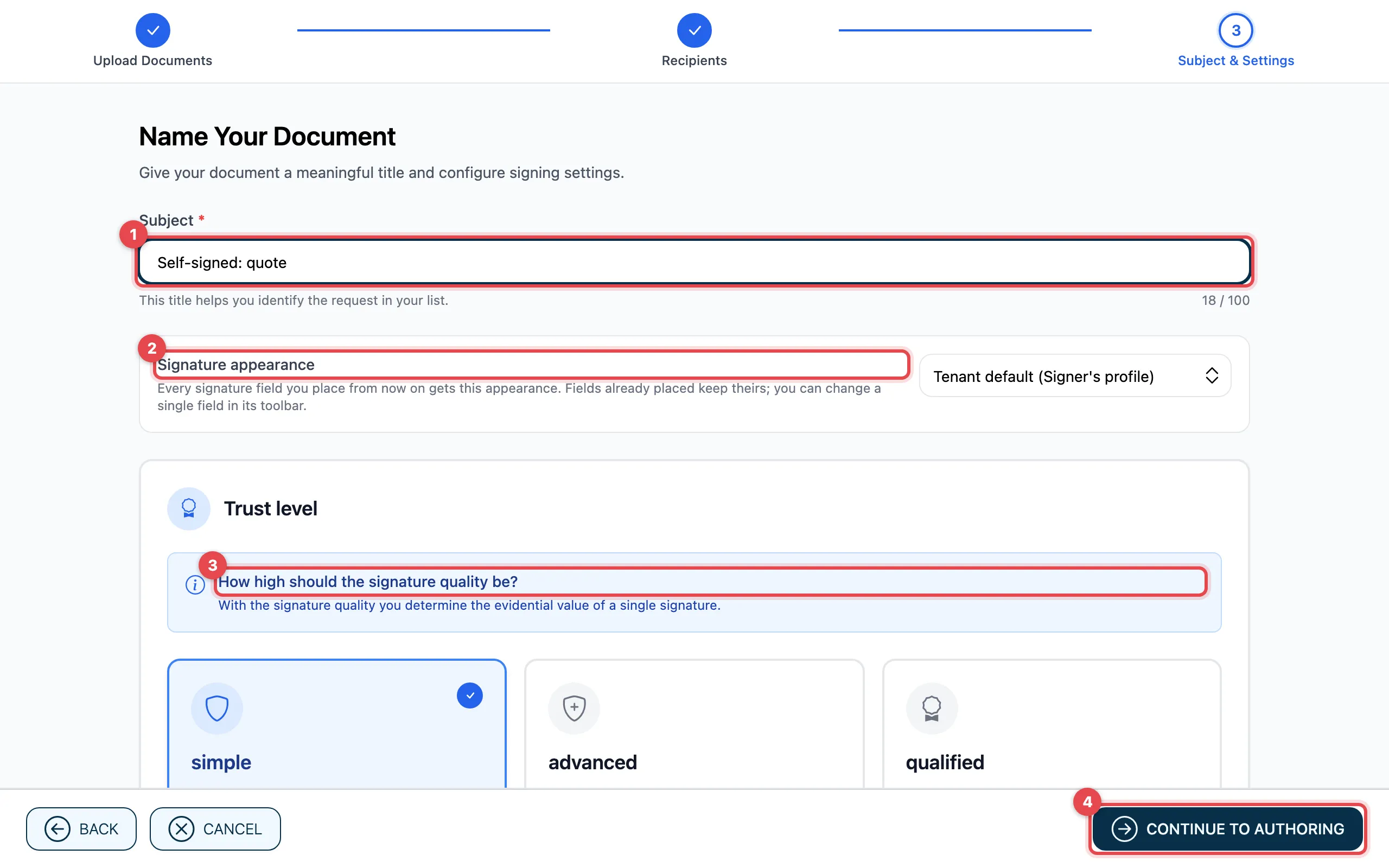
- Enter a Subject. This helps you find the document again later.
- Under Signature appearance, choose how your signature should look.
- Under Trust level, answer
How high should the signature quality be?:
- simple: without any further confirmation
- advanced: confirmation with an SMS code
- advanced CH: confirmation at Swisscom with a password and SMS code, only with a Swiss mobile number
- qualified: confirmation in the Mobile ID App, the highest evidential value. Then choose the jurisdiction: Switzerland or EU/EEA.
- seal: your organization’s seal instead of your personal signature
- Click Continue to Authoring.
Place and sign
Section titled “Place and sign”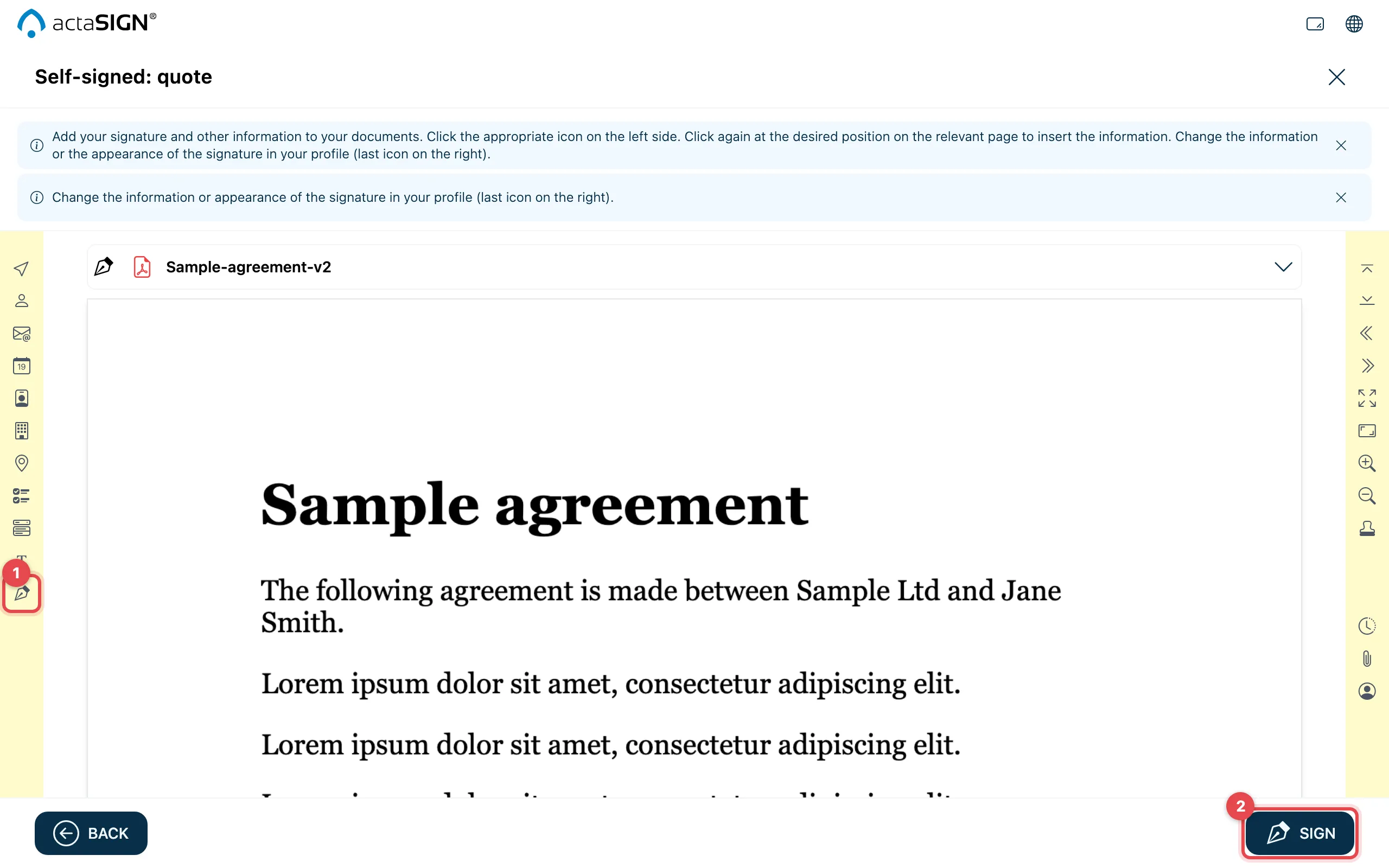
- Choose a tool on the left, for example Signature, and click the place in the document. Other tools place the Signing date, Locality or Individual text. If you have stamps in your profile, place a stamp on the right with Select stamp.
- At the bottom right, click Sign. Depending on the signature quality, you confirm with an SMS code, at Swisscom or in the Mobile ID App, as described in Sign a document.
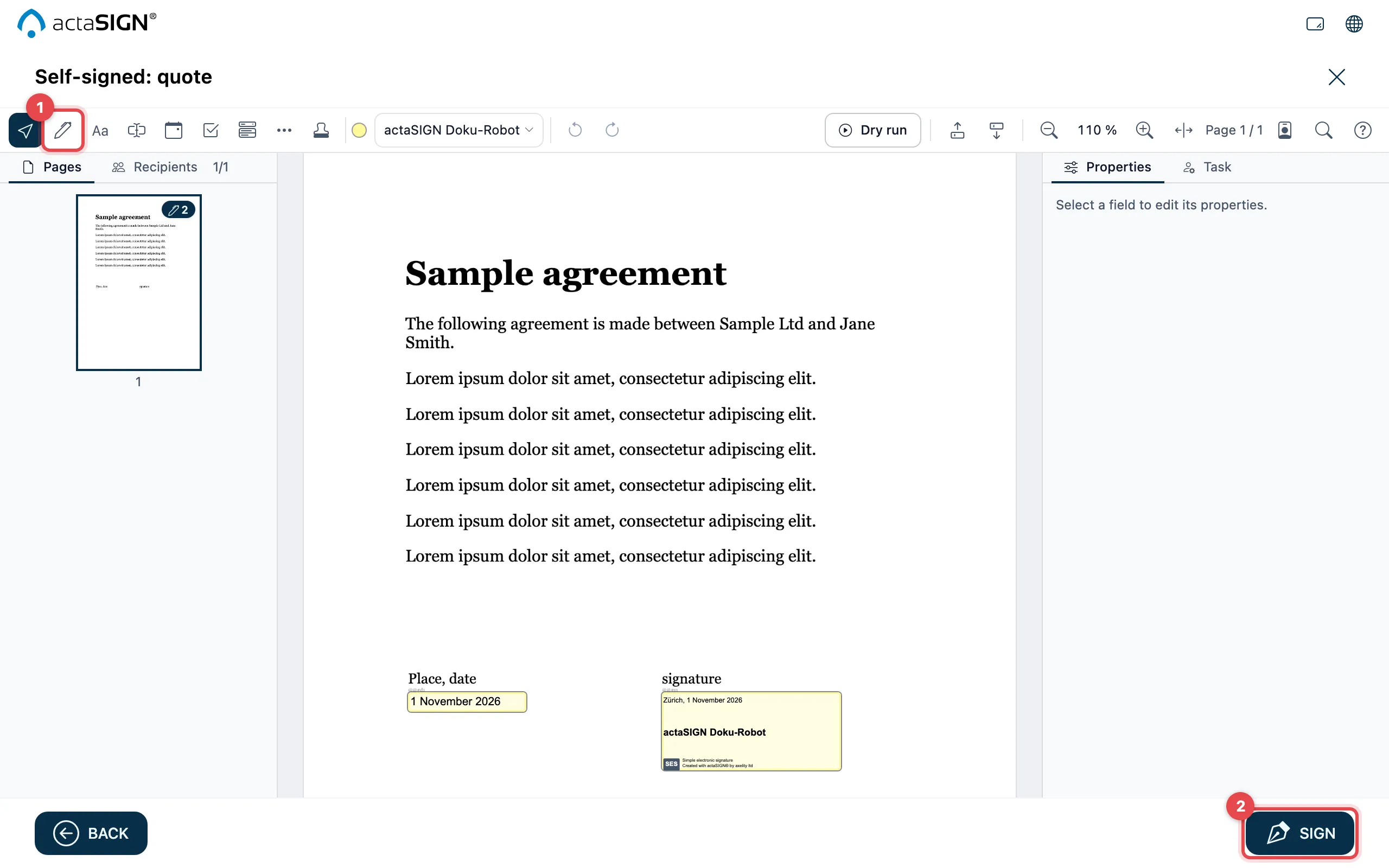
- Choose a tool in the toolbar at the top, for example Signature representation, and click the place in the document. Other tools place the Signing date or Individual text; you find Locality under More fields. If you have stamps in your profile, place a stamp with the Company stamp tool.
- At the bottom right, click Sign. Depending on the signature quality, you confirm with an SMS code, at Swisscom or in the Mobile ID App, as described in Sign a document.
How to move and set up fields is explained under Place fields in the document in the “Studio” tab.
Process completed appears. You find the signed document under Portfolios.
Good to know
Section titled “Good to know”- If your PDF contains placeholders such as
@@#s1, actaSIGN places the signature at that position by itself. - If the document still has no signature, actaSIGN does not sign. First place at least one Signature field.
- If your organization uses the new document screen, choose the “Studio” tab for the pictures. What Studio is, is explained under Studio.
- With Cancel in the wizard, you can keep or delete the prepared request.