

Set the signature appearance
Here you set how your members’ signatures look in the document: with or without the reference to actaSIGN, and which appearance a newly placed signature field gets.
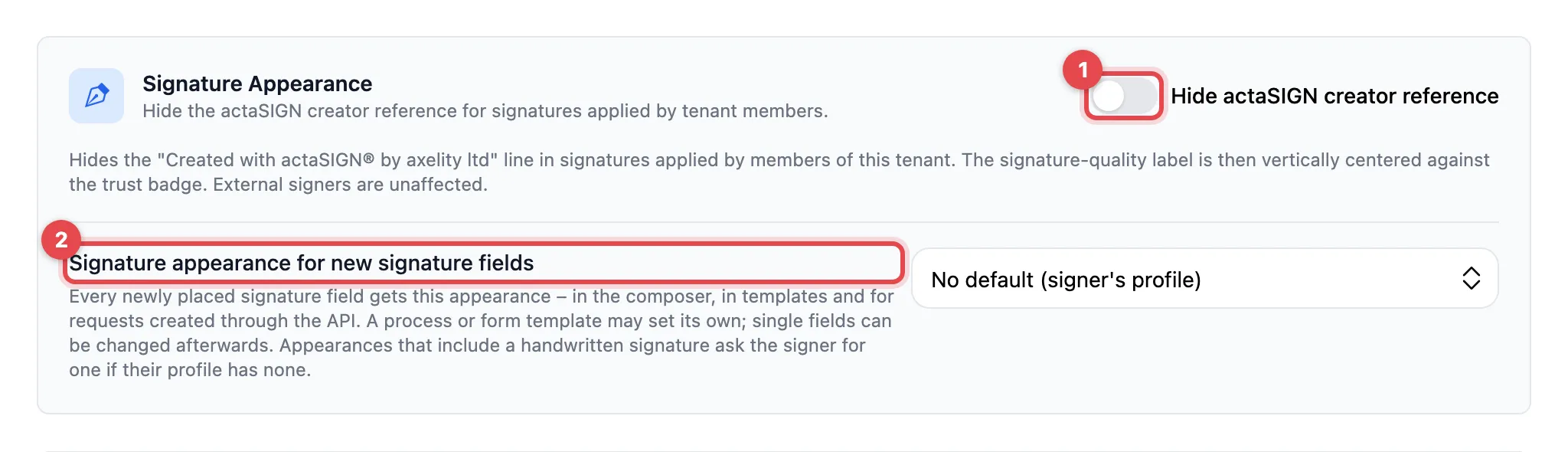
- Hide actaSIGN creator reference: switch on to leave out the line “Created with actaSIGN® by axelity ltd” in your members’ signatures.
- Signature appearance for new signature fields: choose the appearance.
- Click Save at the bottom of the page.
The appearances
Section titled “The appearances”You can choose the same appearances as in the personal profile:
- No default (signer’s profile) (default): what the signer chose in their profile applies.
- Empty (transparent)
- Signature only
- Signature and name
- Place, date and signature
- Complete without signature
- Complete
The default applies to every newly placed signature field: in the composer, in templates and for requests through the API. A process or form template can set its own appearance, and single fields can be changed afterwards.
Good to know
Section titled “Good to know”- Appearances with a signature require a handwritten signature. If the signer has none in their profile, they are asked for one while signing.
- The creator reference only applies to your members’ signatures. External signers are not affected.
- Without the creator reference, the trust level label is centred next to the badge.