

Create a form template
A form template saves the fields of a document you need again and again, for example a personnel sheet. Each field already belongs to a role. When you use the template, you only assign people to the roles.
Process: the roles
Section titled “Process: the roles”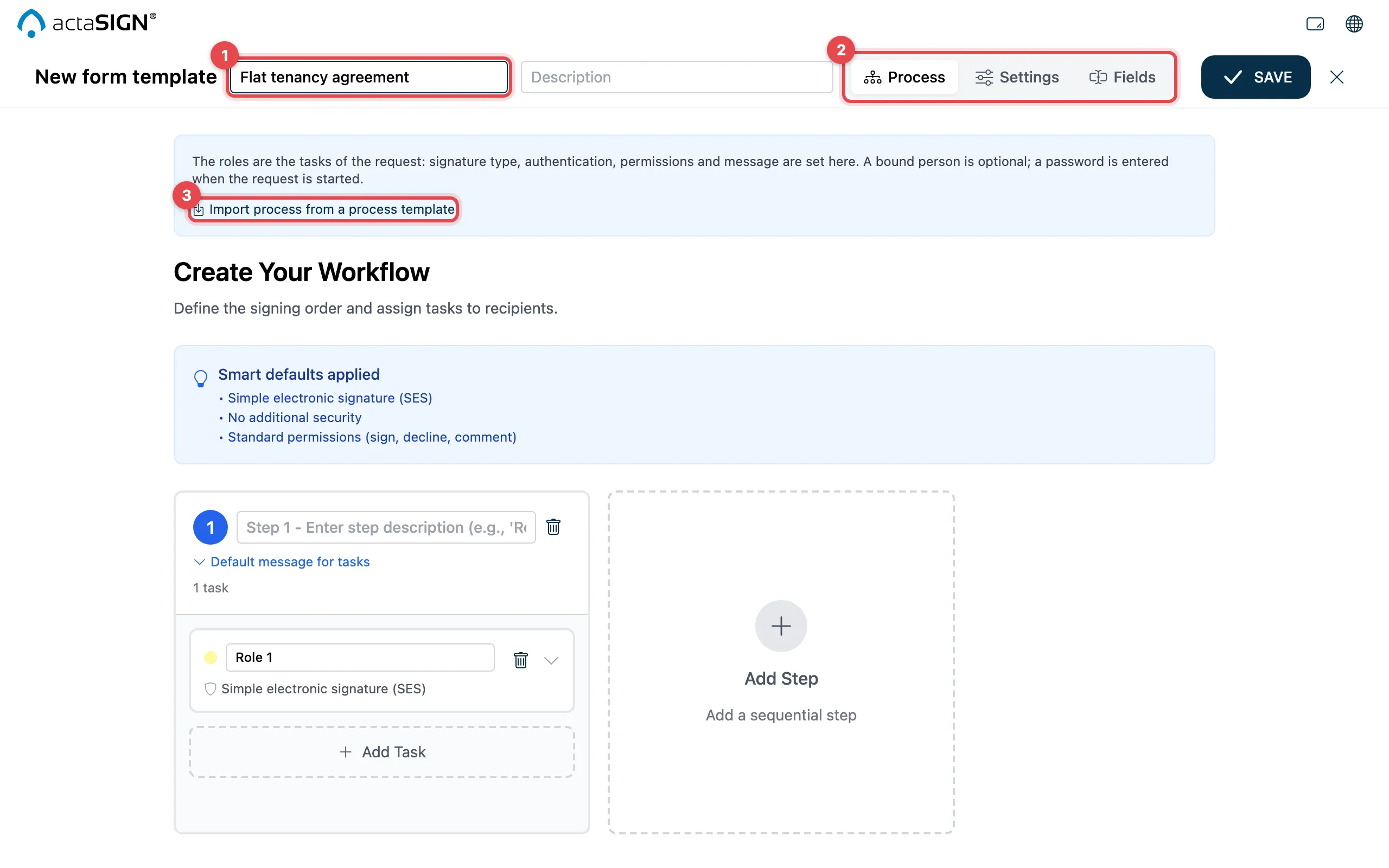
- Enter a name at the top, for example “Apartment rental agreement”.
- The editor has three sections: Process, Settings and Fields. A new template starts with Process.
- Set up steps and tasks as for a request. Each task is a Role, for example “Tenant” and “Landlord”. Or take over the process with Import process from a process template.
If you enter a person for a task (email address or name), the role is assigned to this person for good. In the list of roles under Fields it then says “Fixed person” with the name. Without a person it says “Assigned on start”.
Settings
Section titled “Settings”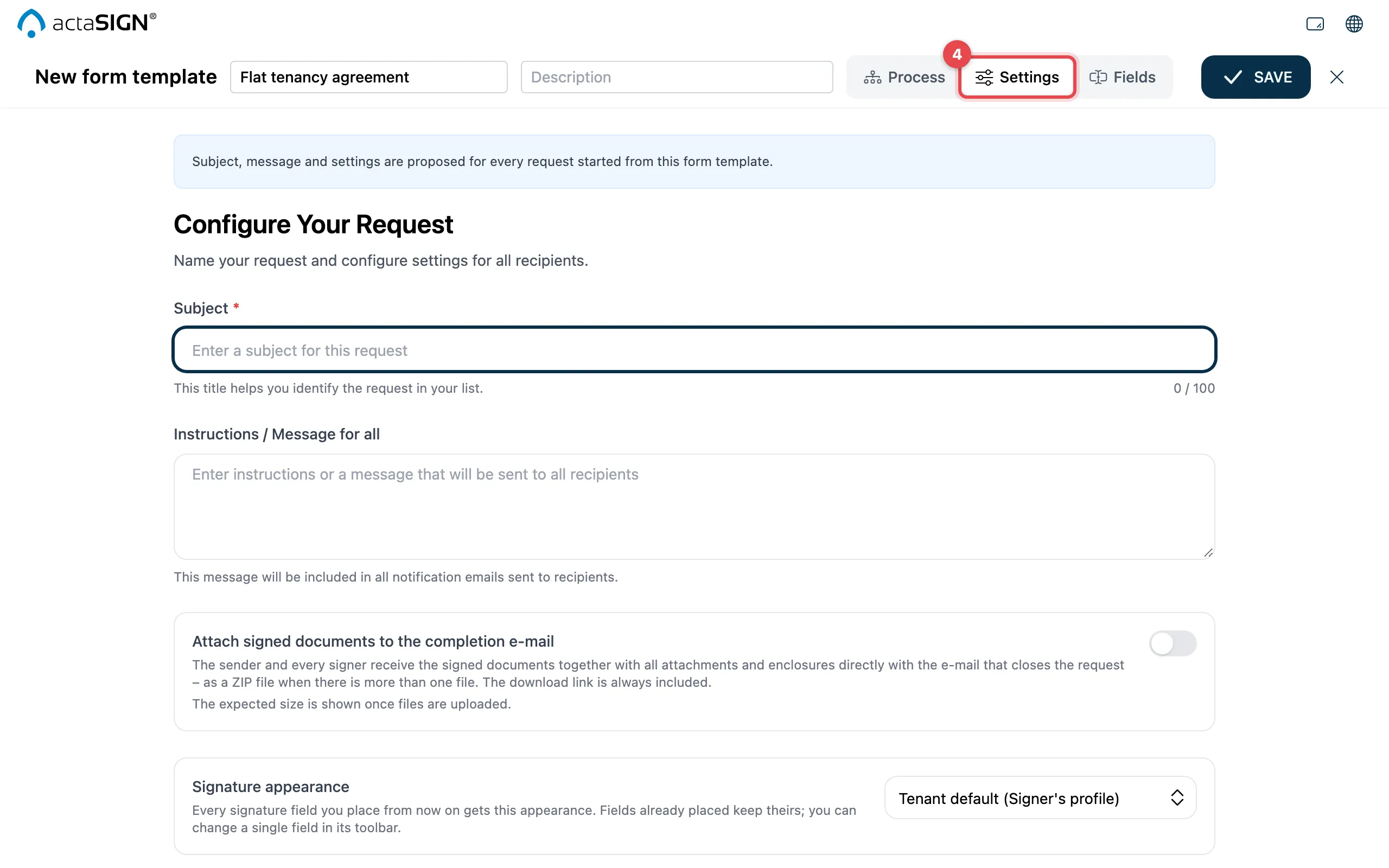
- Under Settings you preset the subject, message and other settings. actaSIGN suggests them for every request made from this template.
Fields
Section titled “Fields”The Fields section shows the document in your organization’s view: classic or Studio.
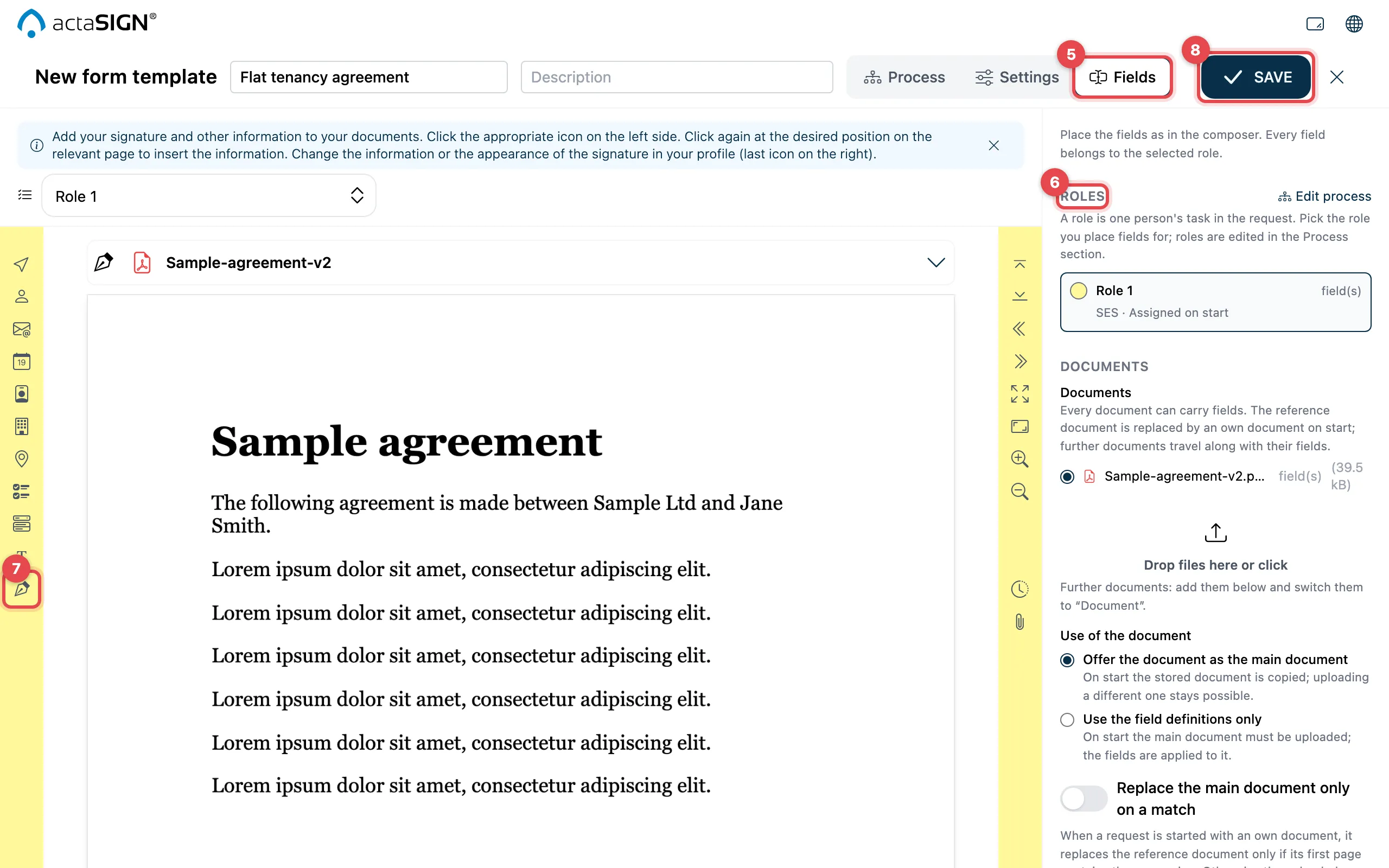
- Open Fields and, under Documents, upload the document the fields are placed on (the reference document).
- On the right under Roles, choose the role whose fields you are placing.
- On the left, choose a field, for example Signature representation or Selection field, and click the spot in the document.
- Click Save at the top.
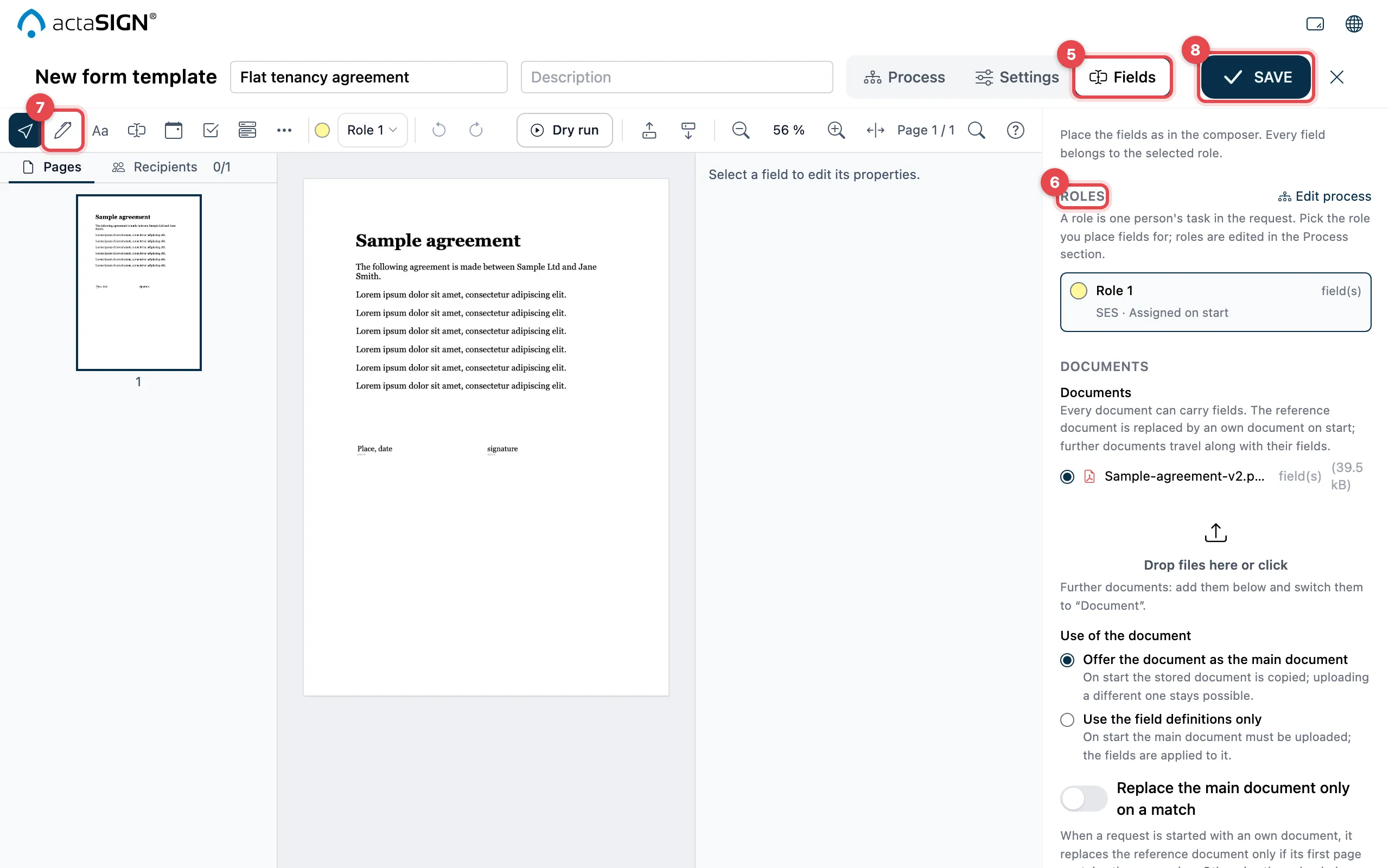
- Open Fields and, under Documents, upload the document the fields are placed on (the reference document).
- On the right under Roles, choose the role whose fields you are placing. The role then also appears at the top under Recipient of new fields.
- In the toolbar at the top, choose a field, for example Signature representation or Selection field, and click the spot in the document. The settings of the field are next to it under Properties.
- Click Save at the top.
With the Dry run you fill in the template as a trial, see Dry run.
How fields find their place and which settings they have is explained under Position and set up fields. Several documents and enclosures: Document of the form template.
Good to know
Section titled “Good to know”- actaSIGN does not save without a name, a role or a reference document. The message appears in red at the top next to the sections.
- If you close with ✕ and have not saved yet, actaSIGN asks Discard changes?.
- In the list, each form template shows the number of steps, roles and fields, and whether a document is included (Document included) or only the fields (Field definitions only).