

Choose the right task type
The task type sets what a person should do and how strong their signature is. The stronger the signature, the more the person needs for it, e.g. a mobile number or an identification.
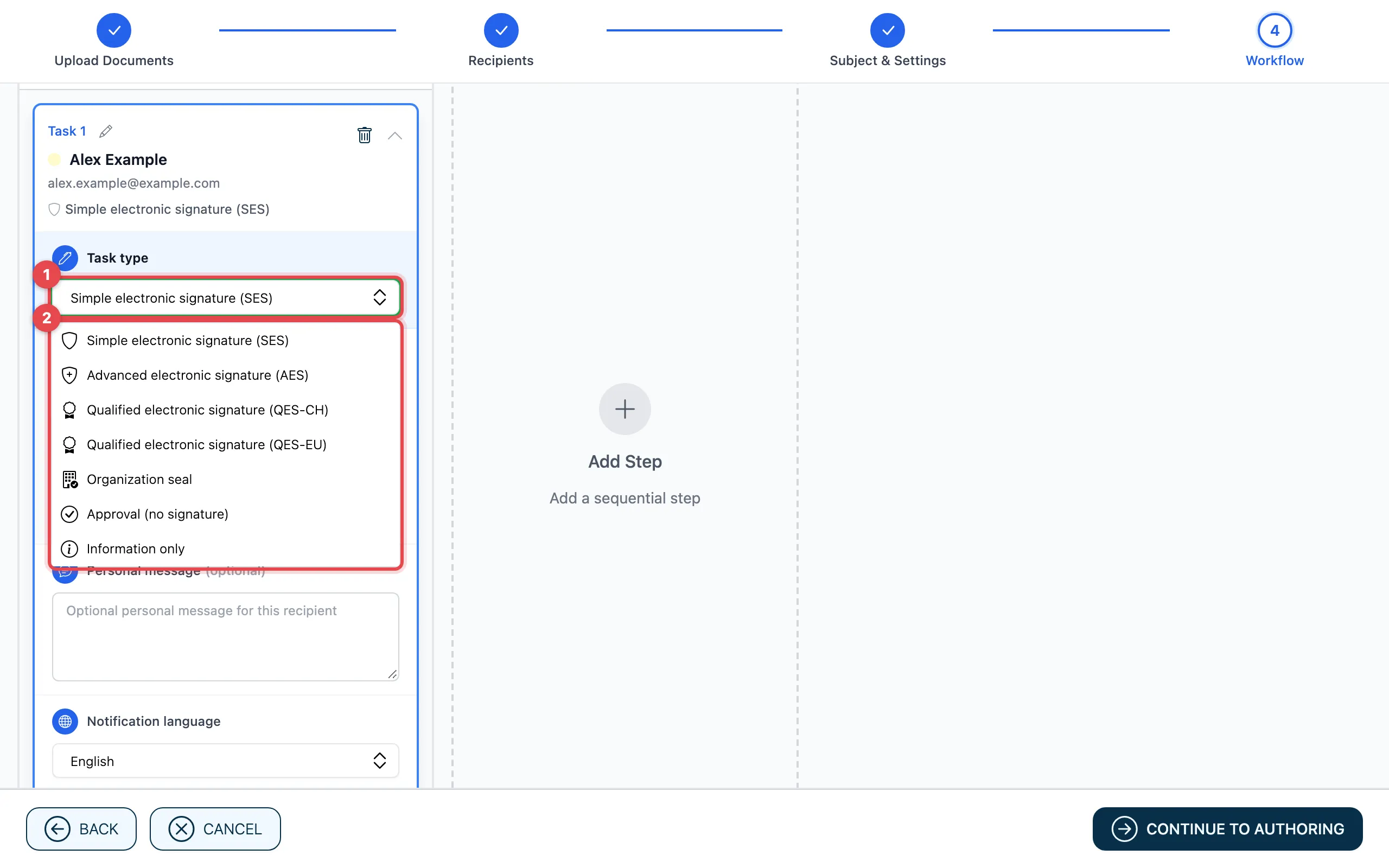
- In the task, click the field under Task type.
- Choose a type from the list (see table).
| Task type | What the person does | What they need |
|---|---|---|
| Simple electronic signature (SES) | Signs with one click. For internal approvals and simple contracts. | Only the e-mail address |
| Advanced electronic signature (AES) | Signs and confirms with a code by SMS. The signature is clearly linked to the person. | Mobile number |
| Advanced electronic signature CH (AES CH) | Like AES, confirmed via Swisscom. | Swiss mobile number (+41) |
| Qualified electronic signature (QES-CH) | Replaces the handwritten signature under Swiss law. | Mobile number and an identification with Swisscom (Mobile ID) |
| Qualified electronic signature (QES-EU) | Replaces the handwritten signature under EU law. | Mobile number and an identification with Swisscom |
| Organization seal | Applies the organization’s seal, not a person’s signature. | A member who has been assigned a seal |
| Approval (no signature) | Agrees without signing. | Only the e-mail address |
| Information only | Gets the document for information and does not have to do anything. | Only the e-mail address |
Enter the mobile number
Section titled “Enter the mobile number”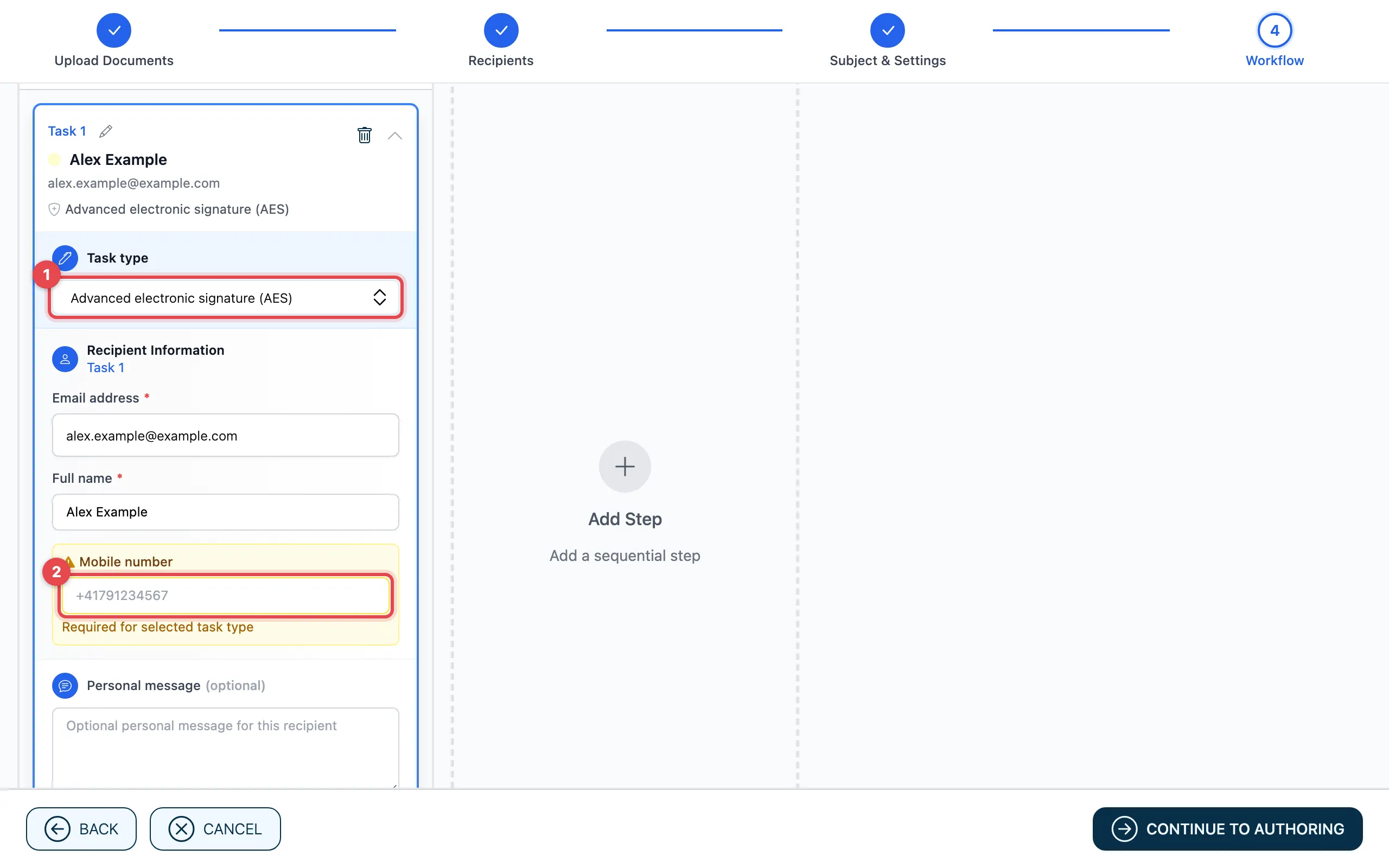
With AES, AES CH and QES, the Mobile number field appears (1, 2). Enter the number with the country code, e.g. +41791234567.
- If you leave the field empty, actaSIGN takes the mobile number from the person’s profile when they sign. If there is none, actaSIGN asks them for it. The notice Required for selected task type below the field does not stop you from sending.
- With Advanced electronic signature CH (AES CH), only Swiss numbers are possible.
Organization seal
Section titled “Organization seal”As recipient, choose a member who has been assigned a seal, then choose the seal under Seal. If it says Select a member assigned to a seal first., the person has no seal.
Good to know
Section titled “Good to know”- With Approval (no signature) and Information only, you do not place signature fields for this person.
- A person with Information only gets a link to the result at the end. You can switch this off, see Link to the result.
- How the person confirms for each type is described in Sign a document.