

Add your signature
Your handwritten signature appears in the signature field if the chosen appearance shows it. You capture it once and then use it again and again.
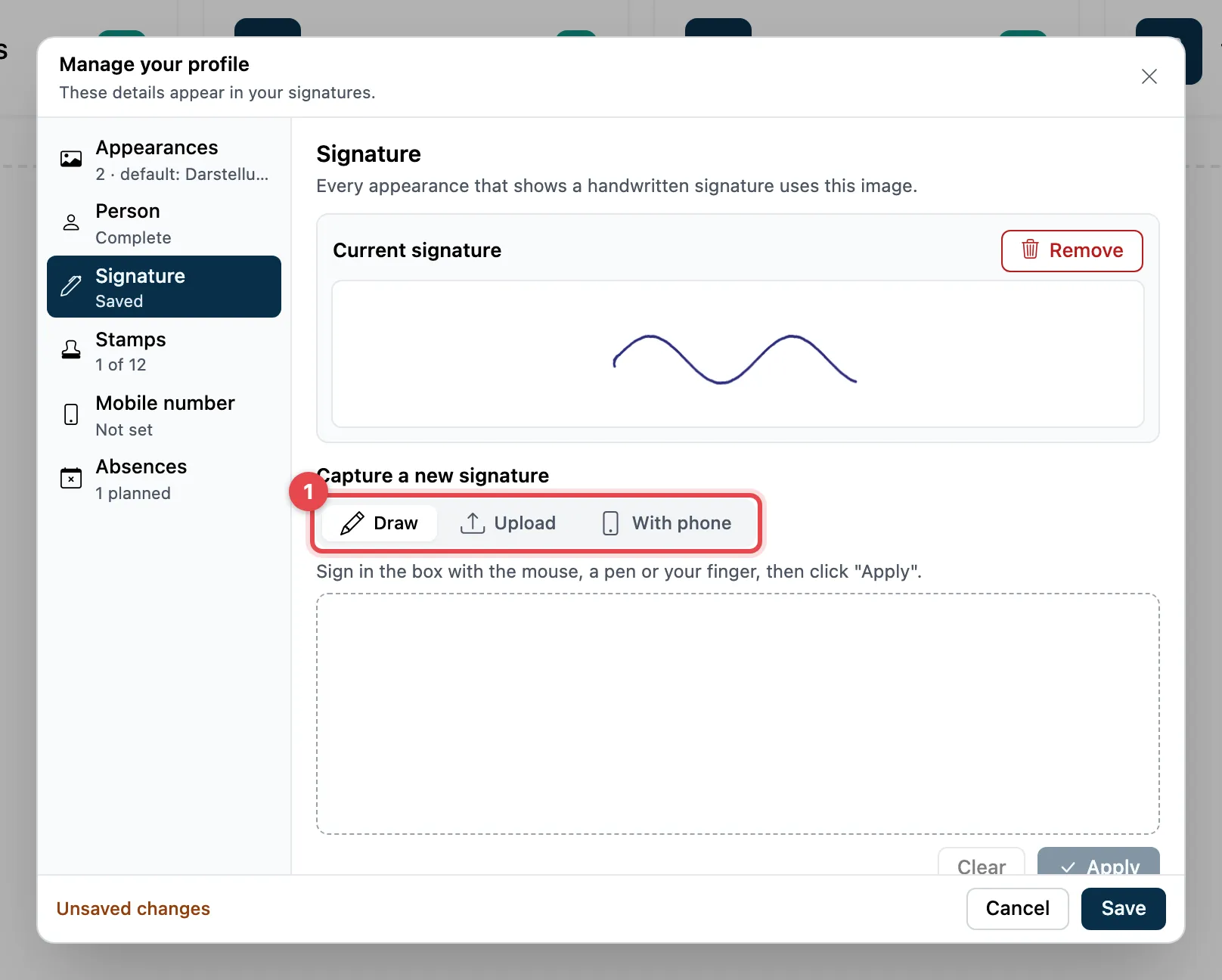
- Under How to capture it, choose how you sign:
- Draw: sign in the field with your mouse, a pen or your finger, then Apply. Clear starts again.
- Upload: an image of your signature (PNG, JPG or SVG). A white background is removed automatically.
- With phone: sign on your phone (see below).
- At the top, under Current signature, you see the result.
- Click Save at the bottom.
Sign on your phone
Section titled “Sign on your phone”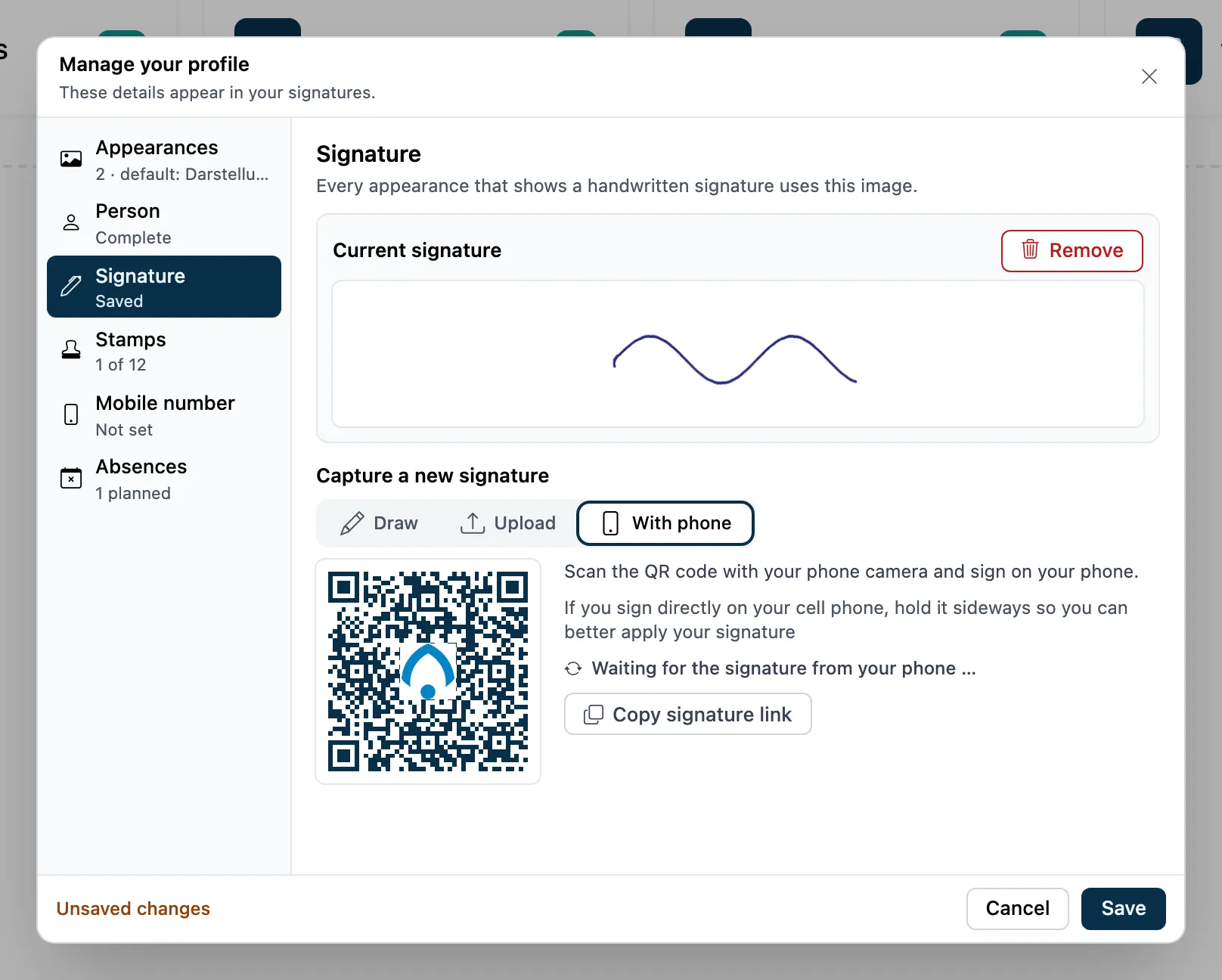
- Choose With phone. A QR code appears.
- Scan it with your phone’s camera. The signing page opens on your phone.
- Sign in the white field and tap Apply.
- On your computer, «Signature from your phone applied.» appears. Click Save.
If you cannot scan the code, copy the link with Copy signature link and open it on your phone.
Good to know
Section titled “Good to know”- Remove deletes the stored signature. Documents that are already signed keep it.
- A PNG with a transparent background looks best.
- Hold your phone sideways to sign; that gives you more space.