

Advanced settings of a request
actaSIGN fills in all settings of a request with sensible values. You do not have to change anything. This page explains what you can adjust: who follows the request, when reminders go out, by when the request should be done and which e-mails you get.
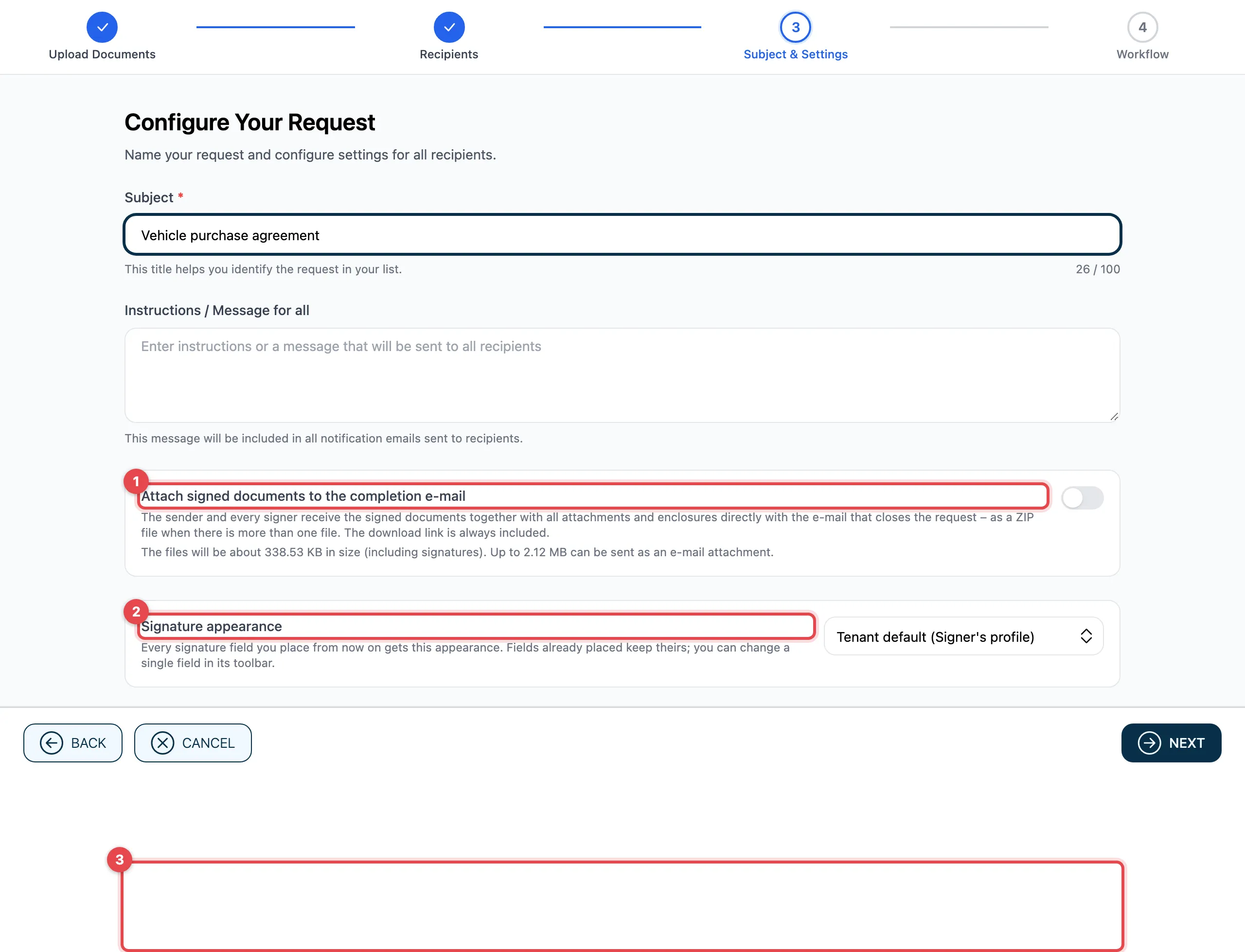
- Attach signed documents to the completion e-mail: see below.
- Signature appearance: see below.
- Show advanced settings opens the other settings. You always see the green box Smart defaults applied above it: it shows reminders, retention and archiving at a glance.
Owners & Observers
Section titled “Owners & Observers”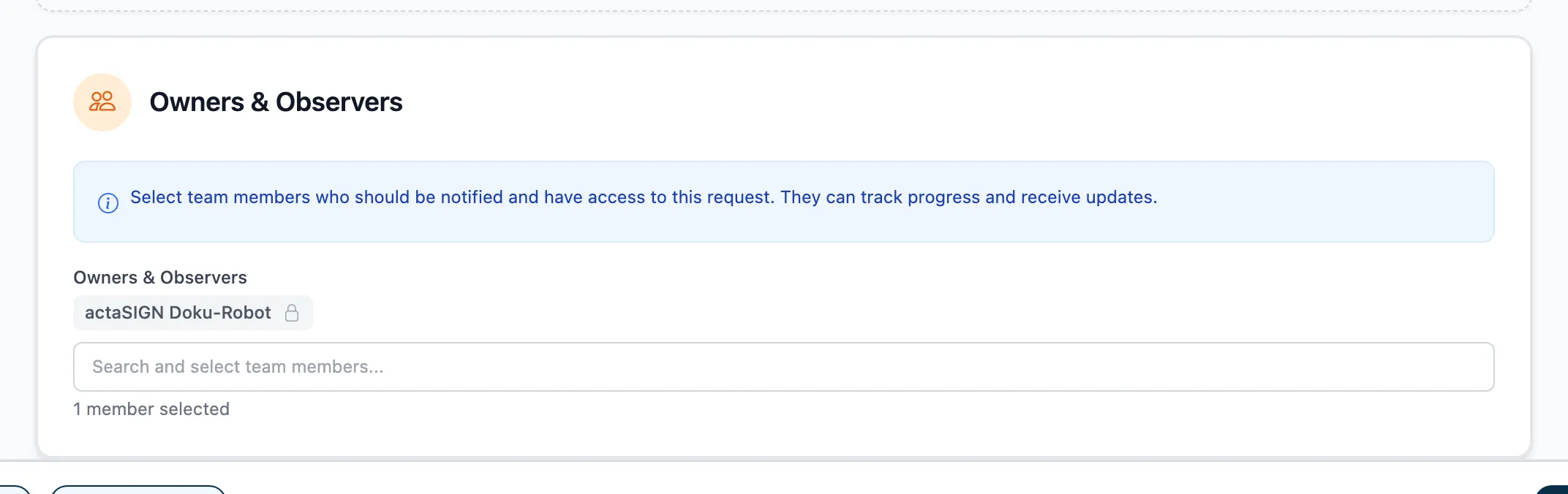
Here you add people who follow the request. You yourself are always in the list and cannot remove yourself. Click into the field Search and select team members… and choose a person from the list.
- The list shows members of your organization, contacts and earlier recipients. You cannot type in a new address.
- You do not choose a role. Everyone is added to the list in the same way.
- Members of your organization in the list see the request under Requests and may manage it.
- They only get e-mails about the request if you switch on Also notify observers, see Notifications.
- You cannot continue without an owner.
Settings
Section titled “Settings”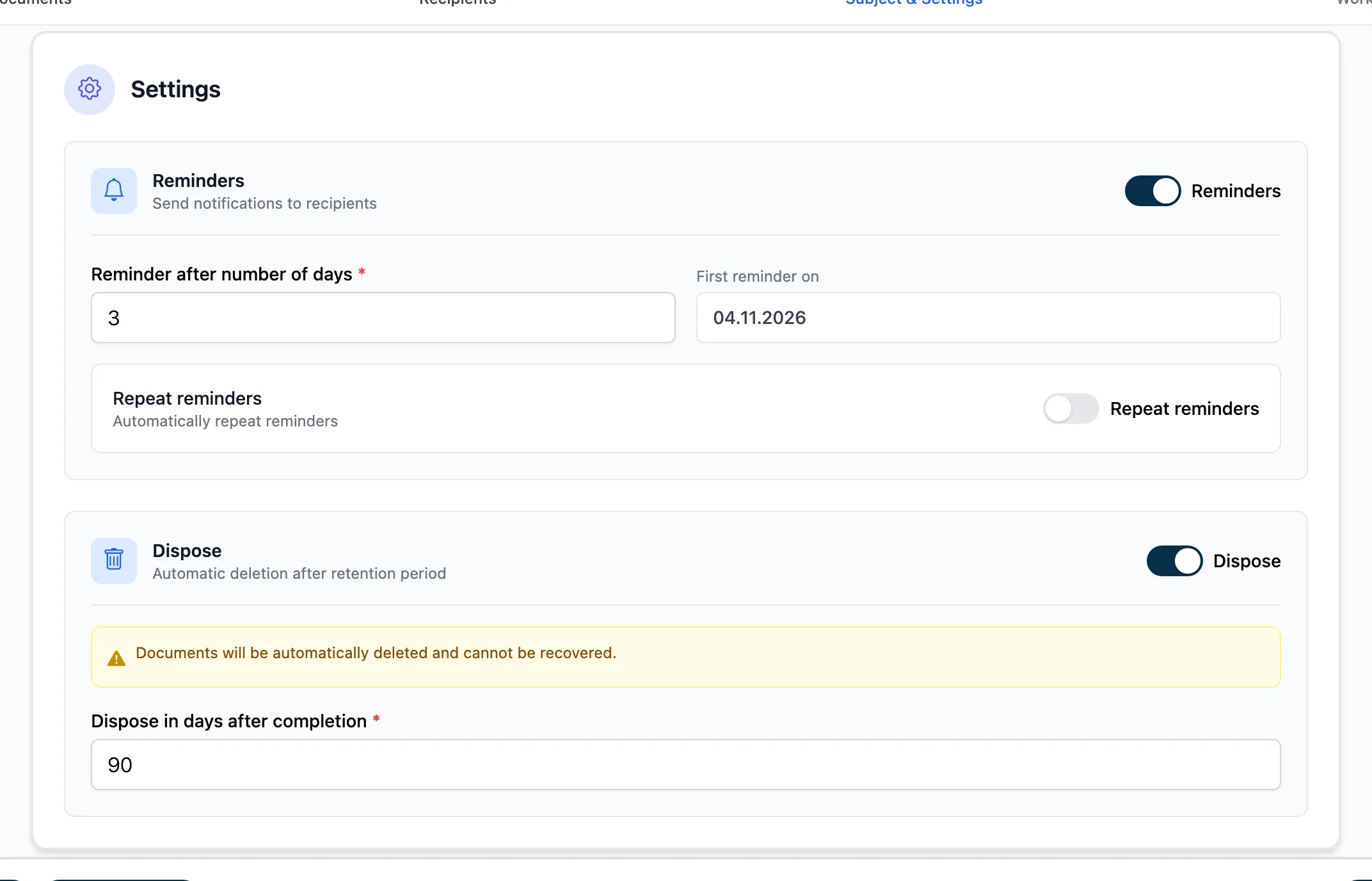
| Setting | What it does | Default |
|---|---|---|
| Reminders | Sends a reminder to recipients who have not finished yet, after Reminder after number of days. With Repeat reminder it goes out several times (Repeat after number of days, Maximum number of reminders). | on, after 3 days, once |
| Deadline | Sets a deadline (Deadline in number of days). actaSIGN shows on which day it ends. | off |
| Finalize (mark as done) | Automatically marks the request as done after Finalize in days after completion. | off |
| Dispose | Automatically deletes the documents after Dispose in days after completion. Deleted documents cannot be restored. | on, after 90 days |
Notifications
Section titled “Notifications”
Choose for which events you get an e-mail:
| Event | Default |
|---|---|
| Request started | off |
| Request completed | on |
| Request recalled | off |
| Task completed | off |
| Task delegated (forwarded without signing) | on |
| Task signed and forwarded to another signer | on |
| Task declined | on |
| Recipient reminded about a task | off |
With Also notify observers, everyone under Owners & Observers gets the same e-mails as you. Otherwise only you do.
Send documents with the completion e-mail
Section titled “Send documents with the completion e-mail”If the switch is on, you and everyone who signed get the signed documents, attachments and enclosures right with the completion e-mail, as a ZIP file if there are several files. The download link always stays in the e-mail.
Below the switch, actaSIGN shows how large the files will probably be and how much is possible as an e-mail attachment. If the files are already too large without signatures, the switch cannot be turned on.
Signature appearance
Section titled “Signature appearance”Sets how each signature field that you place from now on looks:
- “Tenant default (…)”: your organization’s setting
- Signer’s profile: the way the person has set it in their profile
- Empty (transparent), Signature only, Signature and name, Place, date and signature, Complete without signature, Complete
Fields you have already placed keep their appearance. You change a single field in the document, see Place fields.
Good to know
Section titled “Good to know”- All settings apply to this request only.
- You see who was reminded about a task in the History.