

Enter the subject and message
The subject is the name of the request. It helps you find the request in your list later, and the recipients see it in the e-mail. The message goes to all recipients.
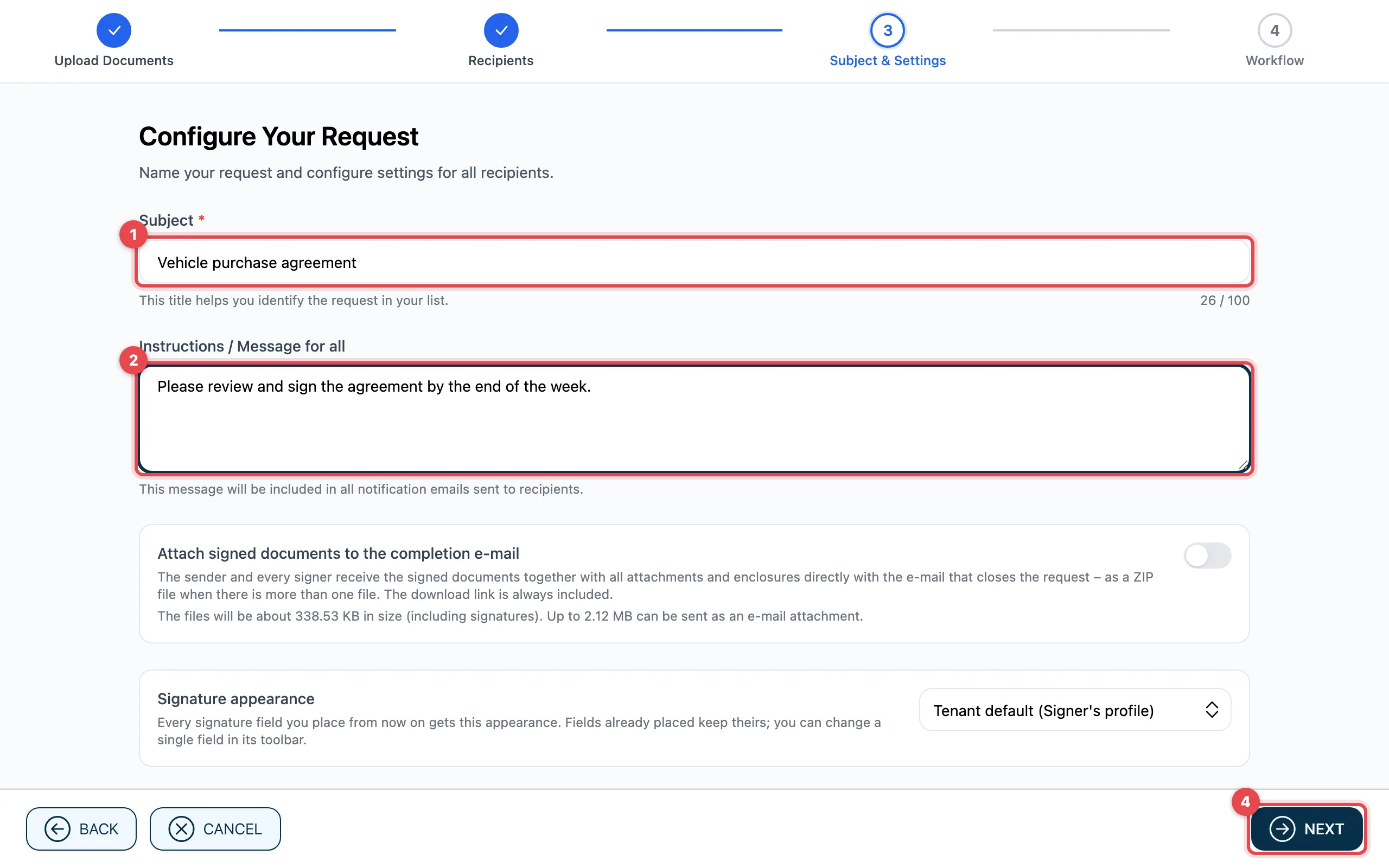
- Enter the Subject (100 characters at most).
- Under Instructions / Message for all, write a message, e.g. by when the documents should be signed. This field is optional.
- With the AI text assistant you can have the message translated, reworded or shortened, or have a draft written. Check the suggestion and click Apply.
- Click Next.
Good to know
Section titled “Good to know”- You cannot continue without a subject.
- The message appears in every notification e-mail to the recipients. To write a message for one person only, use Personal message in the workflow, see Permissions and options of a task.
- Below the message there are more settings, such as Attach signed documents to the completion e-mail. See Advanced settings.