

Sign a document
Once you have read the document and filled in all fields, you sign it. Depending on the signature type, you also confirm with your phone.
- Open the link from the e-mail, see Open the link.
- Read the document and fill in all marked fields, see Fill in fields.
- At the bottom right, open Select and click Sign. For an approval, the entry is called Approve.
- Confirm according to the signature type, see below.
- Process completed appears. Click Close.
If the document opens in Studio, the steps are the same. There, the window also shows at the top where you are: Confirmation (only with a phone), Signature and Result.
The sender is informed. Once everyone involved is done, you receive an e-mail with the link to the result, see Download the result.
Complete your signature details
Section titled “Complete your signature details”If details that your signature should show are missing, actaSIGN asks for them when you open the document. This is usually the case the first time.
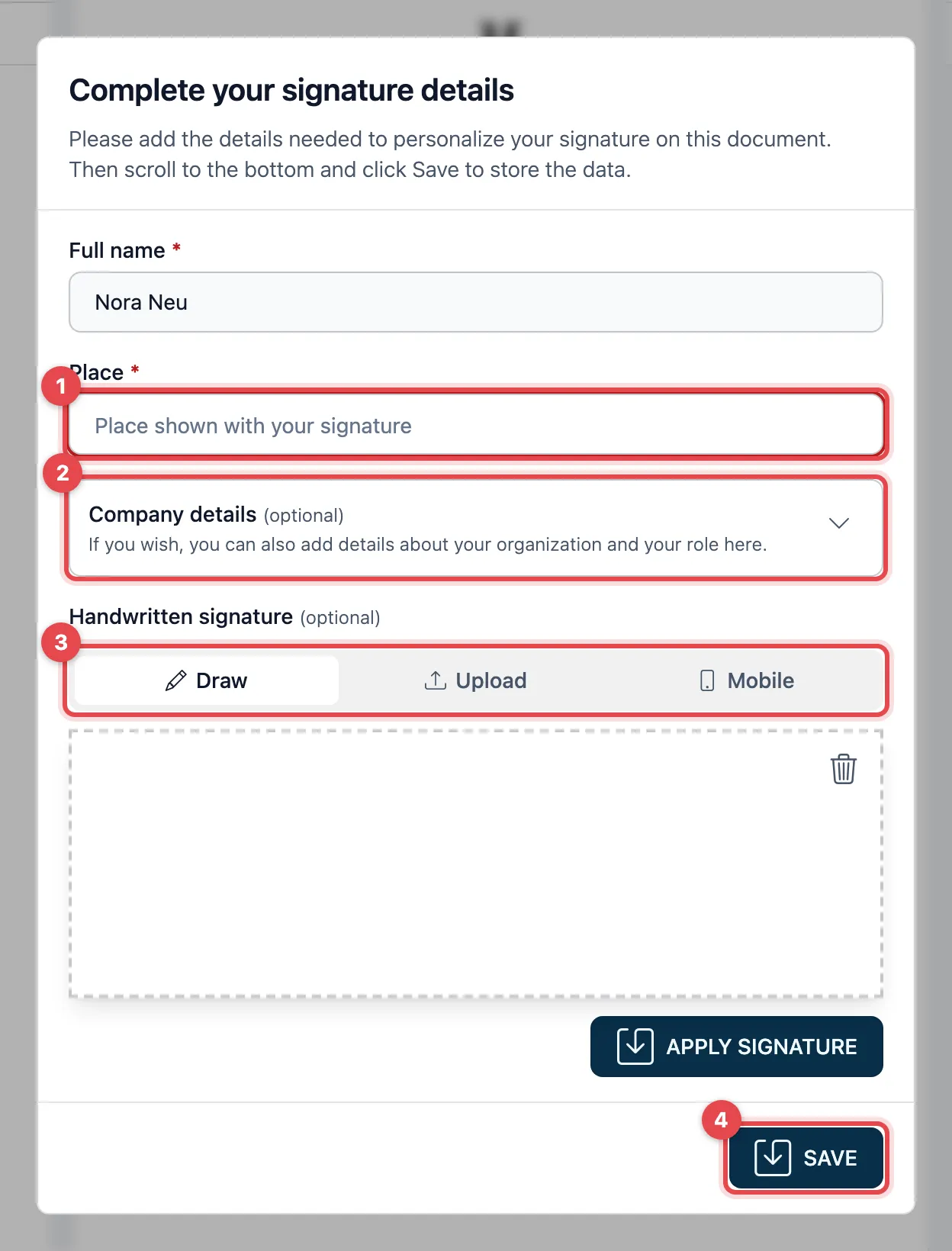
- Enter the Place. It will appear next to your signature later. If actaSIGN asks for your Full name, check it.
- Optional: click Company details and enter Organization and Job title. If you enter an organization, you must also enter your job title.
- Optional: add a Handwritten signature, see Handwritten signature.
- Scroll down and click Save.
actaSIGN saves the details with your e-mail address. For the next document, it only asks for what is missing.
Confirm according to the signature type
Section titled “Confirm according to the signature type”The sender decides which signature type applies. The confirmation comes after you click Sign.
Simple electronic signature: no further step. The signature is created right away.
Advanced electronic signature:
- If neither the sender nor your profile has a mobile number, Mobile phone number appears. Enter your number in international format, e.g. +41701234567, and click Confirm.
- You receive an SMS. Confirmation code via SMS appears. Type in the code and click Confirm.
- If the code is wrong, Wrong confirmation code appears. Click Continue and try again.
Advanced electronic signature CH at Swisscom, only with a Swiss mobile number (+41):
- Confirmation at Swisscom appears. Click Open Swisscom confirmation.
- On the Swisscom page, confirm with your password and the SMS code from Swisscom.
- Return to actaSIGN. The signature is created automatically. If you closed the Swisscom window too early, click Open again.
Qualified electronic signature with the Mobile ID App:
- Approval via Mobile ID App appears, together with a code.
- A message from the Mobile ID App appears on your phone. This can take up to 20 seconds.
- Check that your phone shows the same code, and confirm in the app.
- Are you reading the message on your phone? Afterwards, be sure to return to actaSIGN so that the task is completed.
An approval does not apply a signature. Click Approve under Select. No further step follows.
Sign yourself
Section titled “Sign yourself”Would you like to sign your own document without anyone having sent you a request? See Only me: sign your own document.
Good to know
Section titled “Good to know”- For AES, AES CH and QES you need your phone with reception. For QES, the Mobile ID App must be set up on it.
- After signing, you cannot change anything. If something is wrong, ask the sender to send the request again.
- You do not have to sign a task that is only for information. You do not receive a signing link for it.