

Open or print with actaSIGN
With the actaSIGN program on your computer, you bring a document straight into actaSIGN: by right-clicking a PDF or through the print dialog of any program. The browser briefly asks for your approval, then you sign.
Open a PDF with actaSIGN
Section titled “Open a PDF with actaSIGN”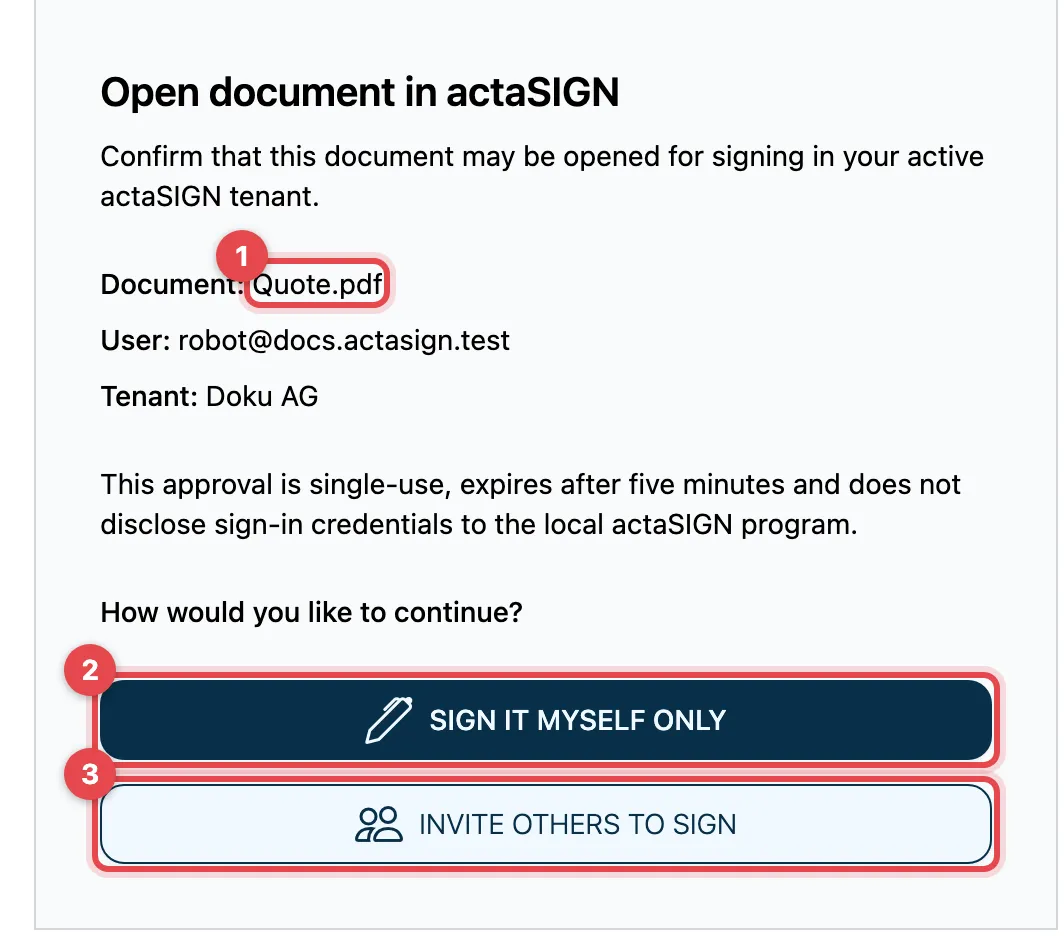
- Right-click a PDF, also a PDF attachment of an e-mail, and choose “Open with” → actaSIGN. Open document in actaSIGN appears in the browser with the file name, user and organization. Check the details.
- Click Sign it myself only. The document opens directly for signing, as described under Only me.
- Or click Invite others to sign. The wizard for a new request opens, with the document already uploaded. See Send a document for signing.
Through the actaSIGN printer
Section titled “Through the actaSIGN printer”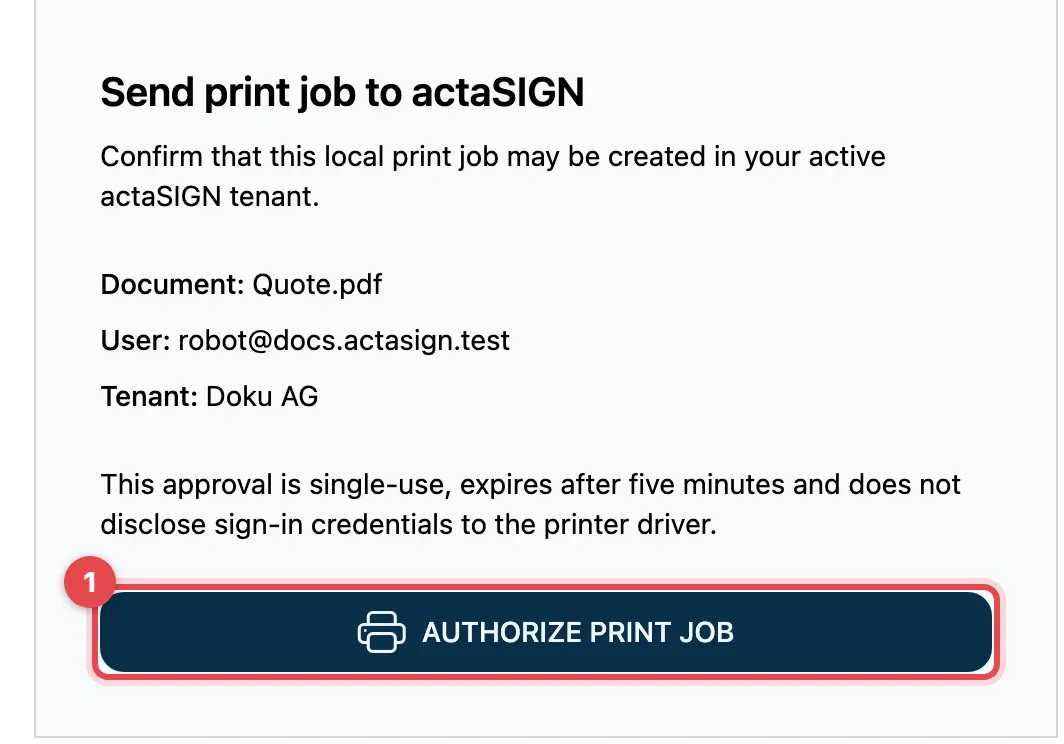
- In the print dialog of a program (e.g. Word or Excel), choose the printer “actaSIGN” and print. Send print job to actaSIGN appears in the browser. Check the document, user and organization and click Authorize print job.
- actaSIGN takes over the PDF and opens the wizard with the settings your organization has set for this.
Good to know
Section titled “Good to know”- The approval works once and expires after five minutes. After that, start the process again.
- The program on your computer receives no sign-in details. It can choose neither the organization nor the sender. The document always ends up in the organization you are currently signed in to (Tenant).
- If the page says the request did not originate from a valid local actaSIGN printer, the page was not opened by the program. Start the process again on your computer.
- The program does not change which program normally opens PDFs.