

Verify your company domain
Verify that an email domain belongs to you (e.g. yourcompany.ch). After
that, people with this domain join your tenant automatically, and you can
set up sign-in with the company account (SSO).
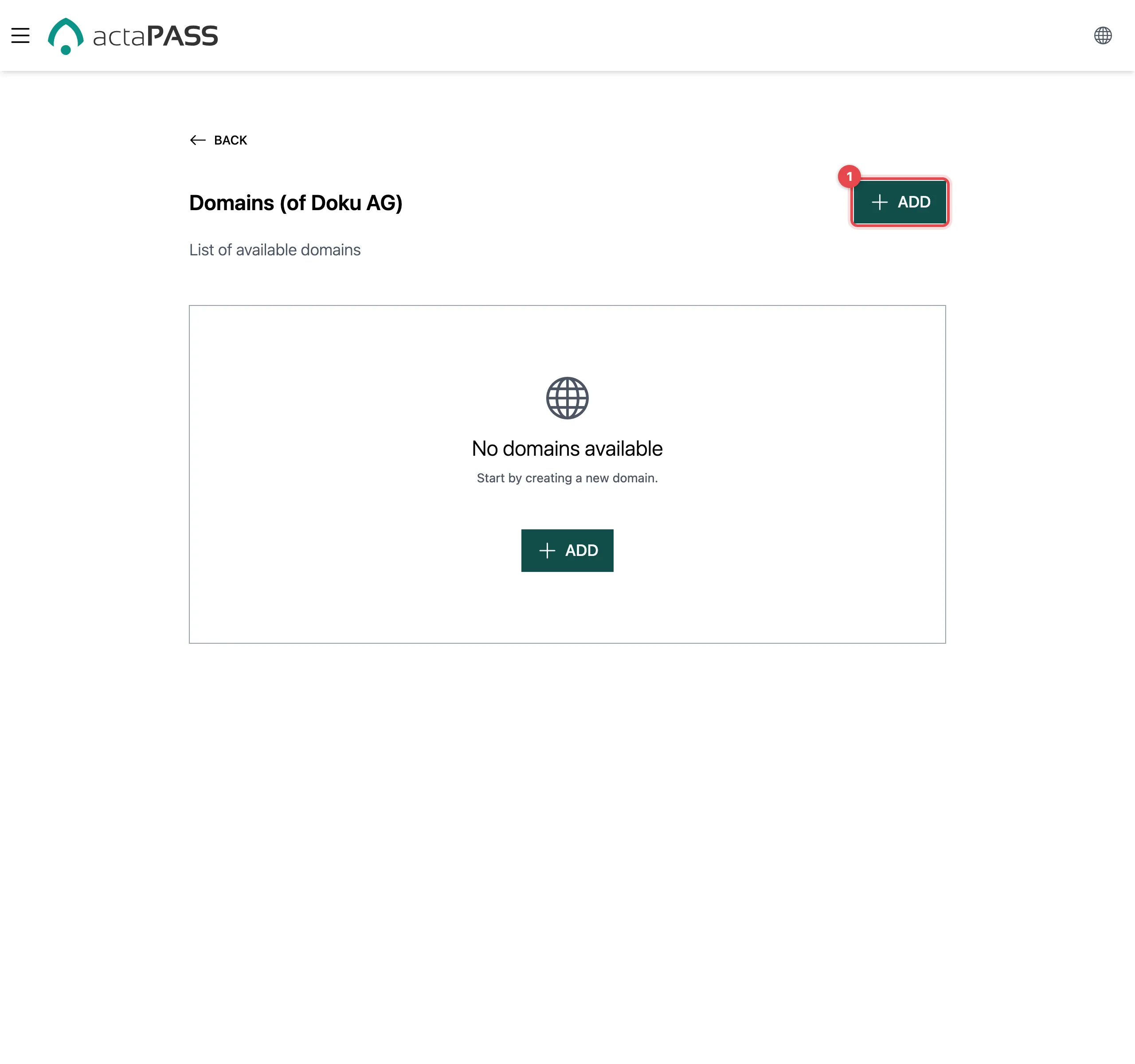
Add a domain
Section titled “Add a domain”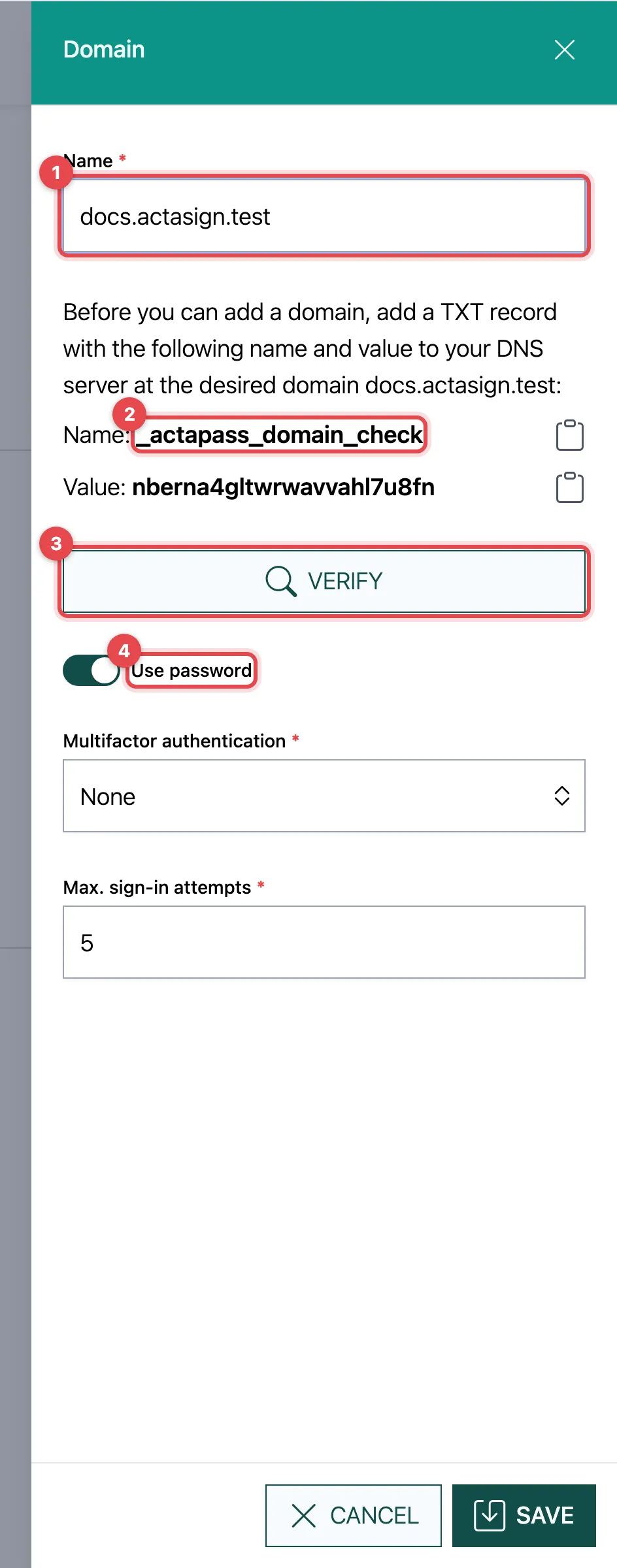
- Click Add and enter the domain under Name.
- actaPASS shows a TXT record: the name
_actapass_domain_checkand a value. Copy both with the icon next to them and add the TXT record in the DNS management of your domain. - Wait until the record is active (often minutes, sometimes hours), and click Verify. If it works, you see Verified on ….
- Set the sign-in rules for addresses of this domain: Use password, Multifactor authentication and Max. sign-in attempts. At least a password or a second factor is required. Click Save.
You can only save once the domain is verified. If you see Unfortunately, the DNS record could not be found., the record is not visible yet; try again later.
What a verified domain does
Section titled “What a verified domain does”- Anyone who signs up with an address of this domain or signs in through an identity provider automatically becomes a member of your tenant.
- People with this domain can no longer create their own company account.
- The sign-in rules apply to people who newly join through this domain. At sign-up, actaPASS sets up the password and second factor as the domain requires. Anyone who newly joins through an identity provider gets all three values in their membership. Existing members do not change; you set their values under Members.
- Only a verified domain assigns people.
Good to know
Section titled “Good to know”- actaPASS shows domains that were verified through Microsoft 365 or Google, but you can only change or delete them in actaSIGN under Microsoft 365 / Google.
- Under ⋮ → Identity providers, you set up sign-in with the company account for this domain.
- ⋮ → Delete removes the domain at once and for good.