

Have fields placed with placeholders in the PDF
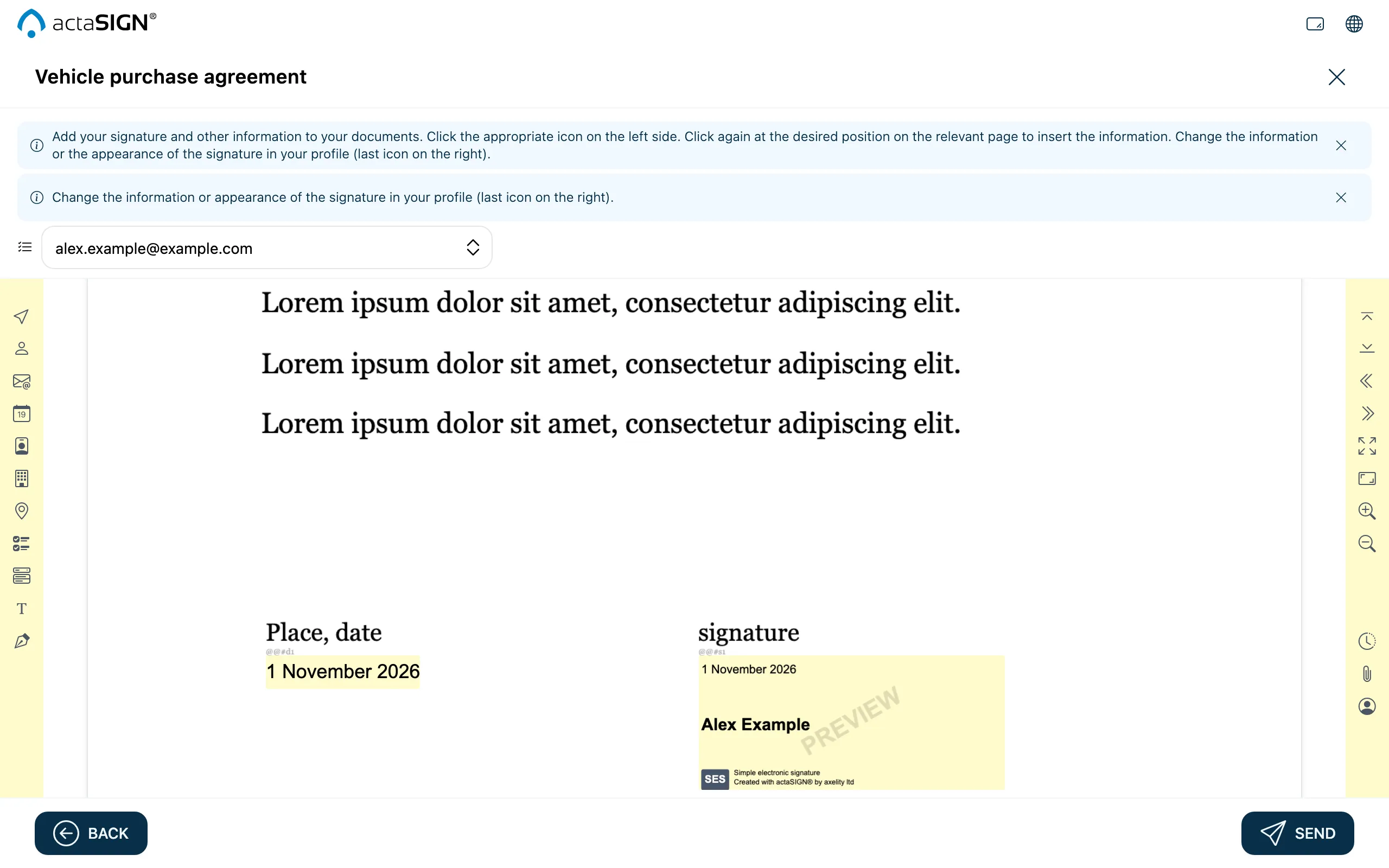
If you often send the same kind of document, write placeholders straight into the master copy of your document, e.g. in Word. actaSIGN finds them when it opens the document and places the fields at that spot. You only need to check them.
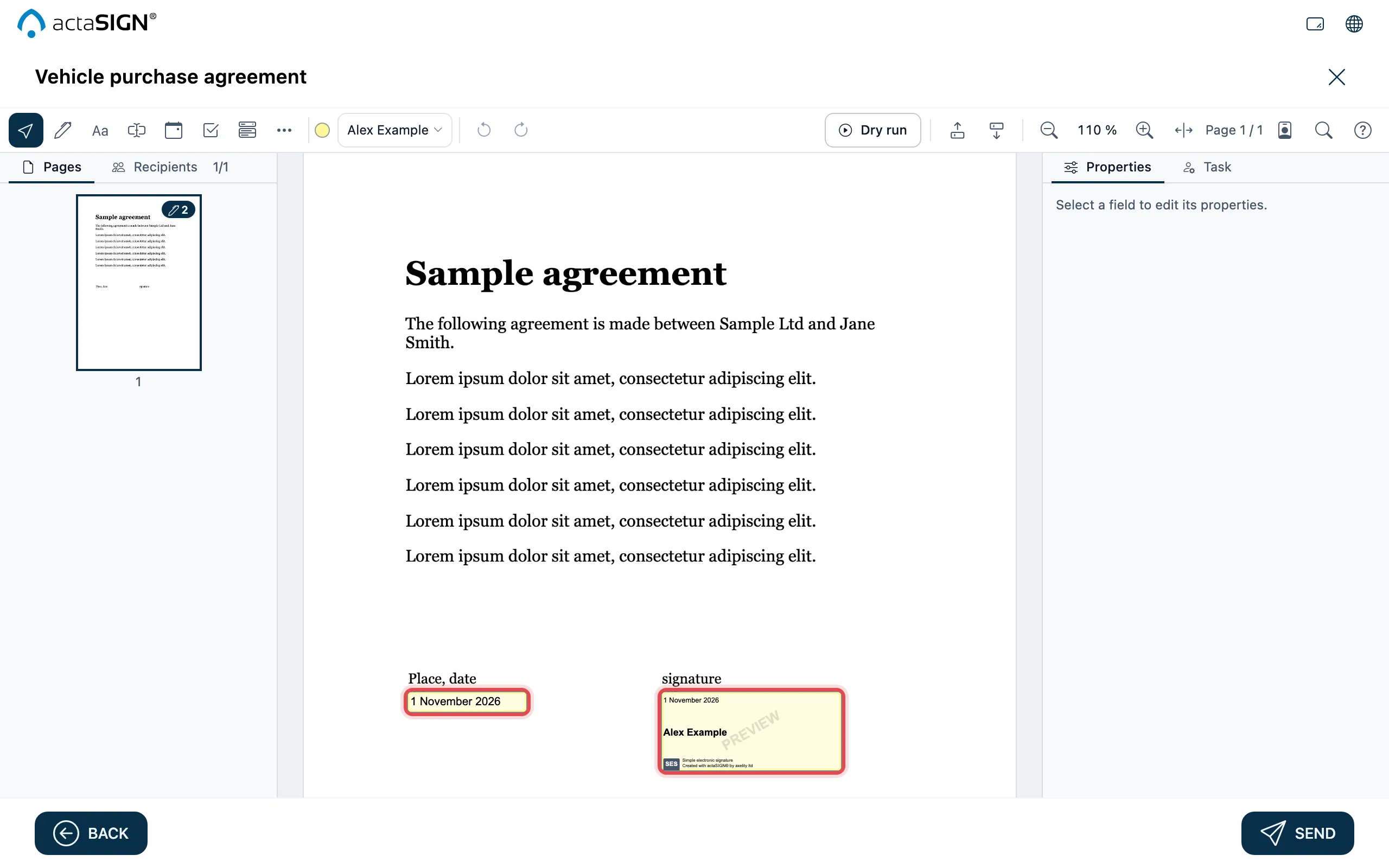
In Studio, the Recipients tab on the left shows whether each person has their signature (Ready).
- At the spot for the field, write a placeholder:
@@#, then a letter for the field, then the number of the person, e.g.@@#s1. - Create the PDF and upload it as usual.
- After Continue to Authoring, the fields are at the placeholders. Check them and move them if needed.
The letters
Section titled “The letters”| Letter | Field |
|---|---|
s |
Signature |
n |
Full name |
d |
Signing date |
o |
Organization |
l |
Locality |
t |
Job title |
i |
Initials |
The number
Section titled “The number”The number is the person’s position in the workflow: 1 is the first person
who signs, 2 the second, and so on up to 10. People with
Approval (no signature) or Information only do not count.
Example: a contract between two parties has @@#s1 and @@#d1 for the first
party and @@#s2 and @@#d2 for the second.
Good to know
Section titled “Good to know”- Placeholders are only searched for in files that are a Document (to sign), and only in PDFs up to 16 MB.
- A placeholder must be text in the PDF. actaSIGN does not find it in a scanned image.
- To keep the placeholder from being visible, write it small and in white.
- There is no
@@#s11: the highest number is 10.