

Studio: the new document screen
Studio is the new screen for documents in actaSIGN. It replaces the screen where you place fields and the screen where you sign. The steps before it (upload documents, recipients, subject, workflow) stay the same, see Create a signing request – overview.
The workspace
Section titled “The workspace”After Continue to Authoring, the document opens in Studio.
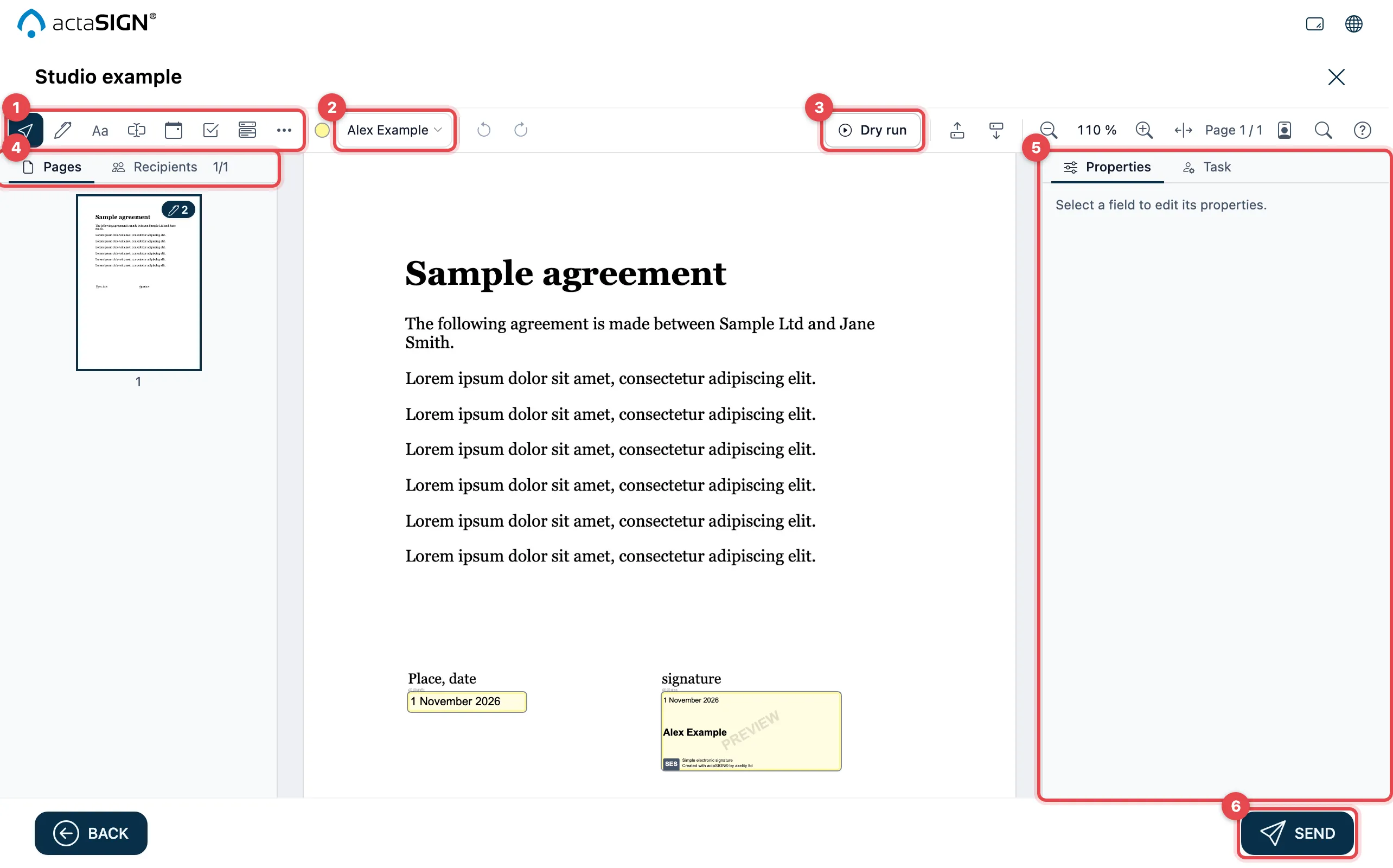
- Tools: the fields you place in the document.
- Recipient of new fields: who the next field is for. Each person has their own colour.
- Dry run: check that the request works the way you want.
- Pages and Recipients: page overview and a check for each person.
- Properties and Task: settings of the selected field and of the task.
- Send: the request goes to the recipients.
Studio in this help
Section titled “Studio in this help”Where Studio differs from the classic view, the pages of this help show both. Choose the “Studio” tab above the picture. Your choice applies to all pages and is kept for your next visit.
| You want to … | Page |
|---|---|
| place and set up fields | Place fields in the document |
| check fields from placeholders in the PDF | Placeholders in the PDF |
| send the request | Send a request |
| sign a document only yourself | Only me |
| place the fields of a form template | Create a form template |
| align the fields of a form template with a text | Fields of a form template |
| open and view a document you received | Open the link |
| fill in fields and use Your tasks | Fill in fields |
| view the enclosures | View and add enclosures |
| decline a task | Decline a task |
| delegate a task | Delegate a task |
| get a second signature | Get a second signature |
Check the recipients
Section titled “Check the recipients”In the Recipients tab (1) you see, for each person, which fields they have and whether everything is ready.
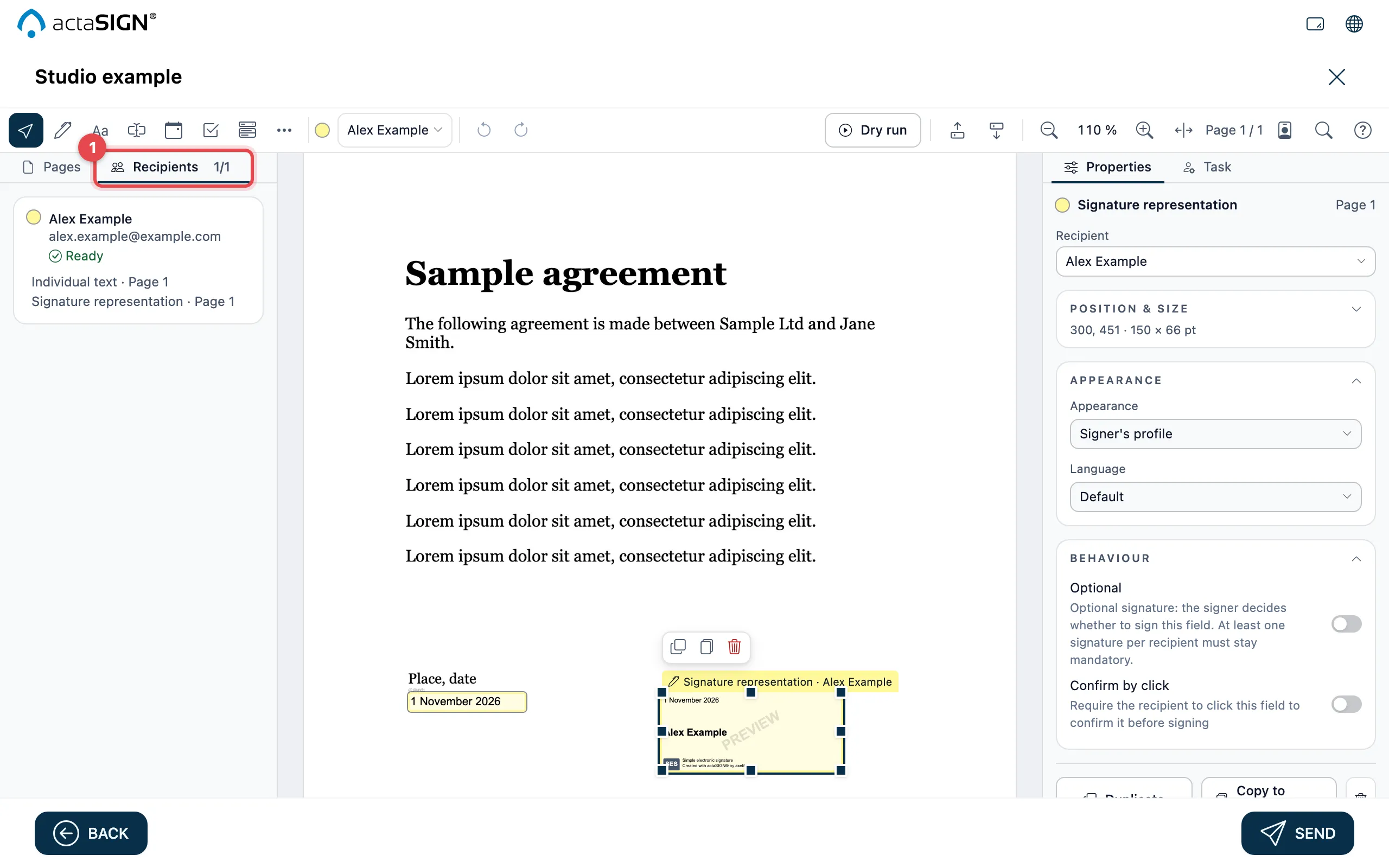
If a person shows No signature field, they still need a signature. You can only send once everyone is Ready.
Dry run
Section titled “Dry run”With the Dry run you fill in the document the way a person would. This shows you whether required fields and dependencies are set up correctly before you send. The dry run is only available in Studio.
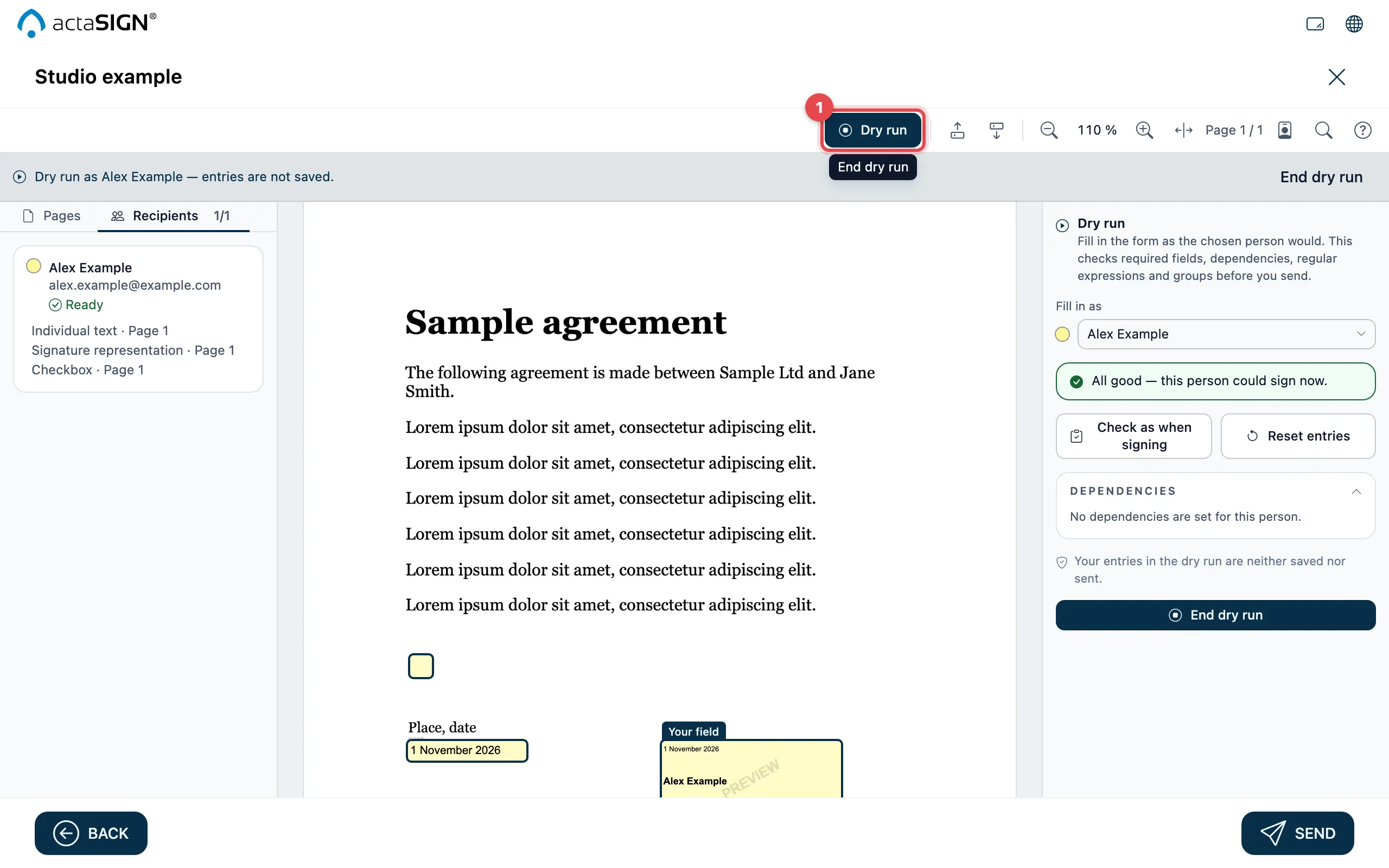
- Click Dry run.
- On the right, under Fill in as, choose the person.
- Fill in the fields. With Check as when signing, actaSIGN checks everything just as it does for a real signature.
- Finish with End dry run (1).
Your entries in the dry run are neither saved nor sent.
Signing in Studio
Section titled “Signing in Studio”When someone opens a task in Studio, they see the document with their own fields, the Your tasks list on the left and Next field at the top. Signing works as before, under Select → Sign. The pages about signing show both views:
- Open the link and view the document: the layout of the page in Studio
- Fill in fields: Your tasks and Next field
- Sign a document: the signing itself
The Complete your signature details form and the choice of the signature representation when signing together stay the same. People who come through the link in the e-mail also see the question for a password or code and the messages about a completed or cancelled task in the classic form.
Who sees Studio
Section titled “Who sees Studio”- Members of your organisation see Studio as soon as it is switched on for everyone or released for them personally.
- People who open a task through the link in the e-mail see the view the request was created with. So a request from Studio opens in Studio, even if their own organisation does not use Studio.
- A screen never changes while you are working: if Studio is switched on, you see it the next time you open a document.
Switch on Studio
Section titled “Switch on Studio”For administrators of your organisation:
- Open Administration and then Defaults.
- Switch on New document screen (Studio) for all members.
- Click Save.
Would you like to try Studio with a few people first? Under Members, choose Release Studio for the person. See Enable templates, mass send, AES CH and Studio and Members.