

View the history of a request
The history shows all steps and tasks of a request with their state: who has already finished, whose turn it is and who is still waiting. Here you can also change a recipient, for example if an email address turns out to be wrong.
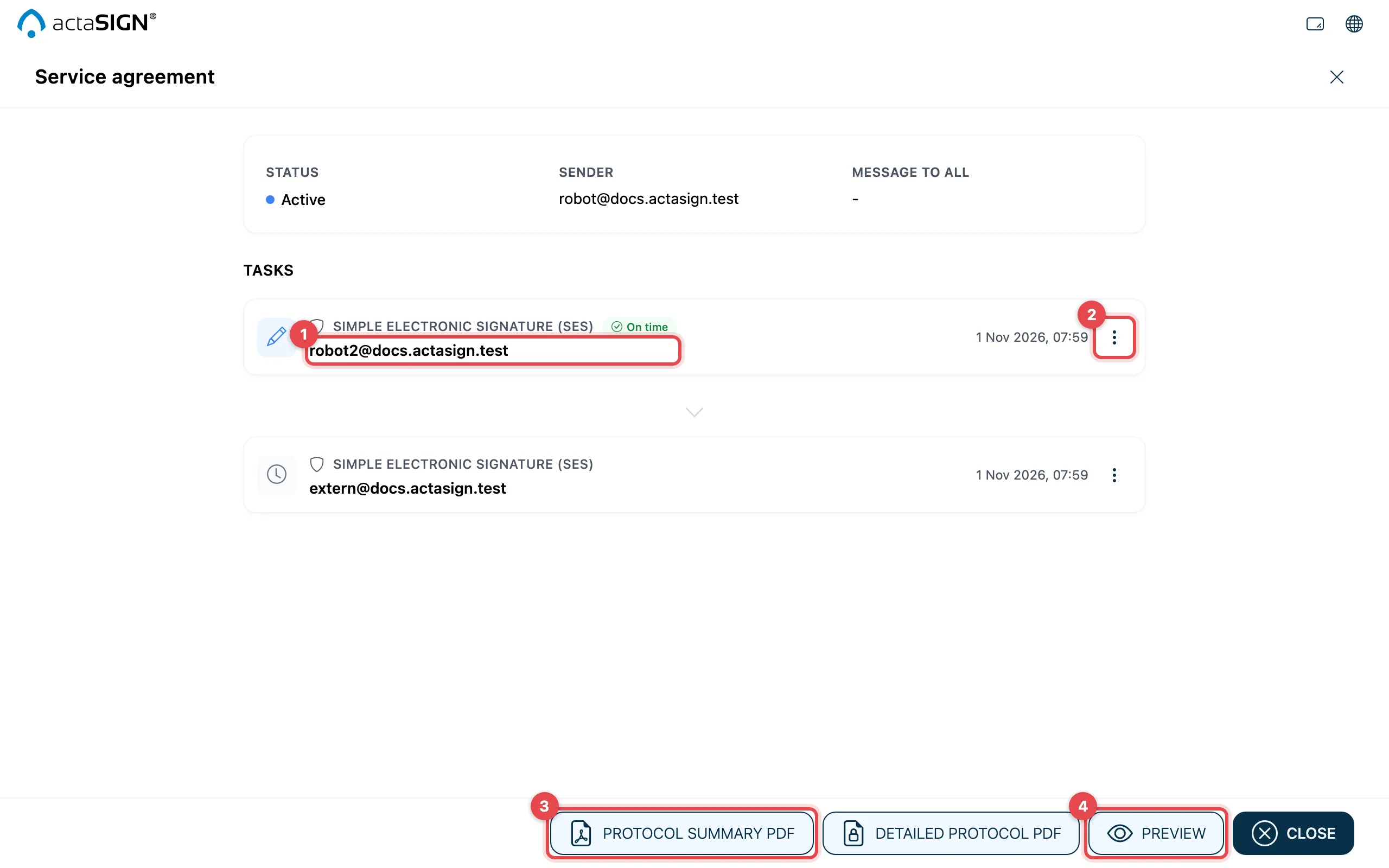
- Each task shows the person, task type, status and date.
- The three dots on the right open the task so you can change it (only for tasks that are still open).
- At the bottom you download the Protocol summary PDF or the Detailed protocol PDF.
- With Preview you view the documents.
For a done request, Download is also shown at the bottom. With Close or the cross at the top right you go back to the list.
Details of a task
Section titled “Details of a task”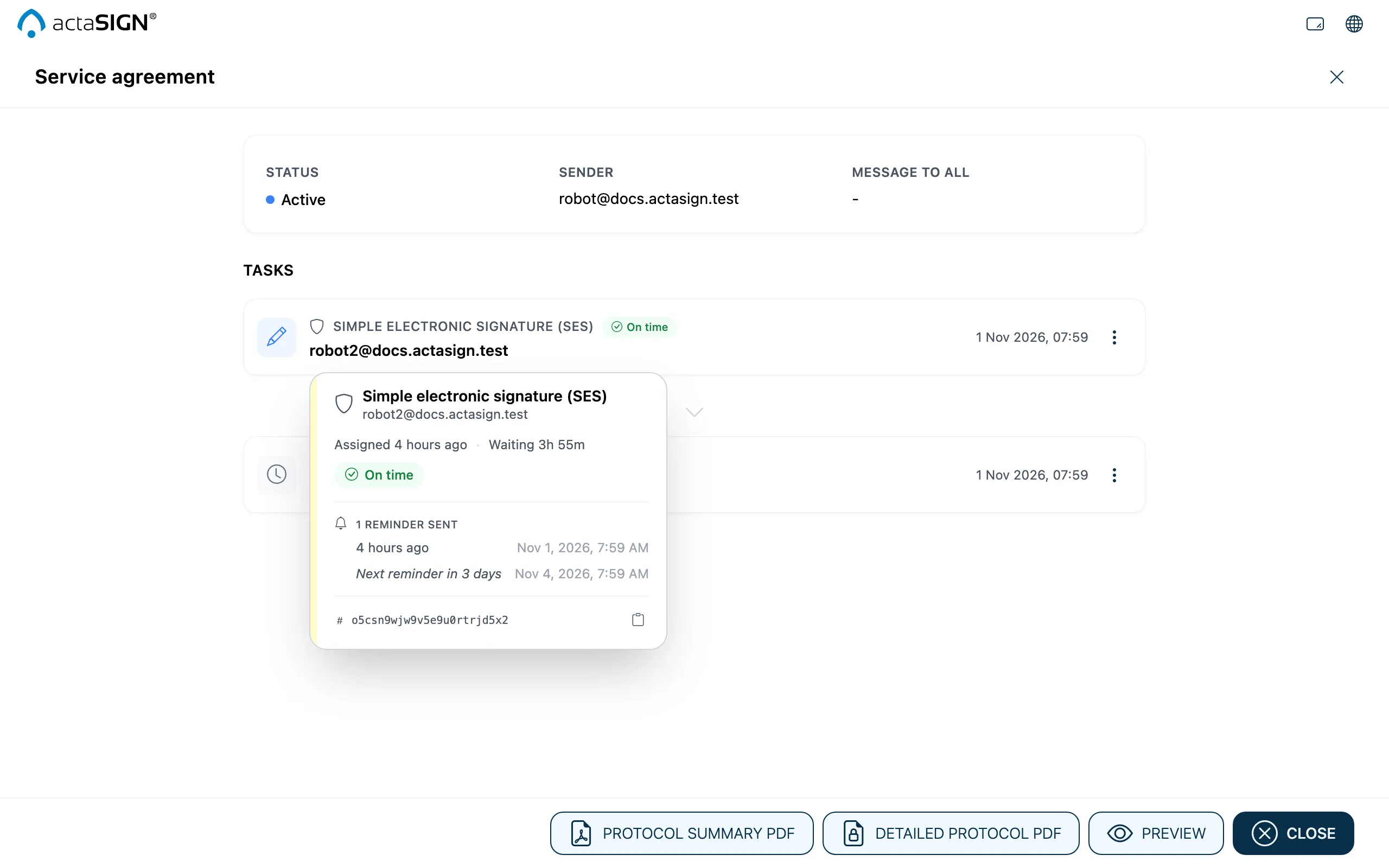
Move the mouse over a task. A card shows, for example, since when it has been the person’s turn (“Waiting …”), how many reminders have been sent, when the next one follows and whether the deadline has passed (On time, Due soon, Overdue). Under Recipient can also you see what the person may do besides signing. If someone has declined, you see the reason.
Change a recipient or task
Section titled “Change a recipient or task”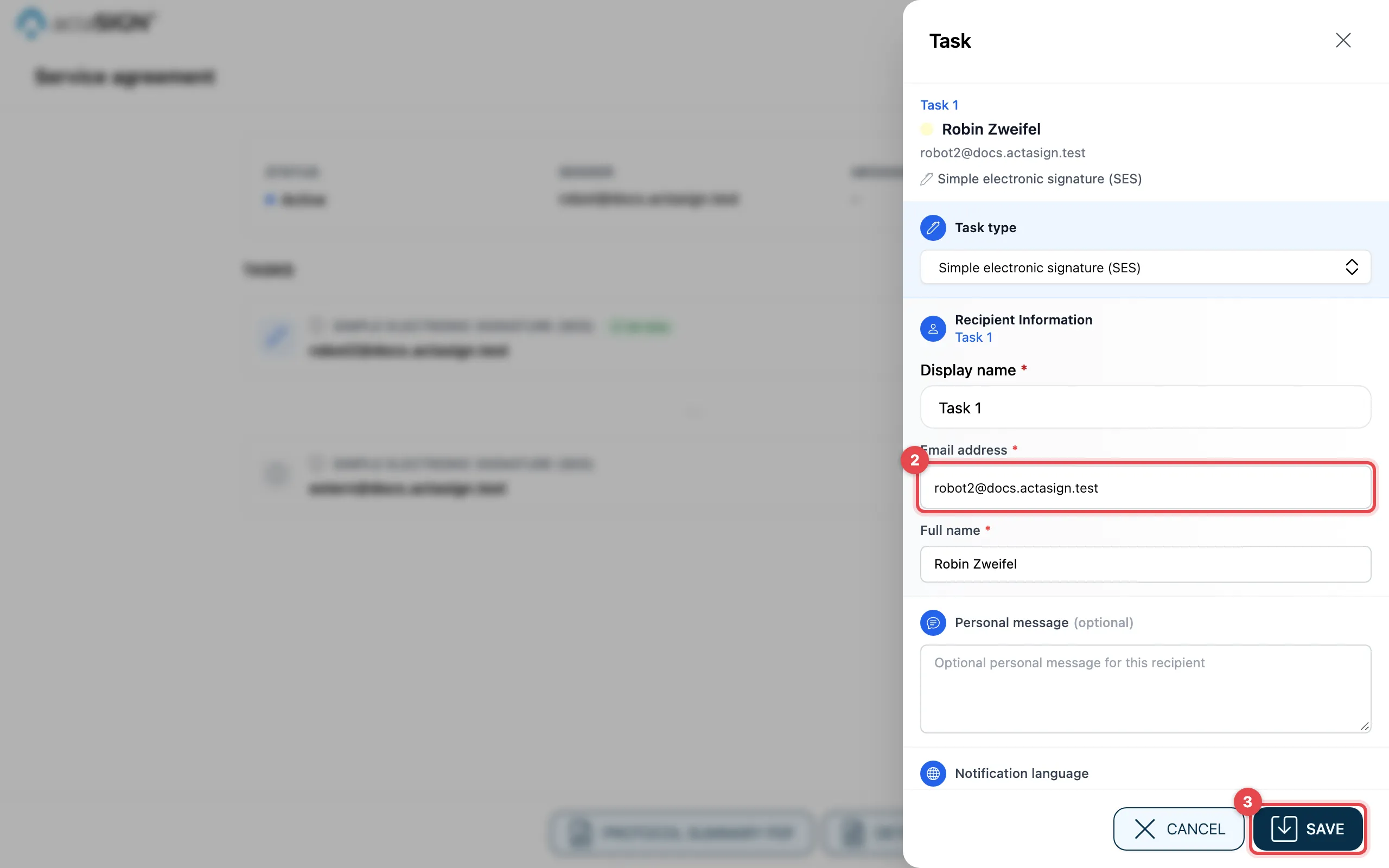
- Click the three dots next to the task.
- Change, for example, the Email address, the Full name, the Personal message or the Task type.
- Click Save. With Cancel you discard the change.
If you change the details of the person, for example the email address or the name, the old link no longer works. actaSIGN creates a new link. If it is the task’s turn right now, the person gets an email with the new link right away. Otherwise the email comes as usual as soon as it is the task’s turn. If you only change the message or the Task type, the link stays valid.
Good to know
Section titled “Good to know”- You can only change a task that is not done yet.
- If actaSIGN could not save the change, the form stays open and shows “The task could not be saved.” Your input is still visible. Close and reopen the form to discard it.