

Set up strong authentication
Some senders protect a task further: before you sign, you confirm that it is you with a Passkey or a code from your Authenticator app. You set this up here.
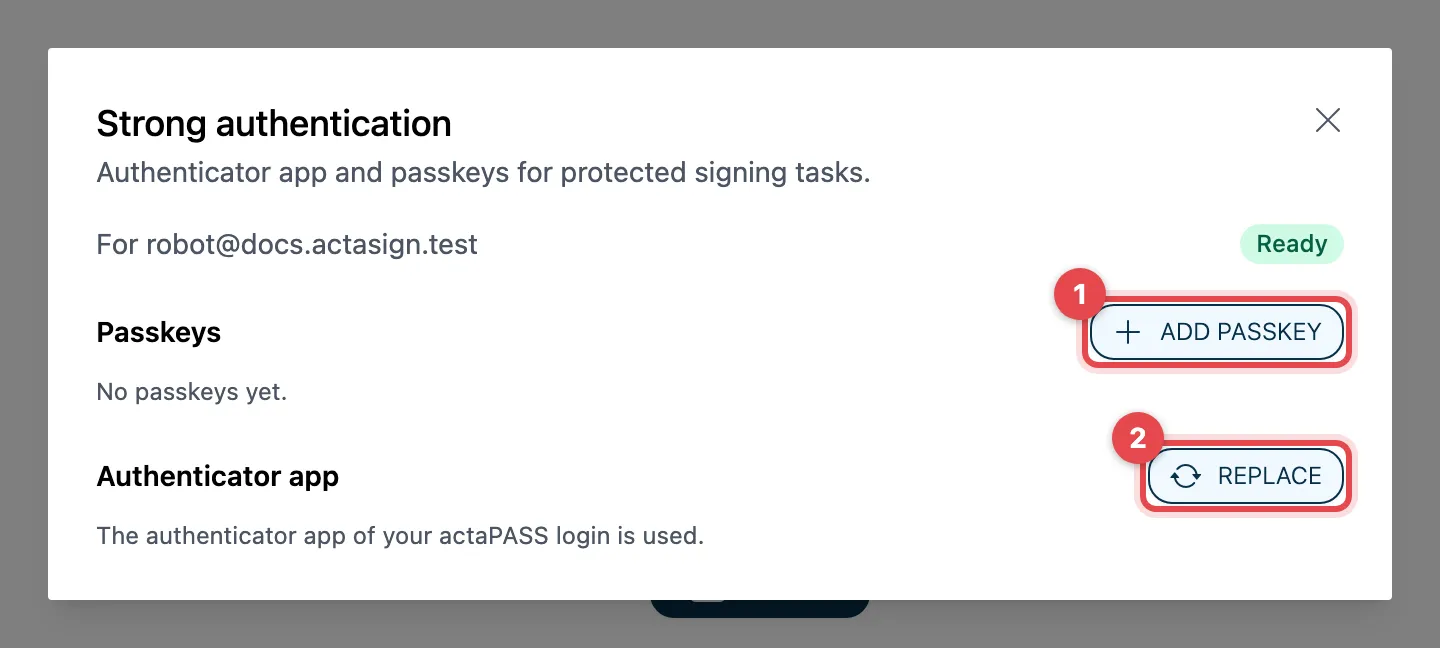
- Under Passkeys: Add passkey, optionally enter a name (e.g. «iPhone»), Create passkey and confirm with your fingerprint, face or security key.
- Or, for Authenticator app, click Set up, scan the QR code with the app and Confirm the six-digit code. If you already have an app, you see Replace there.
- Keep your Recovery codes safe (Copy, then store them in your password manager or print them) and click I have saved my recovery codes. The codes only appear after you have set up a passkey or an app here; that is why they are missing from the picture.
At the top of the window you see Ready as soon as everything is set up. If the sender requires a specific method, you see it under «Required» and «Still to set up».
Recovery codes
Section titled “Recovery codes”With a recovery code you can sign when your phone or passkey is not at hand. Each code works once. The window shows how many you have left. With New codes you get a new set; the old codes then stop working.
When you sign
Section titled “When you sign”For a protected task, Task security appears. Choose Use passkey or enter the code from your app and click Confirm code. If your phone is gone, use Use a recovery code instead.
Good to know
Section titled “Good to know”- You rename passkeys with the pencil and remove them with the bin (question «Remove this passkey?»).
- If you already use an authenticator app to sign in to actaPASS, actaSIGN can use it as well. You then see «The authenticator app of your actaPASS login is used.»
- Strong authentication in actaSIGN is separate from two-factor authentication in actaPASS, which protects your sign-in.
- If you were invited by e-mail to set up strong authentication, the link opens the same window with Done at the bottom.
- Lost your passkey or app and have no codes left? The page of the invitation link shows Lost your authenticator or passkey? with Send reset link.