

Administration at a glance
In the administration you decide how actaSIGN works for your whole organization: defaults for new requests, members, contacts, connections to other systems and reports.
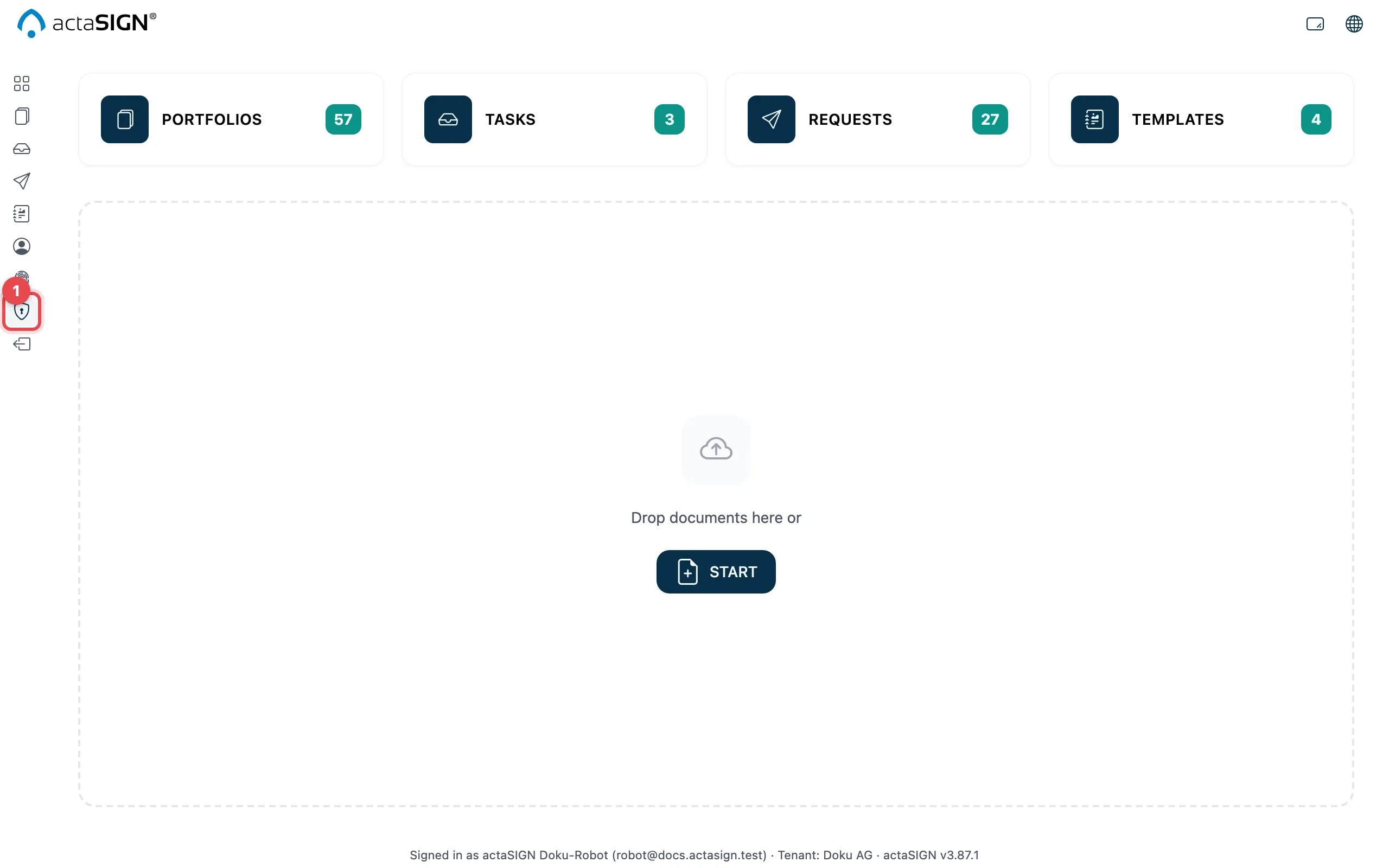
Who is an administrator
Section titled “Who is an administrator”An administrator of the organization is anyone entered in actaPASS as an administrator of this organization. An administrator sets this in actaPASS under Members with To administrator, see Manage members in actaPASS.
You assign two more roles in actaSIGN itself. These people see only one area of the administration:
| Role | Sees only | Where you assign the role |
|---|---|---|
| Contact curator | Contacts | Choose contact curators |
| May send strong authentication invitations | Authentication (only their own invitations) | Manage members |
People without any of these roles do not see the shield icon. If they open the address anyway, they see Admin Access Required.
Layout
Section titled “Layout”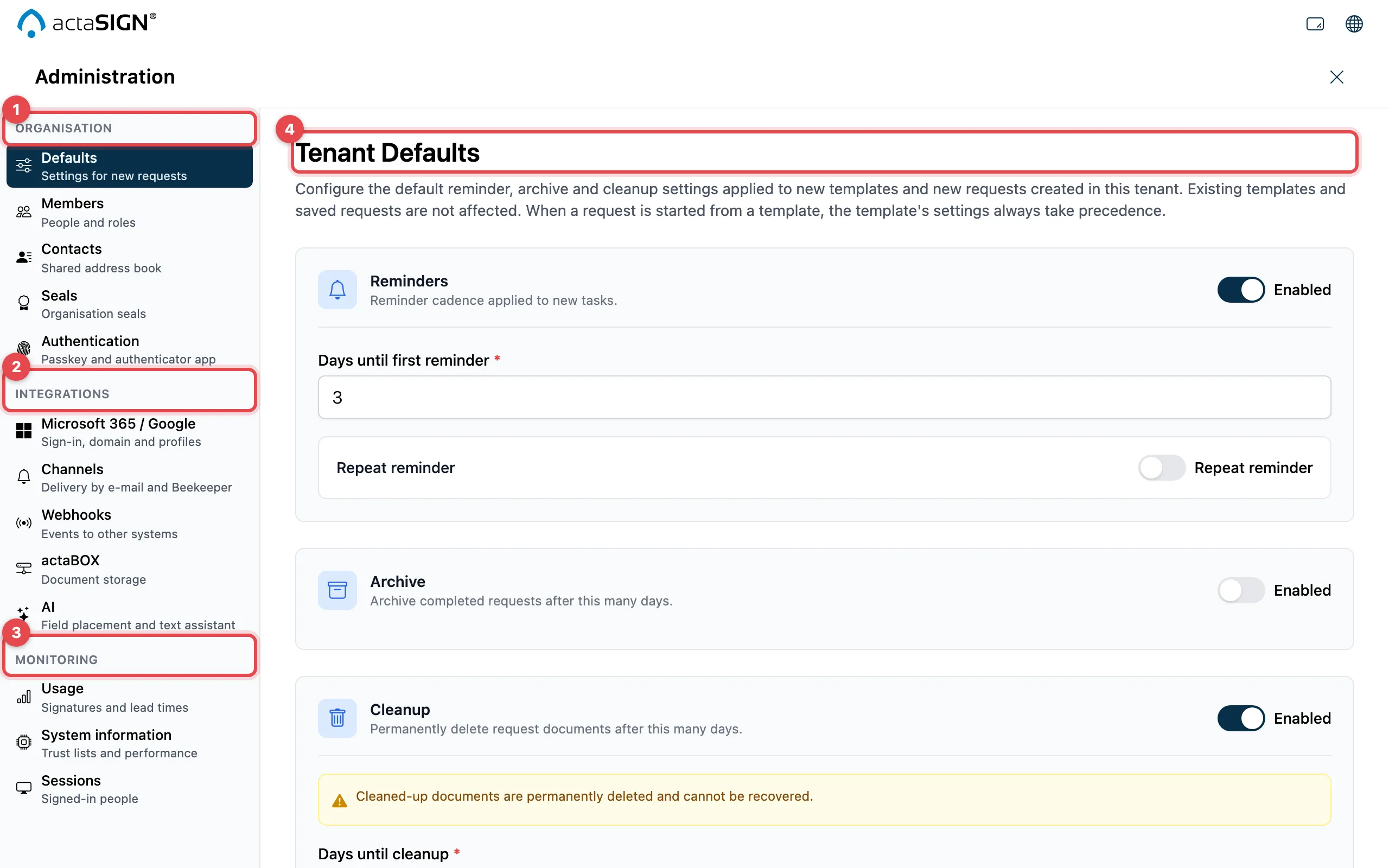
On the left is the navigation in three groups. Below each entry, grey text says what it is about.
- Organisation: Defaults, Members, Contacts, Seals, Authentication
- Integrations: Microsoft 365 / Google, Channels, Webhooks, actaBOX, AI
- Monitoring: Usage, System information, Sessions and, where the server offers it, Audit Log
- On the right, actaSIGN shows the chosen area. When you open the administration, this is Defaults.
With the ✕ at the top right or the Escape key you go back to the home page.
Unsaved changes
Section titled “Unsaved changes”If you change something in Defaults and switch to another area without saving, actaSIGN asks:
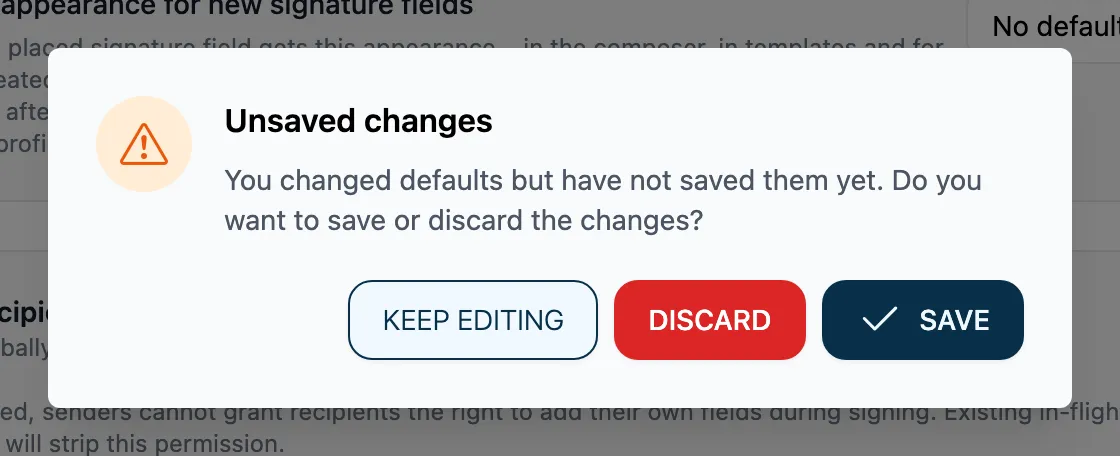
- Save saves and moves on.
- Discard forgets the changes and moves on.
- Keep editing stays on the page.
If you close the browser tab or reload the page, the browser warns you.
Good to know
Section titled “Good to know”- The administration always applies to the organization you are working in right now. If you belong to several organizations, switch the organization first.
- You do not add, block or remove people here, but in actaPASS: Management in actaPASS.