

View and add enclosures
Enclosures are additional files belonging to a request. The sender can send you some. If they allow it, you can also add files, such as a copy of your ID or a completed form.
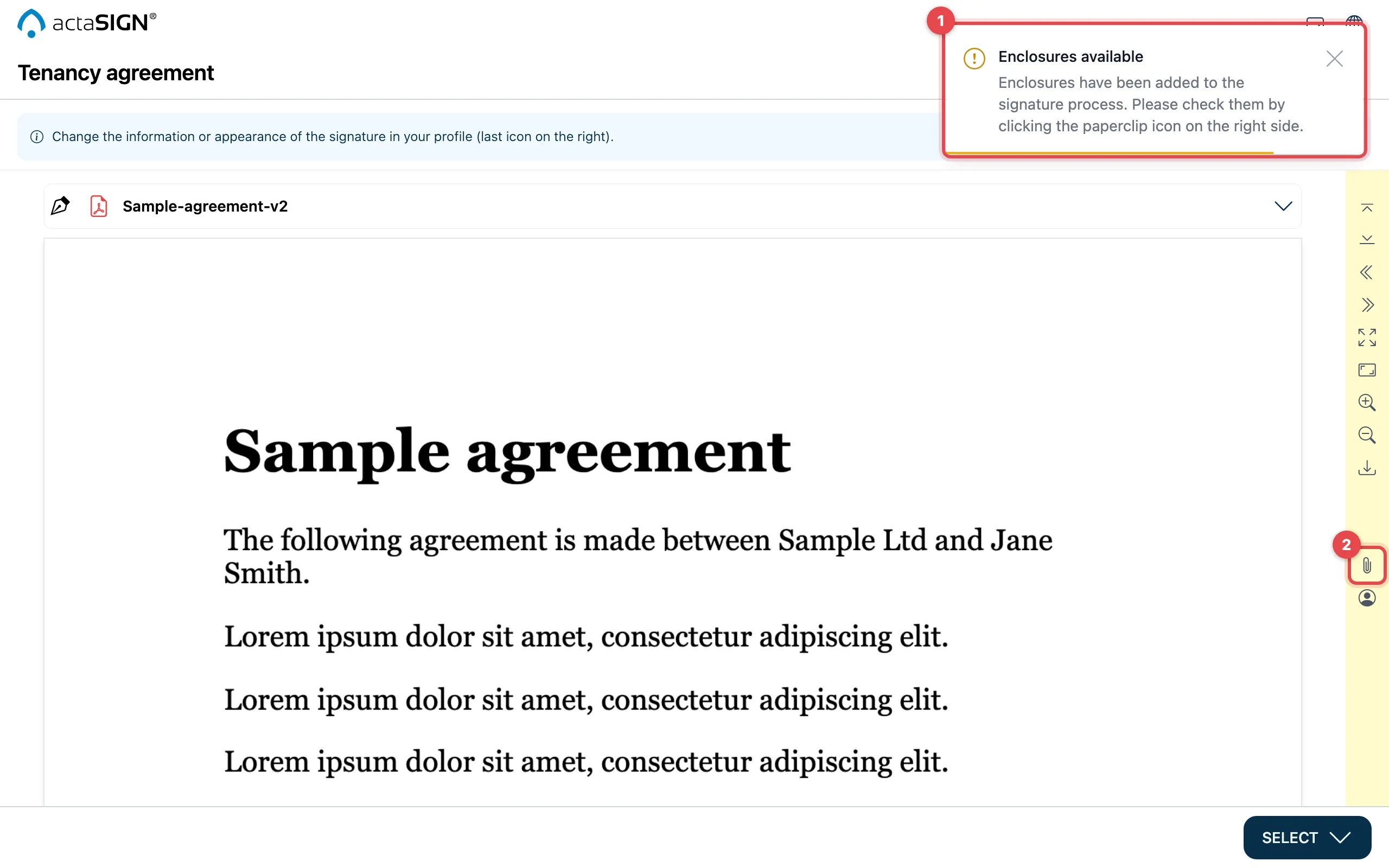
If the sender has attached enclosures, Enclosures available appears when you open the task (1). You open them with the paper clip (2).
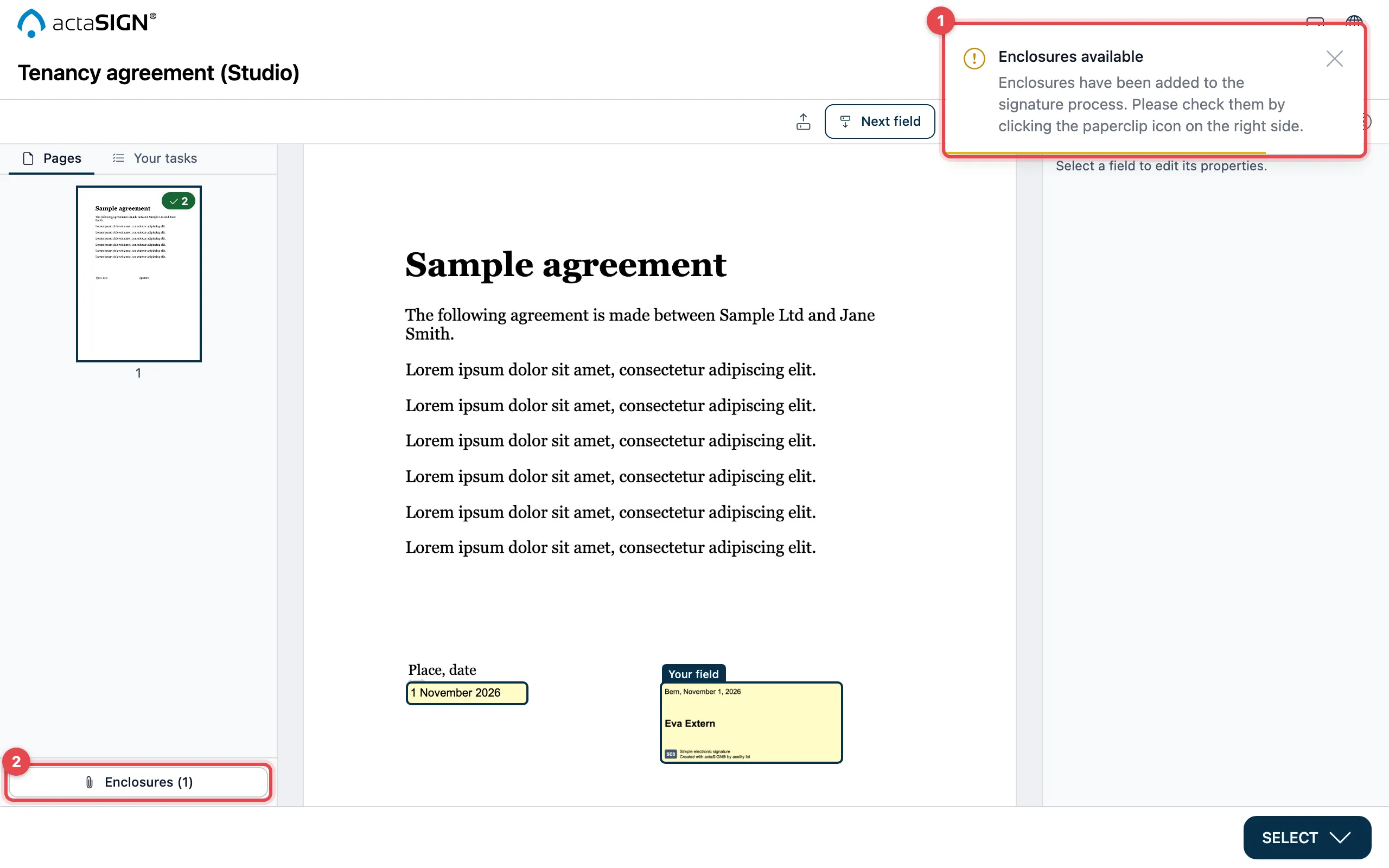
If the sender has attached enclosures, Enclosures available appears when you open the task (1). In Studio, you open them at the bottom left with Enclosures (…) (2). The message mentions a paper clip symbol on the right; in Studio it is this button.
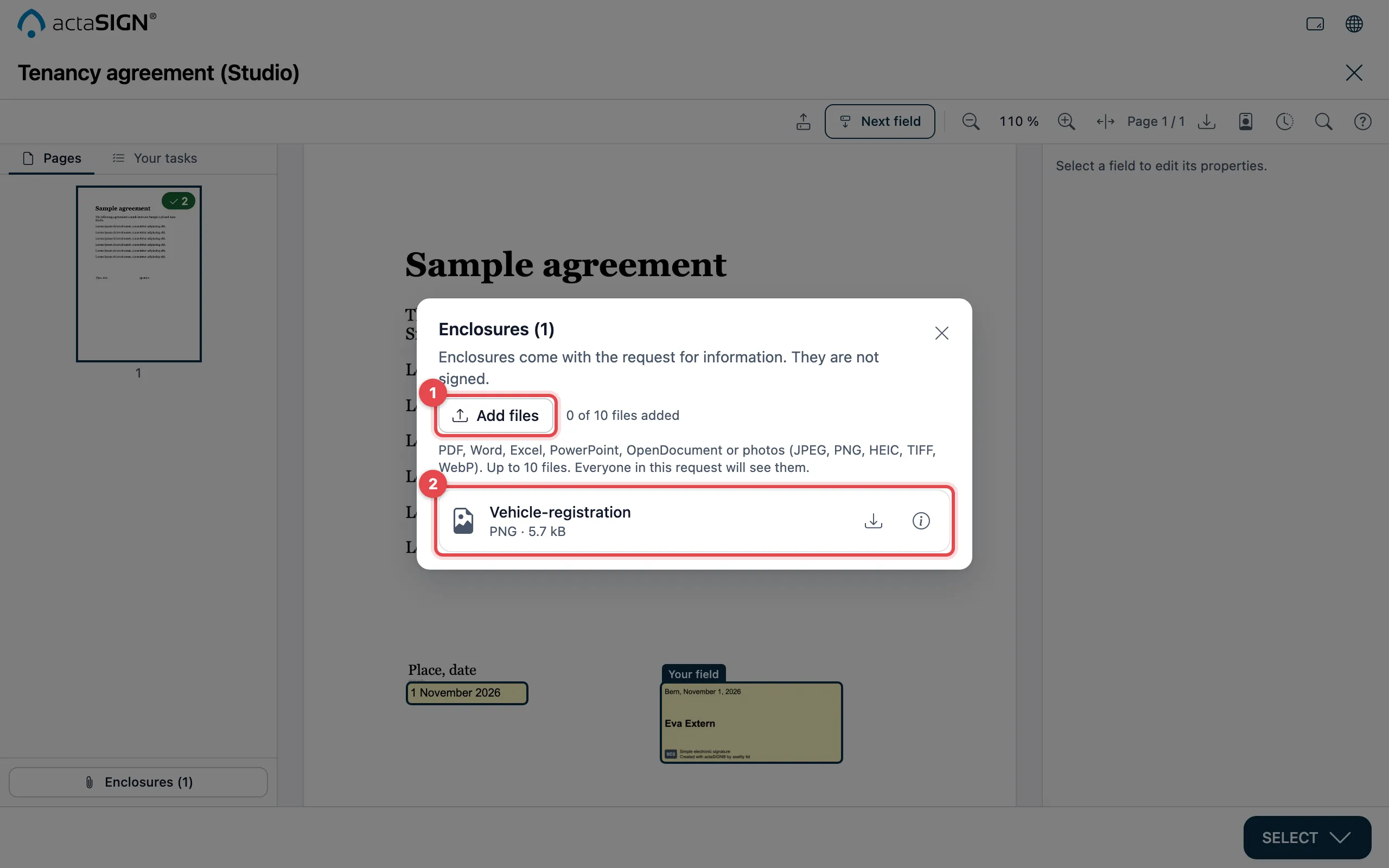
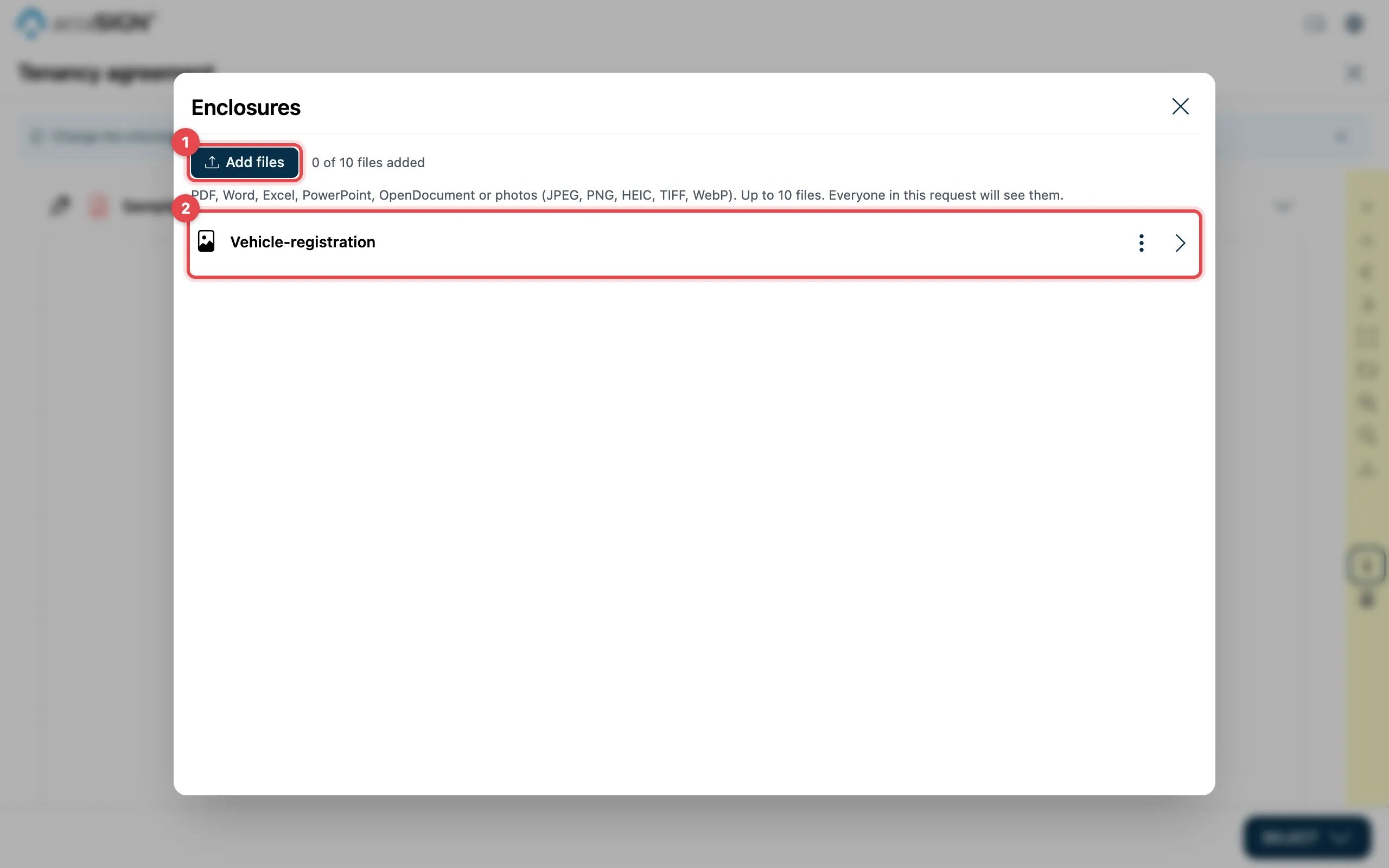
- Click Add files and choose one or more files. actaSIGN checks them and shows them in the list. Next to it, you see how many more files you may add.
- In the list, open each file with Download or Details. Your own files carry the note Added by you and can be removed here again.
Close the window and sign as usual. The files then belong to the request.
Good to know
Section titled “Good to know”- You only see Add files if the sender has allowed Upload enclosures. Otherwise you can only view the enclosures.
- Allowed are PDF, Word, Excel, PowerPoint, OpenDocument and photos (JPEG, PNG, HEIC, TIFF, WebP). The maximum number of files is shown in the window.
- Password-protected PDFs and files with macros, scripts or external links are not accepted. Save or print them as a plain PDF.
- Everyone involved in the request sees your files.
- You can only remove files that you added in this task.