

Mass send to a recipient list
With mass send you send the same form to many people, for example a privacy statement to all employees. Each person gets their own request with their own copy of the document.
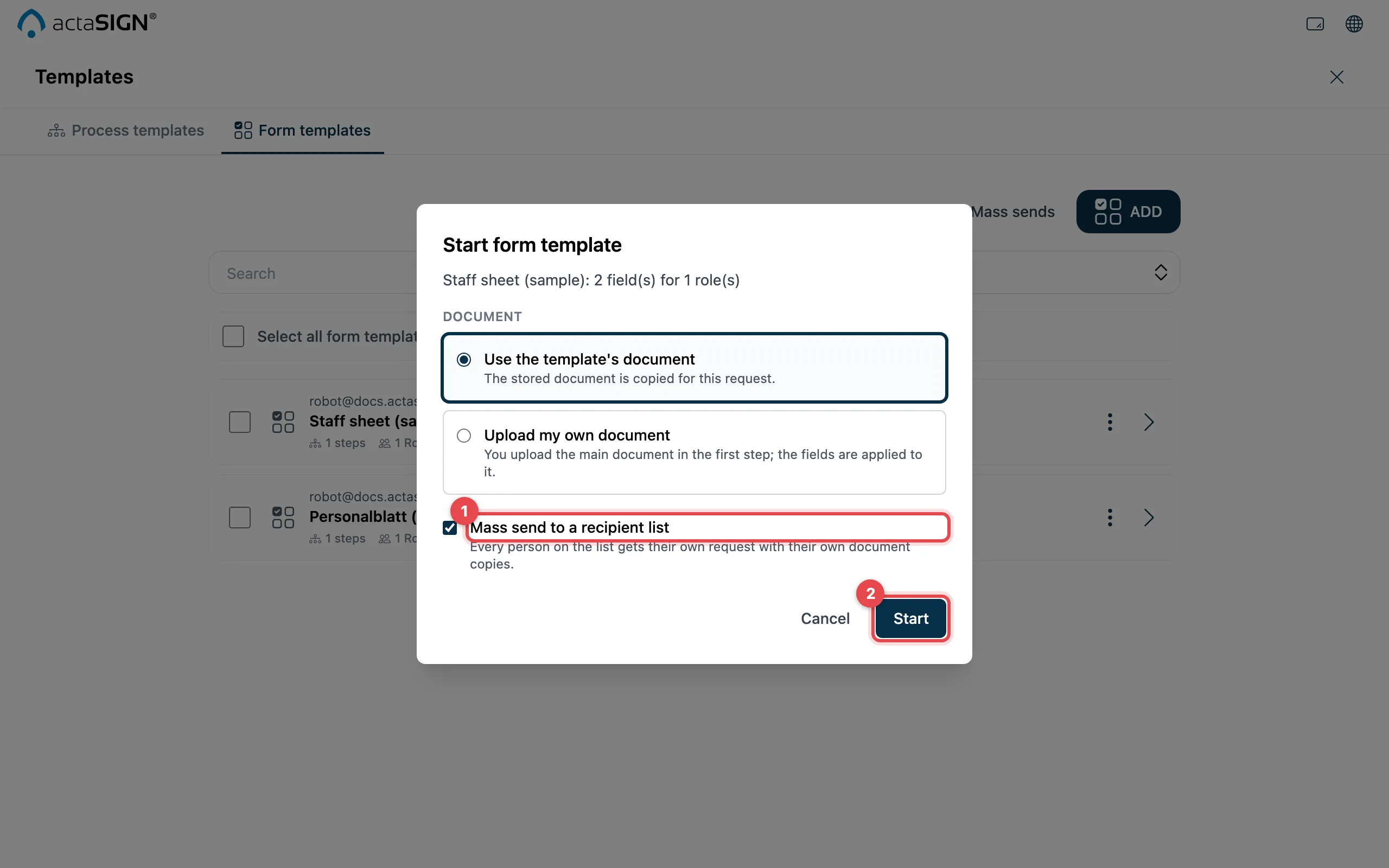
- Mass send to a recipient list is already ticked.
- Click Start and go on to the Workflow step.
Recipients
Section titled “Recipients”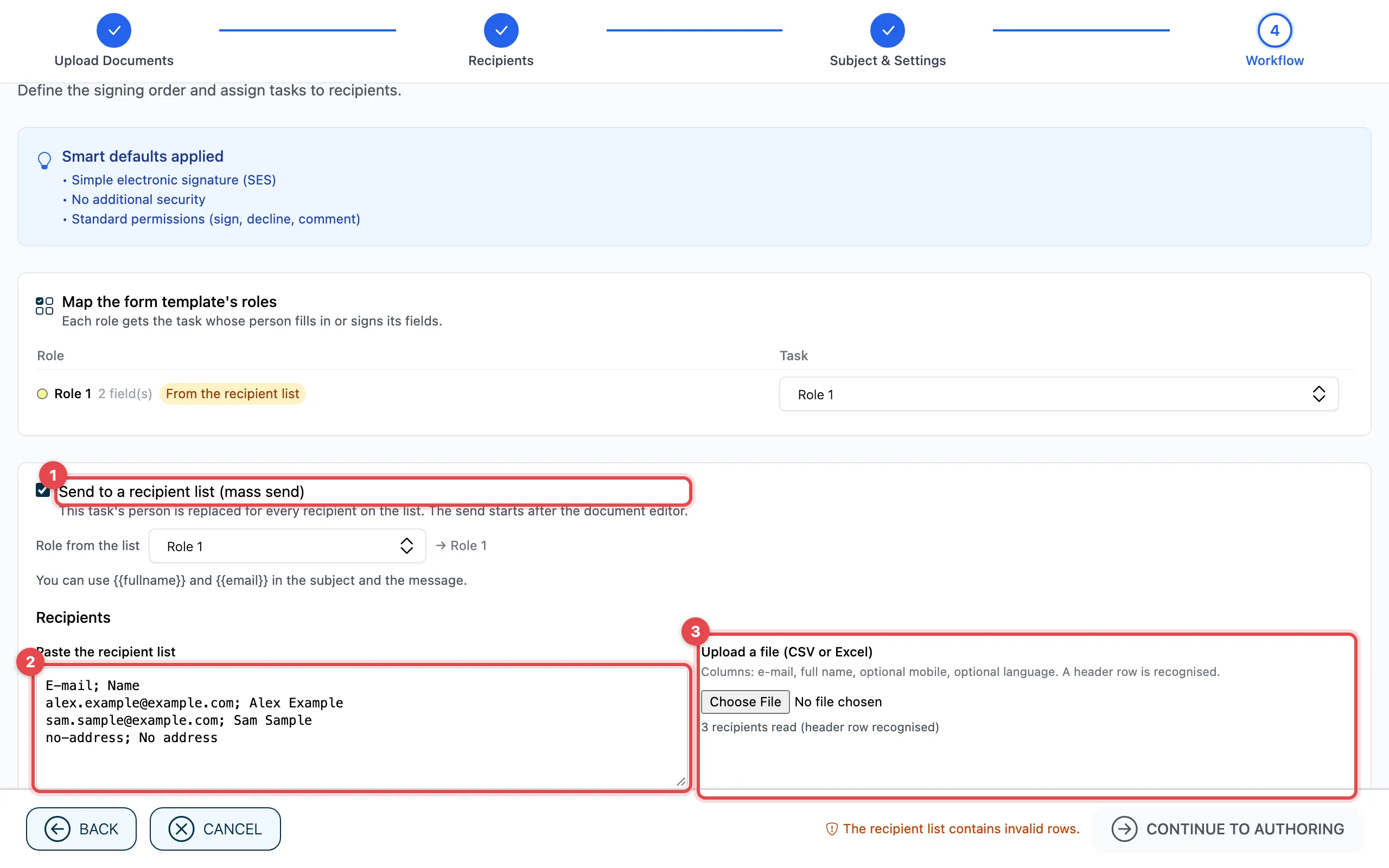
- For the task that each person on the list takes on, Send to a recipient list (mass send) is ticked. If the template has several roles, choose under Role from the list which role the people on the list take on.
- Paste the list under Paste the recipient list: one person per line, separated by semicolon, comma or tab, in the order email; name; mobile number; language.
- Or upload a file under Upload a file (CSV or Excel).
actaSIGN checks each line and shows OK or the error in the Status column, for example Invalid e-mail address or Name missing. With Remove invalid rows you delete these lines.
The columns
Section titled “The columns”| Column | Required | Note |
|---|---|---|
| yes | each address only once | |
| Name | yes | full name |
| Mobile number | only for an SMS code | in the format +41791234567 |
| Language | no | de, en, fr or it |
actaSIGN recognises a header row by itself (for example “Email; Name”). Without a header row, the order above applies.
Placeholders
Section titled “Placeholders”In the subject and message you can write {{fullname}} and {{email}}.
Each person sees their own name or address there, for example
“Hello {{fullname}}”.
Check, sending, report
Section titled “Check, sending, report”Click Continue to Authoring, check the fields and, instead of Send, click Mass send. A window opens with three stages:
- Check: actaSIGN shows how many requests it will create. Click Start mass send.
- Sending: you see how many requests have already been started. You may close the window; sending continues, and you get an email at the end. With Stop sending you cancel.
- Report: for each person Started, Failed or Cancelled. With Download report (CSV) you save the list; with Go to requests you see the requests.
Earlier mass sends
Section titled “Earlier mass sends”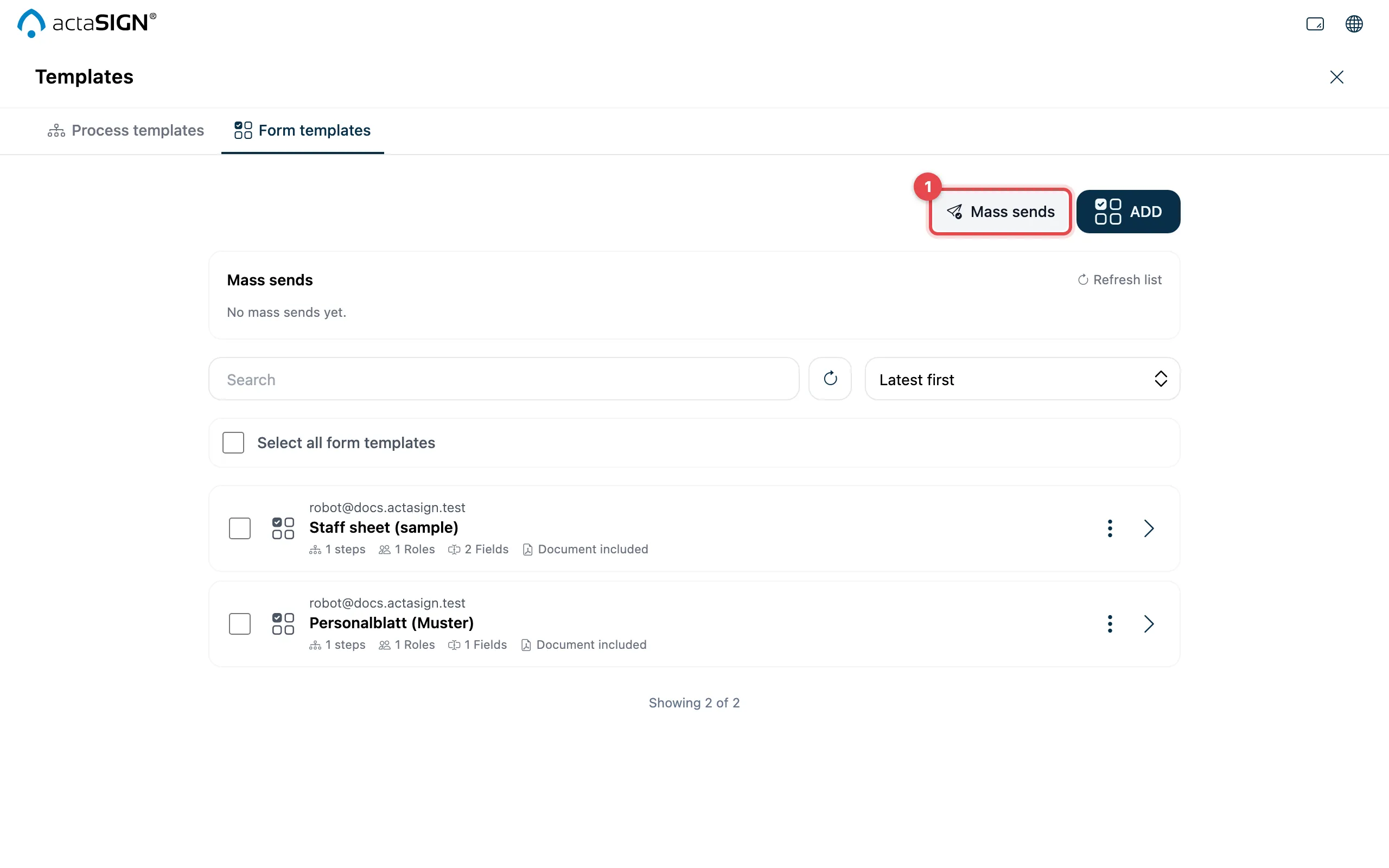
On the Form templates tab, Mass sends (1) shows all earlier mass sends with their state and Show report.
Good to know
Section titled “Good to know”- At most 500 recipients per mass send. Each organization can run at most three mass sends at the same time.
- The file may be at most 2 MB (.csv, .txt, .tsv, .xlsx, .xlsm).
- If the task requires an SMS code, each line needs a mobile number. If it requires strong authentication, each person must already have set it up.
- A name may not contain curly brackets
{{ }}.