

Set colors and logo
With branding, the application and the email notifications appear in your colors and with your logo.
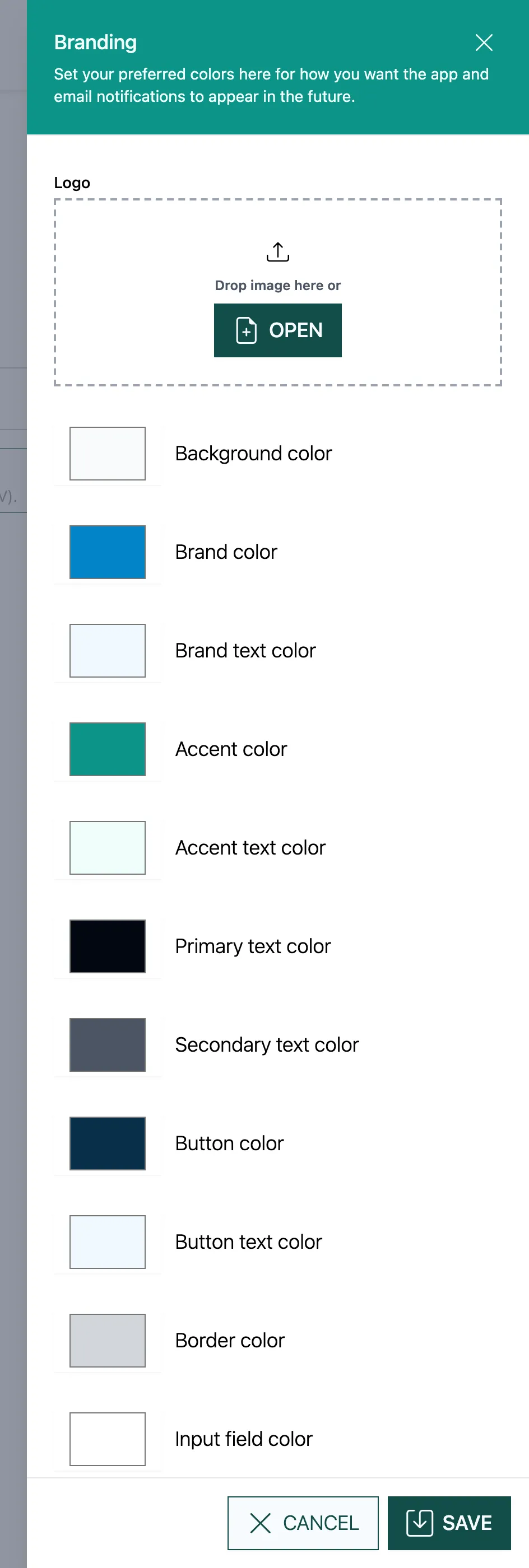
- Logo: drag an image into the field (Drop image here or) or click Open. Use the ✕ to remove it again.
- Choose the colors, for example Brand color, Button color and Button text color.
- Click Verify. actaPASS sends a test email with the chosen colors to your own address.
- If everything looks right, click Save.
Where colors and logo appear
Section titled “Where colors and logo appear”Branding applies in actaSIGN and in the emails from actaSIGN and actaPASS. The actaPASS pages themselves always show the default colors.
| Setting | Where it appears |
|---|---|
| Brand color and Brand text color | Title bar of the emails |
| Accent color and Accent text color | Link button in the emails; in actaSIGN for example the counters on the home page tiles |
| Button color and Button text color | Buttons and focus frames in actaSIGN |
| Background color | Background of dialogs and drop-down lists in actaSIGN |
| Secondary text color | Grey text in actaSIGN |
| Border color | Borders and dividing lines in actaSIGN |
| Input field color | Background of input fields in actaSIGN |
| Logo | Header of actaSIGN, organization selection and emails |
Good to know
Section titled “Good to know”- Make sure there is enough contrast between a color and its text color, otherwise buttons are hard to read.
- A logo with a transparent background works on any background color.
- Branding applies to the whole tenant.