

Add a handwritten signature
Your signature can show an image of your handwritten signature. This is optional. You can capture it in three ways: draw it with the mouse, upload it as an image or draw it with your finger on your phone.
Complete your signature details appears when you open a document for the first time, see Sign a document.
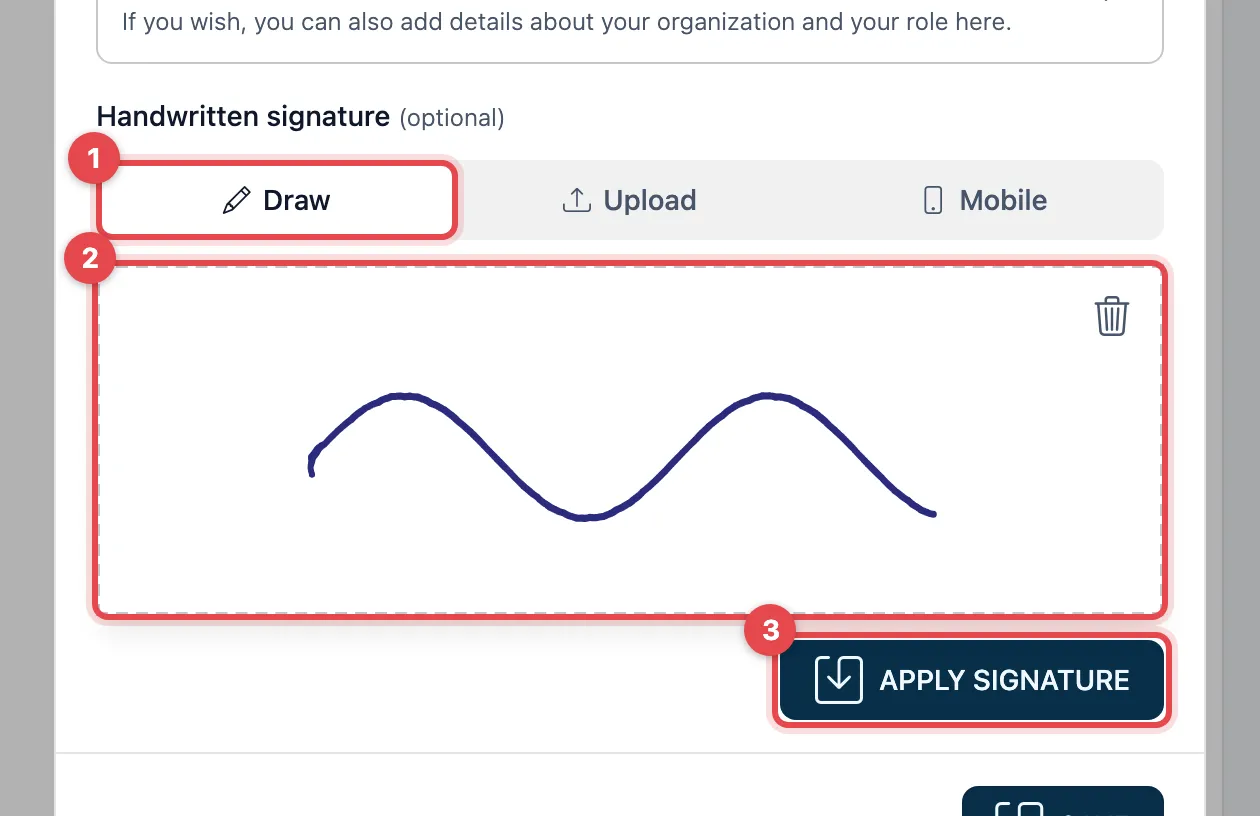
- Choose Draw.
- Sign in the box with your mouse, touchpad or finger.
- Click Apply signature and then Save at the bottom.
Upload
Section titled “Upload”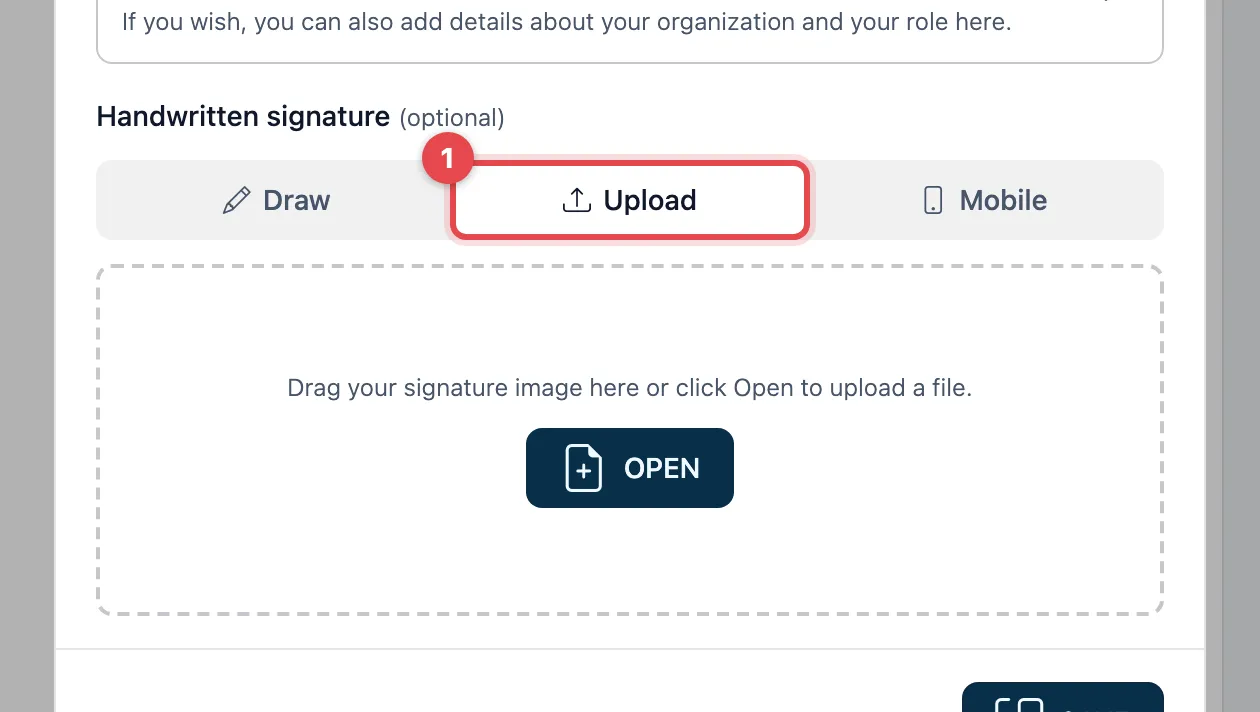
- Choose Upload.
- Drag an image of your signature into the box, or click Open and choose the file.
- Click Save at the bottom.
Sign on your phone
Section titled “Sign on your phone”On a computer without a touchscreen, signing on your phone often works better.
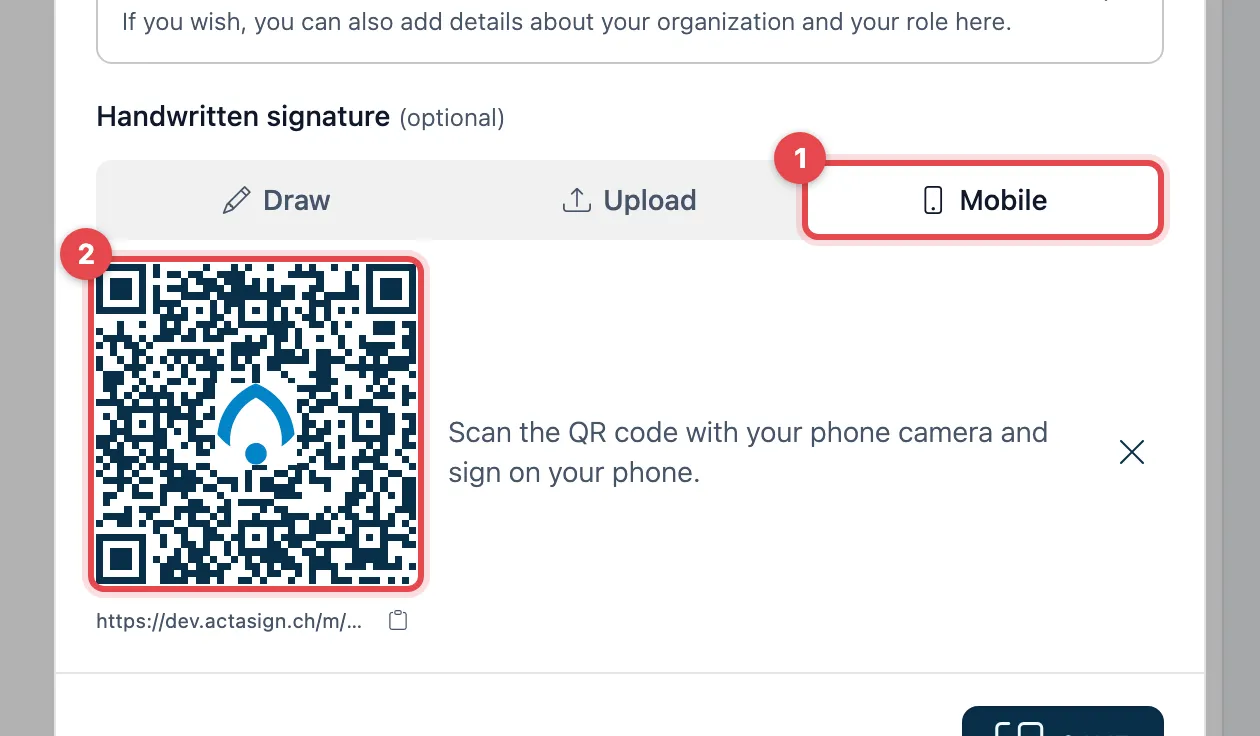
- Choose Mobile. A QR code appears.
- Scan it with your phone’s camera. A page for signing opens on your phone. With Copy signature link you can also send the link to your phone yourself instead.
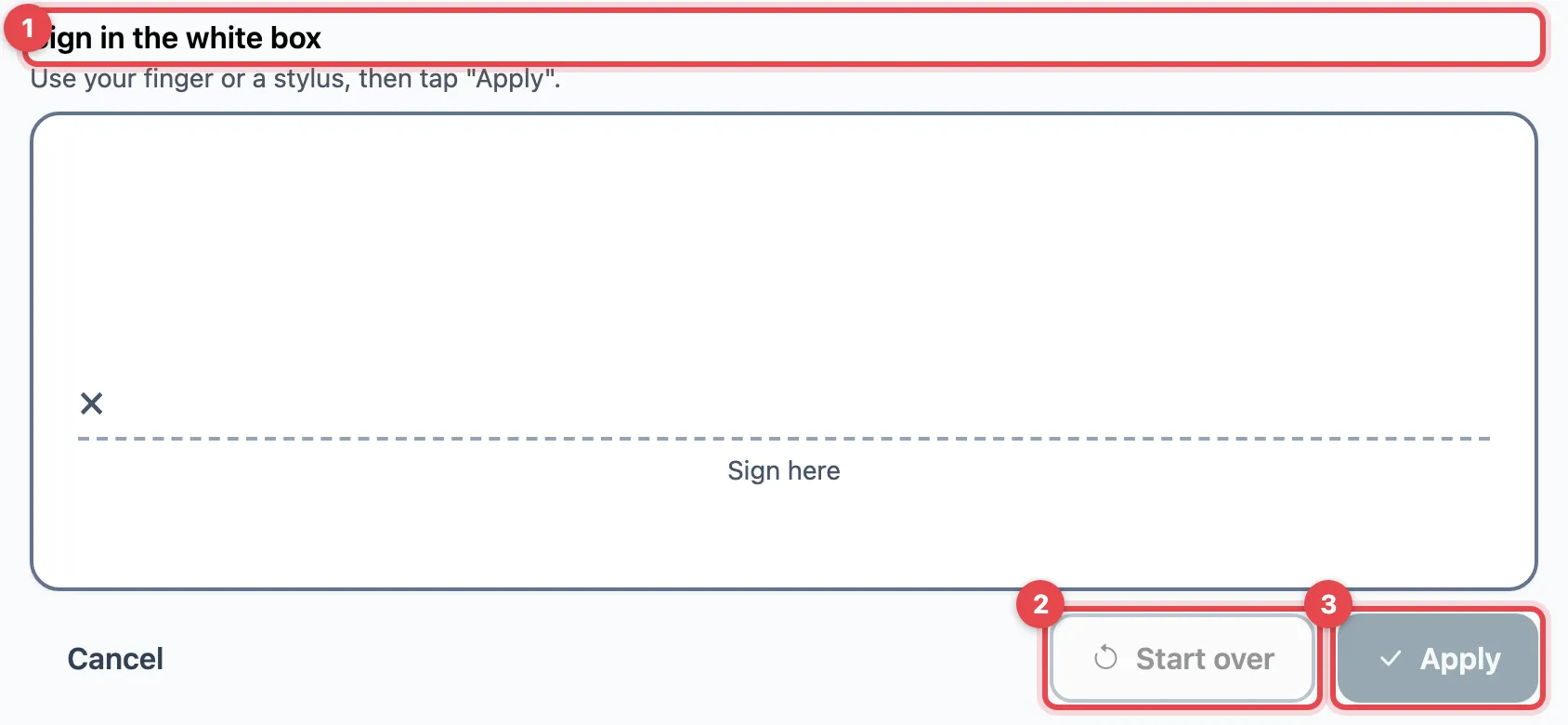
- Your phone shows Sign in the white box. Sign with your finger or a stylus.
- If you do not like it, tap Start over.
- Tap Apply. Signature sent appears. The signature now appears on the computer. Click Save there.
Good to know
Section titled “Good to know”- Hold your phone sideways. In portrait mode, Turn your phone sideways appears. Sign in portrait anyway lets you sign that way too.
- If your phone shows This link is no longer valid, scan the QR code on the computer again.
- Delete removes a captured signature again.
- The handwritten signature is only an image. The legal effect comes from the electronic signature.
- If you are a member of an organization, you manage your signature in your Profile.