

Add and manage members
Anyone who should work for your organization in actaSIGN must be a member of the tenant. Here you add people, make them administrators, block them or reset their sign-in.
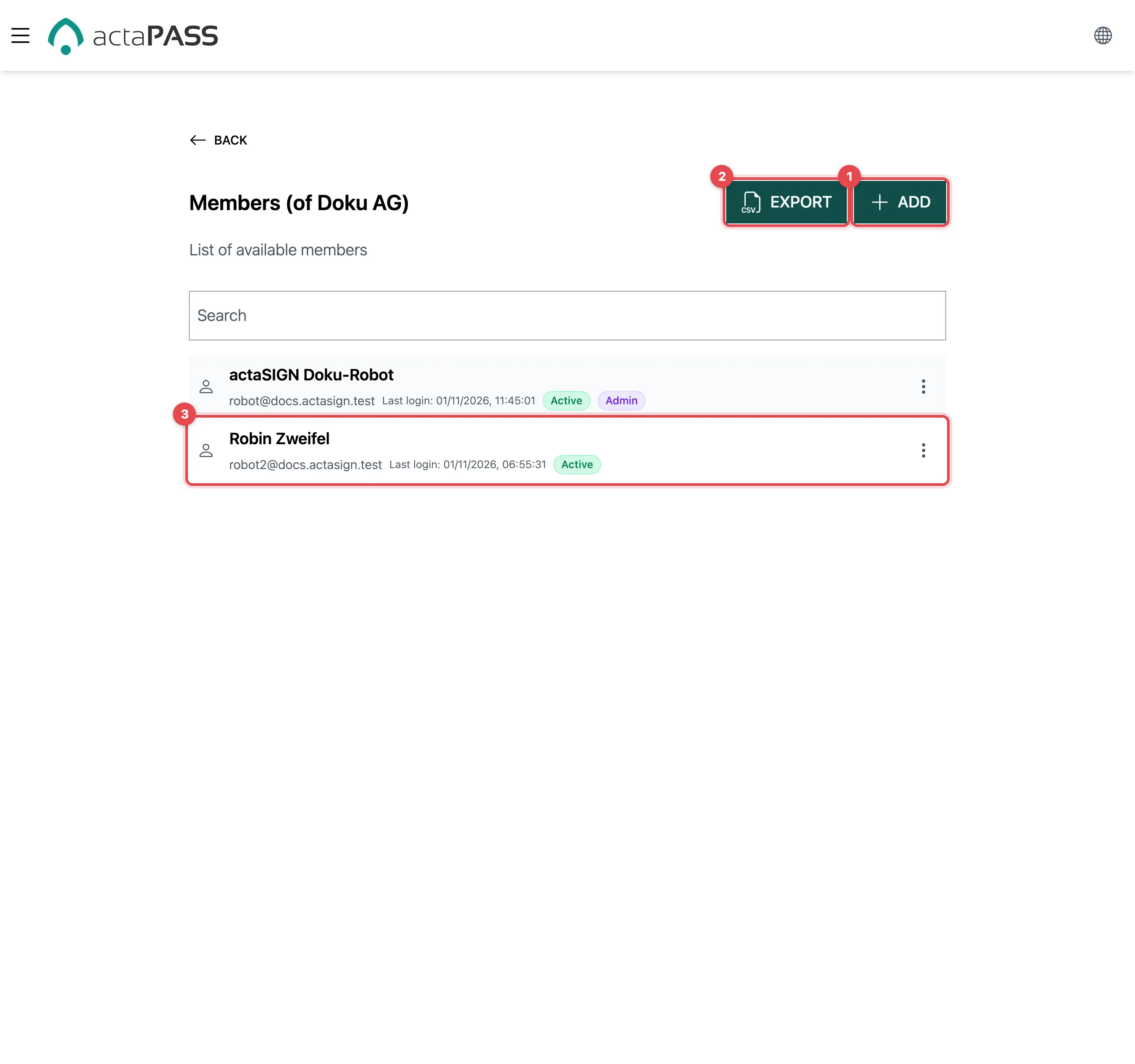
- Add: add a person
- Export: download the list as a CSV file
- Each row shows the status of the person:
| Status | Meaning |
|---|---|
| Active | The person has signed in to this tenant |
| Not signed in yet | The person has never signed in to this tenant |
| Blocked | The person is blocked and cannot sign in |
| Admin | The person is administrator of the tenant |
| Reset | Older entries: the sign-in was reset in the past |
Next to it is the Last login.
Add a person
Section titled “Add a person”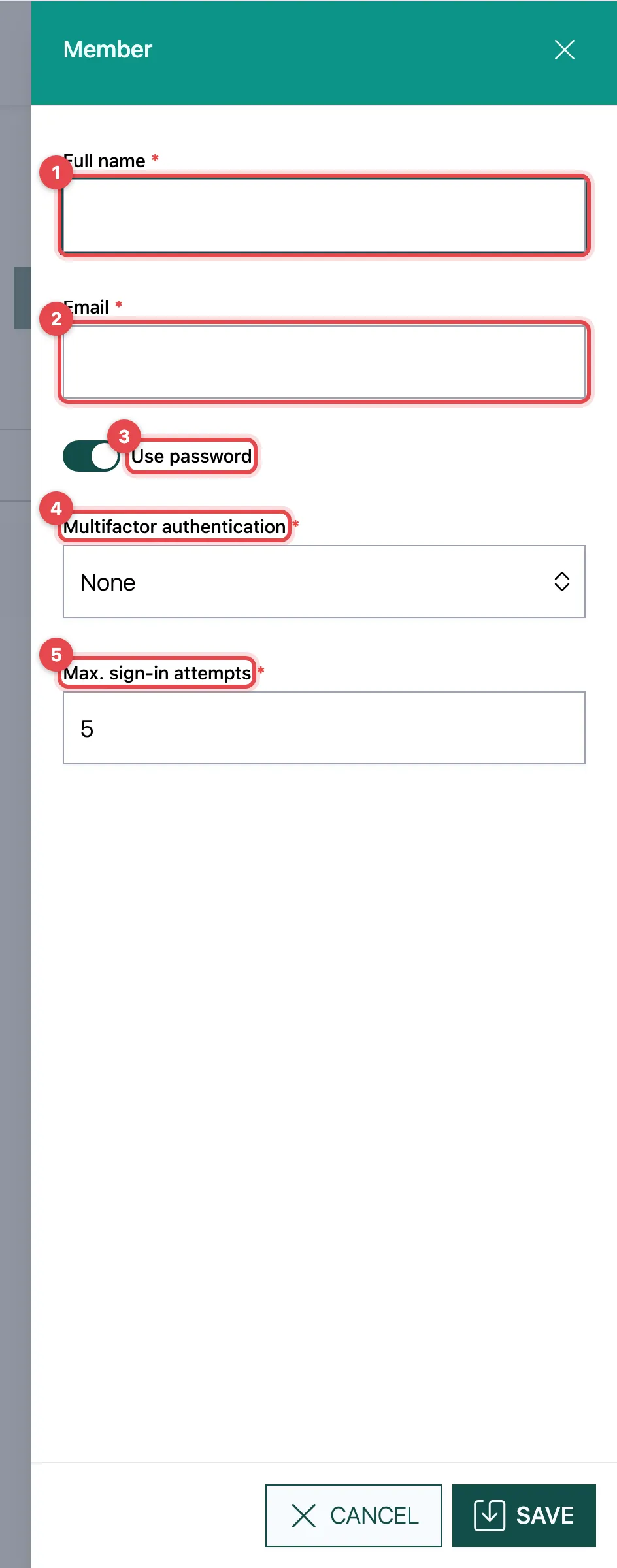
- Click Add and fill in Full name.
- Fill in Email address.
- Use password: the person signs in with a password.
- Multifactor authentication: None, One-time password (e.g. Authenticator) or Passkey. At least one of password and second factor is required.
- Max. sign-in attempts: after this many wrong attempts, the sign-in is locked (e.g. 5).
- Click Save.
actaPASS reports Person added and notifies the person:
- A person without an actaPASS account receives an email with the button “Accept invitation” and uses it to set up a password and second factor.
- A person who already has an account receives an email with “Sign in now”.
The link is valid for 30 days. What the invited person sees: Accept an invitation. They see the new tenant after their next sign-in.
Actions for a member
Section titled “Actions for a member”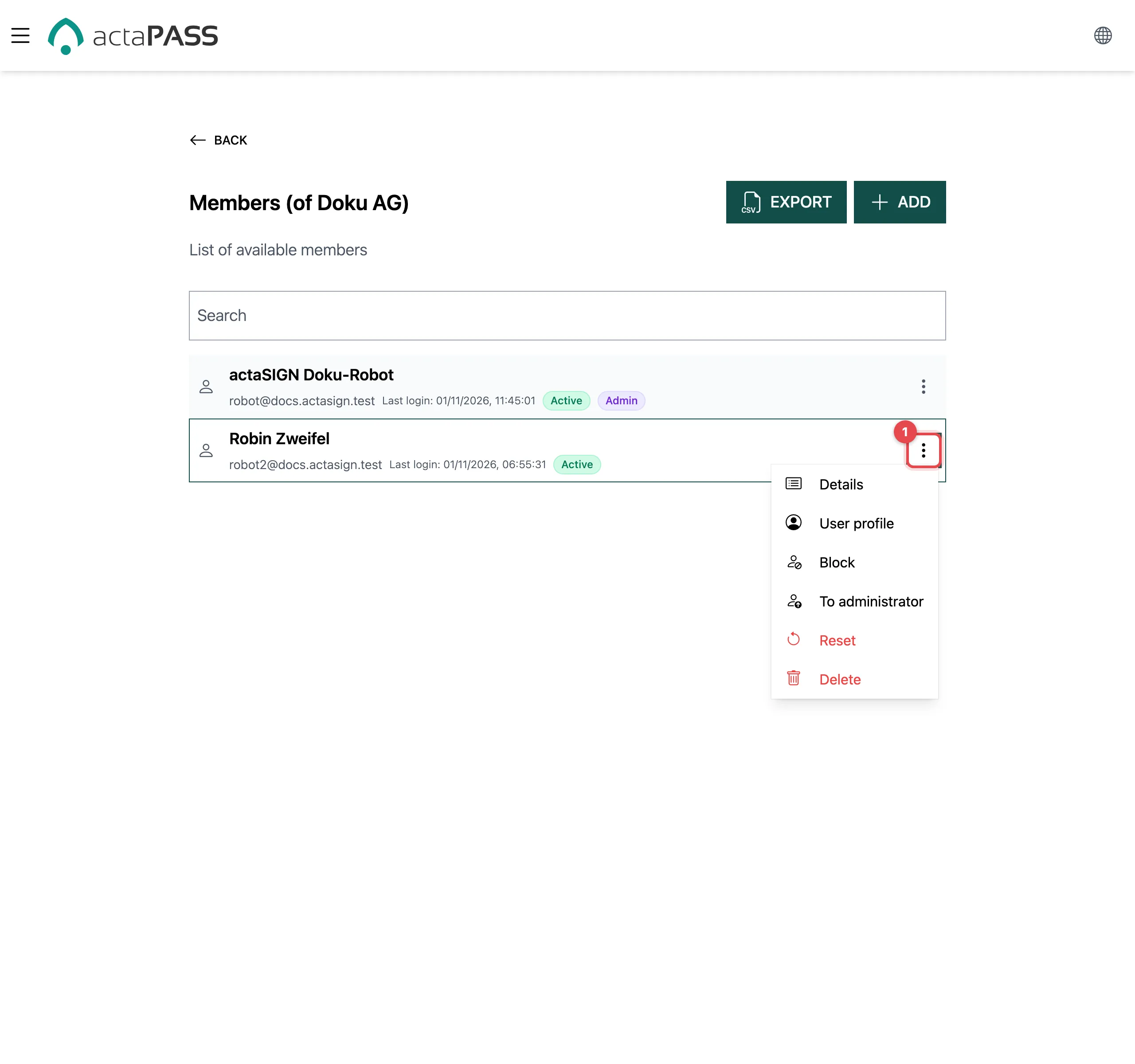
Click ⋮ in the row (1). Most actions take effect at once:
| Action | What it does |
|---|---|
| Details | Change name, email address and Max. sign-in attempts |
| User profile | Edit the person’s profile (name, signature …) |
| Block / Unblock | The person can no longer sign in / can sign in again |
| To administrator / To member | Gives or takes administrator rights for this tenant |
| Resend invitation | Only for Not signed in yet: sends the invitation again |
| Reset | The person sets up their sign-in again (see below) |
| Delete | Removes the person from the tenant at once and for good |
Reset a sign-in
Section titled “Reset a sign-in”If someone has lost their phone or can no longer get in, reset their sign-in.
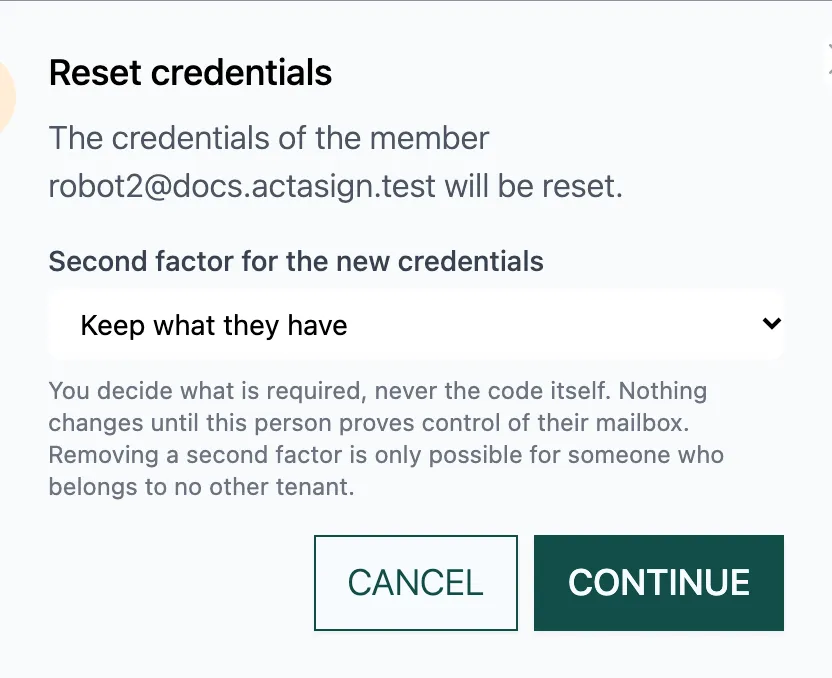
- Choose ⋮ → Reset.
- Under Second factor for the new credentials, choose: Keep what they have, Require two-factor (their choice), Require an authenticator app, Require a passkey or No two-factor.
- Click Continue.
The person receives an email. Nothing changes until they have proven access to their mailbox. You only decide what is required, never the code itself.
Good to know
Section titled “Good to know”- No two-factor is only possible if the person does not belong to any other tenant.
- Administrators of the tenant are automatically administrators of the organization in actaSIGN.
- You manage the profile, Studio access and strong authentication for actaSIGN in actaSIGN: Manage members.
- If your company has a verified domain, people with this domain automatically become members when they sign up or sign in through SSO (Domains).