

Strong authentication: invitations
Some tasks require strong authentication: the person confirms with an authenticator app or a passkey. For this to work, they must set it up beforehand. Here you invite people to do so and see who is ready.
The list of invitations
Section titled “The list of invitations”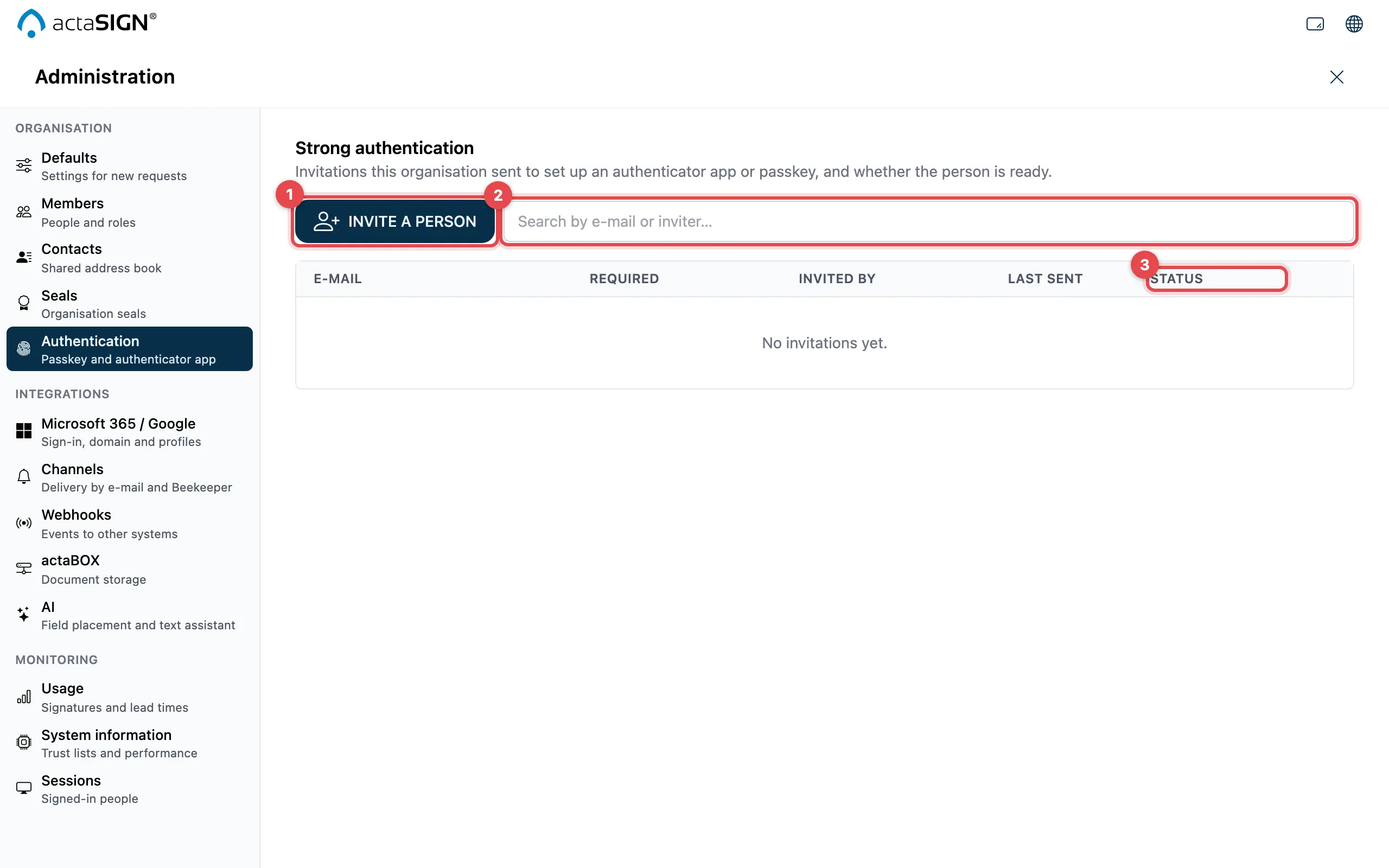
- Invite a person: send a new invitation
- Search field: search by e-mail or by the person who sent the invitation
- Status of each invitation:
| Status | Meaning |
|---|---|
| Invited | The e-mail has been sent; the person has not set anything up yet |
| Set up | The person has set up what was required |
| Withdrawn | The invitation was withdrawn; the link no longer works |
The Required column shows what the person should set up. With ⋮ in the row you choose:
- for Invited: Send again or Withdraw invitation
- for Set up: Have it set up again, for example after losing the phone. The person receives a link; when they open it, they replace their previous setup.
- for Withdrawn: Send again or Delete invitation
Invite a person
Section titled “Invite a person”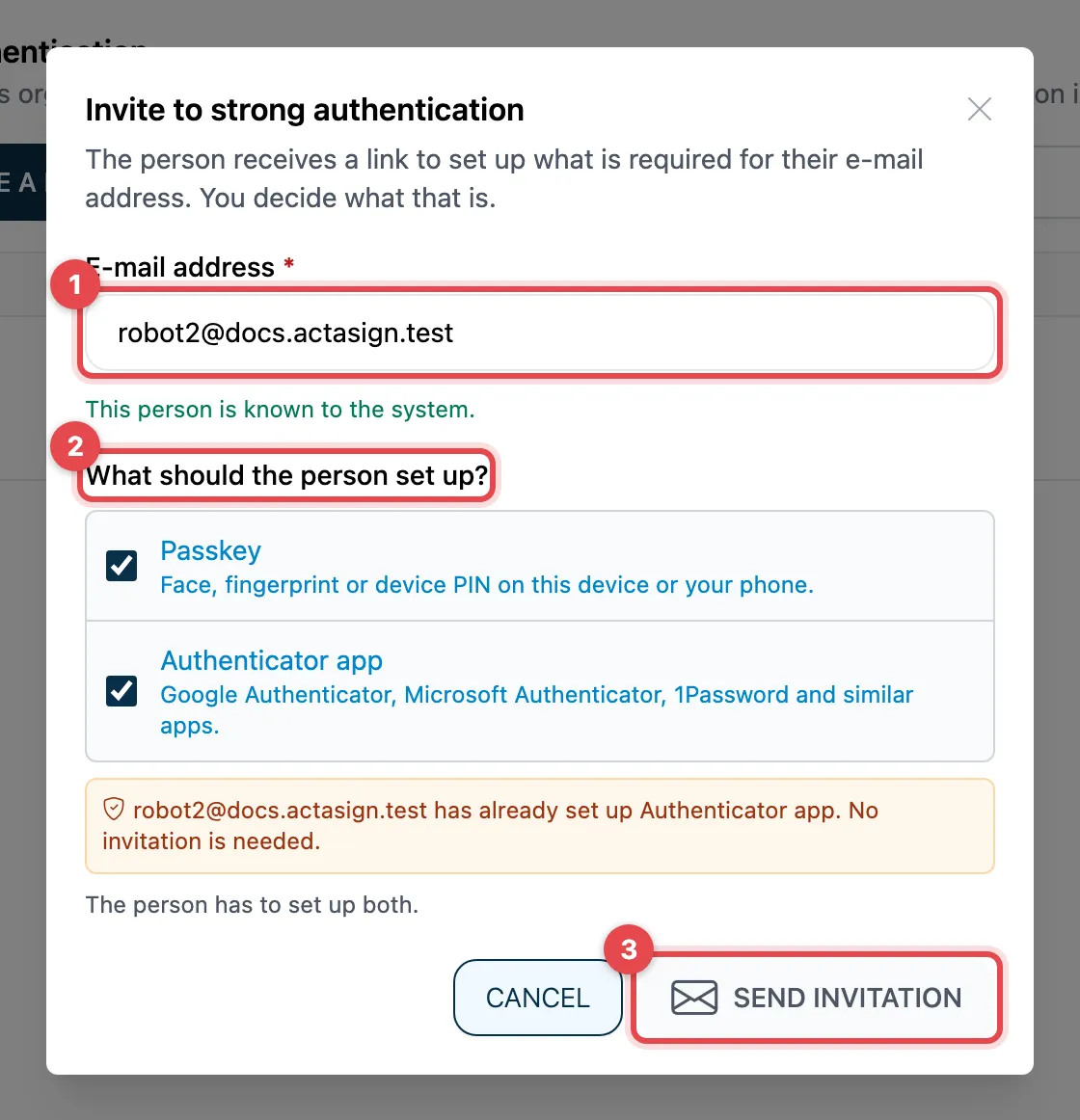
- Click Invite a person and enter the E-mail address. actaSIGN shows whether the person is known.
- Under What should the person set up? choose Passkey, Authenticator app or both. With both, the person must set up both.
- Click Send invitation.
If the address is not yet known, also enter Full name and Language; actaSIGN then creates the person.
Good to know
Section titled “Good to know”- Send again works at most once a day. Otherwise actaSIGN reports Already sent today.
- You can also invite members without a setup directly from the Members list (Send setup invitation).
- What the invited person sees: Strong authentication.