

Create a process template
A process template saves who must do what, and in which order. The recipients may stay empty: you only enter them when you use the template.
Subject and settings
Section titled “Subject and settings”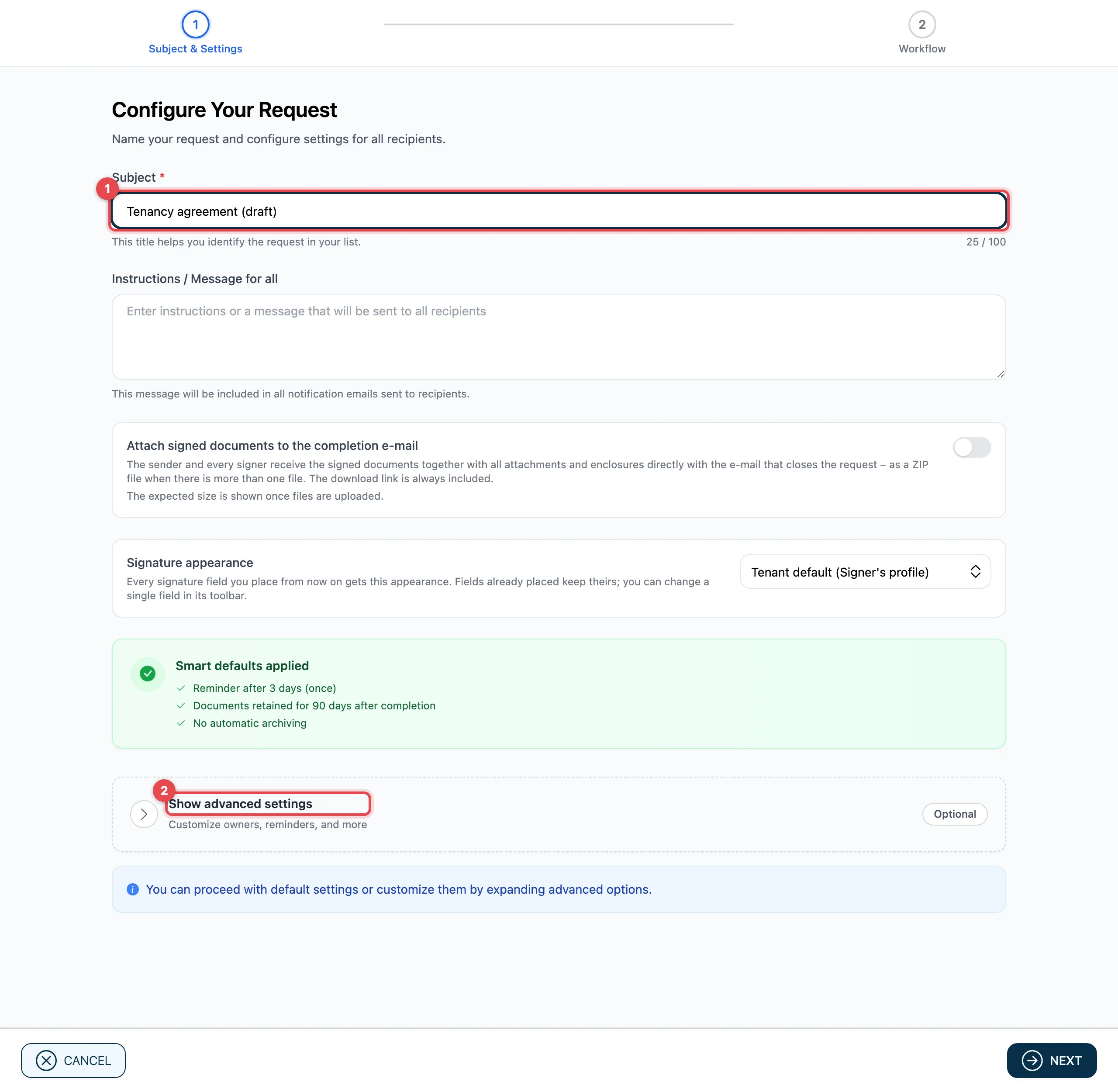
- Enter a Subject. It is also the name of the template in the list.
- Optional: click Show advanced settings to preset observers, reminders and deadlines.
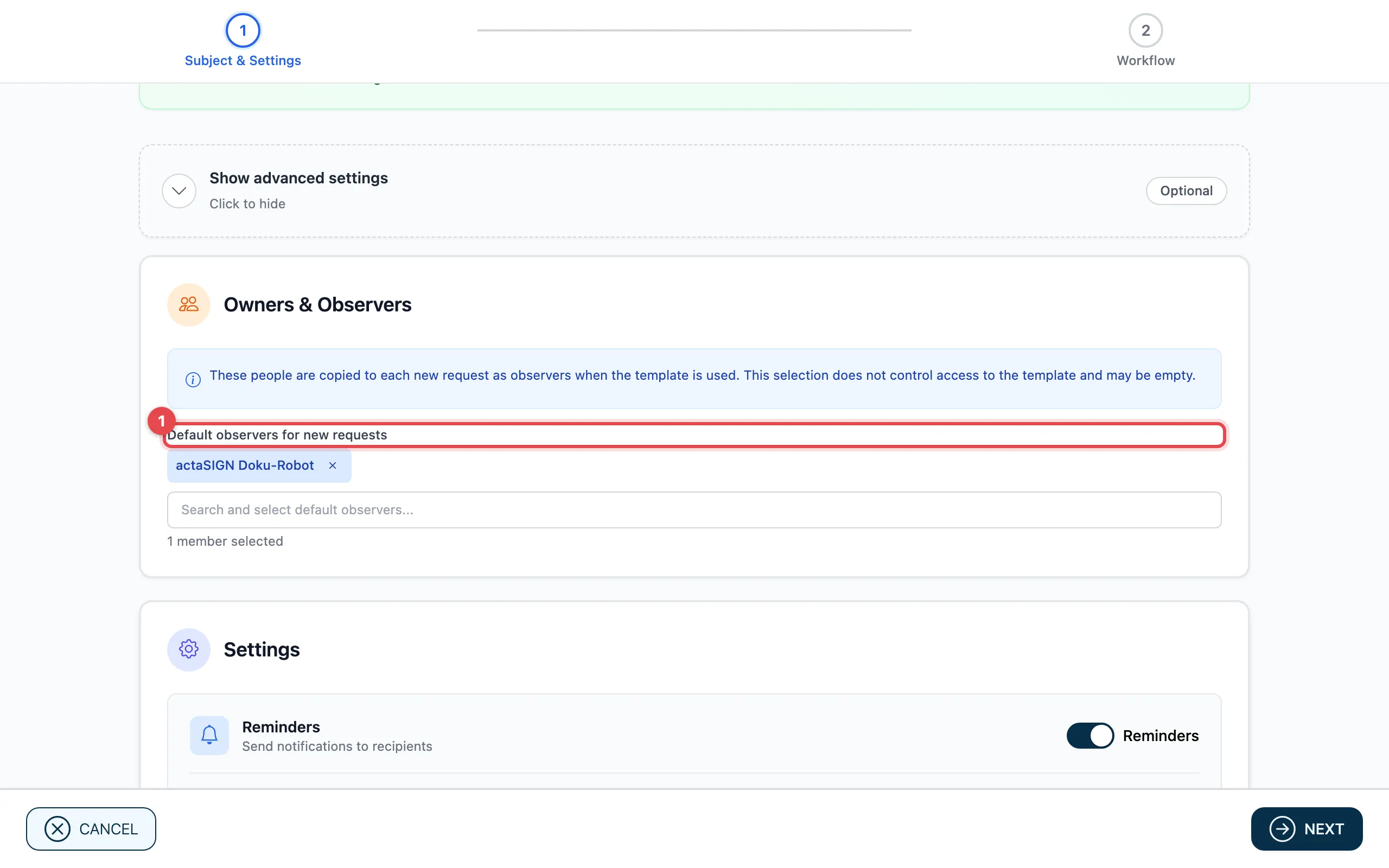
Under Default observers for new requests (1) you choose colleagues who should follow every new request created from this template. The field may stay empty. It does not decide who may see the template.
Click Next.
Workflow
Section titled “Workflow”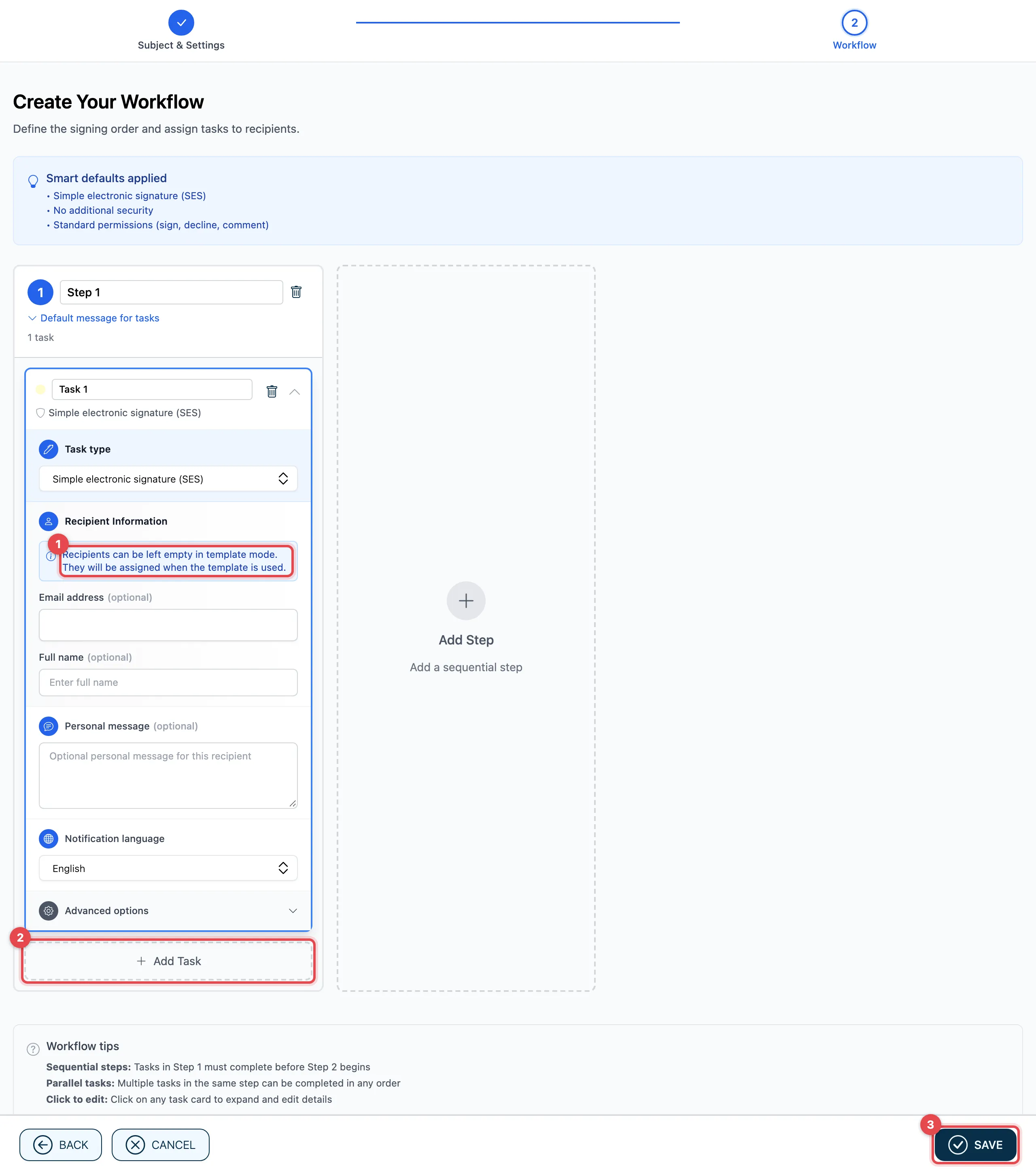
- The note says: recipients can be left empty in template mode.
- Set up the process with Add Task and Add Step. Give each task a role, for example “HR department” or “Employee”, and choose the Task type.
- Click Save. The template appears in the list.
How steps and tasks work is explained under Workflow: who, in which order.
Good to know
Section titled “Good to know”- A process template contains no documents. You upload the document when you use the template.
- Each step needs at least one task.
- Tasks in the same step run at the same time; the steps run one after the other.
- The composer does not offer to save a new request as a template, and a template cannot be made from an existing request either. Create the template here with Add.