

Open a protected task
The sender can protect a task further. Then, after you click the link, actaSIGN first checks that it is really you. Only then do you see the document. The sender decides which protection applies.
Password
Section titled “Password”The sender has protected the task with a Password. The password is not in the e-mail. You receive it another way, for example by phone.
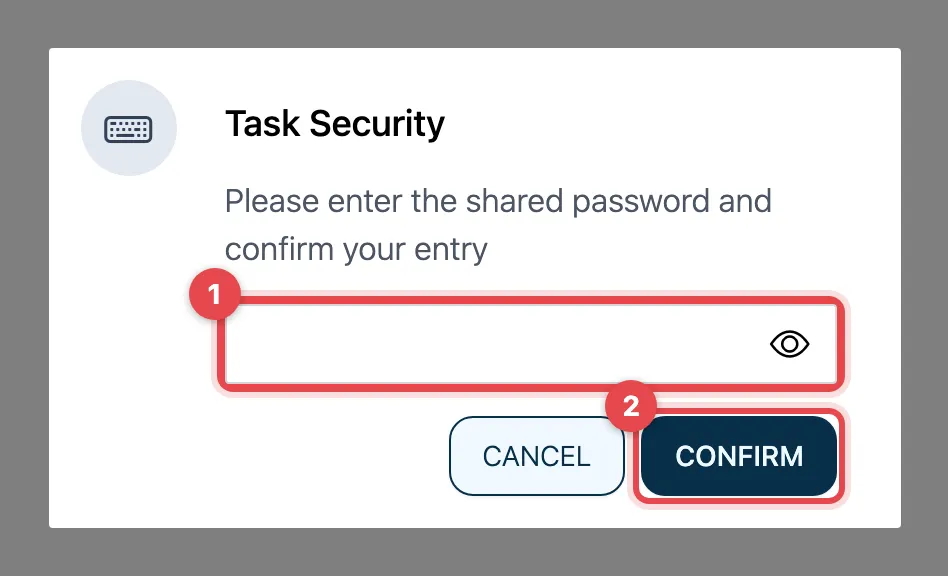
- Enter the password the sender gave you.
- Click Confirm.
If the password is wrong, actaSIGN reports: Authentication has unfortunately failed. Click Continue to try again.
Code by SMS
Section titled “Code by SMS”The sender has chosen OTP via SMS. actaSIGN immediately sends a code to the mobile number the sender has stored for you.
- Confirmation code via SMS appears with your mobile number.
- Type in the code from the SMS.
- Click Confirm.
If the code is wrong, Wrong confirmation code appears. Click Continue and enter the code again. If the mobile number is not correct, contact the sender.
Login required
Section titled “Login required”The sender requires Login required: you must have an actaPASS account with the e-mail address the request was sent to.
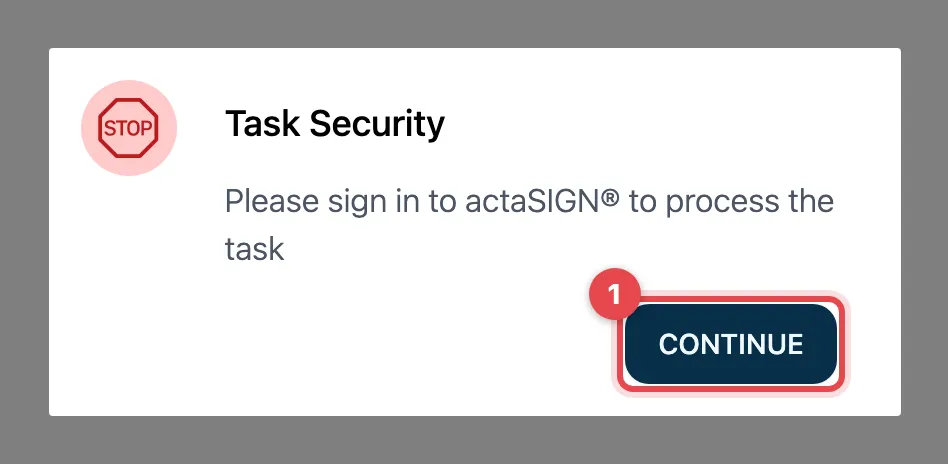
- Click Continue.
- Sign in, see Sign in. If you do not have an account yet, create one with the same e-mail address.
- actaSIGN then opens your task.
Authenticator app or passkey
Section titled “Authenticator app or passkey”The sender requires Authenticator app / Passkey. This is the strongest protection: you confirm with your device. In the Task Security dialog you find Use passkey, a field for the 6-digit code and Use a recovery code instead.
- Click Use passkey and confirm with your fingerprint, face or device PIN.
- Or enter the 6-digit code from your authenticator app and click Confirm code.
- If you do not have your device at hand, click Use a recovery code instead.
If you have not set anything up yet, actaSIGN guides you through the setup in the same dialog (How would you like to authenticate?). Usually the sender has sent you an invitation beforehand, see Set up strong authentication.
Good to know
Section titled “Good to know”- The sender chooses the protection. You cannot switch it off. Send questions about the password or the mobile number to the sender.
- After too many wrong codes, actaSIGN locks the task: Too many failed attempts. In that case, contact the sender.
- If you click Cancel, actaSIGN closes the task again. You can open the link again later.
- Protected tasks cannot be signed together.