

Set up strong authentication
If a sender requires a passkey or an authenticator app for their tasks, you receive an invitation by e-mail beforehand. With the link in it, you set this up, without an account. After that, you open protected tasks with your device.
- Click the link in the invitation. Strong authentication opens for your e-mail address. At the top it shows what the sender requires (Required: …).
- For a passkey: under Passkeys, click Add passkey, optionally enter a name, click Create passkey and confirm with your fingerprint, face or device PIN.
- For an authenticator app: next to Authenticator app, click Set up, scan the QR code with the app and enter the 6-digit code. Click Confirm.
- Keep the Recovery codes in a safe place and tick I have saved my recovery codes.
- Click Done.
For the next protected task, you confirm with it, see Open a protected task.
Lost device
Section titled “Lost device”If your phone is gone or the passkey has been deleted, set everything up again.
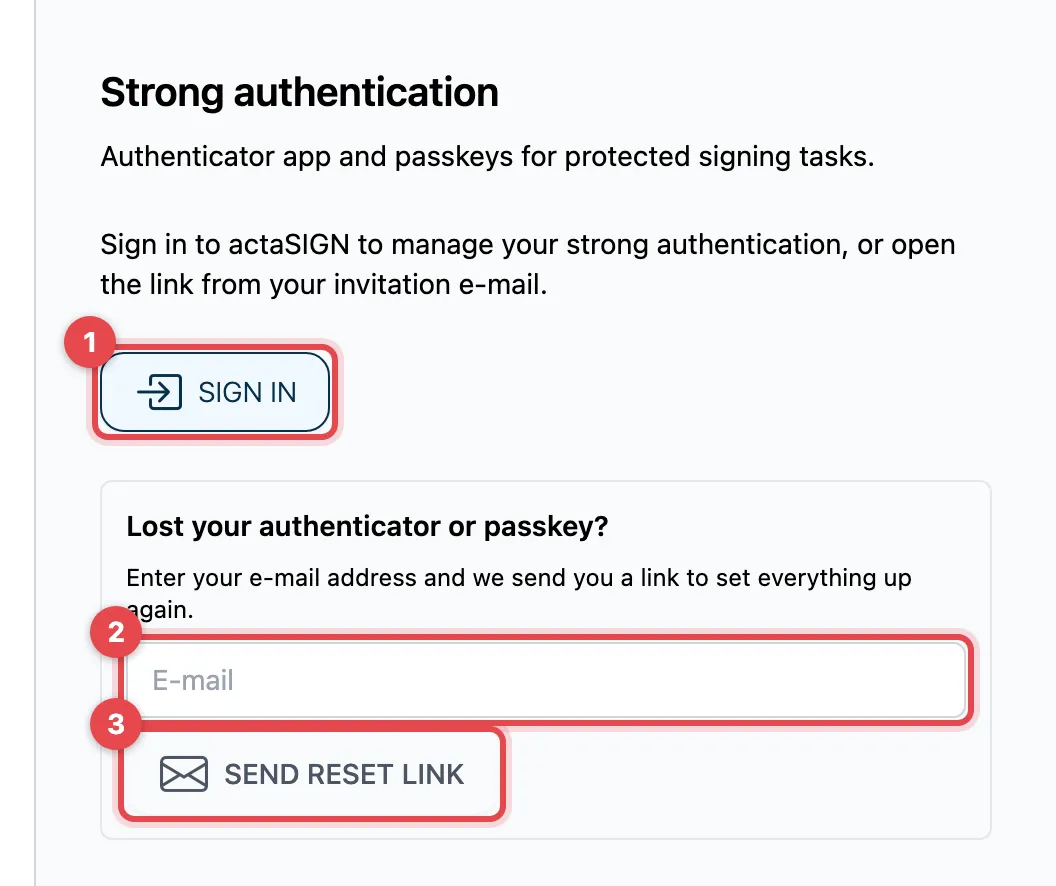
- Open the link from your earlier invitation. Because it has already been used, actaSIGN shows a message and, below it, the form for resetting. If you are a member of an organization, you can sign in instead.
- Under Lost your authenticator or passkey?, enter your e-mail address.
- Click Send reset link. You receive an e-mail with a new link and use it to set everything up again.
If you have a recovery code, you can also open a task with it. After that, you must set up your passkey or app again.
Good to know
Section titled “Good to know”- Done is only possible once everything the sender requires is set up.
- The link from the invitation works only once. If you have already used it, actaSIGN reports: This link was already used. In that case, request a reset link below.
- An expired link can no longer be used. Request a new one or ask the sender for a new invitation.
- Each recovery code works once. If you use one, you lose all factors you set up and set them up again.
- If you are a member of an organization, you find the same setting in the menu, see Strong authentication in your profile.