

Manage contacts
The contacts are your organization’s shared address book. The composer suggests recipients from it as soon as someone types a name or an address.
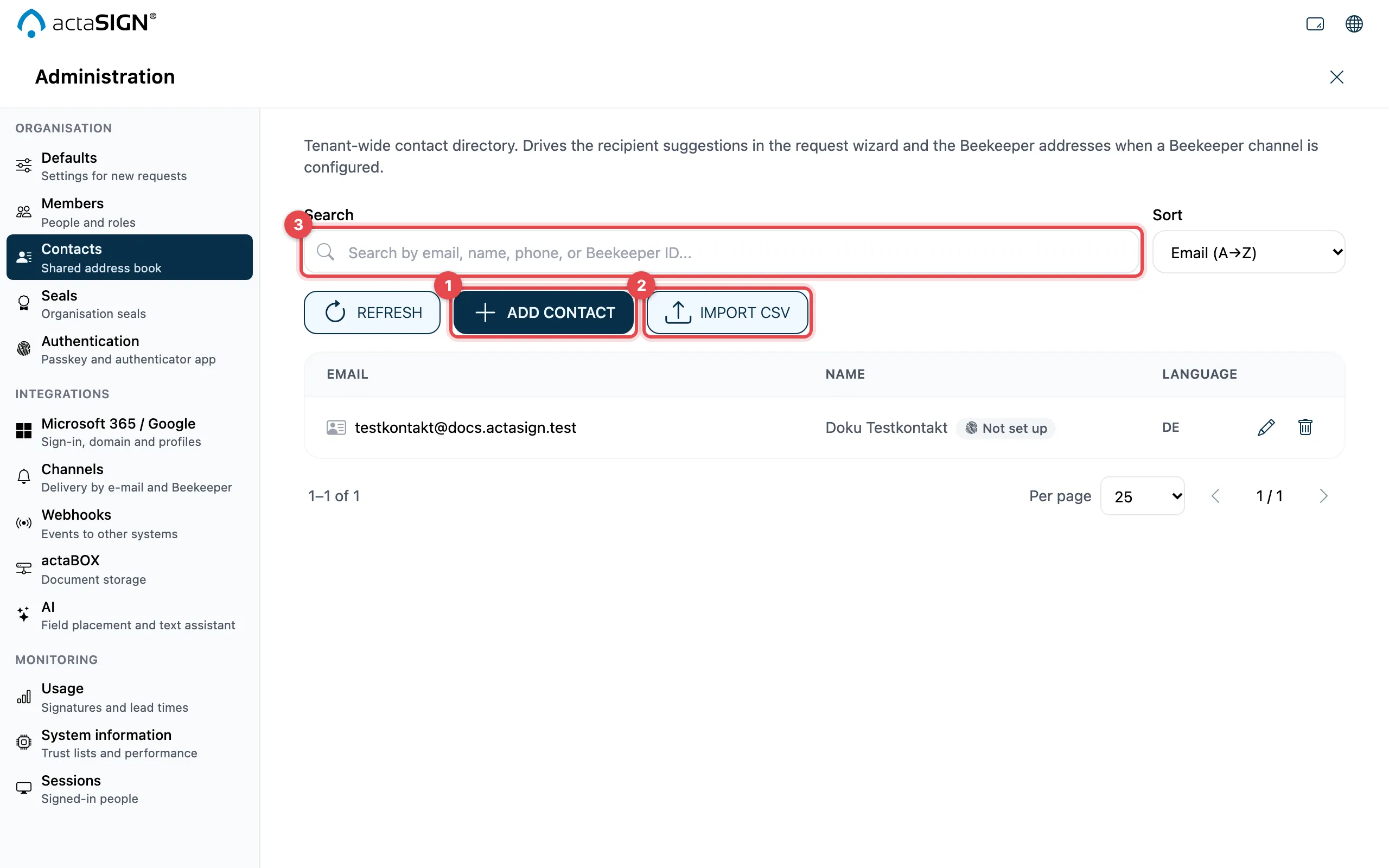
- Add contact: enter one contact by hand
- Import CSV: many contacts at once
- Search field: search by e-mail, name, phone or Beekeeper ID. Next to it you choose the Sort order.
Add a contact
Section titled “Add a contact”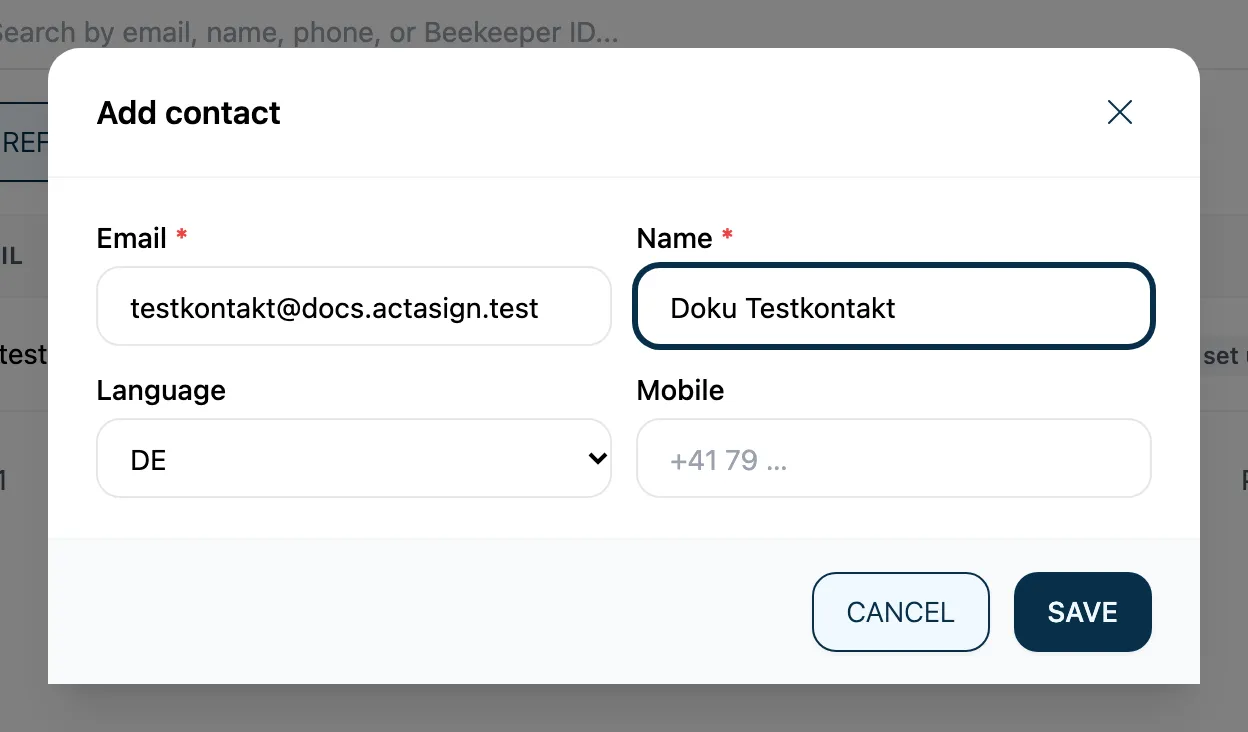
- Click Add contact.
- Enter Email and Name (both required).
- Choose the Language in which the person receives e-mails.
- Optional: Mobile, for example for tasks with an SMS code.
- Click Save.
Change or delete a contact with the pencil or the bin icon in its row.
Import many contacts
Section titled “Import many contacts”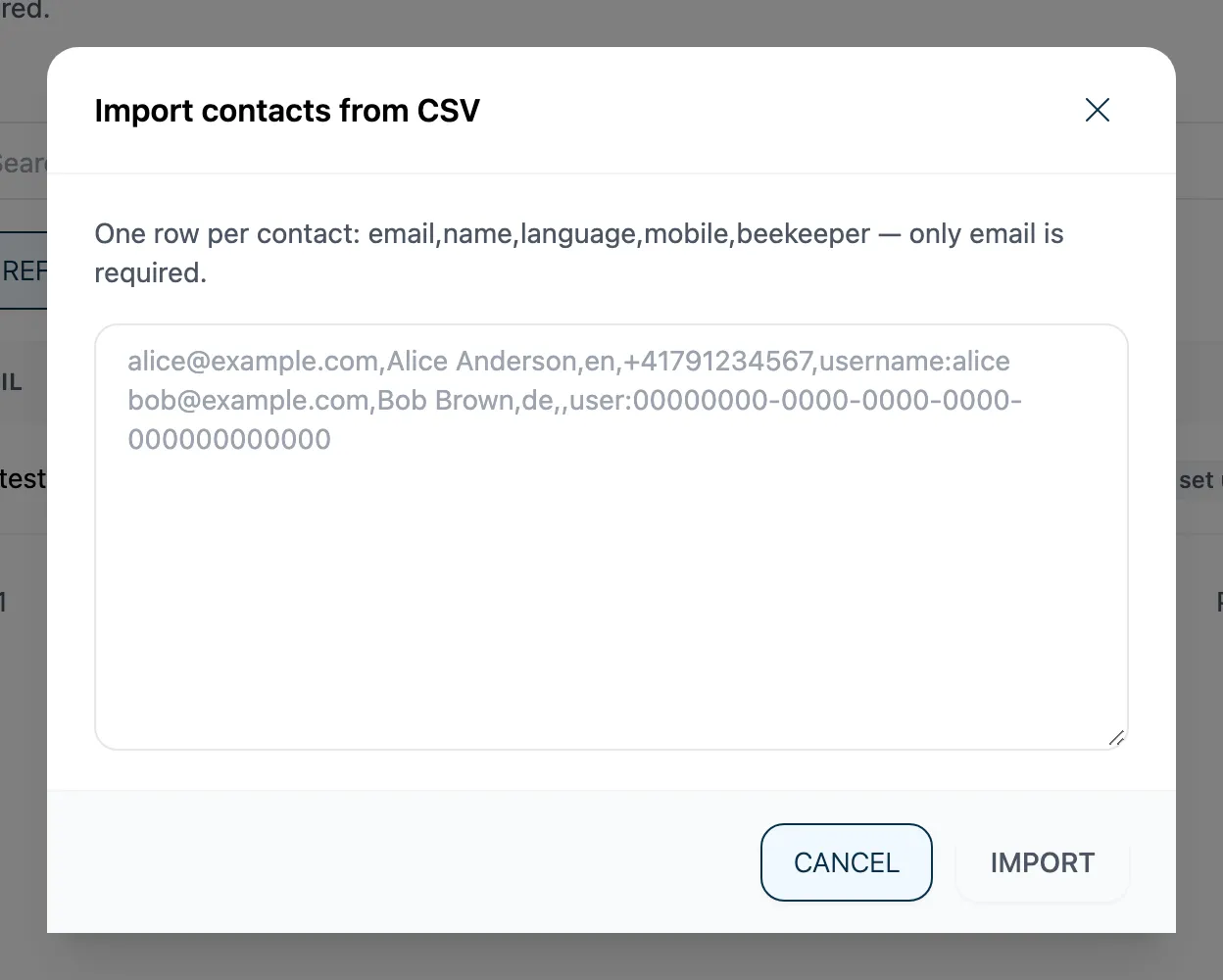
- Click Import CSV.
- Paste the lines into the text field, one line per contact, in this order:
Email,Name,Language,Mobile,Beekeeper ID. Only the e-mail is required. - Click Import.
actaSIGN then reports how many contacts are new, updated and skipped. A contact with an e-mail address that is already known is updated.
erika.beispiel@example.com,Erika Beispiel,de,+41 79 123 45 67,jean.exemple@example.com,Jean Exemple,fr,,Good to know
Section titled “Good to know”- Contacts are not members: they get no access to actaSIGN; they are only addresses for requests.
- Next to each contact you see whether they have set up an authenticator app or a passkey. A click on Not set up opens the invitation for it (Strong authentication: invitations).
- Write the Beekeeper ID with its type in front, for example
username:aliceoruser:followed by the user ID.