

Complete tasks
Under Tasks you see everything that others have sent you to sign, to approve or for your information. Here you complete your tasks without searching for the link in the e-mail.
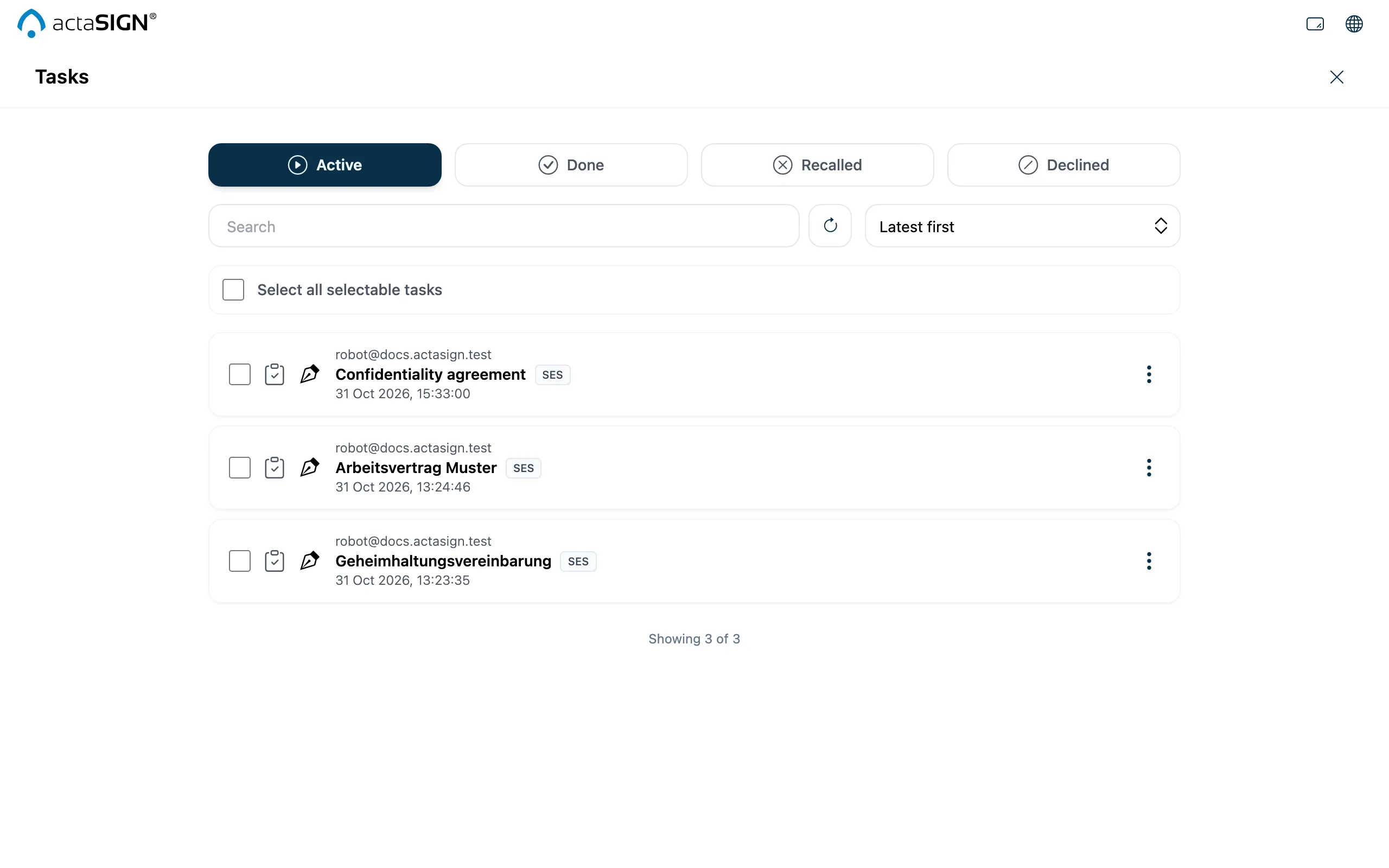
- At the top, choose which tasks you see: Active (open), Done, Recalled or Declined. Search searches the list, and Refresh list loads the list again.
- Each row shows the sender, subject, date and the kind of task, see below.
- For an open task, click the subject. The document opens for signing, see Sign a document.
More actions for a row
Section titled “More actions for a row”At the end of each row, open More actions:
- Preview: just view the document, without opening the task
- Perform: open the task and complete it (only for open tasks)
- View: see the result of a completed task, see Result
What the abbreviations mean
Section titled “What the abbreviations mean”| Abbreviation | Task |
|---|---|
| SES | Simple electronic signature |
| AES | Advanced signature with an SMS code |
| AES CH | Advanced electronic signature CH at Swisscom |
| QES-CH / QES-EU | Qualified signature under Swiss or EU law (Mobile ID App) |
| Seal | Seal of the organization |
| Approval | Approval without a signature |
| Info | For information only |
Tasks from another organization
Section titled “Tasks from another organization”If a row says From … with a name, the task comes from another organization in actaSIGN. Open it like any other. actaSIGN briefly switches to that organization for it.
Tasks as a deputy
Section titled “Tasks as a deputy”If it says Deputy for …, you complete the task for an absent person. A note reminds you of this when you open it. You sign with your own name. See Absence and deputy.
Good to know
Section titled “Good to know”- actaSIGN completes tasks that are only for information by itself as soon as it is their turn. They then appear under Done.
- A task you open here is the same as the one from the e-mail. What you complete here also applies to the link.
- You can sign many similar tasks in one go, see Sign several tasks together.