

Sign in
You sign in to actaSIGN through actaPASS. Depending on your account, you need a password, a code from your authenticator app or a passkey.
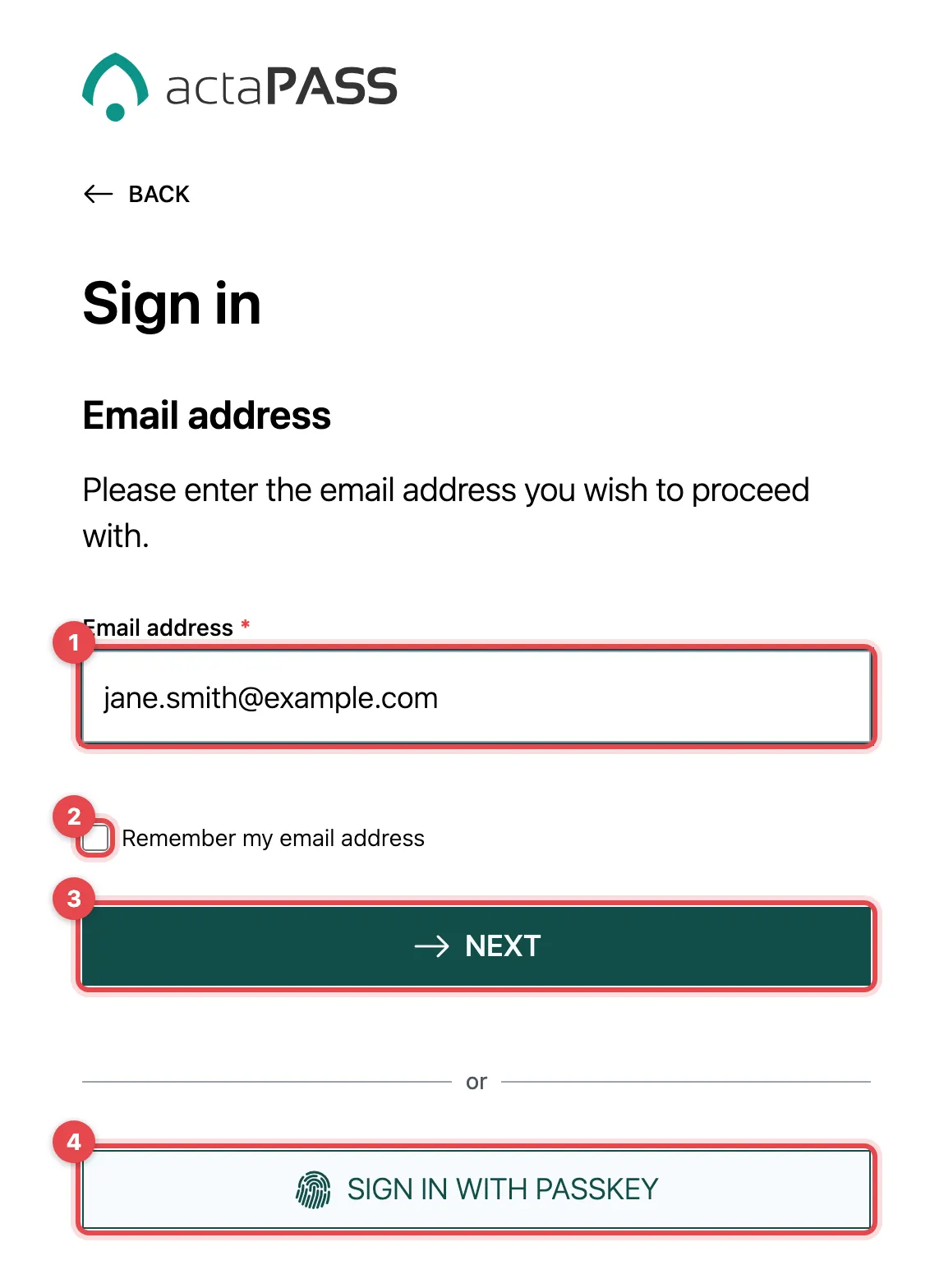
- Enter your Email address.
- Optional: Remember my email address. Next time, the address is already filled in. Do not use this on other people’s computers.
- Click Next.
- Do you have a passkey? Then click Sign in with Passkey. You need neither an email address nor a password.
Password and second factor
Section titled “Password and second factor”- Enter your Password and click Next.
- If you have set up an authenticator app, type in the six-digit code. Sign-in continues on its own after the sixth digit.
- With a passkey, confirm with your fingerprint, face recognition or your security key.
Instead of using a password, you can also Sign in with code only if an authenticator app is set up.
Central sign-in of your company
Section titled “Central sign-in of your company”If your company uses a central sign-in (single sign-on, e.g. Microsoft 365), you see Sign-in method selection after the email address. Choose your Identity provider there. If there is only one, actaPASS takes you straight to it.
Several organizations
Section titled “Several organizations”If you are a member of several organizations, actaSIGN asks after sign-in which one you want to work in. If you sign in directly at actaPASS, this step is called Tenant selection. Later you switch with Switch tenant.
Good to know
Section titled “Good to know”- “This email address is not assigned to a tenant or organization”: you have an account, but no organization has added you yet. Ask your administrator.
- After too many wrong attempts, actaPASS locks the sign-in. Contact your administrator.
- “Session expired”: sign in again.
- If your organization requires a second factor and you do not have one yet, actaPASS takes you to the Security page after sign-in.