

Open the link and view the document
With the link from the e-mail, you open the document in your browser. Here you read it, fill in fields and complete the task.
What the page looks like depends on the sender: a request created in Studio opens in Studio. If you see Your tasks on the left and Next field at the top, choose the “Studio” tab.
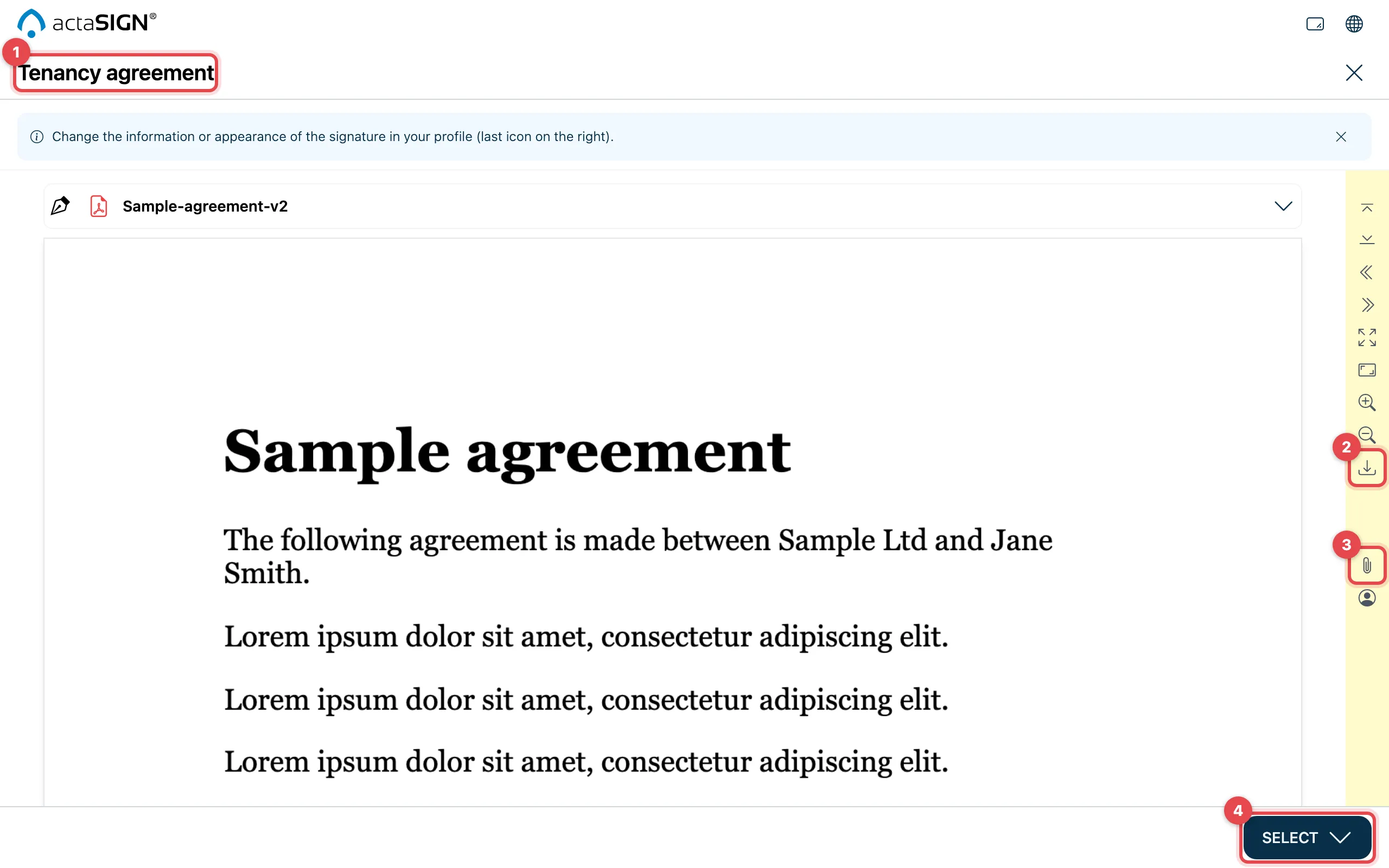
- Click the link in the e-mail. At the top you see the subject of the request, below it the document.
- On the right you find tools for paging and zooming. If the sender allows it, you can download the document here with Download documents.
- Behind the paper clip are the Enclosures, i.e. further files from the sender. See View and add enclosures.
- At the bottom right, open Select. This is where you complete the task.
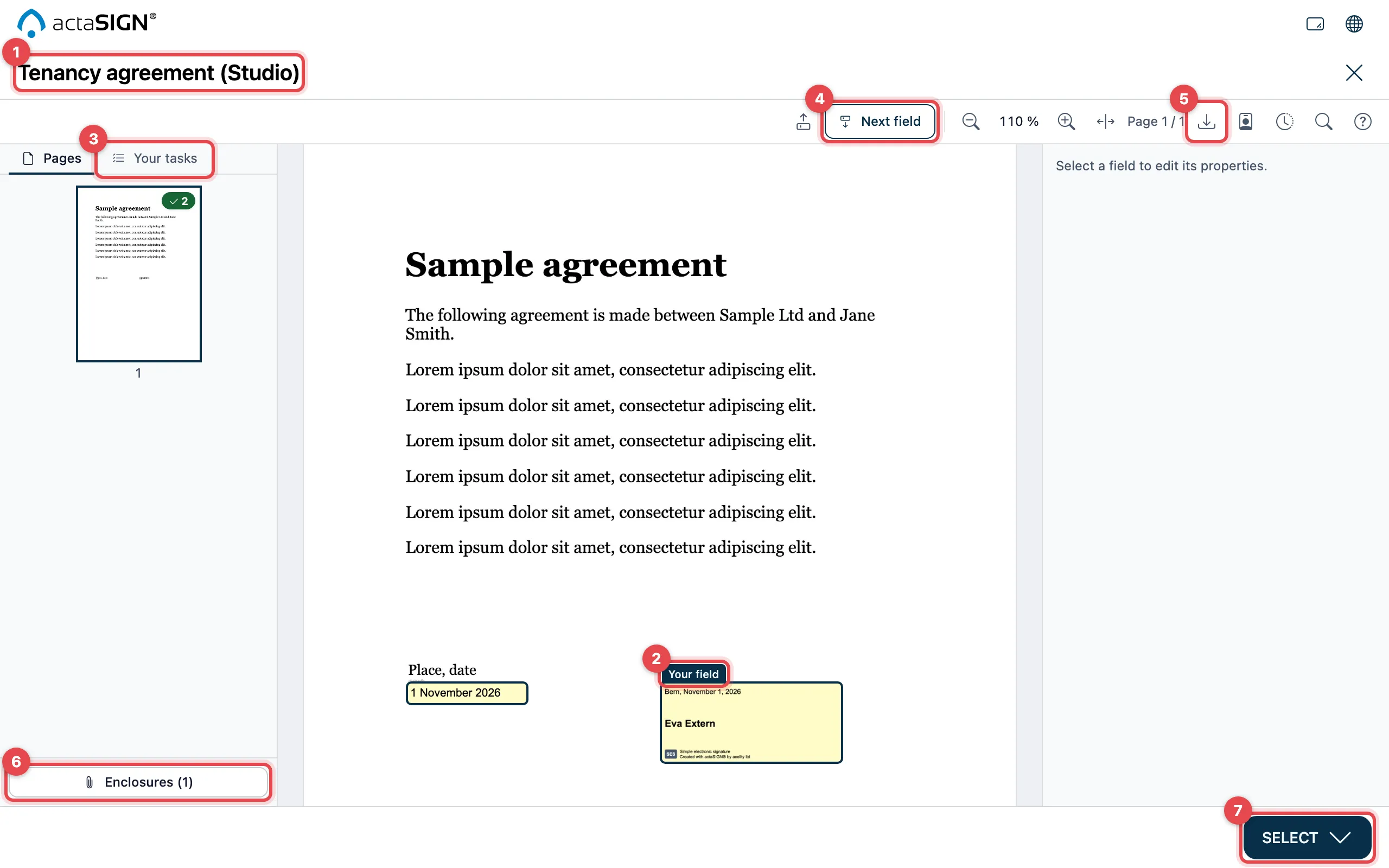
- Click the link in the e-mail. At the top you see the subject of the request, below it the document.
- Your own fields are marked with Your field.
- In the Your tasks tab you see all the fields you fill in or sign. The number next to it tells you how many are still open.
- Next field jumps to the next open field.
- If the sender allows it, you download the document with Download documents. Next to it, you open Signature details and the History of the request.
- Under Enclosures (…) you find further files from the sender. See View and add enclosures.
- At the bottom right, open Select. This is where you complete the task.
The first time
Section titled “The first time”The first time you open it, actaSIGN asks for the details your signature should show.
- Complete your signature details opens. Enter at least the Place. The rest is optional, see Sign a document.
- Click Save.
- A Note appears: first check the documents, then choose the right action under Select. Click Understood.
What is under Select
Section titled “What is under Select”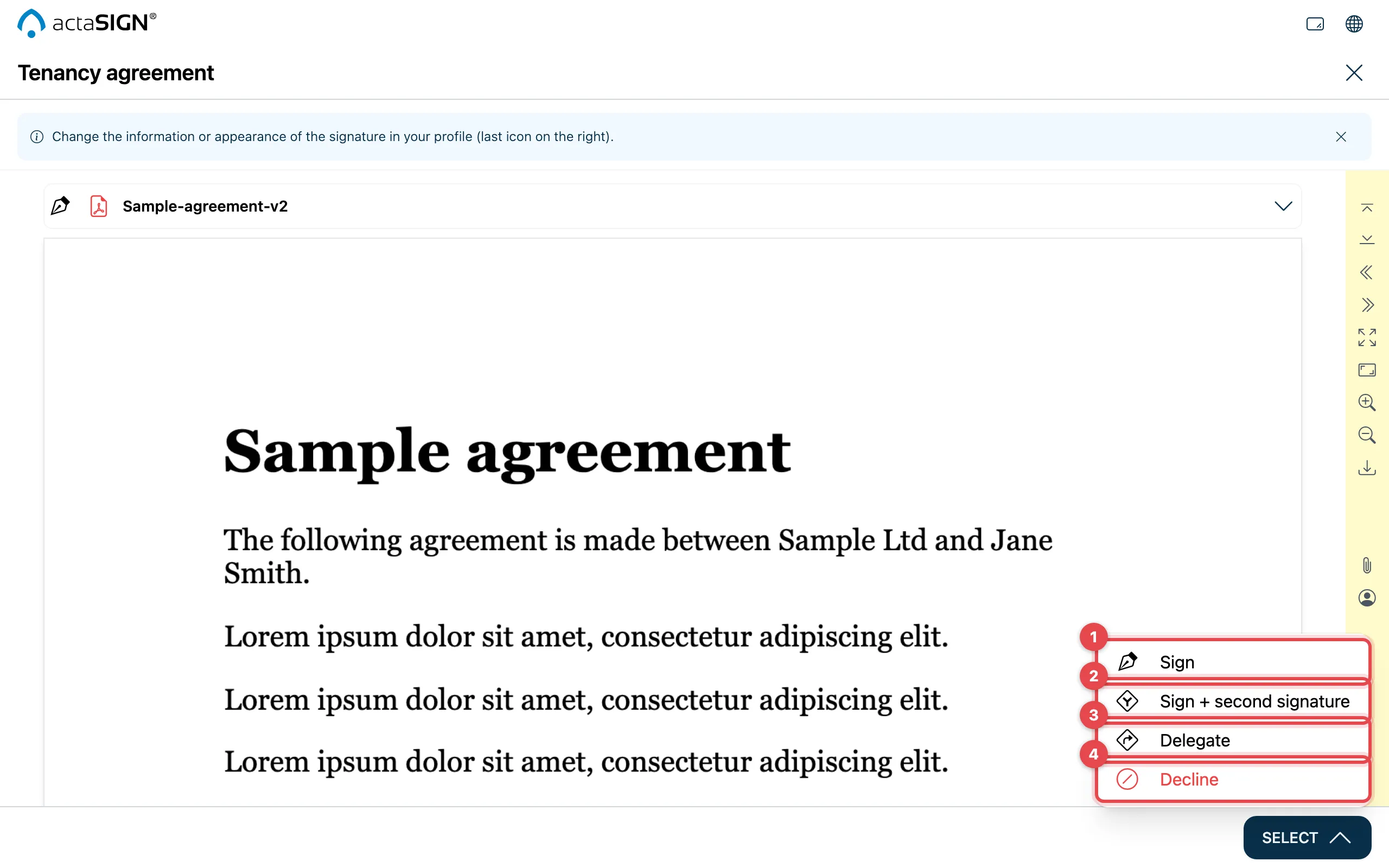
- Sign (for an approval: Approve), see Sign a document
- Sign + second signature, see Get a second signature
- Delegate, see Delegate a task
- Decline, see Decline a task
You only see what the sender has allowed for you. Sign and Decline are always there.
Select looks the same in both views.
Good to know
Section titled “Good to know”- You can close the page and open the link again later, as long as the task is open.
- If the task is protected, actaSIGN asks for a password or code before showing the document, see Open a protected task.
- If the sender has attached enclosures, Enclosures available appears at the top.
- If your device is set to the wrong time, the link may not open. See Messages.