

Protect a task further
Anyone who has the link in the e-mail can normally open the task. For confidential documents, you also ask for proof that it really is the right person who opens the link.
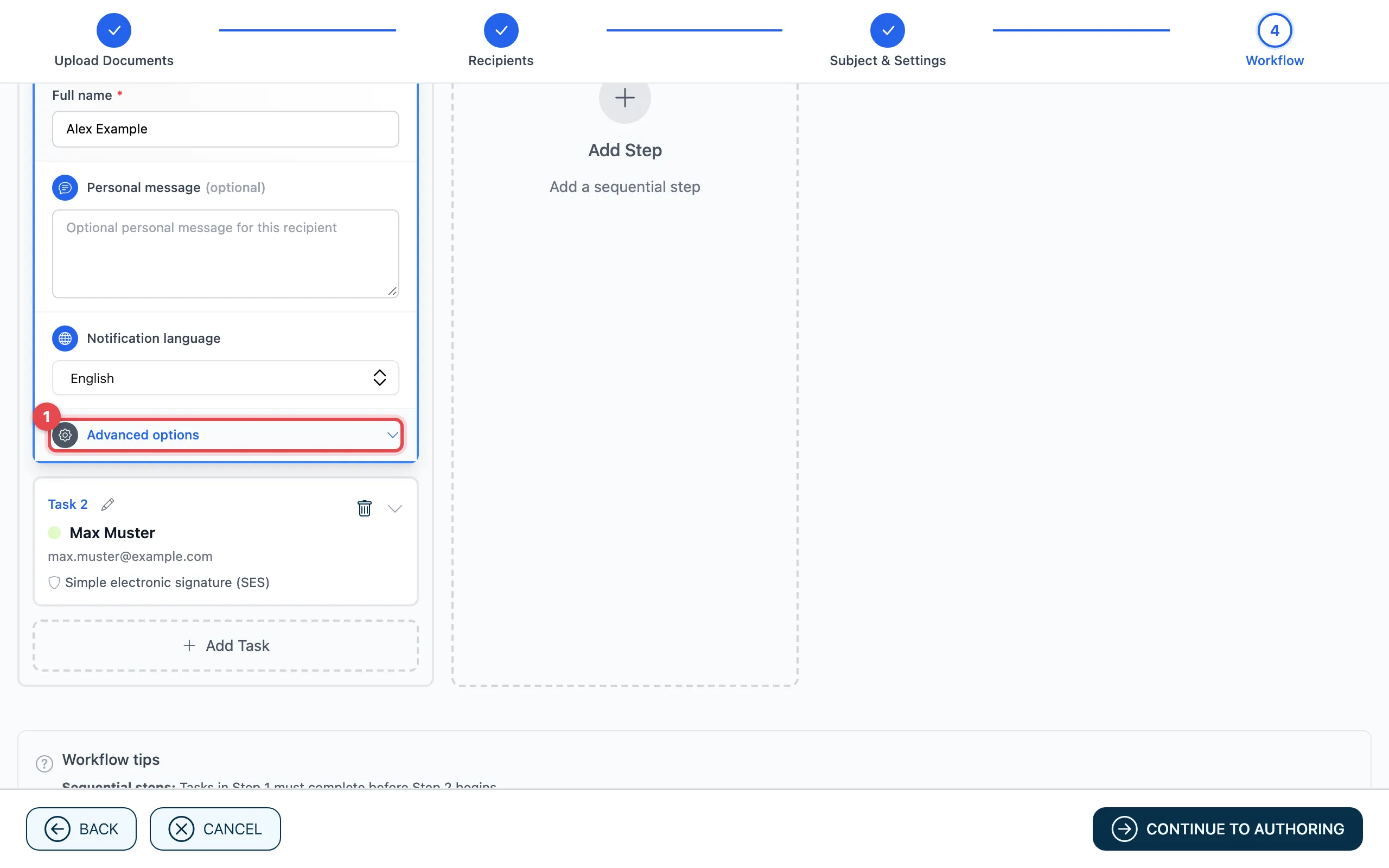
- In the task, open Advanced options.
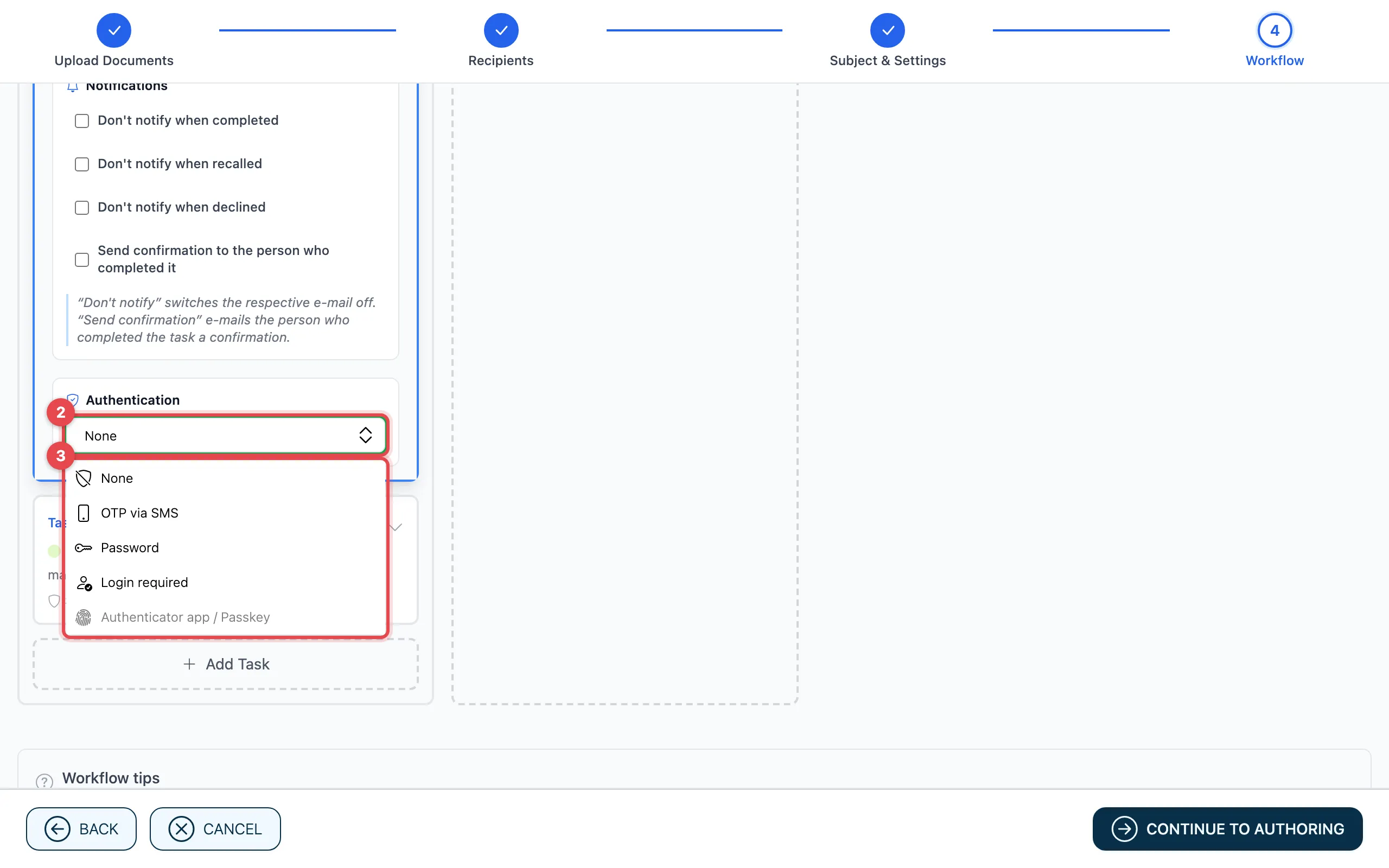
- Under Authentication, click into the field.
- Choose how the person must prove who they are (see table).
| Authentication | What the person must do | What you enter |
|---|---|---|
| None | Nothing, the link is enough. | – |
| OTP via SMS | Enter a code they get by SMS. | The person’s Mobile number |
| Password | Enter a password that you give them another way. | The password, twice |
| Login required | Sign in with an actaPASS account. | – |
| Authenticator app / Passkey | Confirm with their authenticator app or their passkey. | – (the person must have set this up) |
Set a password
Section titled “Set a password”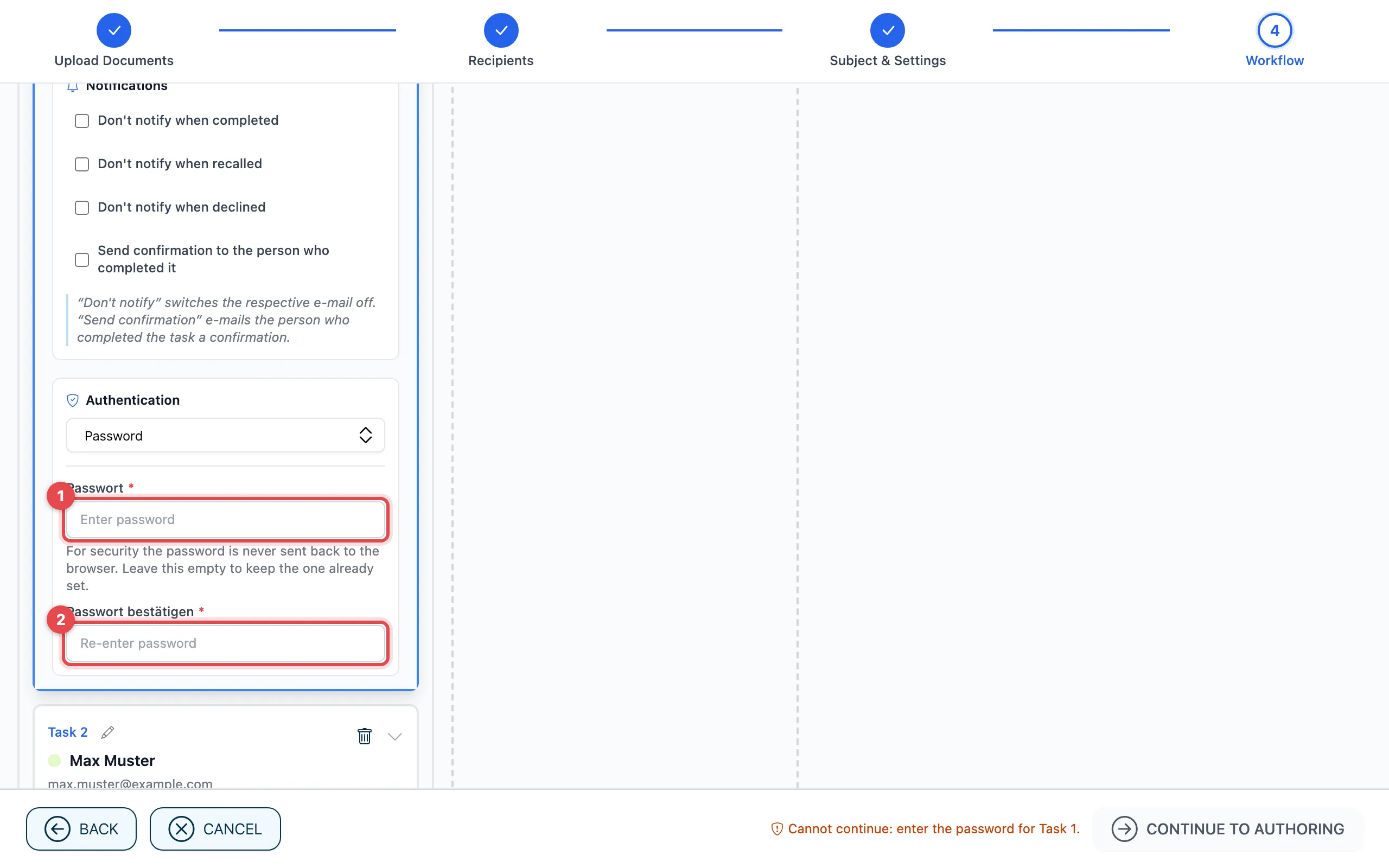
- Enter the password.
- Enter it once more to check it.
Tell the person the password in person or by phone, not in the same e-mail. actaSIGN warns you if it is shorter than 6 characters or if the two entries do not match.
Authenticator app / passkey
Section titled “Authenticator app / passkey”You can only choose this if the person has set up an authenticator app or a passkey. Their address then shows Set up for authenticator app / passkey.
If it is not set up, actaSIGN shows the notice “… has not set up an authenticator app or passkey yet.” If you are allowed to, click Send setup invitation. Until the person has finished, Continue to Authoring stays grey.
Good to know
Section titled “Good to know”- Authentication applies per task. Each person can have a different protection.
- actaSIGN never sends the password back to the browser. If you edit a draft later, leave the field empty to keep the current password.
- Authentication protects access. How strong the signature is depends on the task type.