

Fill in fields
Some documents contain fields that you fill in before signing. The sender decides which ones are required. actaSIGN checks everything before the signature is applied.
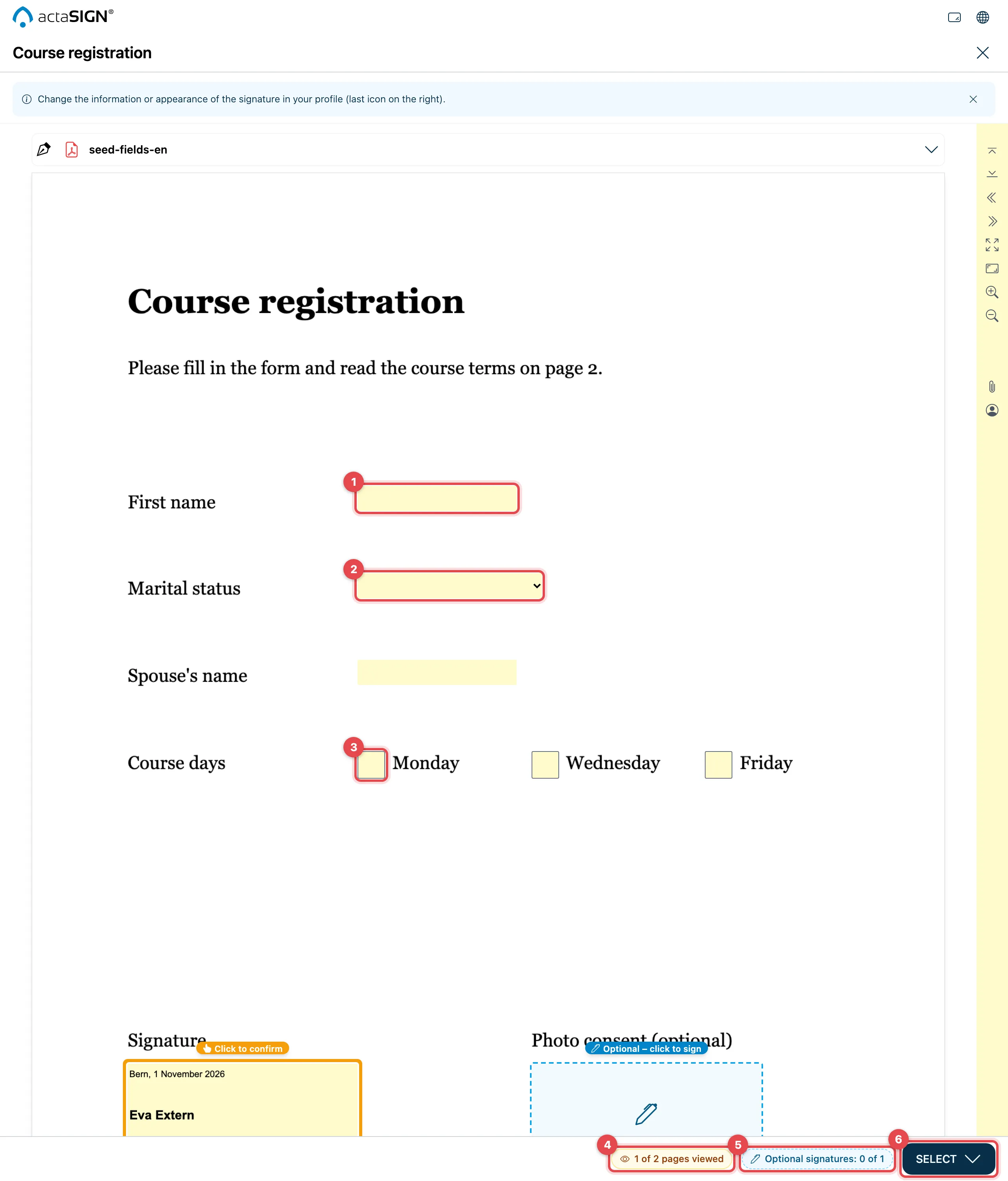
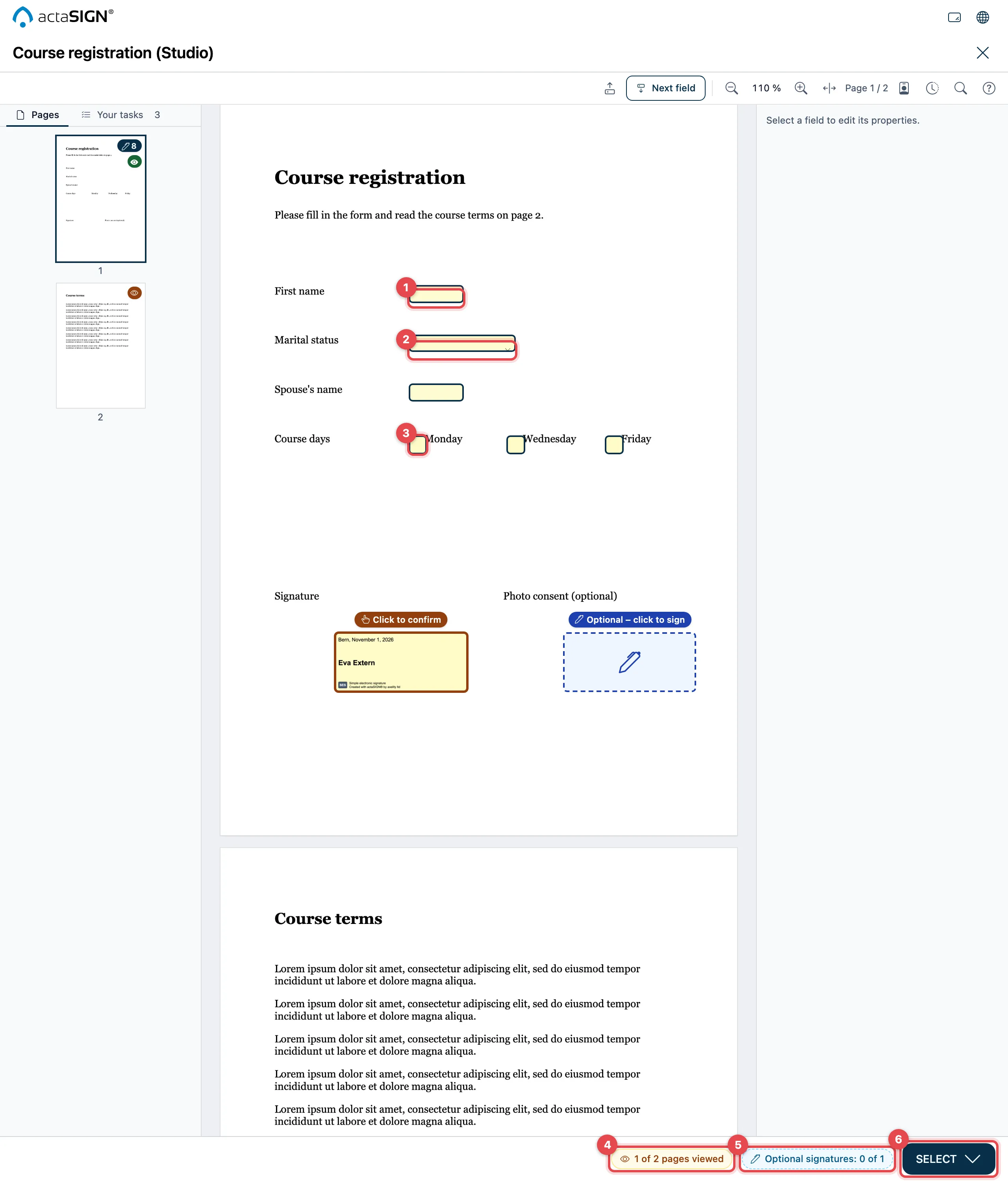
In Studio, the Your tasks list also guides you through the document, see below.
- Text field: click into it and type. Some fields expect a certain format, for example a date.
- Selection field: choose an entry from the list. If it says Other …, you can type Your own entry. Back to the list takes you back to the list.
- Checkbox: click it to tick it. If several belong together, the sender often asks for a number, for example at least one.
- Required reading: at the bottom you see … of … pages viewed. Scroll through all marked pages. A click on the display jumps to the next page still missing.
- Optional signatures: fields with Optional – click to sign may be signed, but do not have to be. One click places the signature, a second click removes it again.
- When everything is filled in, open Select and click Sign.
Your tasks in Studio
Section titled “Your tasks in Studio”If the document opens in Studio, the Your tasks tab on the left shows all the fields you fill in, tick, confirm or sign. The classic view does not have this list.
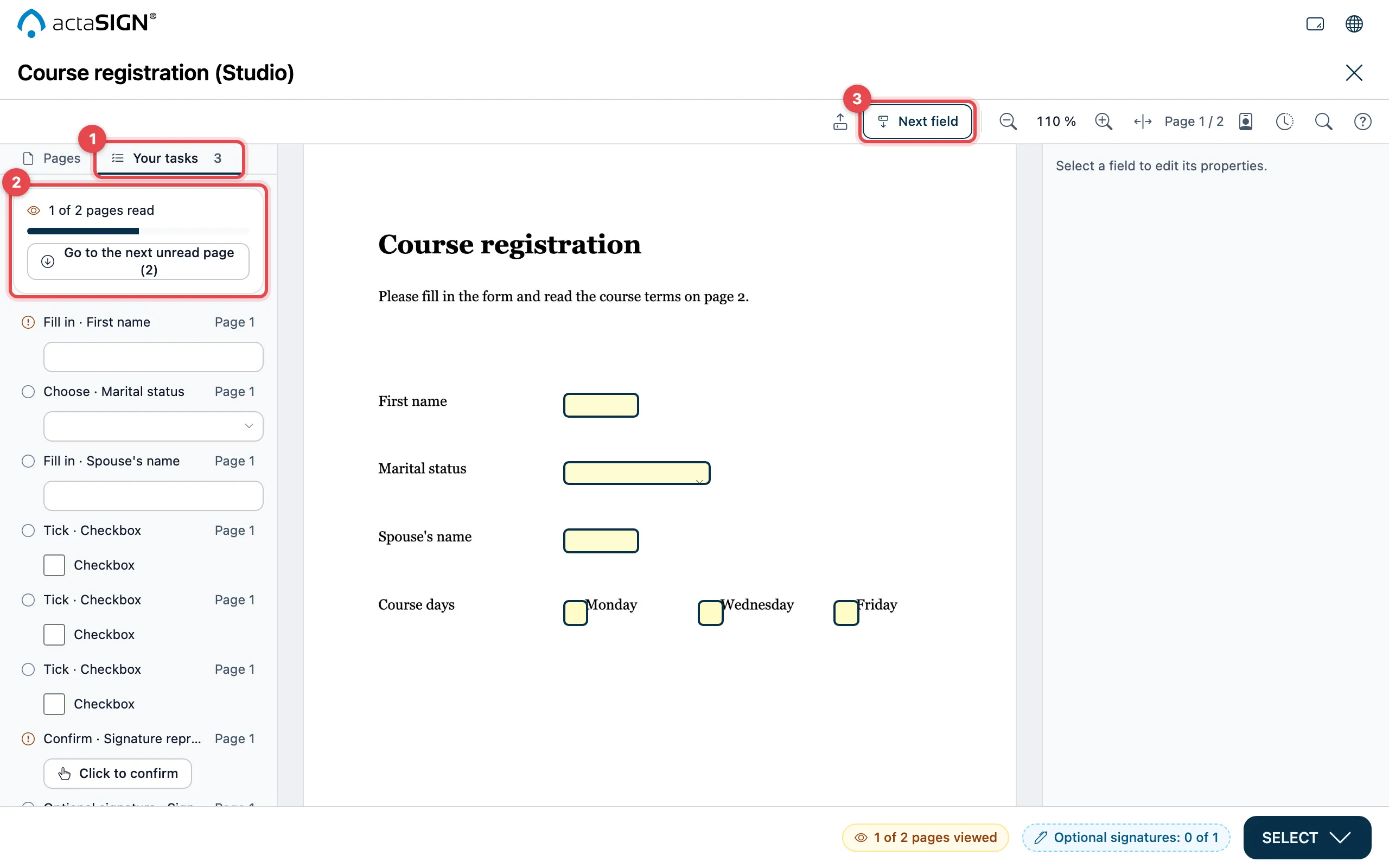
- Your tasks: the number tells you how many required entries are still open. You can also fill in the fields right here.
- If reading is required, the top shows … of … pages read. With Go to the next unread page (…) you jump there.
- Next field jumps to the next open field in the document.
Confirm fields
Section titled “Confirm fields”Some signature fields say Click to confirm. Click each of these fields. It then shows Confirmed. This way you confirm explicitly that you are signing at this place.
Required when …
Section titled “Required when …”A field can be required only under a condition. Example: “Spouse’s name” is only required if you choose “married” under “Marital status”. So fill in the upper fields first. When you sign, actaSIGN tells you which field has become required because of this.
If something is still missing
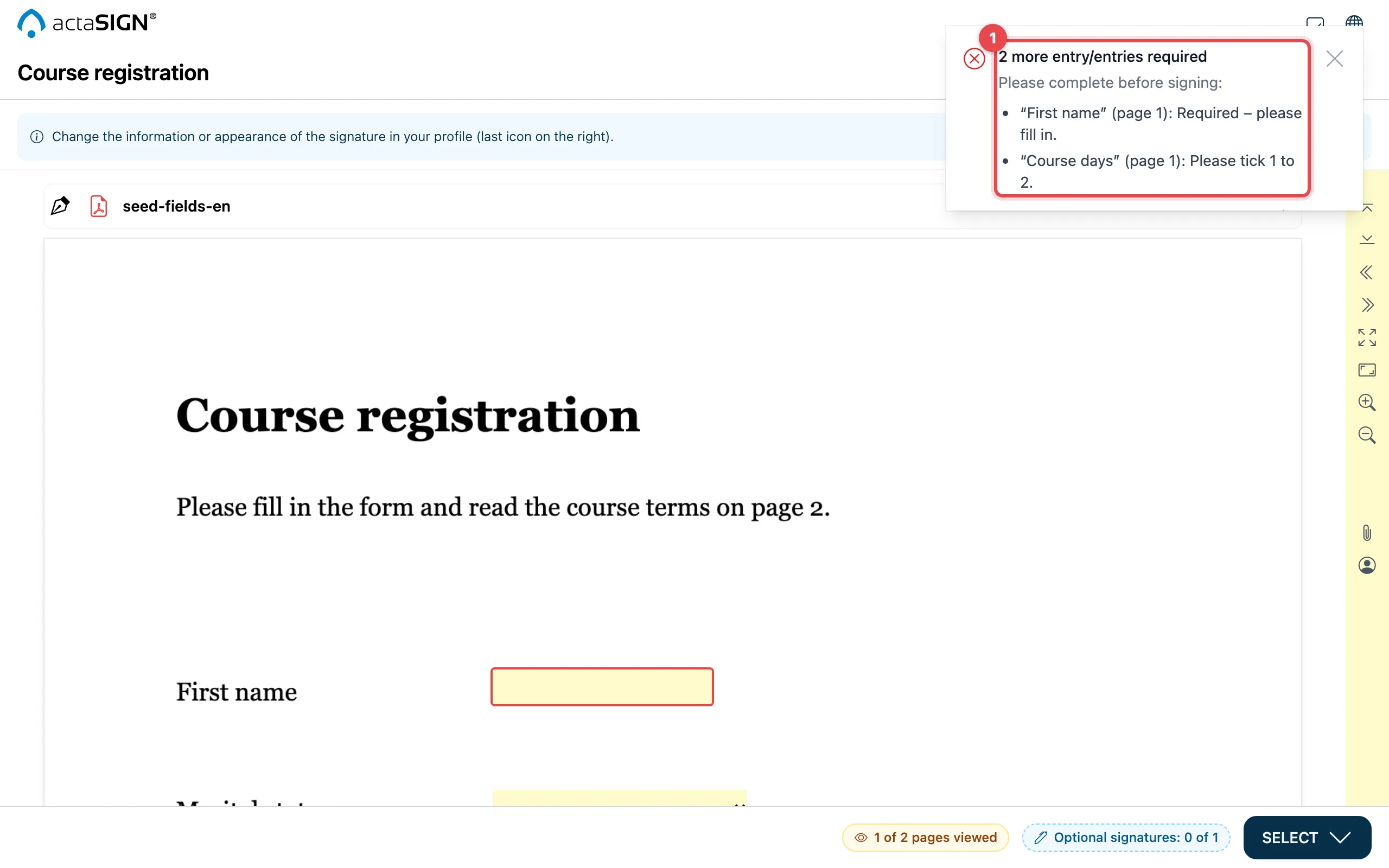
Section titled “If something is still missing”If you click Sign although something is missing, actaSIGN does not sign. It shows what is still missing and jumps to the first open field.
| Message | What you do |
|---|---|
| … more entry/entries required | The list names each field with its page and the reason. Fill in the fields. |
| Required selections missing | In a group of checkboxes, too few or too many are ticked. The message names the number, e.g. at least 1. |
| Input field invalid | A required field is empty or has the wrong format. |
| Text does not fit | Your text is longer than the field. Shorten it or ask the sender for a larger field. Text that does not fit does not go into the document. |
| Profile information missing | The field takes a detail from your profile that is missing (e.g. your job title). Add it in your profile. |
| Please view the document first | You have not yet viewed all marked pages. actaSIGN jumps to the next one. |
| Please confirm each marked field | Click each field with Click to confirm. |
| Optional signature not given | You have left out an optional signature. Sign without them continues, Back to the document lets you add it. |
| Task incomplete | There is no signature of yours in the document yet. See below. |
No signature place prepared
Section titled “No signature place prepared”If the sender has not set a place for your signature, you place it yourself: choose the Signature tool and click the place in the document where your signature should go. The tools are on the left in the classic view and in the toolbar at the top in Studio.
If the sender has allowed you to Fill in fields, you find more tools there, for example Signing date, Locality or Individual text.
Good to know
Section titled “Good to know”- Your entries are only saved when you sign. If you close the page before that, they are lost.
- You cannot change other recipients’ fields. With Show the other recipients’ fields (classic: on the right, Studio: at the top) you can show them.
- Tasks with fields, required reading or confirmation cannot be signed together.