

Connect Microsoft 365 or Google
Connect actaSIGN with your organization’s Microsoft 365 or Google Workspace. After that, staff sign in with their company account, your e-mail domain counts as confirmed without a DNS entry, and actaSIGN can take over profiles and absences.
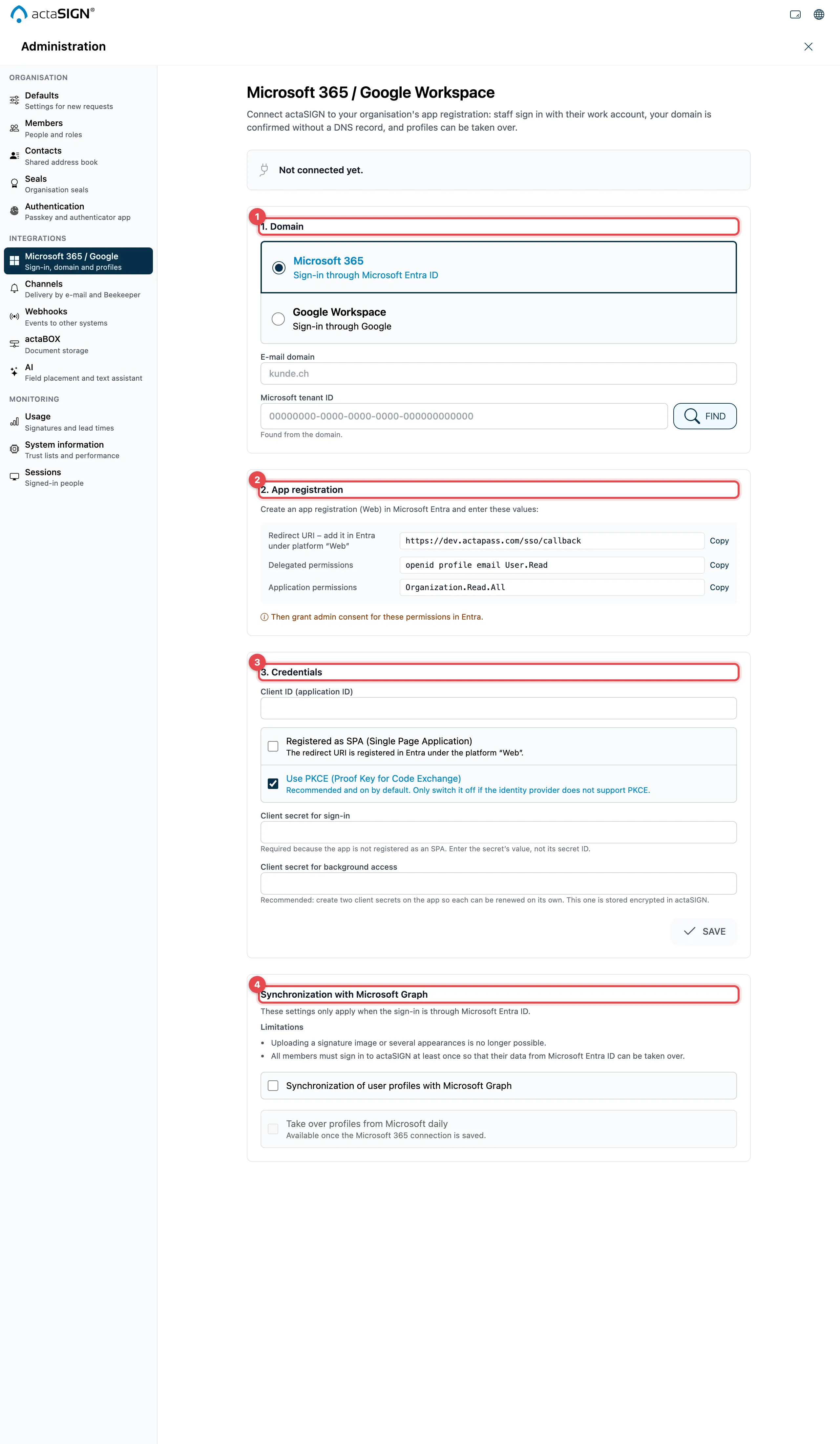
Connect
Section titled “Connect”- Domain: Choose Microsoft 365 or Google Workspace and enter the
E-mail domain (e.g.
kunde.ch). For Microsoft, actaSIGN finds the Microsoft tenant ID itself; otherwise click Find. - App registration: Have the app registration (Microsoft) or the OAuth client (Google) created with the values shown. Copy the redirect addresses with Copy. For Microsoft, this step also lists the Delegated permissions and Application permissions; after that, admin consent is needed in Entra.
- Credentials: Enter the Client ID (application ID) and the secret keys. Click Save.
- Click Test connection (Microsoft) or Confirm with Google (Google). If everything is correct, you see The domain is confirmed. Otherwise actaSIGN lists what is missing under Still to do:.
Microsoft: SPA or web
Section titled “Microsoft: SPA or web”| Setting | What it does | Default |
|---|---|---|
| Registered as SPA (Single Page Application) | Switch on if the redirect address in Entra is listed under the “Single-page application” platform. Then sign-in needs no secret key. | off |
| Use PKCE (Proof Key for Code Exchange) | Extra protection for sign-in. Only switch off if the provider cannot do PKCE. Always on for SPA. | on |
| Client secret for sign-in | Needed if the app is not registered as an SPA. Enter the value of the secret, not the secret ID. | – |
| Client secret for background access | For domain check, profile sync and calendar | – |
actaSIGN no longer shows saved keys. Leave the field empty to keep them.
Take over profiles from Microsoft
Section titled “Take over profiles from Microsoft”Under Synchronization with Microsoft Graph (Microsoft only):
- Synchronization of user profiles with Microsoft Graph: takes over profile data at sign-in. Below it you can choose Synchronization at each sign-in and Disable call of user profile.
- Take over profiles from Microsoft daily: once a day takes over name, job title, department, company, city and country of the members with this domain. Not the mobile number. You can only choose this once the connection is saved.
Absences from the calendar
Section titled “Absences from the calendar”Once the connection is saved, Absences from the calendar appears. With Take over absences, actaSIGN reads the absences of the members with this domain every 15 minutes, for today and the next 90 days. Only start and end are read, never the title or content.
- Microsoft: Scheduled automatic replies (out-of-office message) and Appointments shown as “Away”. For this, the app also needs MailboxSettings.Read and Calendars.ReadBasic.All with admin consent.
- Google: Out-of-office events. For this you need a service account with domain-wide delegation and its Service account key (JSON).
- Minimum length in hours: shorter appointments do not count as an absence.
- Sync now starts the sync right away.
Each person sets their own deputy and automatic handover: Absence and deputy.
Good to know
Section titled “Good to know”- Public domains such as gmail.com cannot be connected.
- A domain can belong to only one organization.
- Disconnect switches off sign-in with the company account, and the domain no longer counts as confirmed.
- actaPASS shows domains connected this way under Domains, but you can only change them here (Domains in actaPASS).