

Messages while signing
Sometimes actaSIGN shows a message instead of the document. Usually the task is already done, or the sender has changed something. Here you find each message and what you can do.
Messages about missing fields are described under Fill in fields.
When you open the link
Section titled “When you open the link”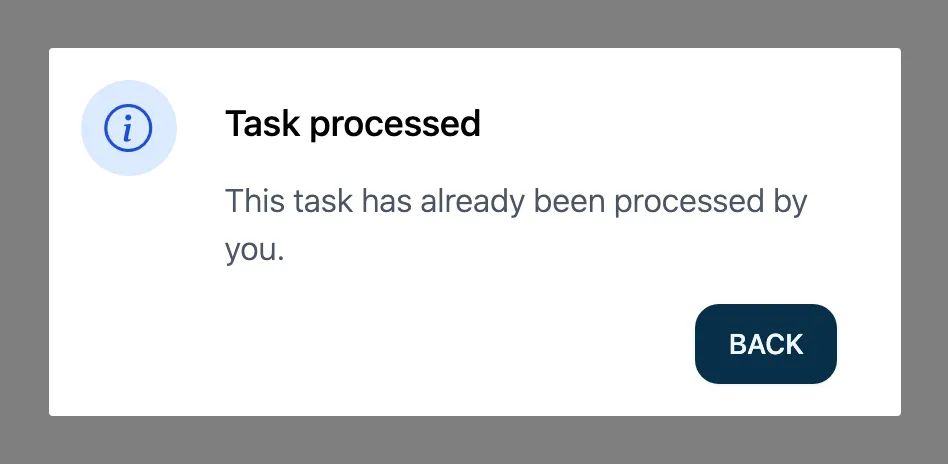
| Message | Meaning | What you do |
|---|---|---|
| Task processed | You have already completed this task. | Nothing. The result comes by e-mail, see Result. |
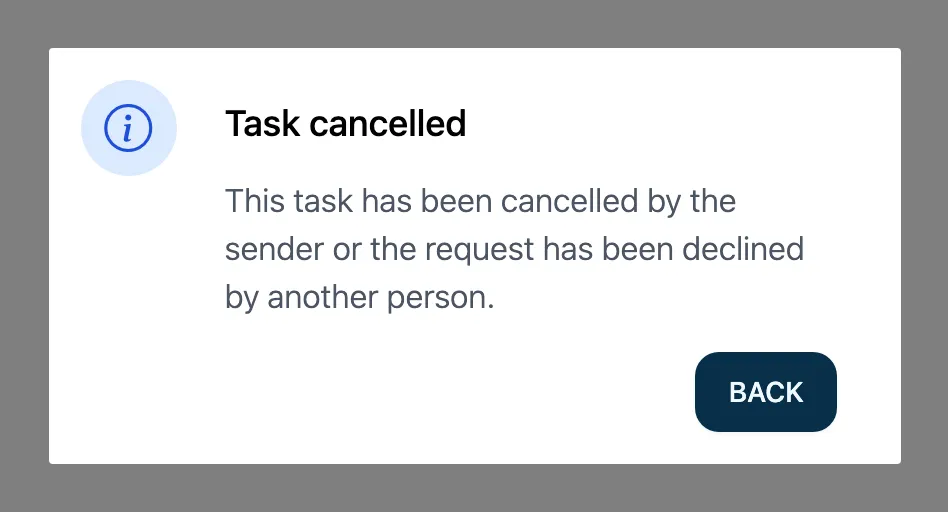
| Task cancelled | The sender has cancelled the request, or someone else has declined it. | Nothing. Ask the sender if needed. |
| Task declined | You have declined the task. | Nothing. |
| Task reassigned | The task now belongs to another person. Your link is no longer valid. | Nothing. Ask the sender if needed. |
| Task cannot be opened | The task could not be loaded, or the sender’s organization no longer uses actaSIGN. | Try again in a few minutes. If that does not help, contact the sender. |
| Check your device clock | The clock of your computer or phone is fast or slow. | See below. |
| This link is no longer valid | The request comes from an earlier version of actaSIGN. | Ask the sender to send it again. |
Check your device clock
Section titled “Check your device clock”The link is protected by a method that needs the correct time. If your device’s clock is off, actaSIGN tells you how many minutes it is fast or slow.
- In your device settings, switch on automatic time.
- Open the link from the e-mail again. It stays valid.
While signing
Section titled “While signing”| Message | Meaning | What you do |
|---|---|---|
| Request in process | Someone else is signing the same request right now. | Wait a minute and open the link again. |
| Request changed | The sender has changed the request in the meantime. | Close the page and open the link again. |
| Process failed | The signature could not be created. The message names the error. | Click Back and try again. |
| Process cancelled | You cancelled the process, for example in the Mobile ID App. | Click Back and start again. |
| Wrong confirmation code | The SMS code is not correct. | Click Continue and enter it again. |
| Qualified signature not possible | You are not identified with Swisscom for QES. | See Sign a document. |
| Task Security | The task is protected. | See Open a protected task. |
| Process completed | Everything worked. | Click Close. |
Good to know
Section titled “Good to know”- For questions about the content or deadlines, the sender is responsible. Their address is in the e-mail.
- If you get a message that is missing here, note the exact text and contact the sender.