

Permissions and options of a task
Each task has its own settings. For example, one person may pass the document on to a colleague, while another must look at all pages before signing.
Own message and language
Section titled “Own message and language”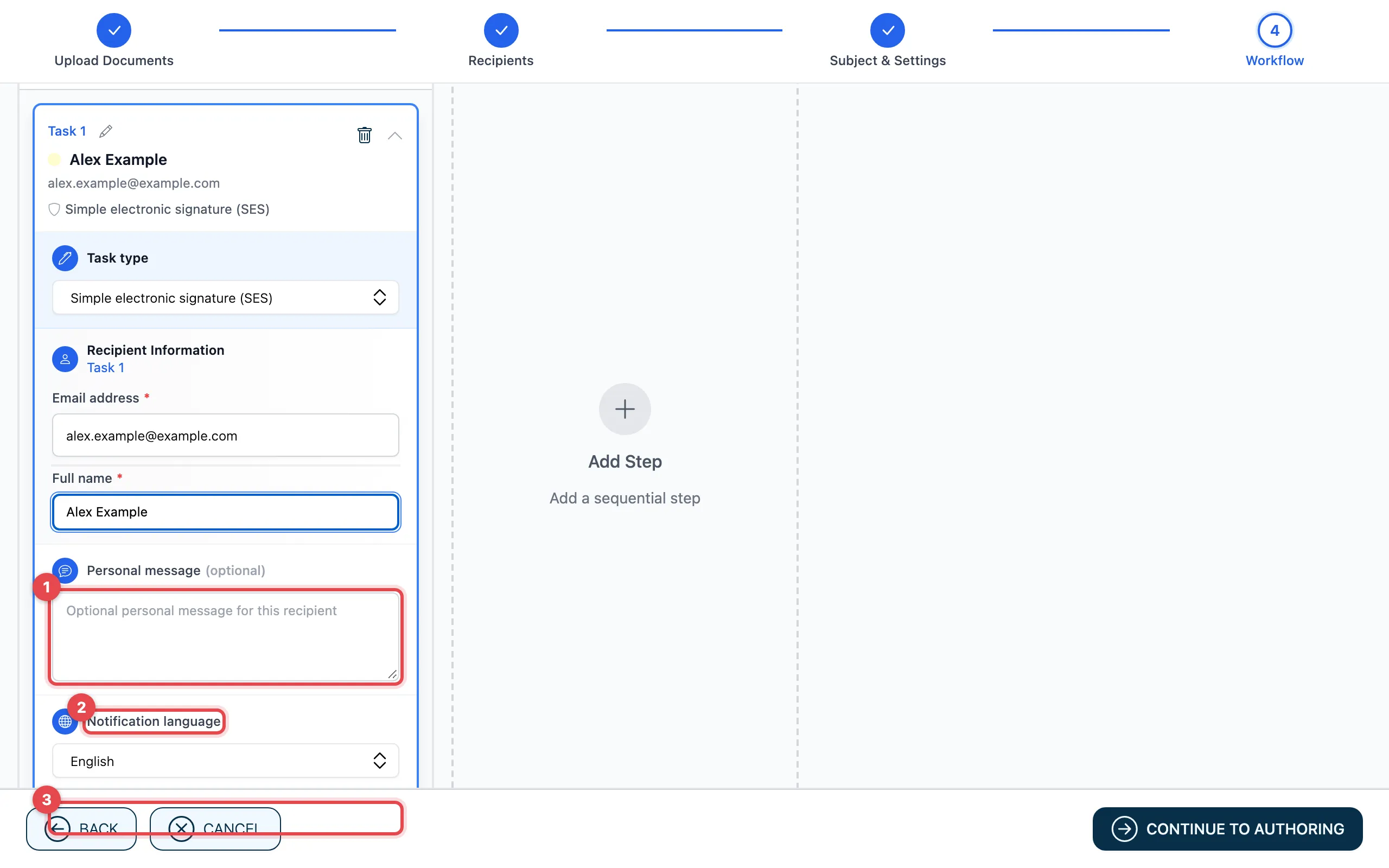
- Personal message: a text for this person only. It appears in their e-mail in addition to the message for all.
- Notification language: the language of the e-mails to this person and of the page where they sign.
- Advanced options opens the further settings.
Advanced options
Section titled “Advanced options”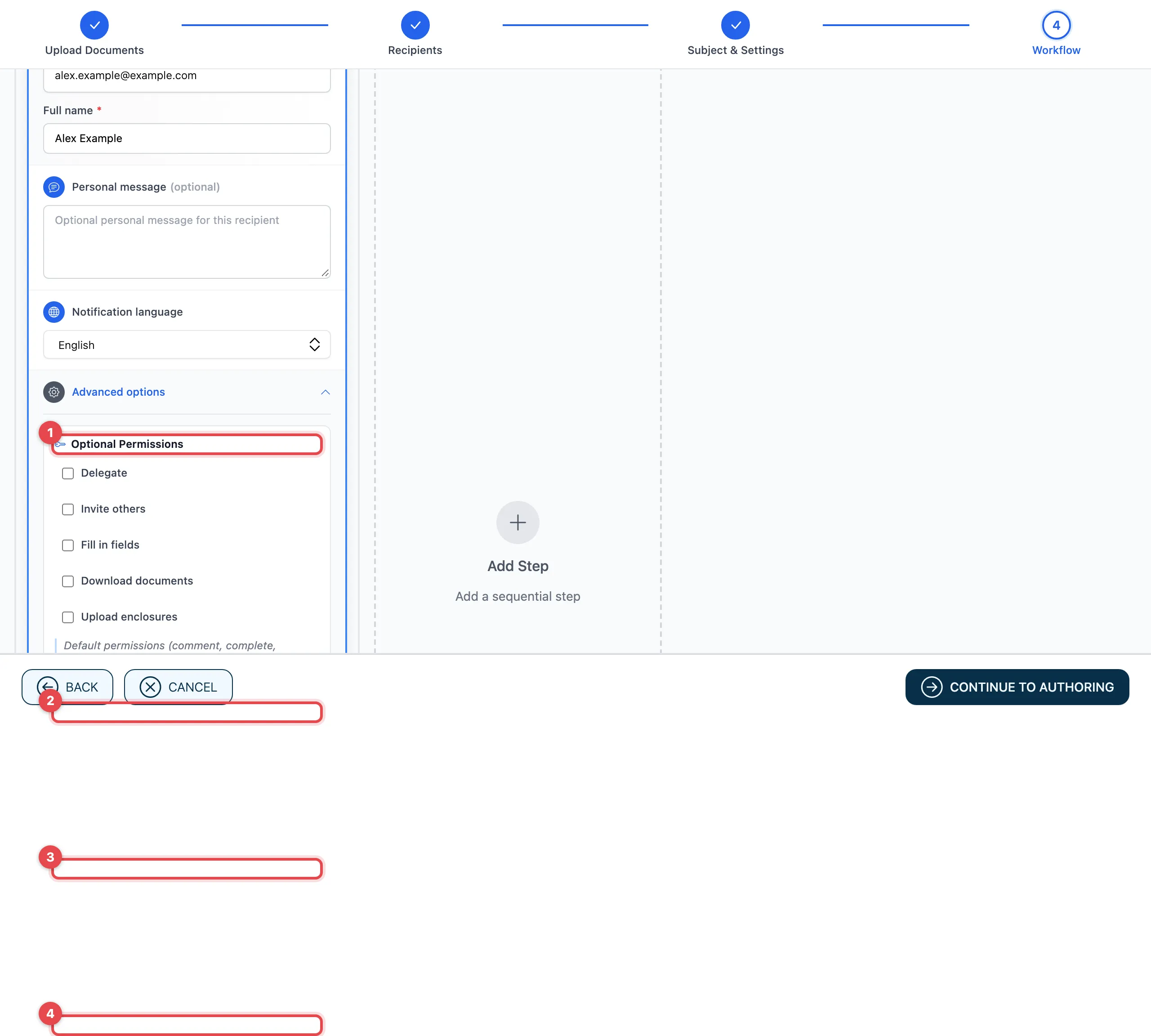
- Optional Permissions: what the person may also do (see below).
- View requirement: whether the person must look at pages before signing.
- Click-to-confirm signatures: whether the person must click signature fields before signing.
- Notifications: which e-mails the person gets.
Below that is Authentication, see Protect a task.
Optional permissions
Section titled “Optional permissions”| Permission | The person may … |
|---|---|
| Delegate | pass the task on to another person |
| Invite others | invite more people to sign |
| Fill in fields | fill in fields in the document |
| Download documents | download the documents |
| Upload enclosures | add their own files to the request |
Every person may always comment, complete and decline.
View requirement
Section titled “View requirement”- No requirement: the person can sign right away.
- Recipient must view all pages
- Recipient must view specific pages…: you then choose the pages in the document. An eye appears at the top right of each page; a click on it makes the page a required page.
Click-to-confirm
Section titled “Click-to-confirm”Only for tasks with a signature.
- No confirmation required
- All signature fields must be confirmed
- Specific signature fields…: in the document, click a signature field and mark it with the hand icon, see Place fields.
Notifications
Section titled “Notifications”- Don’t notify when completed, Don’t notify when recalled, Don’t notify when declined: the person does not get this e-mail.
- Send confirmation to the person who completed it: the person gets an e-mail as soon as they have completed their task.
Link to the result
Section titled “Link to the result”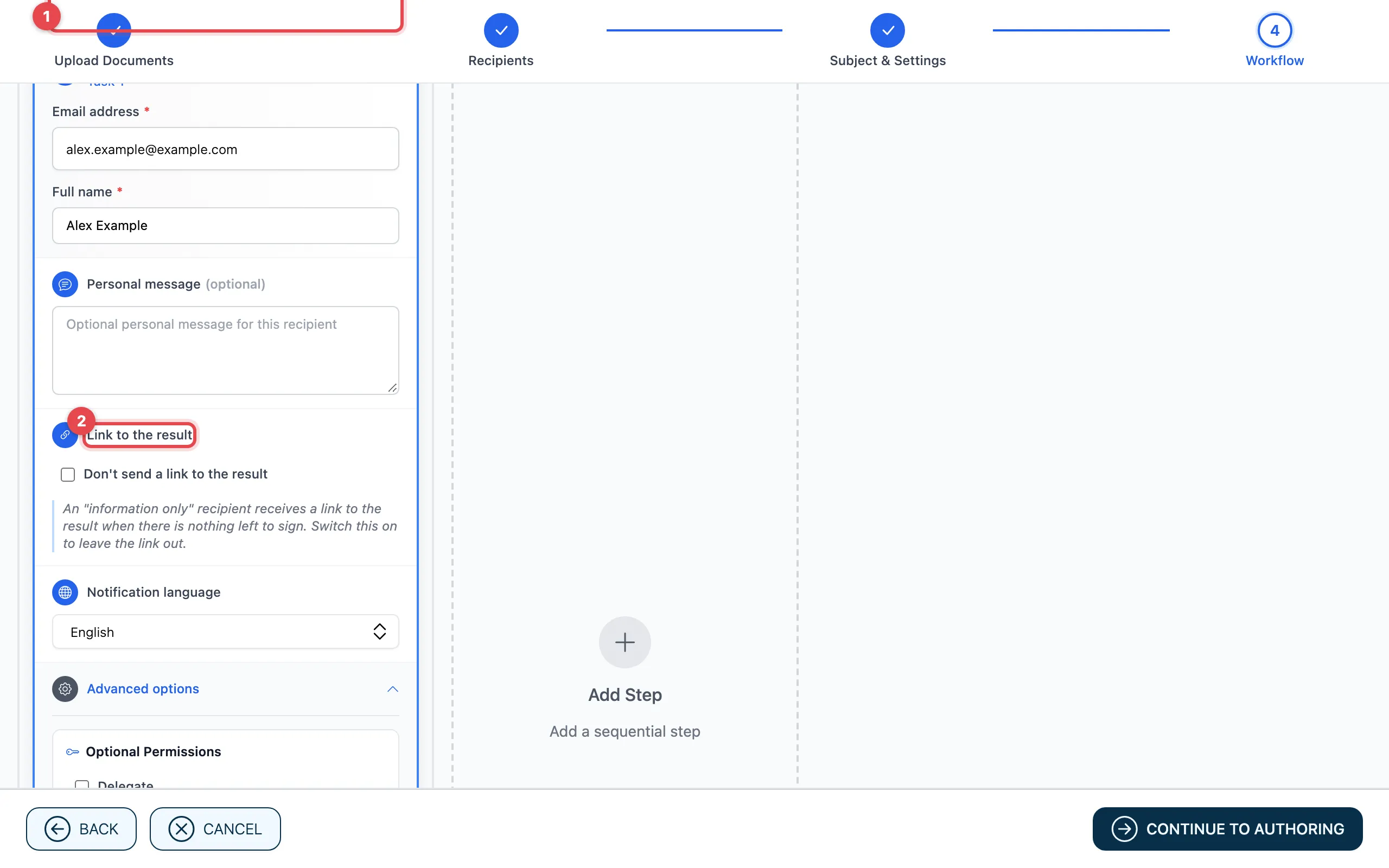
With an Information only task (1), the person gets a link to the result as soon as there is nothing left to sign. Under Link to the result (2) you switch this off: Don’t send a link to the result or, if the documents would be sent along, Don’t send a link or the documents.
If another step with signatures follows this task, actaSIGN does not send a link anyway; this is then shown below the option.
Good to know
Section titled “Good to know”- The settings apply to this one task only.
- If you change nothing, these apply: Simple electronic signature (SES), No additional security, default permissions.