

Switch on AI features
An AI can prepare the fields in the form template editor and help you write messages (translate, rephrase, shorten, expand, draft). It runs through OpenRouter with your organization’s key and model.
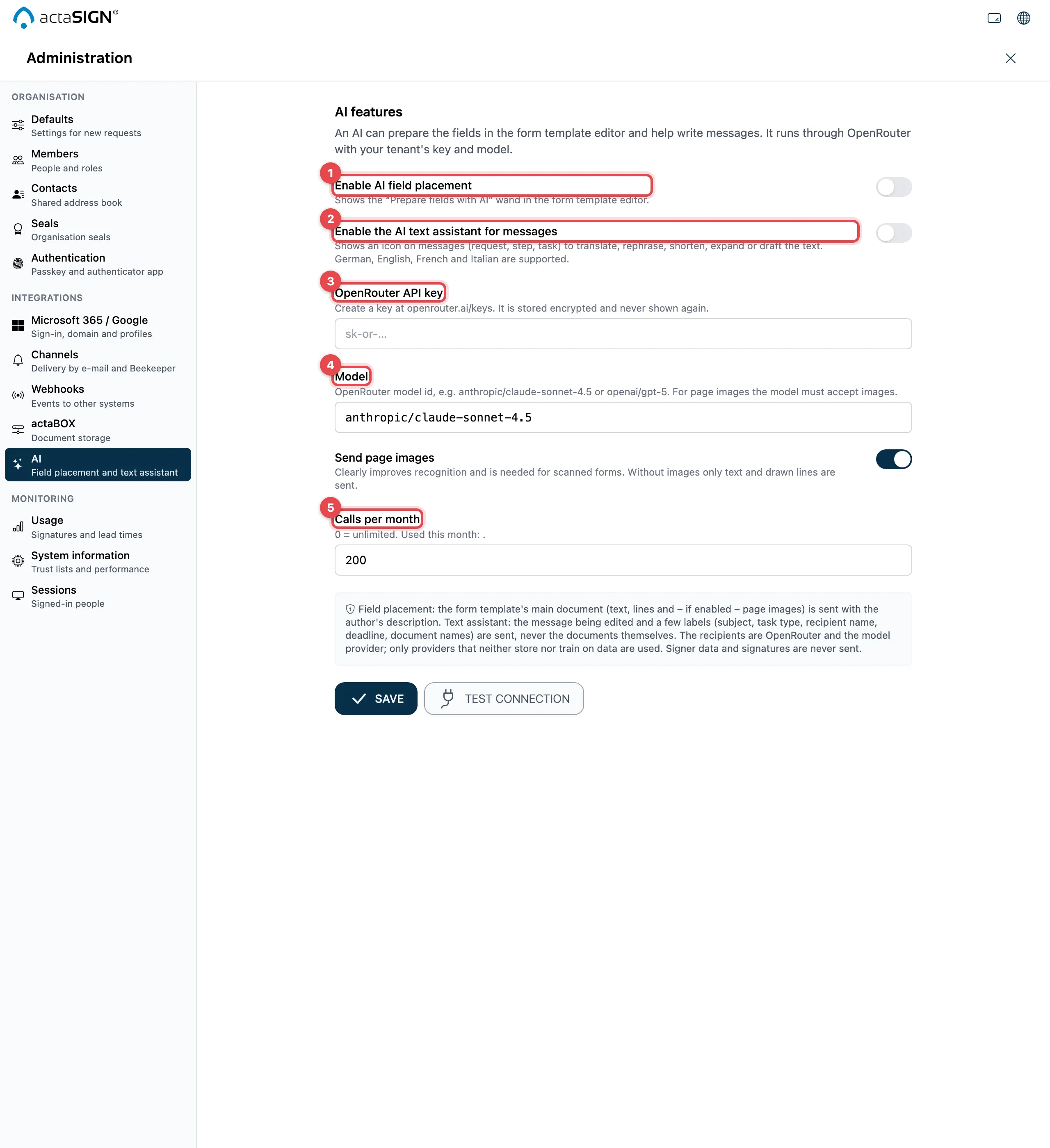
- Enable AI field placement: shows the magic wand “Prepare fields with AI” in the form template editor.
- Enable the AI text assistant for messages: shows an icon for the text assistant next to messages (German, English, French, Italian).
- OpenRouter API key: enter the key. It is stored encrypted and never shown again.
- Model: the OpenRouter identifier, e.g.
anthropic/claude-sonnet-4.5. Optional: Send page images (needed for scanned forms; the model must be able to process images). - Calls per month: upper limit, 0 means unlimited.
Click Save and then Test connection.
What data is sent
Section titled “What data is sent”- Field placement: the main document of the form template (text, lines and, if switched on, page images) and the author’s description.
- Text assistant: the message and a few details (subject, task type, recipient’s name, deadline, document names), never the documents themselves.
- The data goes to OpenRouter and the model provider. Only providers without data retention and without training are used. Signer data and signatures are never sent.
Good to know
Section titled “Good to know”- Reset AI settings deletes the key, model, limit and all switches. The AI is then off for everyone; the usage so far stays visible.
- If AI features are switched off on this installation (AI_FEATURES_ENABLED=false). appears, the operator has switched off the AI for the whole server.