

Workflow: who, in which order
In the workflow you set who gets a Task and when. Tasks in the same Step run at the same time. The steps run one after the other: step 2 only starts when all tasks in step 1 are done.
Enter recipients
Section titled “Enter recipients”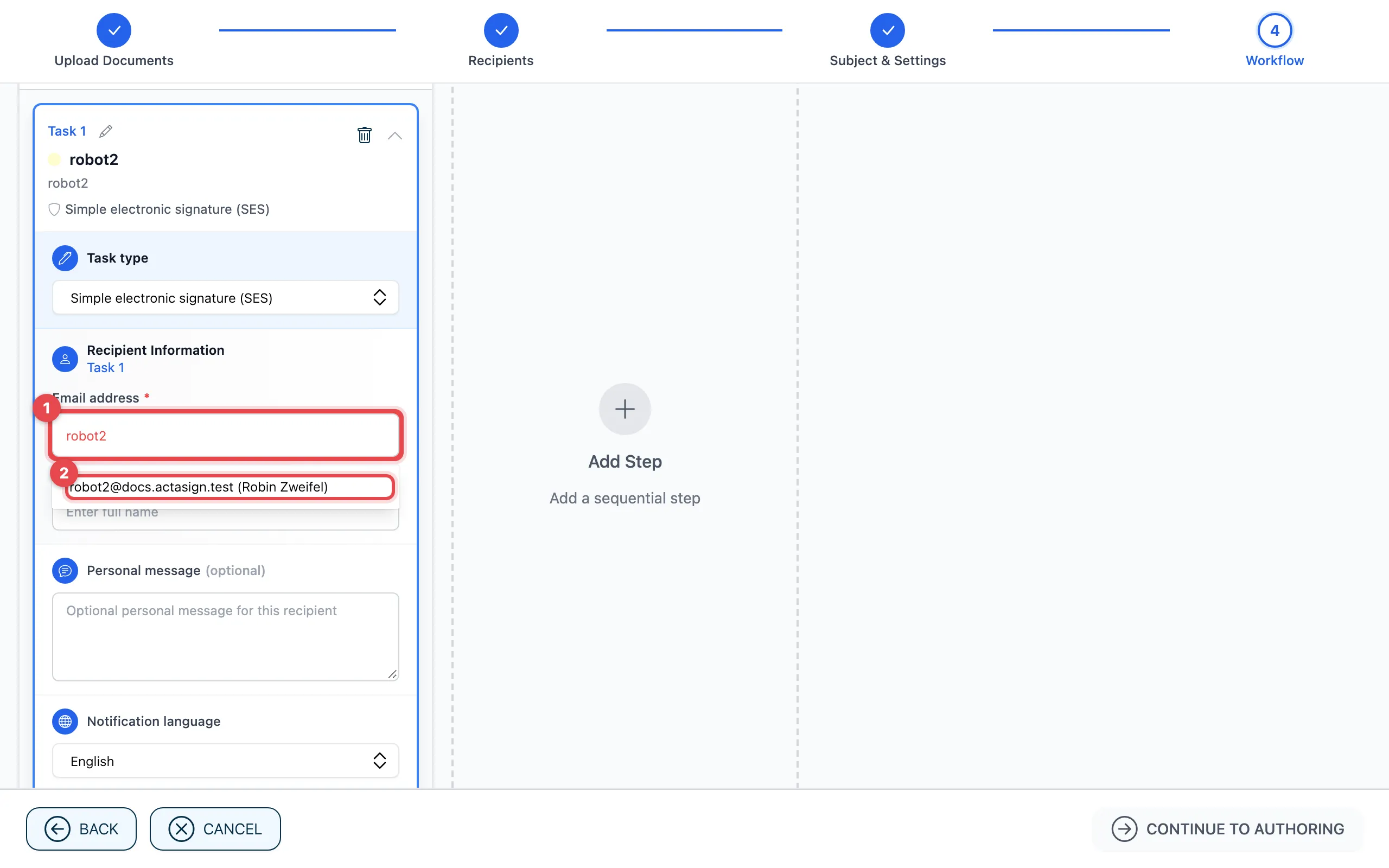
- In the Email address field, type part of the name or address.
- actaSIGN suggests people from your contacts, the members of your organization and earlier recipients. Click the suggestion or type the whole address. Then add the Full name.
Each new task is a Simple electronic signature (SES) without extra protection. What you can change is described under Task types, Protect a task and Permissions and options.
Arrange tasks and steps
Section titled “Arrange tasks and steps”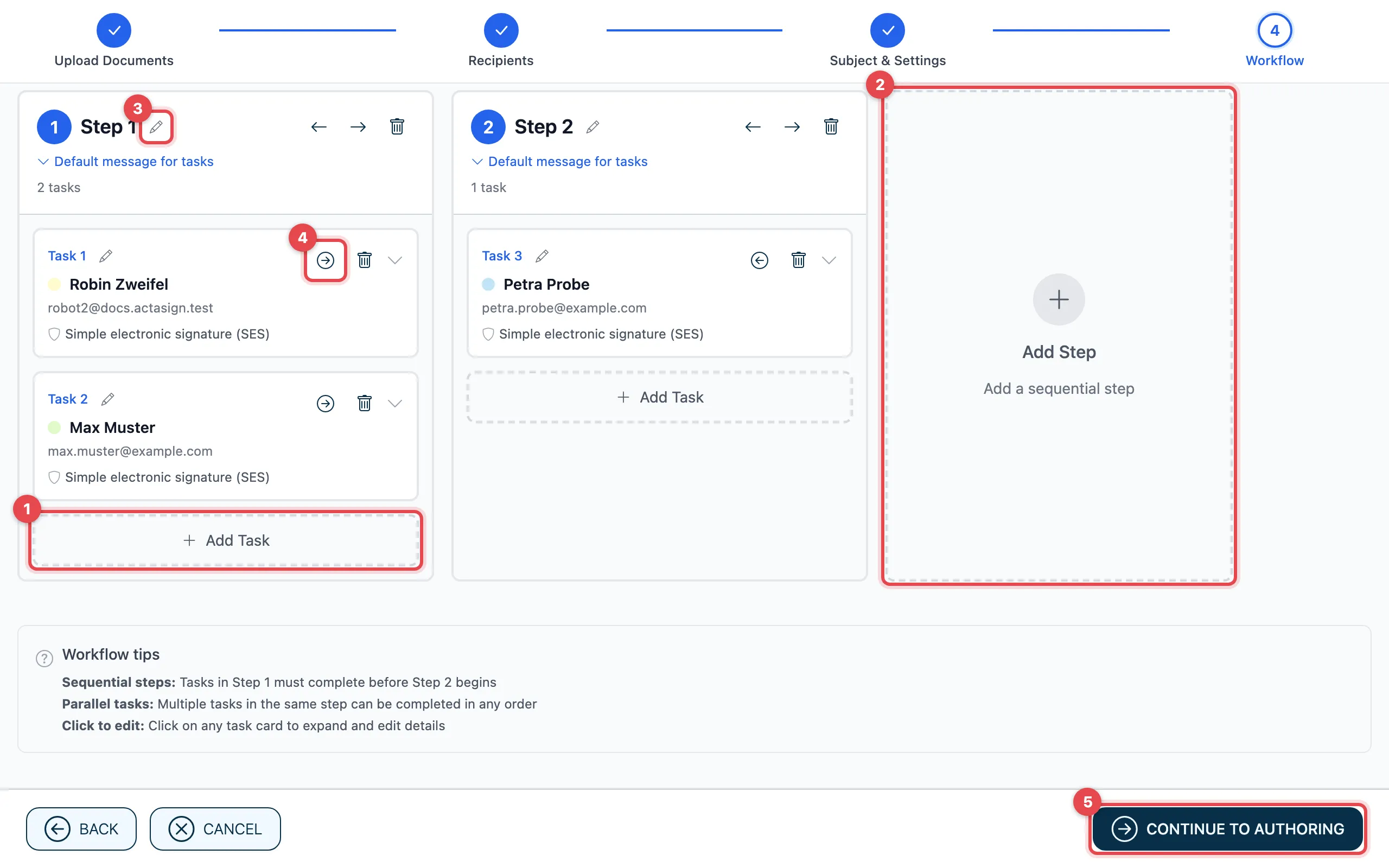
- Add Task: another person in the same step. It is their turn at the same time as the others.
- Add Step: a new step after the existing ones. The person in it only takes their turn once the step before is done.
- With the pencil (Rename step) you give the step a name, e.g. “Review”. In the same way you name a task with Rename task, e.g. “Management”.
- With the arrows you move a task (Move to previous step, Move to next step) or a whole step (Move step left, Move step right).
- Click Continue to Authoring. actaSIGN opens the document.
With the bin you remove a task (Remove task) or a step (Remove step). actaSIGN asks you first.
Message for a whole step
Section titled “Message for a whole step”Under Default message for tasks you write a message for everyone in this step. To write a message for one person only, use Personal message in their task.
When a recipient is absent
Section titled “When a recipient is absent”If a person from your organization has entered an absence, actaSIGN shows e.g. “… is absent” with the dates below their address. If a deputy is set, you can give the task straight to the deputy with Hand to …. Undo reverses this.
Send to many people individually
Section titled “Send to many people individually”If each person on a list should get their own process, tick Send to a recipient list (mass send). See Mass send.
Good to know
Section titled “Good to know”- Continue to Authoring stays grey as long as a task has no valid e-mail address or a required detail is missing (e.g. the Mobile number for OTP via SMS). The bottom right then shows what is missing.
- Each person gets their own colour. You later see their fields in the document in this colour.
- With Back in the document you come back here.