

Portfolios
A Portfolio is a folder with files: documents to sign, attachments and enclosures. Every request is created from a portfolio, and after signing, the signed documents are stored there again. Here you find your documents independently of the request.
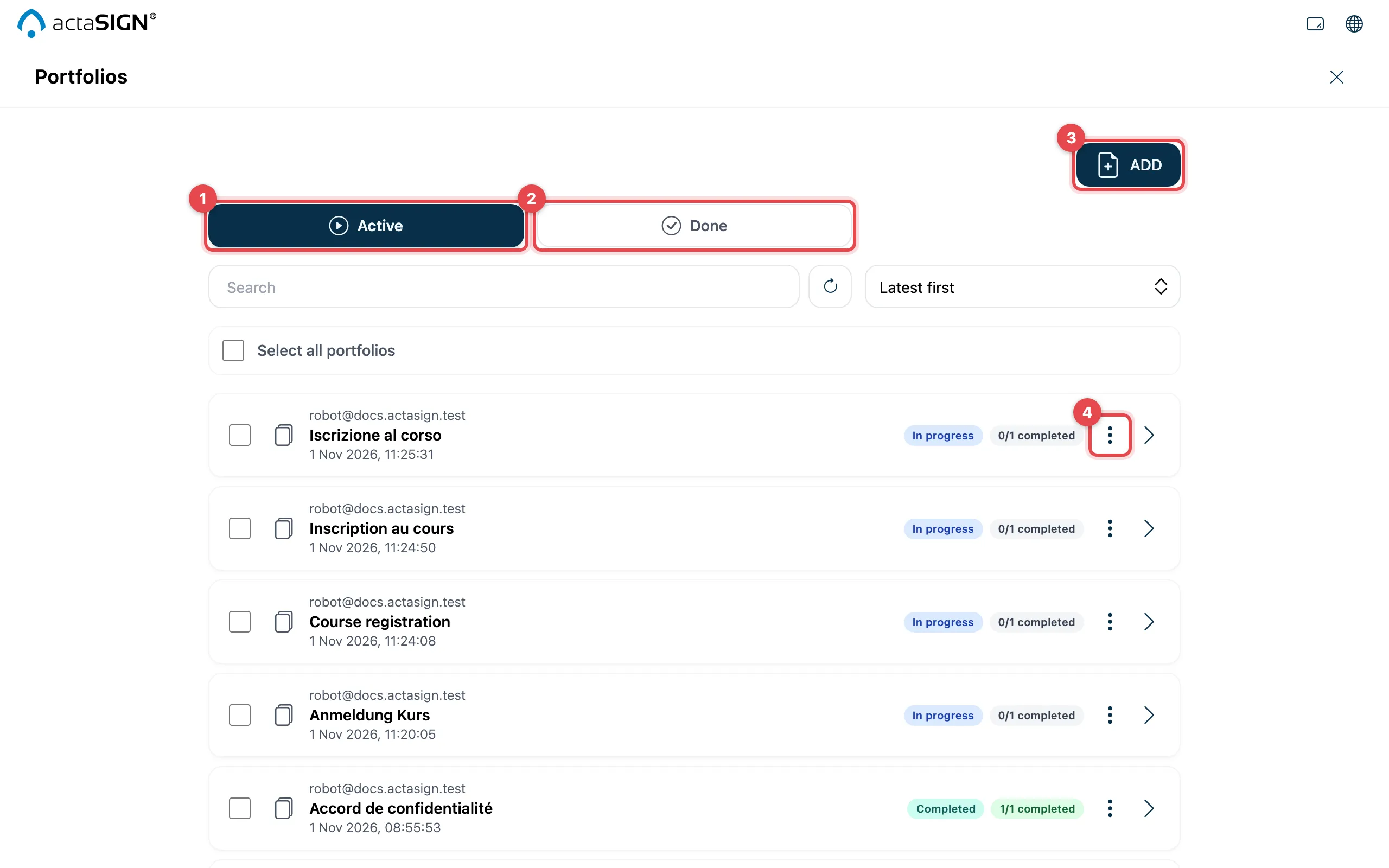
- Active: portfolios you are still working with.
- Completed: portfolios that have been filed away.
- Add: create a new portfolio (see below).
- More actions: the menu of a portfolio.
Use the arrow in a row to see the files it contains, split into Documents, Attachments and Enclosures. The x/y completed field shows how far the related request has got; clicking it opens the request.
Create a portfolio
Section titled “Create a portfolio”- Click Add and choose your files.
- Under Upload Documents, check what each file is, as for a request. Click Next.
- Under Configure Portfolio, enter the name under Subject and choose under Owners & Observers who has access.
- Click Save.
You start a request later with New task/workflow.
Actions for a portfolio
Section titled “Actions for a portfolio”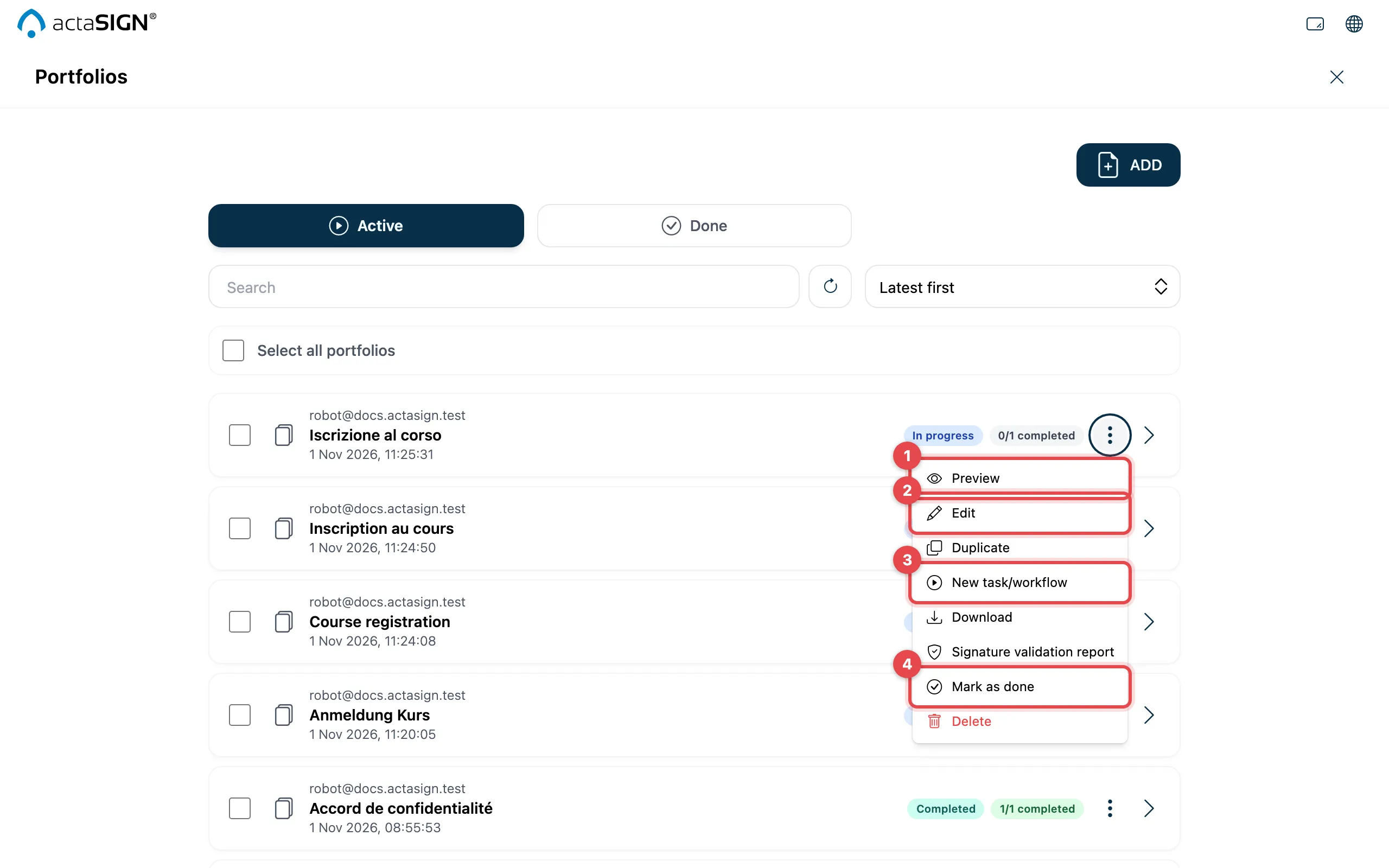
| Action | Used for |
|---|---|
| Preview (1) | View the documents |
| Edit (2) | Change files and access |
| New task/workflow (3) | Start a new request with these documents |
| Mark as done (4) | File the portfolio away; under Completed you bring it back with Activate |
| Duplicate | Make a copy of the portfolio |
| Download | Download the files |
| Signature validation report | Have the signatures of a document checked, see Validation report |
| Enclosures | View the enclosures (only if there are any) |
| Delete | Remove the portfolio and its files |
Manage single files
Section titled “Manage single files”Double-click a portfolio. For each file you find View, Download, Replace and Delete, and you change what the file is (As document (requires signature), As attachment (no signature), As enclosure). With Next you get to Name, Description, Authorized persons and Save as template. Then click Save.
Good to know
Section titled “Good to know”- To download, file away or delete several portfolios at once: tick the rows and choose Download, Mark as done or Delete in the bar at the top.
- actaSIGN rejects protected PDFs here as well, see Upload documents.