

Take over form fields from the PDF
Many PDF forms already have their own fields to fill in, for example from Adobe Acrobat. actaSIGN recognizes them and proposes them as fields. You then do not have to place the fields yourself, only check them and give them to a person.
Check and take over the fields
Section titled “Check and take over the fields”As soon as the document is loaded, the … form field(s) found in the PDF window opens. It lists every field of the PDF with its kind and page. It looks the same in the classic view and in Studio.
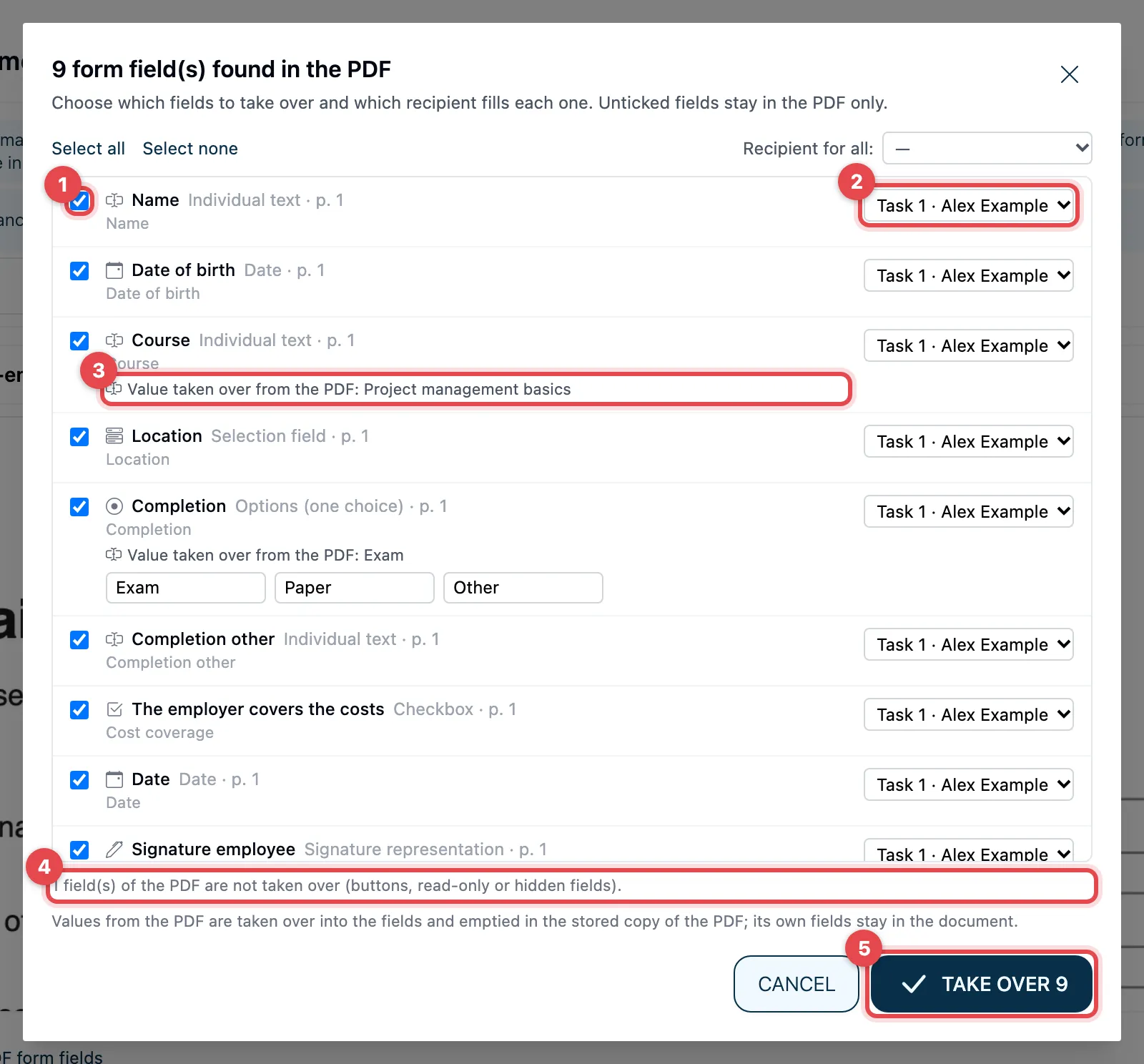
- The tick in front of a field decides whether it is taken over. Remove the tick for fields that nobody should fill in. With Select all and Select none you change all of them at once.
- Recipient: the person who fills in or signs the field. Preselected is the person you are currently setting fields for. With Recipient for all: you give all fields to the same person.
- If the PDF already has a value, it says Value taken over from the PDF: …. The value becomes the field’s default; the person can change it.
- A line at the bottom of the window counts the fields actaSIGN does not take over: buttons as well as read-only and hidden fields.
- Click Take over …. The number says how many fields are taken over.
For options (round buttons to choose from), the row shows the texts of the individual options, e.g. “Exam”, “Work”, “Other”. You can still change them there.
Unticked fields stay in the PDF only. With Cancel you take over nothing.
What the fields become
Section titled “What the fields become”| Field in the PDF | Field in actaSIGN |
|---|---|
| Text field | Individual text. If the field is called e.g. “Date” or “Date of birth”, it becomes a date field with a calendar. |
| List | Selection field with the entries from the PDF |
| Check box | Checkbox |
| Option buttons | Options (one choice), see Place fields in the document |
| Signature field | Signature. The signature goes exactly into this field of the PDF. |
As the label, actaSIGN uses the name of the field in the PDF, otherwise its tooltip text or the text next to it. A checkbox is named after the text to its right. Whether a field is required is not taken over: set Required or Choice required yourself.
After taking over
Section titled “After taking over”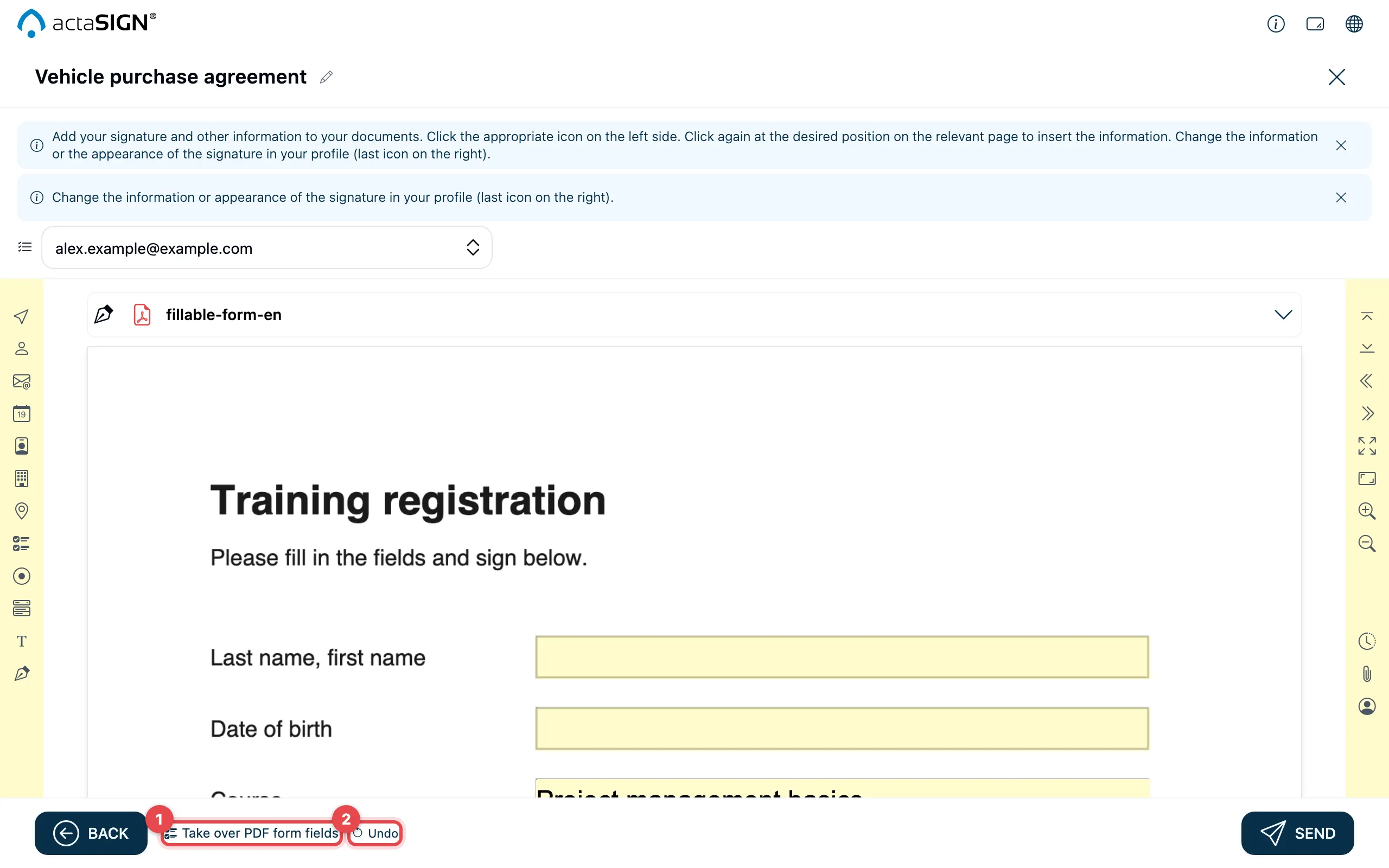
- Take over PDF form fields opens the window again, e.g. for fields you unticked before.
- Undo removes the fields you just took over.
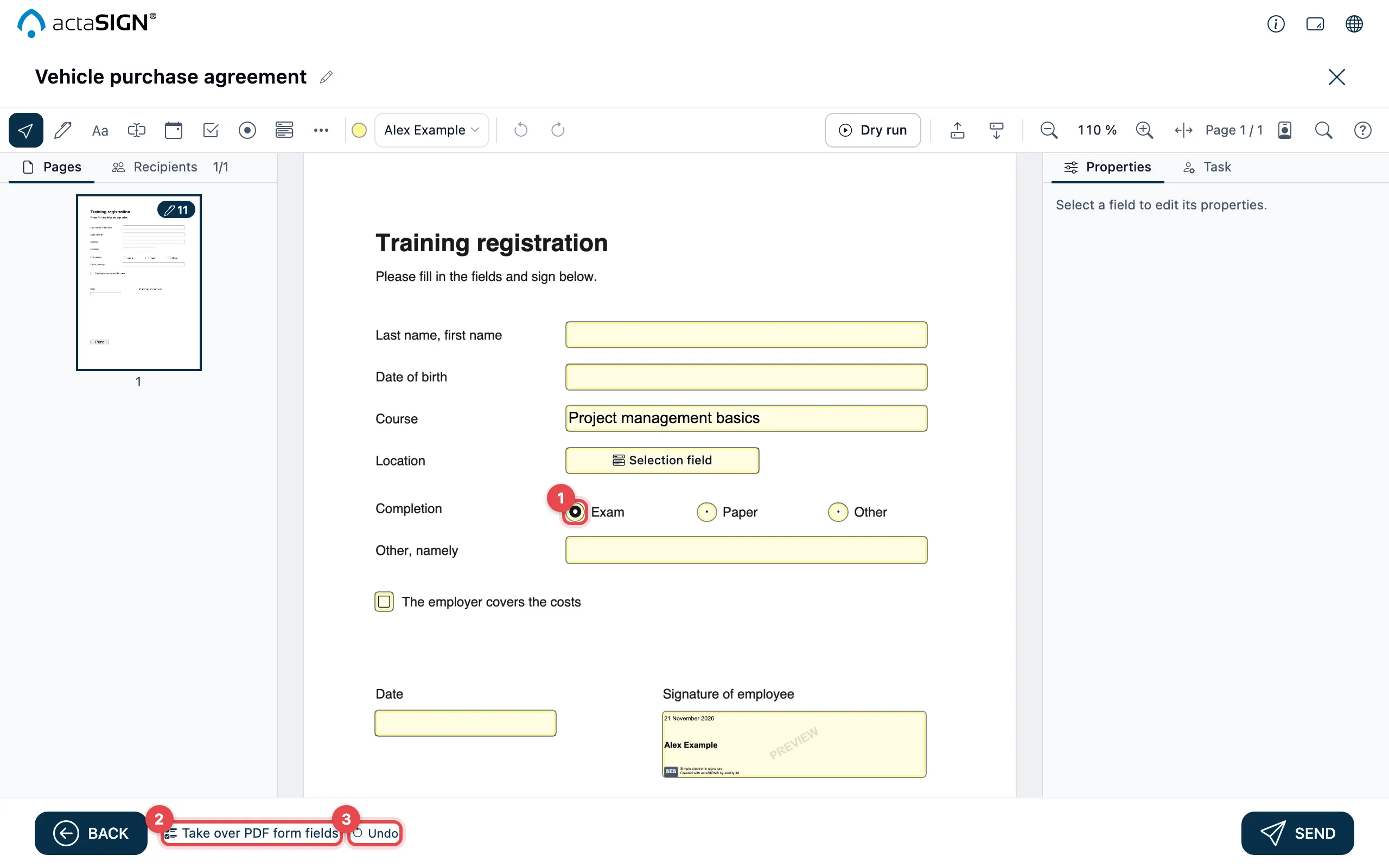
- The fields taken over are where the PDF had them, here a group of options.
- Take over PDF form fields opens the window again, e.g. for fields you unticked before.
- Undo removes the fields you just took over.
The fields taken over are ordinary actaSIGN fields. You move and set them up as described in Place fields in the document. You enter values directly in the document, see Enter values directly in the document.
A PDF that is already signed
Section titled “A PDF that is already signed”If the PDF is already signed, actaSIGN does not change it. The window points this out:
- Filled-in fields come over read-only (Value from the signed PDF, read-only: …). The people who sign cannot change them.
- If you still want to change such a value, actaSIGN asks first, because the request then differs from what has already been signed.
- The PDF’s signature fields are not taken over. The window lists them under Not taken over (…) – the PDF is already signed:.
- If the PDF contains nothing to take over apart from its signatures, no window opens.
Good to know
Section titled “Good to know”- The window opens by itself only once per document and draft. After that, use Take over PDF form fields.
- A field only goes to a person who signs or fills in. If there is no such person, the window says First add a recipient in step 4 who signs or fills in.
- Values from a PDF that is not yet signed are afterwards only in the actaSIGN field. actaSIGN empties the field in its copy of the PDF, so that the signed document shows each answer only once. Your file stays as it is.
- Fields that are already in the same place are not proposed again (All form fields of this document are already placed.).
- If the PDF has no fields of its own, it says This document has no form fields. Then set the fields yourself or with placeholders in the PDF.
- Dates are shown in the browser’s date format and written into the PDF that way, in Switzerland e.g. 24.08.2026.
- Signature fields taken over before 19.11.2026 still get an additional signature field when signing. Take them over again so that the signature goes into the PDF’s field.
- This also works when you only sign a document yourself and in a form template.
See also
Section titled “See also”- Place fields in the document
- Have fields placed with placeholders in the PDF
- Fill in fields (how the person who signs sees it)