

Invite or import members
Anyone who should work in actaSIGN for your organization needs an invitation. Invite single people or import a list, for example all employees of a department at once.
Invite a person
Section titled “Invite a person”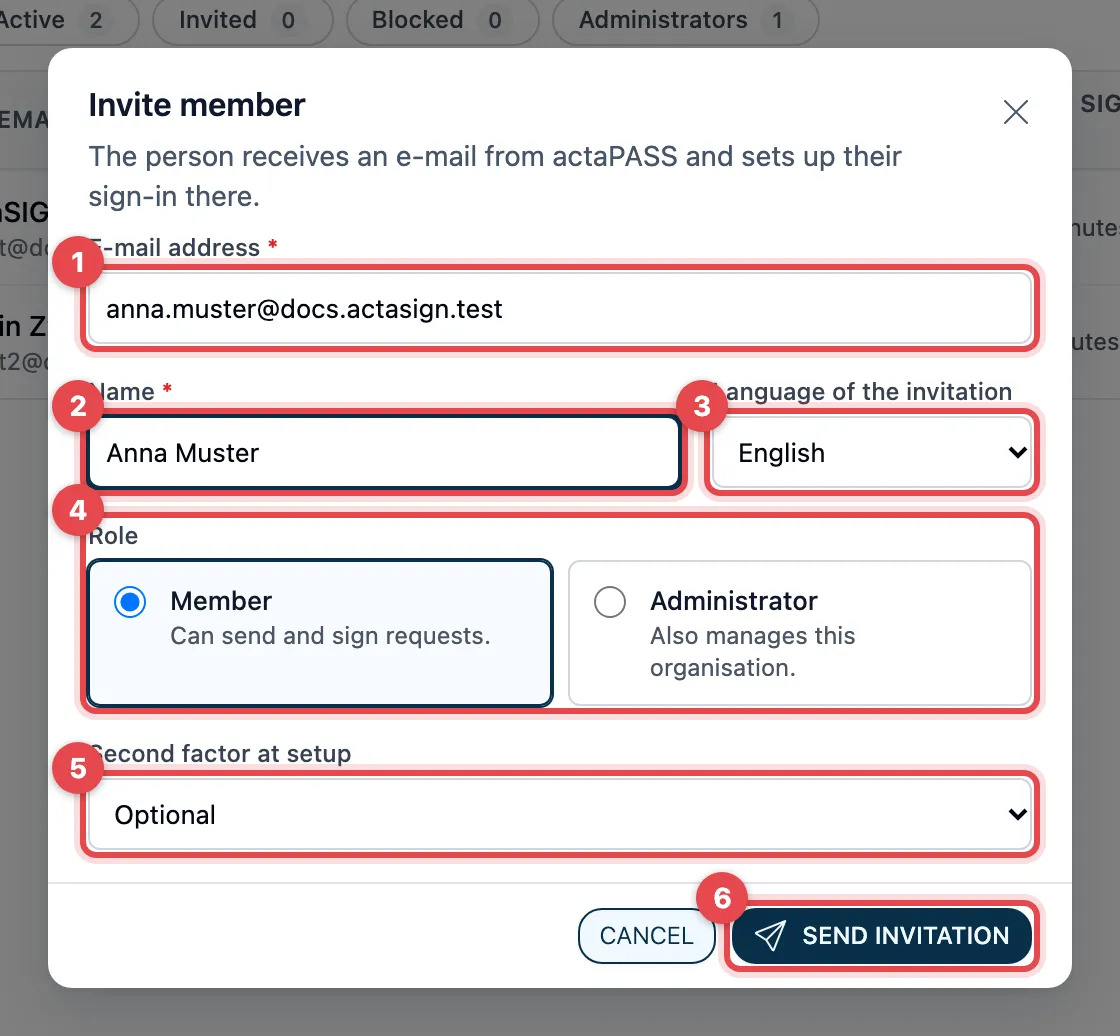
- E-mail address: the address the person will sign in with.
- Name: first and last name.
- Language of the invitation: German, English, French or Italian.
- Role: Member (can send and sign requests) or Administrator (also manages this organization).
- Second factor at setup: Optional, Require an authenticator app or Require a passkey.
- Click Send invitation.
At the top you see Invitation sent to …., and the person appears in the list with the status Invited.
While you type the address, actaSIGN checks it:
- If the person already has an actaPASS account, a blue notice appears. Name and language then come from their account and cannot be changed.
- If the person is already a member, you see This person is already a member of this organisation., and actaSIGN does not invite them a second time.
What the invited person receives
Section titled “What the invited person receives”- A person without an actaPASS account receives an e-mail from actaPASS and uses it to set up a password and, if required, the second factor.
- A person who already has an account receives an e-mail and uses it to sign in to actaSIGN.
The link in the e-mail is valid for 30 days. What the person sees: Accept an invitation.
If someone did not receive the e-mail or the link has expired, open the person in the list and choose Resend invitation.
Import a list
Section titled “Import a list”With Import you invite up to 200 people at once. For each person you also set the second factor and can prepare the profile: mobile number, function, organization and location.
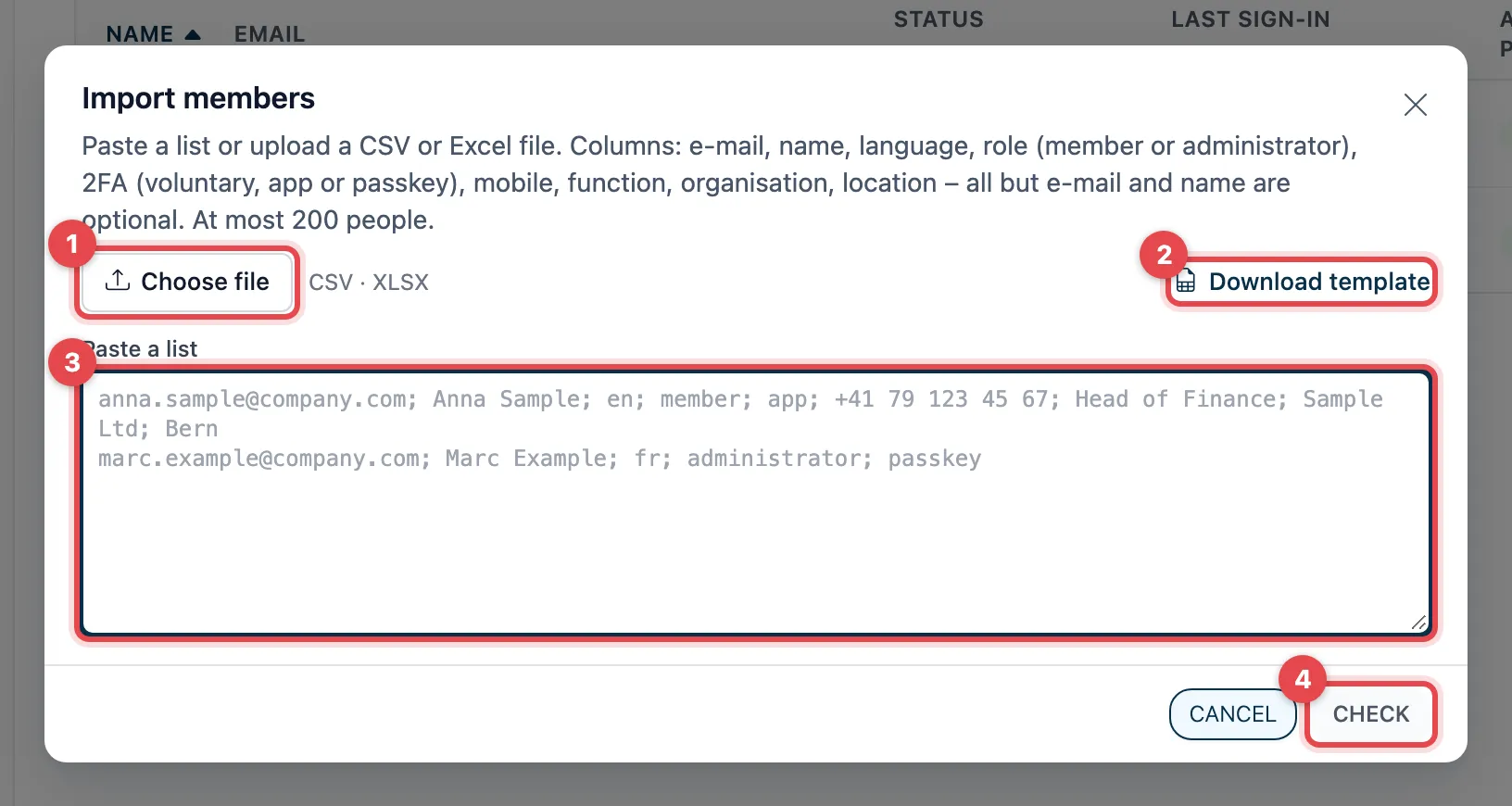
- Click Choose file and select a CSV or Excel file.
- No list yet? Download template saves a ready-made Excel file with all columns and a sample line. Fill it in and then select it with Choose file.
- Or copy the list into the Paste a list field, one person per line,
- and click Check. actaSIGN checks a chosen file right away.
actaSIGN shows every line with the result of the check. Nobody has been invited yet.
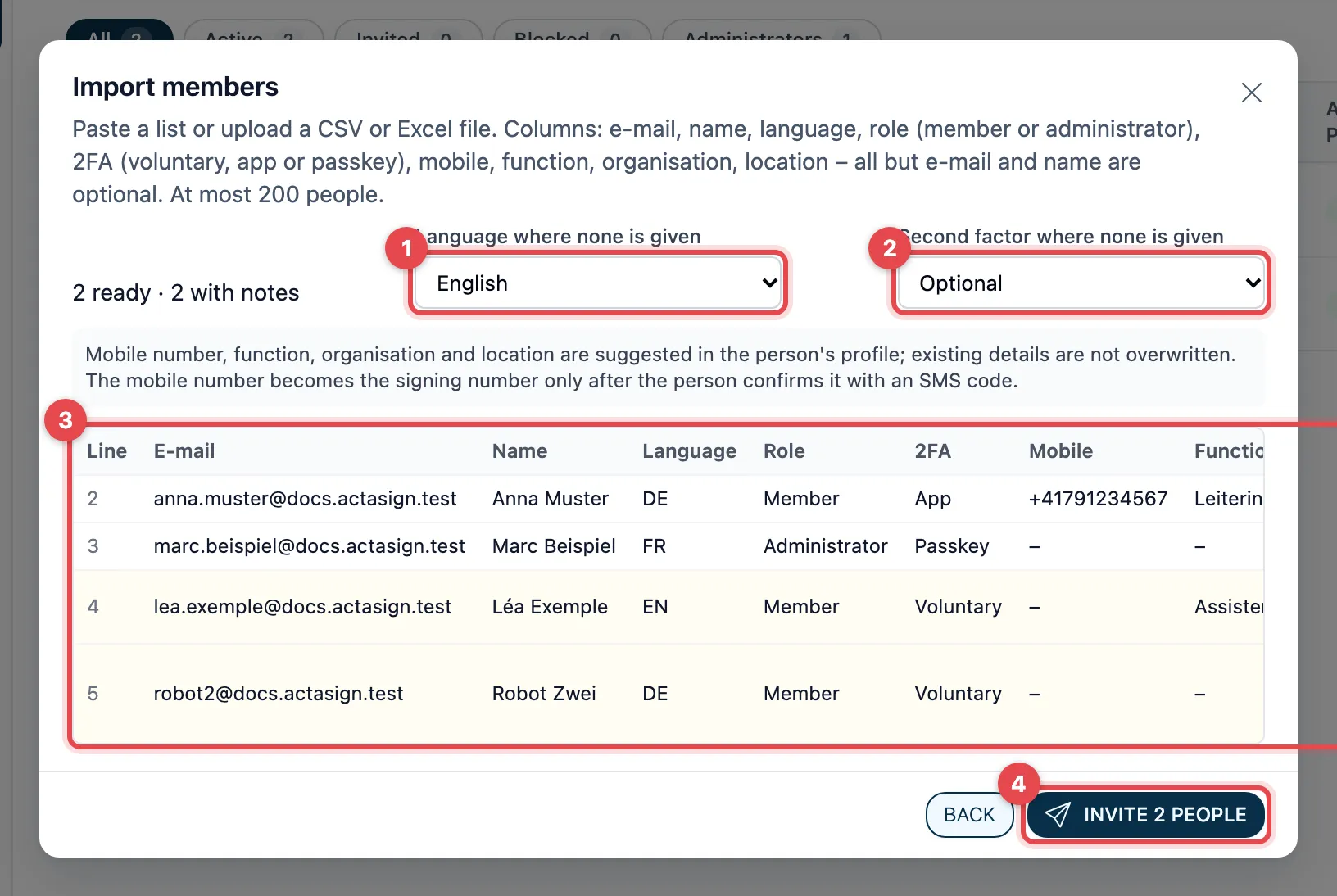
- Language where none is given: the language of the invitation for all lines without their own language.
- Second factor where none is given: Optional, Require an authenticator app or Require a passkey. This applies to all lines whose 2FA column is empty.
- Check the list. The 2FA column shows what applies to the person (Voluntary, App or Passkey). The Mobile, Function, Organisation and Location columns only appear if the list contains such details. The Status column shows Ready or a note saying why the line will not be invited (see below). At the top it says, for example, “2 ready · 2 with notes”.
- Click Invite … people. Only the lines marked Ready are invited. Use Back to correct the list first.
actaSIGN then shows Invited for each person, or the reason why it did not work, for example “3 invited, 1 not invited.”. Download result saves this overview as a CSV file.
What happens to the profile details
Section titled “What happens to the profile details”If the list contains a mobile number, function, organization or location, a grey note about it appears above the list. The following applies:
- New person (no actaPASS account yet): the details are in their profile from the start.
- Person with an existing account: actaSIGN only fills in details that are still empty. What the person has already entered is never overwritten. If the person also belongs to an organization of another customer, their account stays unchanged.
- Mobile number: it is only a suggestion. It only counts as the mobile number for signatures once the person has confirmed it themselves with an SMS code, see Add your mobile number.
What the file must look like
Section titled “What the file must look like”The easiest way is to use the file from Download template. Its header row is in the language you are currently using actaSIGN in.
| Column | Required | What goes in it |
|---|---|---|
| yes | the person’s e-mail address | |
| Name | yes | first and last name |
| Language | no | de, en, fr or it; also “German”, “English”, “French”, “Italian” |
| Role | no | “member” or “administrator” (also “admin”); empty means member |
| 2FA | no | “optional”, “app” or “passkey”; empty means: as under Second factor where none is given |
| Mobile | no | mobile number with country code, for example +41 79 123 45 67 or 0041 79 … |
| Function | no | for example “Head of Finance”, at most 200 characters |
| Organisation | no | for example “Sample Ltd”, at most 200 characters |
| Location | no | for example “Bern”, at most 200 characters |
An example with a header row:
E-mail;Name;Language;Role;2FA;Mobile;Function;Organisation;Locationanna.sample@company.com;Anna Sample;en;member;app;+41 79 123 45 67;Head of Finance;Sample Ltd;Bernmarc.example@company.com;Marc Example;fr;administrator;passkey;;;;- Header row: optional. actaSIGN recognises it by a column called “E-mail” (also “Email” or “Mail”); the order of the columns then does not matter, and you leave out columns you do not need. Other common names are also recognised, for example “Mobile number” or “Mobile phone” for Mobile, “Second factor” for 2FA, “City” for Location or “Company” for Organisation. Without a header row, the order is e-mail, name, language, role, 2FA, mobile, function, organisation, location.
- The mobile number needs the country code. actaSIGN does not add it here for a number like “079 …”.
- CSV (also
.txtor.tsv): separator semicolon, comma or tab; actaSIGN detects it by itself. Save the file as UTF-8 so that accented letters come out right. Empty lines and lines starting with#are skipped. - Excel:
.xlsxonly. actaSIGN reads the first sheet. Save old.xlsfiles as.xlsxfirst. - The file may be at most 2 MB. actaSIGN only reads it and does not store it.
- If the list has more than 200 people, actaSIGN only takes the first 200 and tells you so.
Notes in the Status column
Section titled “Notes in the Status column”| Note | What to do |
|---|---|
| Invalid e-mail | Correct the address. |
| Name missing | Add the name. |
| Unknown language | Enter de, en, fr or it, or leave the field empty. |
| Unknown role | Enter “member” or “administrator”, or leave the field empty. |
| Unknown 2FA (voluntary, app or passkey) | Enter “optional”, “app” or “passkey”, or leave the field empty. |
| Invalid mobile number (with country code, e.g. +41) | Write the number with the country code, or leave the field empty. |
| Text too long (at most 200 characters) | Shorten the function, organization or location. |
| Twice in the list | The address appears more than once; only the first line counts. |
| Already a member | Nothing: the person already belongs to the organization. |
Good to know
Section titled “Good to know”- Older invitation links (from before the security update in November 2026) no longer work. If such an invitation is still open, choose Resend invitation for that person.
- If you have removed someone, simply invite the person again.
- Only a person who has no actaPASS account yet must set up the second factor (when invited and when imported). People who already have an account keep signing in as before. You change the second factor later with Reset sign-in.
- People who did not have an actaPASS account yet get your organization’s name and city in their profile, unless the import list gives its own organization or location for the person. You maintain both under Organisation. For existing accounts, actaSIGN does not set these defaults, because the accounts belong to all of the person’s organizations. Only details from an import list fill in empty fields there (see above).
- If your company has a confirmed domain, people with that domain become members without an invitation when they register or sign in through SSO (Domains).
- Every invitation is recorded in the audit log.