

Manage the account and tenants
An account brings together all tenants (organizations) of your company. Under Account you see these tenants, create more, or delete a tenant or the whole account.
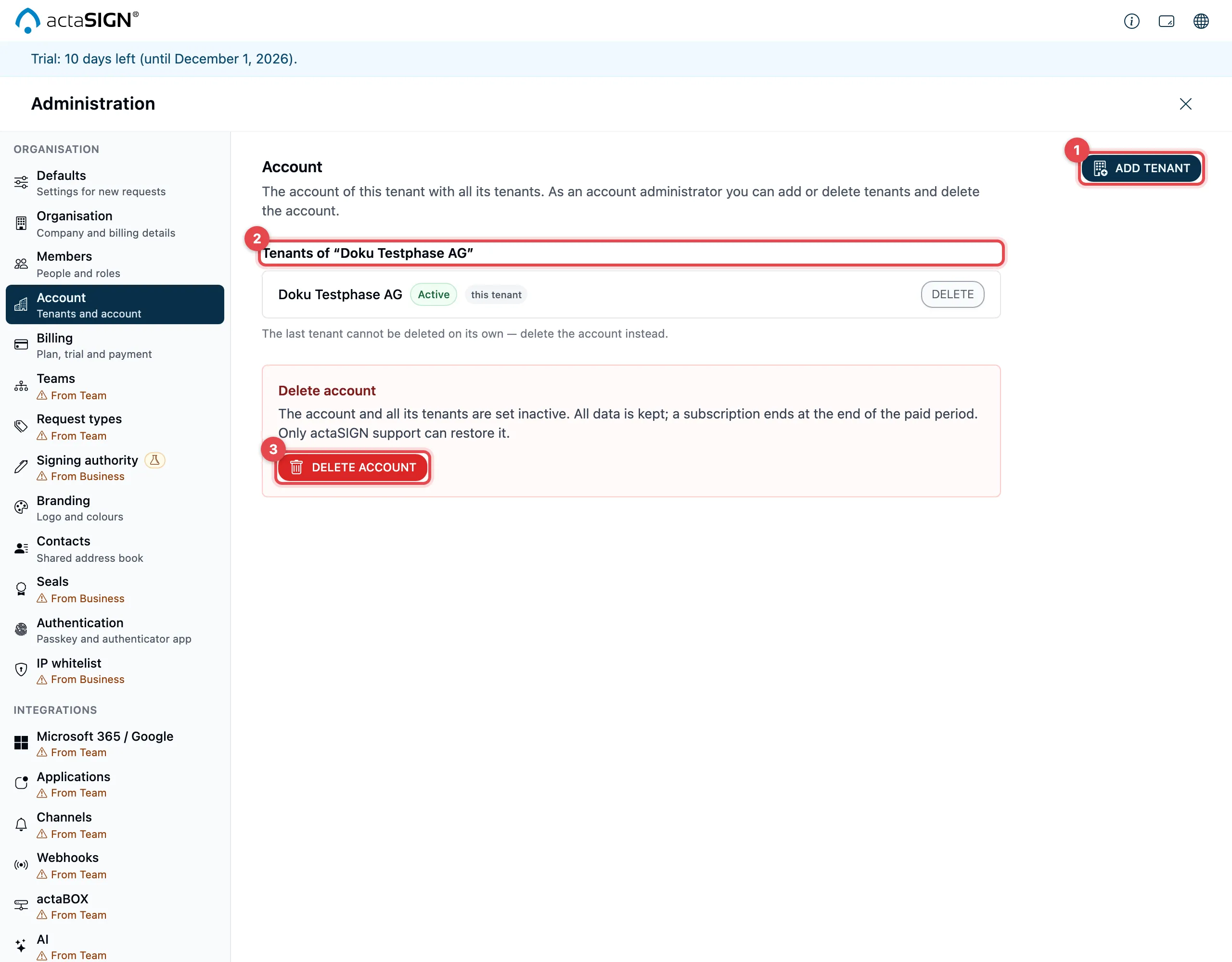
- Add tenant: creates another tenant.
- “Tenants of …”: all tenants of the account with their status Active, Locked or Deleted. this tenant marks the one you are working in right now.
- Delete account: sets the whole account inactive.
Add a tenant
Section titled “Add a tenant”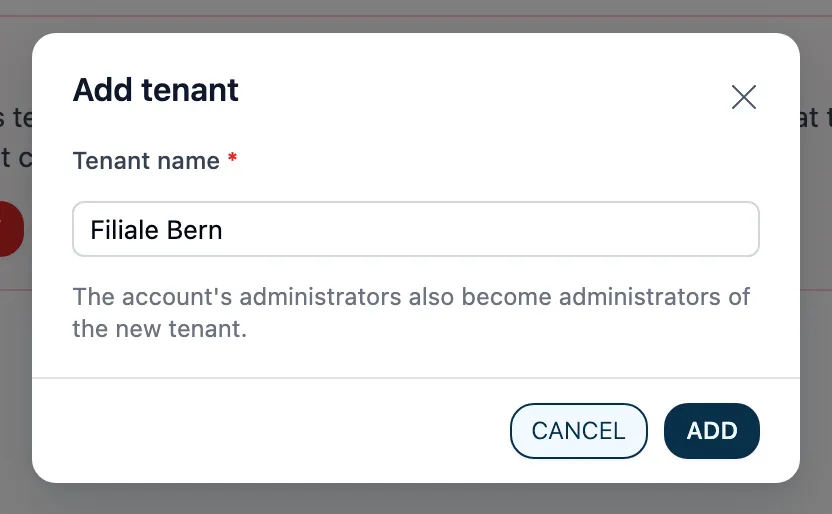
- Click Add tenant.
- Enter a name under Tenant name, at least 4 characters.
- Click Add. You see “The tenant was created.”
The administrators of the account also become administrators of the new tenant. You invite further members in the new tenant under Members. You switch to the new tenant with Switch tenant.
Delete a tenant
Section titled “Delete a tenant”- Click Delete in the tenant’s row.
- Read the notice: the tenant is set inactive. Nobody can use it any more, signing links and the API included.
- Type the tenant’s name to confirm.
- Click Delete.
- If you have set up a passkey or an authenticator app, confirm with it as well: tap the passkey or enter the current code.
If you delete the tenant you are working in, the dialog warns you first. After deleting it, you are signed out.
You cannot delete the last tenant on its own. Its Delete is greyed out. Delete the account instead.
Delete the whole account
Section titled “Delete the whole account”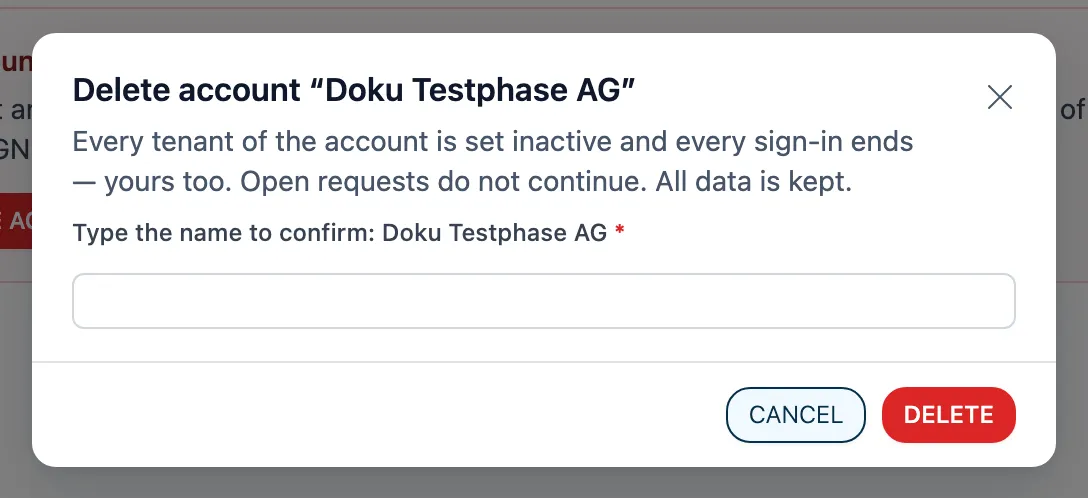
- Under Delete account, click Delete account.
- Read the notice: all tenants of the account are set inactive and every sign-in ends, yours too. Open requests do not continue.
- Type the account’s name to confirm. Only then can you click Delete.
- Click Delete and, if asked, confirm with your passkey or a code.
You are then signed out.
Good to know
Section titled “Good to know”- Cancel closes any dialog without changing anything.
- If the name you typed does not match, you see “The name you typed does not match.” Upper and lower case do not matter.
- Only actaSIGN support can restore a deleted tenant or account.