

Define request types
A request type puts requests and portfolios into a category, for example “Supplier invoice” or “Service contract”. This lets you later find all requests of one kind with a filter. A type can also bring data fields, such as supplier and amount, and a pattern for the subject.
The list of request types
Section titled “The list of request types”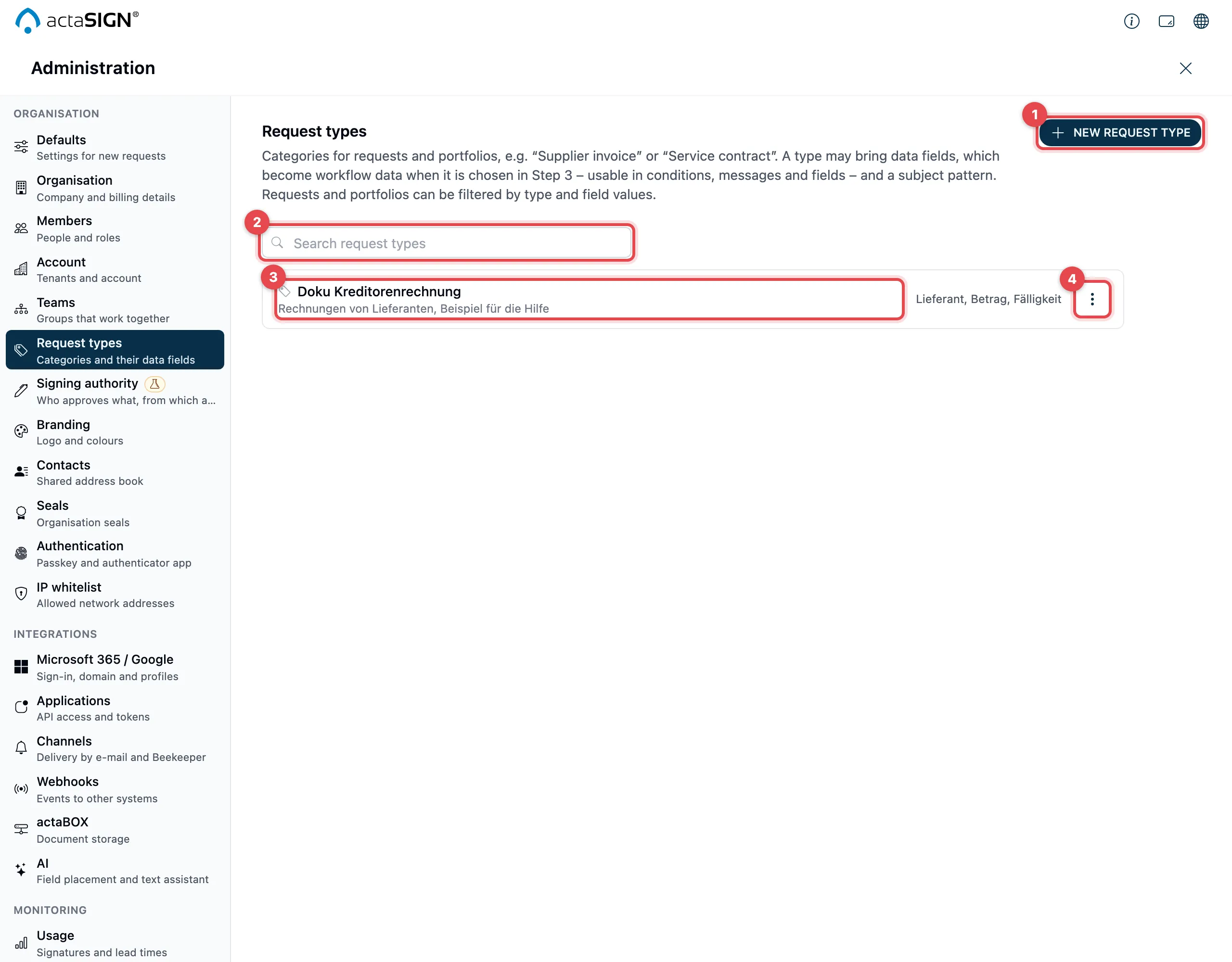
- New request type: create a type (see below).
- Search by name or description in the Search request types field.
- Each row shows the name and description, and on the right the type’s data fields. A type without data fields shows Category only, no data fields.
- With ⋮ you choose Edit or Remove. Clicking the name also opens the type for editing.
If there are no types yet, the list shows No request types yet.
Create a request type
Section titled “Create a request type”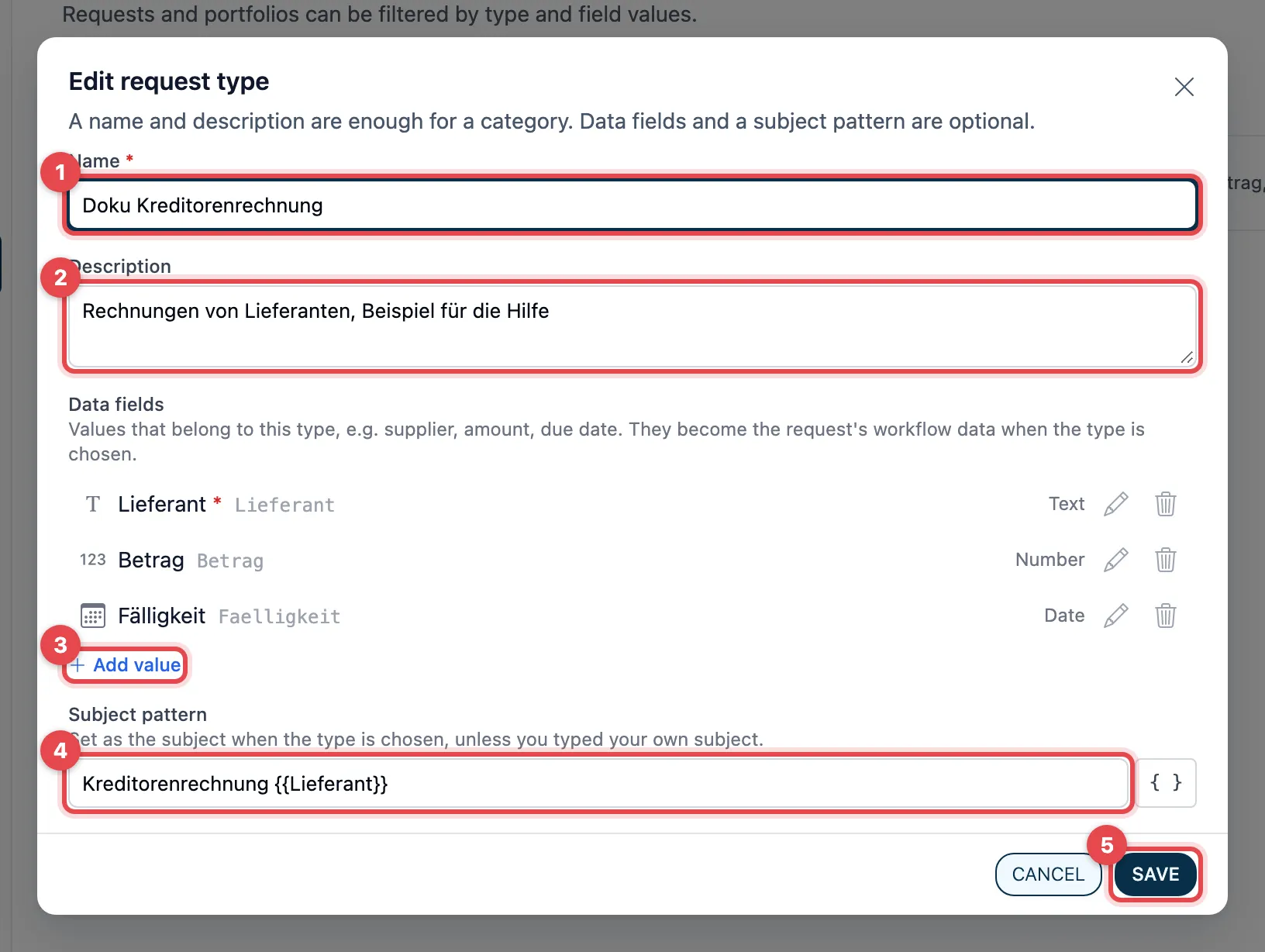
- Name: for example “Supplier invoice”. The name is required and may only be used once.
- Description: optional. Members see it when they choose the type.
- Data fields: optional. Click Add value, enter a name (for example “Amount”) and choose the type: Number, Text, Date, Yes/No, Choice, E-mail or Mobile number. For Choice, enter the values separated by commas. With Required value, the value must be filled in. Click Apply.
- Subject pattern: optional, for example
Supplier invoice {{Supplier}}. With the{ }button next to it (Insert variable) you insert a data field or a value such as the sender’s name. - Click Create (when editing, Save).
At the top, a message appears, for example “Supplier invoice” was created.
A name and description are enough for a category. Data fields are worthwhile if every request of this kind needs the same details, for example an amount that decides who must approve.
What members do with it
Section titled “What members do with it”- In a new request, they choose the type in step 3, see Choose a request type. The type’s data fields then become the request’s workflow data: the sender fills them in, and they are ready right away for task conditions, messages and fields.
- The subject pattern becomes the subject, as long as the sender has not entered a subject of their own. actaSIGN fills in the values in it when sending.
- Process and form templates can carry a type. A request from such a template then has it too.
- In the Requests and Portfolios lists, they filter by type and by the values of the data fields, for example “Amount greater than 5000”, and change the type with Change request type, see Track requests.
Remove a request type
Section titled “Remove a request type”Choose Remove with ⋮. actaSIGN asks for confirmation (Remove “…”?). The type is no longer offered for new requests. Requests and portfolios that carry it keep it. Only a draft that has not been sent yet loses it when it is sent; its workflow data stays.
Good to know
Section titled “Good to know”- If you change a type, this applies to requests started afterwards. Requests already sent keep their data fields and values. A request also keeps the name of the type as it was when it was sent.
- The type is only a category. If someone later changes the type of a request, its workflow data and everything signed stay unchanged.
- An organization can have up to 200 request types.
- A request type with a number field for the amount can be linked to the signing authority rules (Business plan).
- If your plan is too small, members do not see any request types: neither in step 3 nor as a filter.
- Every change to the request types is recorded in the audit log, as is every change to the type of a request or portfolio.