

Task only when needed: condition and workflow data
Not every task is needed in every request. Examples: “The management only approves if the salary is above 5000” or “Approval only from an invoice amount of 1000”. For this, you give the request Workflow data (values such as the invoice amount) and the task a condition (Only when …). If the condition is not met, actaSIGN skips the task: the person gets no e-mail, and the request continues without them.
1. Define workflow data
Section titled “1. Define workflow data”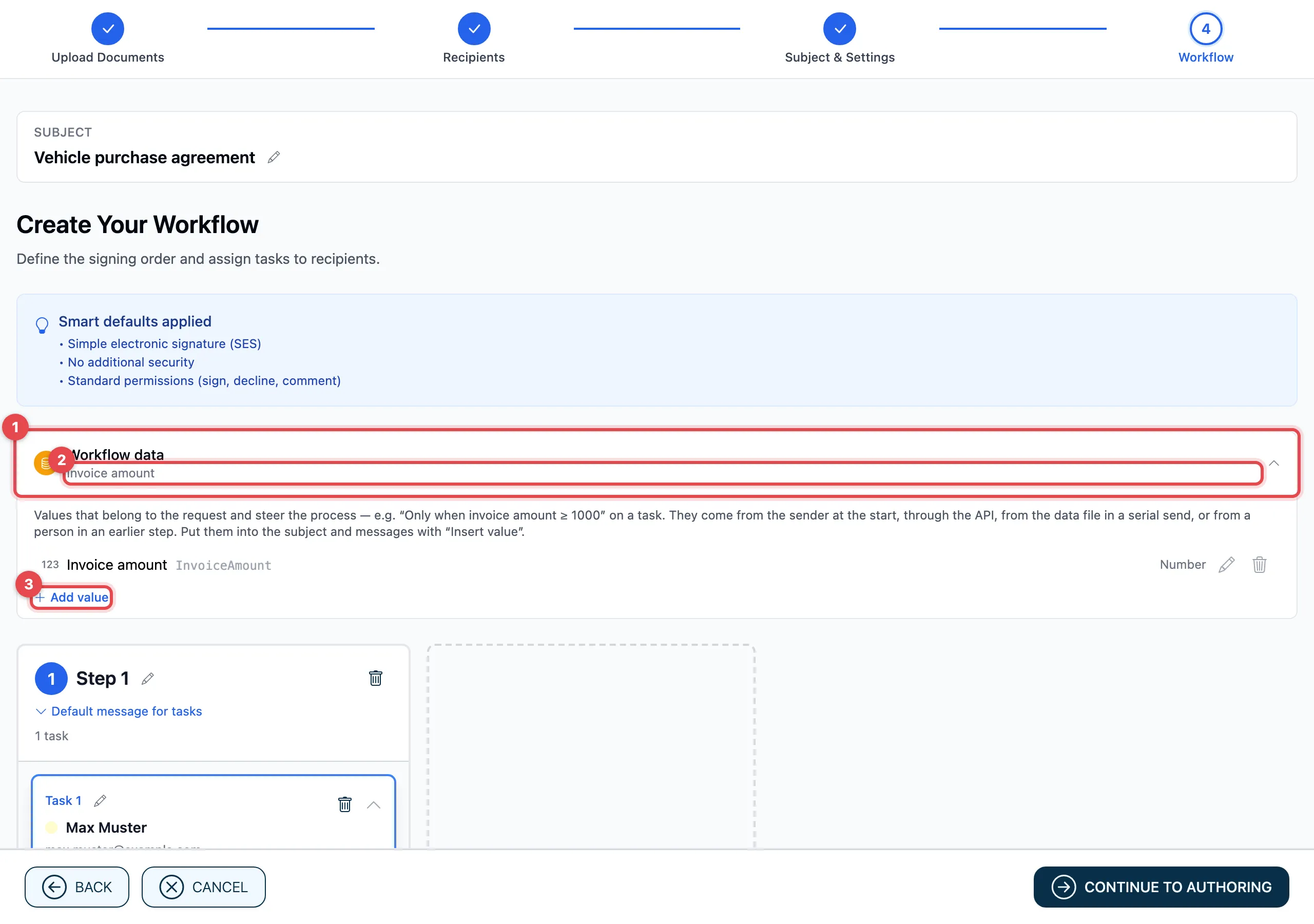
- In the Workflow step, expand the Workflow data section.
- Each value is listed with its name and type. With the pencil (Edit) you change it, with the trash can (Remove) you delete it.
- Add value: enter a name, e.g. “Invoice amount”, and choose the type (first Number). For Choice, write the possible values separated by commas. Required value means: without this value, the request does not start. Click Apply.
The types are the same as for serial documents: Text, Number, Date, Yes/No, Choice, E-mail, Mobile number. If a form template has variables, they are already in the list here.
2. Where the values come from
Section titled “2. Where the values come from”| Source | How |
|---|---|
| You yourself at the start | in the Subject & Settings step, in the Workflow data form (picture below) |
| A person in an earlier step | in their task, tick the values under Enter details; the person enters them before signing or approving |
| A field from an earlier step | a field with a Data name that a person fills in, see Data name |
| Mass send | the row of the data file, see Mass send |
| Another system | through your organization’s interface (API) |
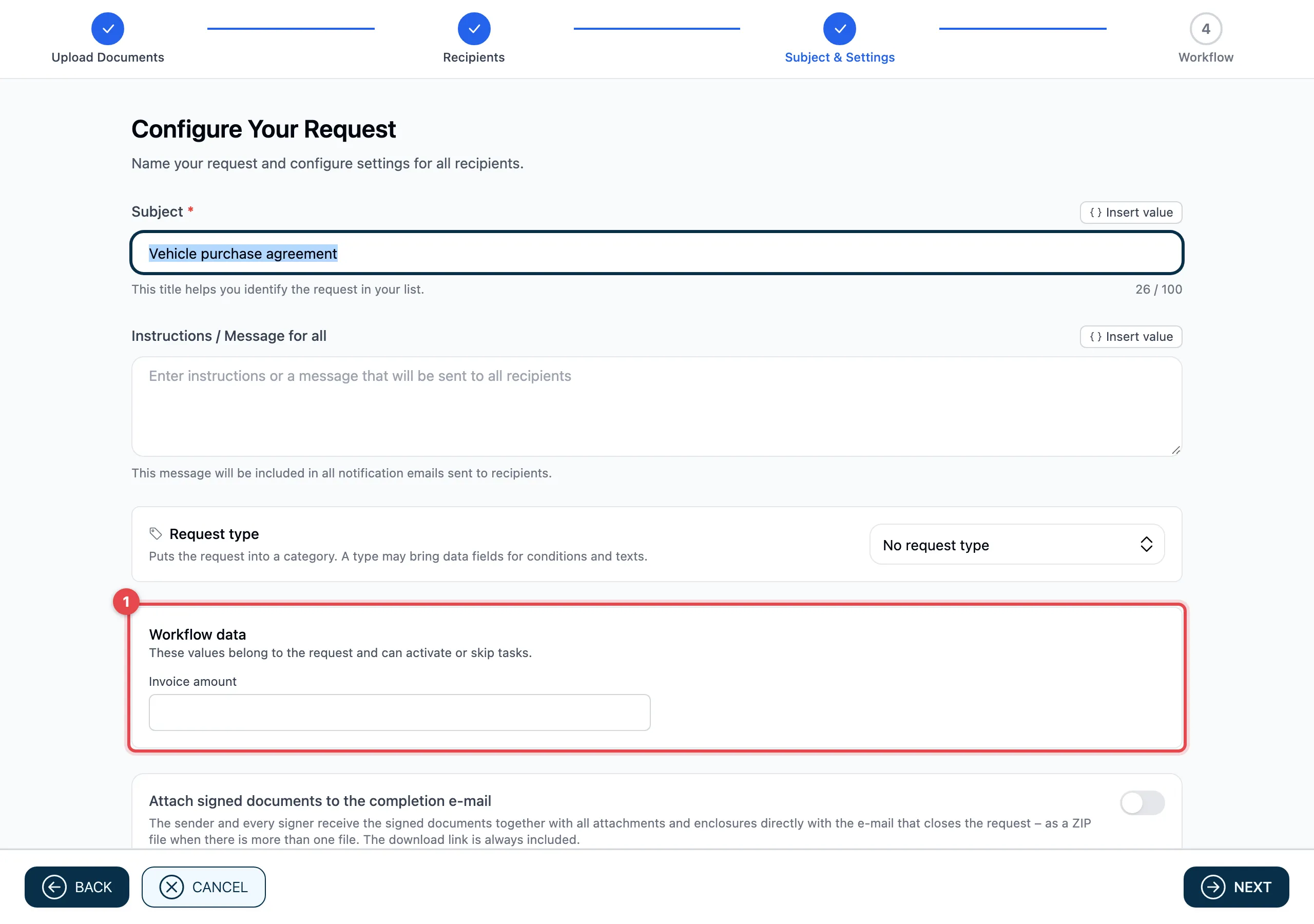
The Subject & Settings step lists all values that no person enters later (1). Enter the value for this request there.
If a task has Enter details, the Details for the process window opens for its person before signing or approving. The person enters the values and clicks Continue.
3. Set a condition
Section titled “3. Set a condition”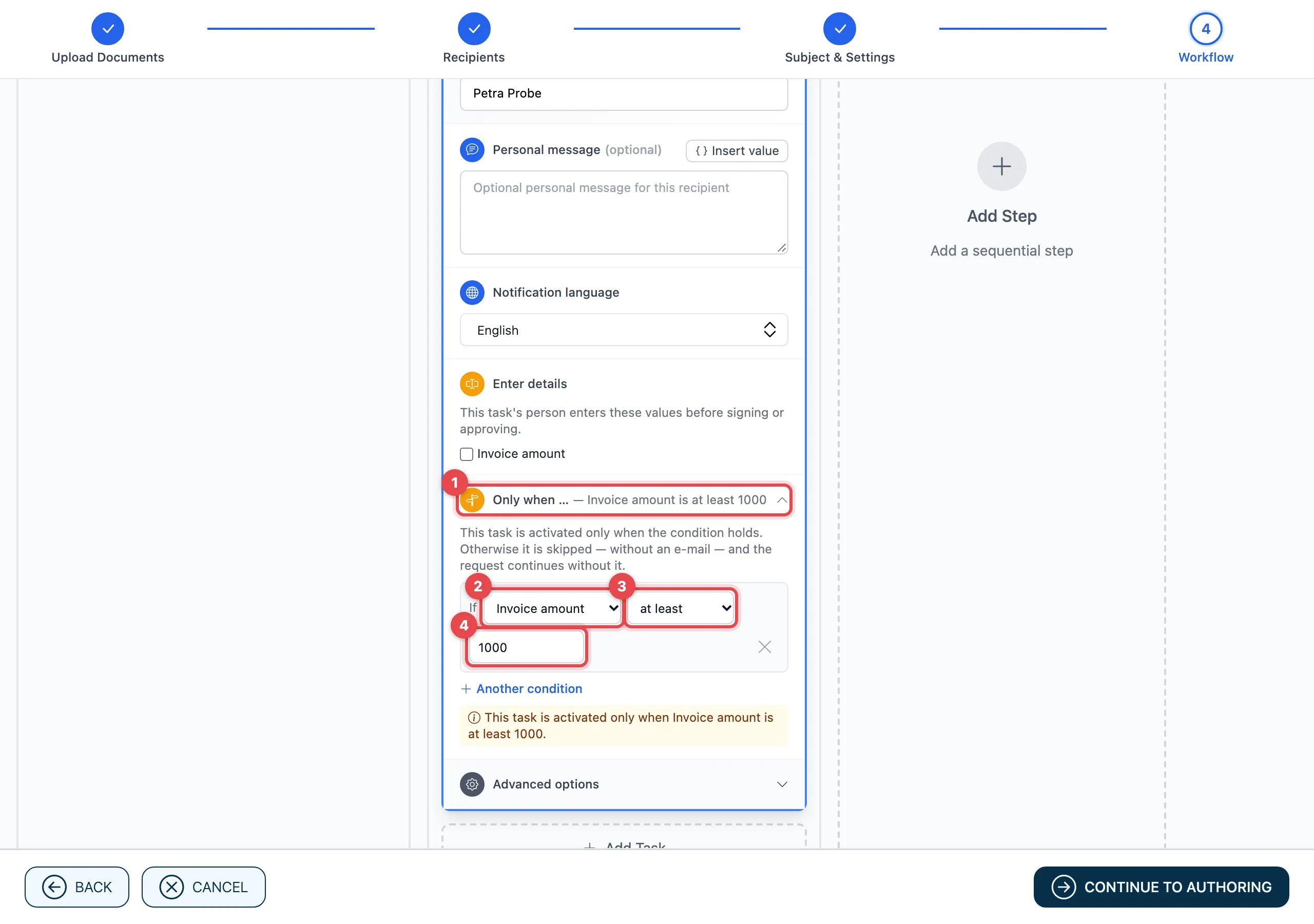
- Open the task and click Only when …, then Add condition.
- Value: choose a value from Variables (the workflow data) or from Answers from earlier steps.
- Comparison: e.g. at least (see table).
- Value to compare: e.g. 1000. With between, the Upper bound is added.
Below the condition, it says in words what applies, e.g. “This task is activated only when Invoice amount is at least 1000.” With Another condition you add up to five conditions and choose under Combination either All conditions or Any of the conditions. The cross (Remove condition) deletes a condition.
| Type of the value | Comparisons |
|---|---|
| Number, Date | is, is not, greater than, at least, less than, at most, between, is filled in, is empty |
| Yes/No | is yes, is no |
| Text, Choice | is, is not, is one of (values separated by commas), is filled in, is empty |
| E-mail, Mobile number | is, is not, is filled in, is empty |
What happens when the request runs
Section titled “What happens when the request runs”- actaSIGN decides as soon as the task’s step is due, using the values that exist at that point.
- If the condition is met, the task runs like any other.
- If it is not met, the person gets no e-mail, and no substitute steps in either. In the history, the task shows e.g. “Skipped: condition not met (Invoice amount ≥ 1000)”. The request goes on to the next step. If it was the last step, the request is completed.
- An empty value meets no comparison except is empty.
Good to know
Section titled “Good to know”- An answer must come from an earlier step. Otherwise actaSIGN reports “… is filled in only in this or a later step”.
- If there is no workflow data yet and no field with a data name in an earlier step, Only when … shows a note instead of the selection.
- You can also use workflow data in the subject and messages, with Insert value, see Insert values from the profile and request.
- In a template you save values and conditions; the values themselves are entered for each new request.
- If a Required value is missing at the start, actaSIGN does not start the request.