

Set up signing authority rules
Here you set which transactions are approved by whom from which amount, who has which role and who stands in for whom. With the simulator you check the result before the rules apply. What the signing authority rules are and how you start is described under Keep signing authority rules.
Only a Draft can be changed. If a version is already in force, first click Change: actaSIGN creates a draft, and the version in force keeps applying until the draft is in force. You save the matrix and settings with Save at the top right.
Authority matrix
Section titled “Authority matrix”Each row is a request type, each column an amount tier (excl. VAT). A cell without a rule is red and an error in the Check.
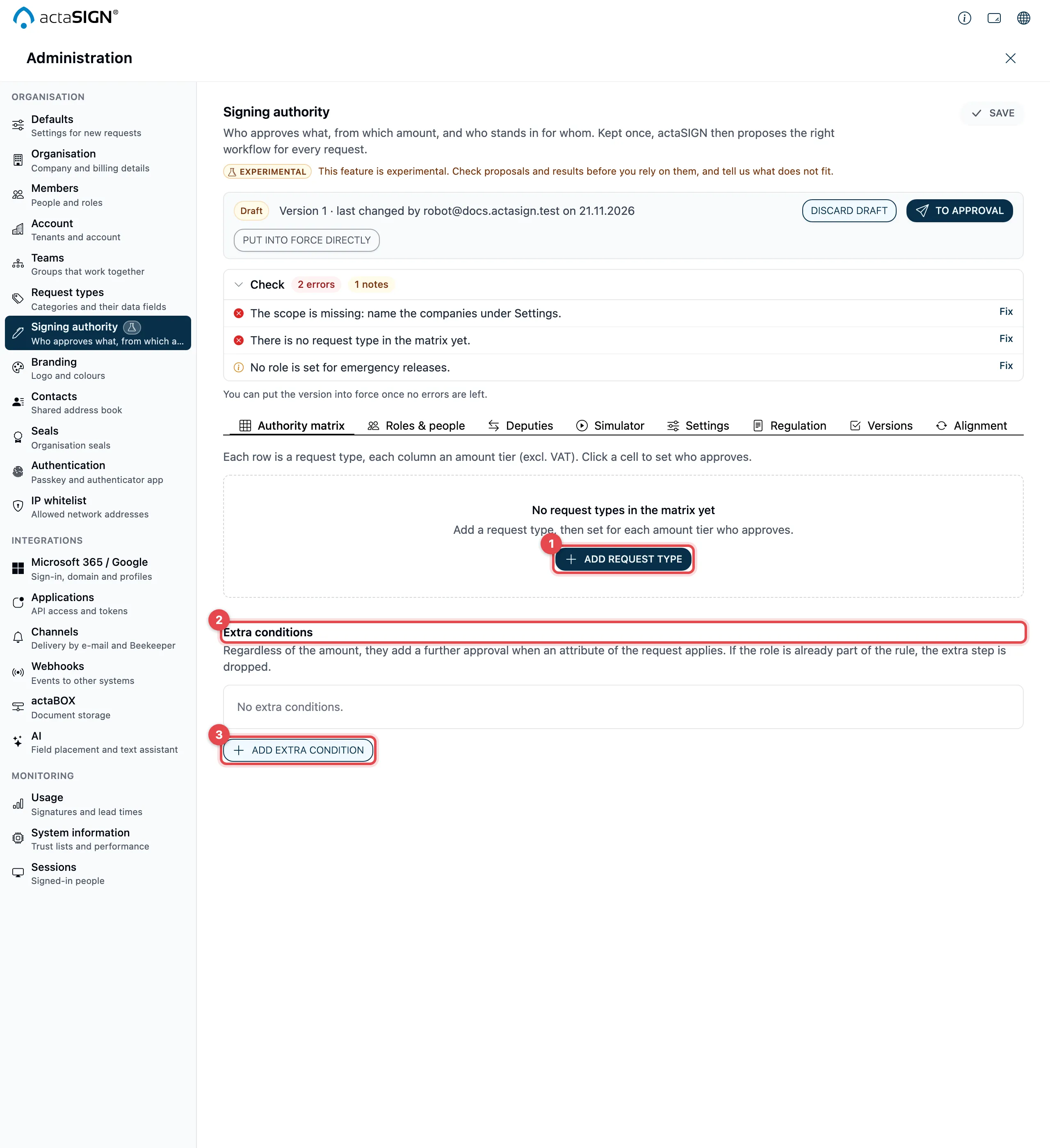
- Add request type: links a request type to the rules (see below). Then click a cell of the row to set the rule.
- Extra conditions: require a further approval when a feature of the request applies, regardless of the amount.
- Add extra condition opens the window for this.
Add a request type
Section titled “Add a request type”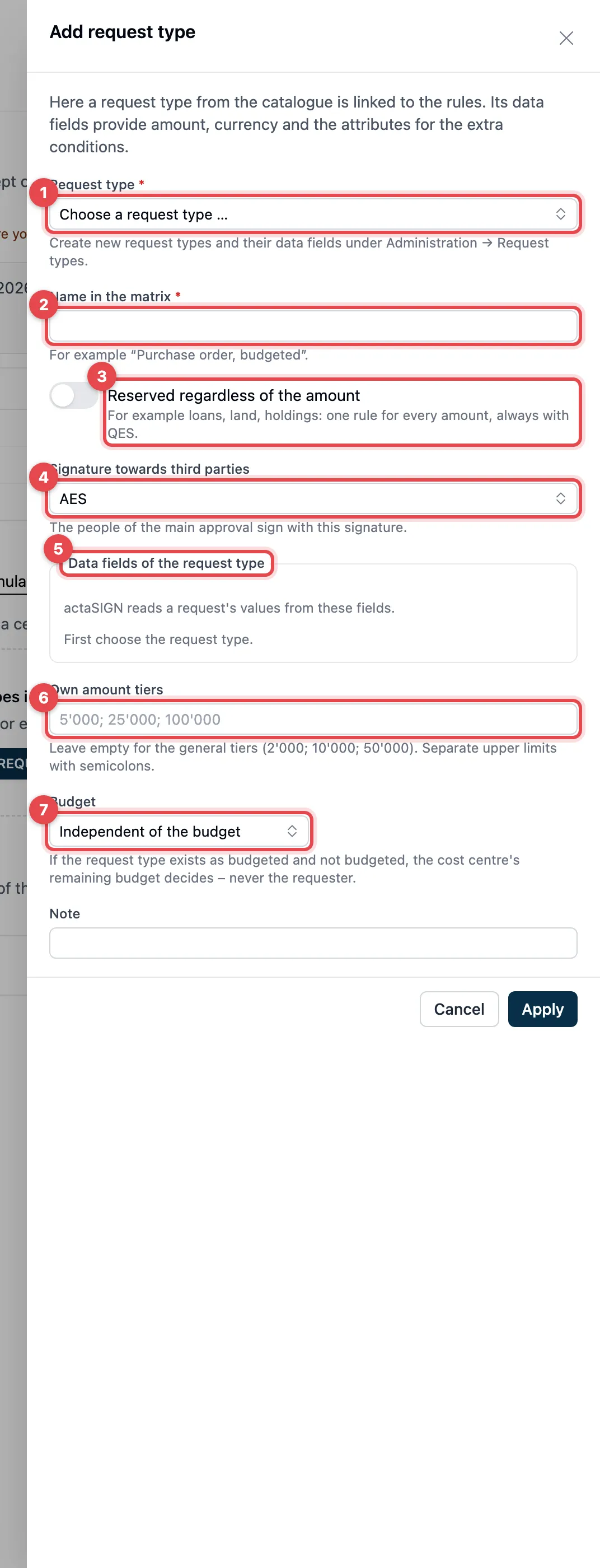
- Request type: Choose a request type from the catalogue. You create new request types and their data fields under Request types.
- Name in the matrix: the name of the row, e.g. “Purchase order, budgeted”.
- Reserved regardless of the amount: for transactions such as loans, real estate or shareholdings. The row then has a single rule for every amount, always with QES.
- Signature towards third parties: the people of the main approval sign with this signature: QES, AES, SES or Internal approval.
- Data fields of the request type: actaSIGN reads a request’s values from these fields: Amount or Monthly instalment (one of them is required), Term (months), Residual value, Currency, Counterparty and Cost centre. For recurring commitments, instalment × term + residual value counts; without a term, actaSIGN counts three years.
- Own amount tiers: leave empty for the general tiers. Otherwise at most five rising upper limits, separated by semicolons.
- Budget: If the request type exists both budgeted and not budgeted, you create two rows (Budgeted and Not budgeted) and name the budget category, e.g. material. Whether a request is budgeted is decided by the remaining budget of the cost centre, never by the requester.
Click Apply. With Remove from the matrix you take a row out again.
Rule for a cell
Section titled “Rule for a cell”Click a cell of the matrix. In the window you set:
- Order: Together (+), all groups approve in the same step, or One after the other (→), in the order shown.
- Who approves: per line, a number of people of a Role, e.g. “2 of board of directors”. With Another role you add a line (at most six). A context role (superior, budget owner) is always exactly one person.
- How the rule reads shows the sentence that appears in the matrix.
- Test this case in the simulator opens the simulator with an amount from this tier.
Apply sets the rule, Clear rule removes it.
Extra conditions
Section titled “Extra conditions”An extra condition has a Name and applies when a data field applies (a yes/no field or certain values of a choice field) or when the term is longer than a number of months. Under Additional approval by you choose the role, e.g. “Data protection” when personal data is processed. If the role is already in the cell’s rule, the extra step is dropped. Through the condition’s menu you can Disable, Enable or remove it.
Roles and people
Section titled “Roles and people”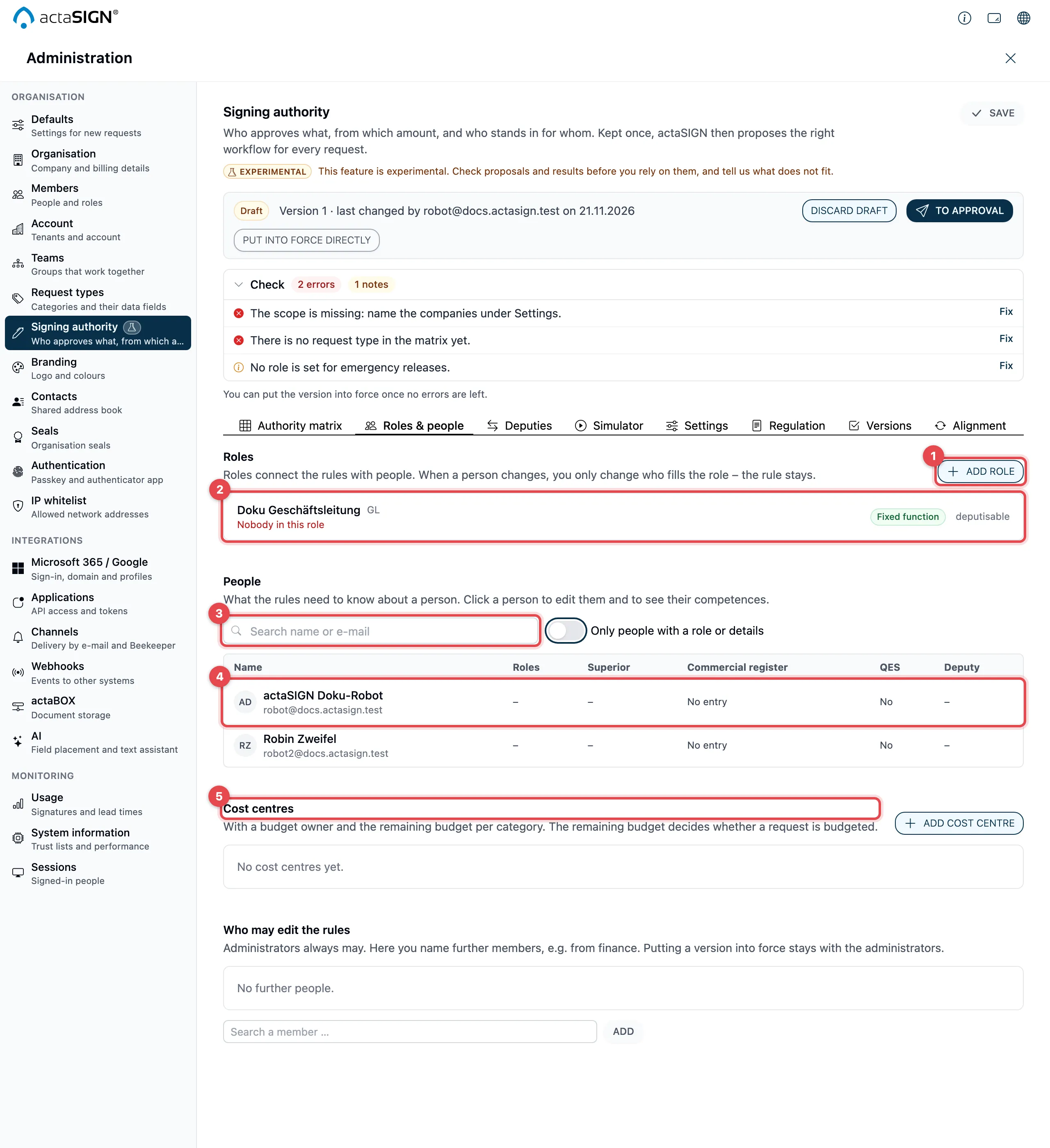
- Add role: creates a new role (see below).
- Each role shows who fills it, its Kind and whether it may be stood in for. Nobody in this role in red is an error in the Check. Click a role to change it.
- People: all members with what the rules know about them. Use the search field to find a person; Only people with a role or details hides the others.
- Click a person to edit their details (see below).
- Cost centres: with the budget owner and the remaining budget per category.
Add a role
Section titled “Add a role”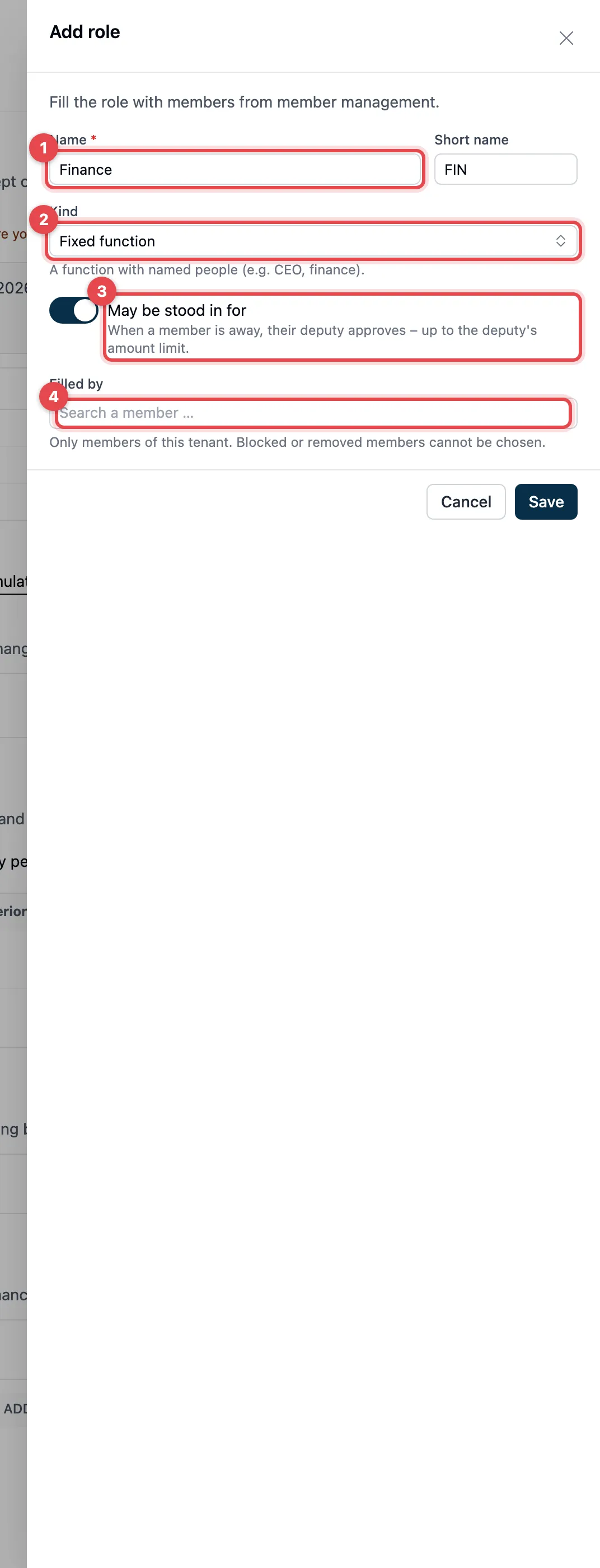
- Name and, if you like, a Short name, e.g. “Finance” and “FIN”.
- Kind:
- Governing body: a body of the company, e.g. the board of directors. Never stood in for.
- Fixed function: a function with named people, e.g. CEO or finance.
- Context role: decided per request, exactly one person. Under Decided by you choose Superior of the requester or Budget owner of the cost centre.
- May be stood in for (fixed function only): if a member is away, their deputy approves, up to the deputy’s amount limit.
- Filled by: members of your organization. Blocked or removed members cannot be chosen.
Click Save. The role applies at once, also in the version that is already in force; no new approval is needed for this. You delete a role that appears in no rule with Delete role.
If a connection is set up under Microsoft 365 / Google, Fill from a Microsoft 365 group also appears (see Keep it up to date).
Details of a person
Section titled “Details of a person”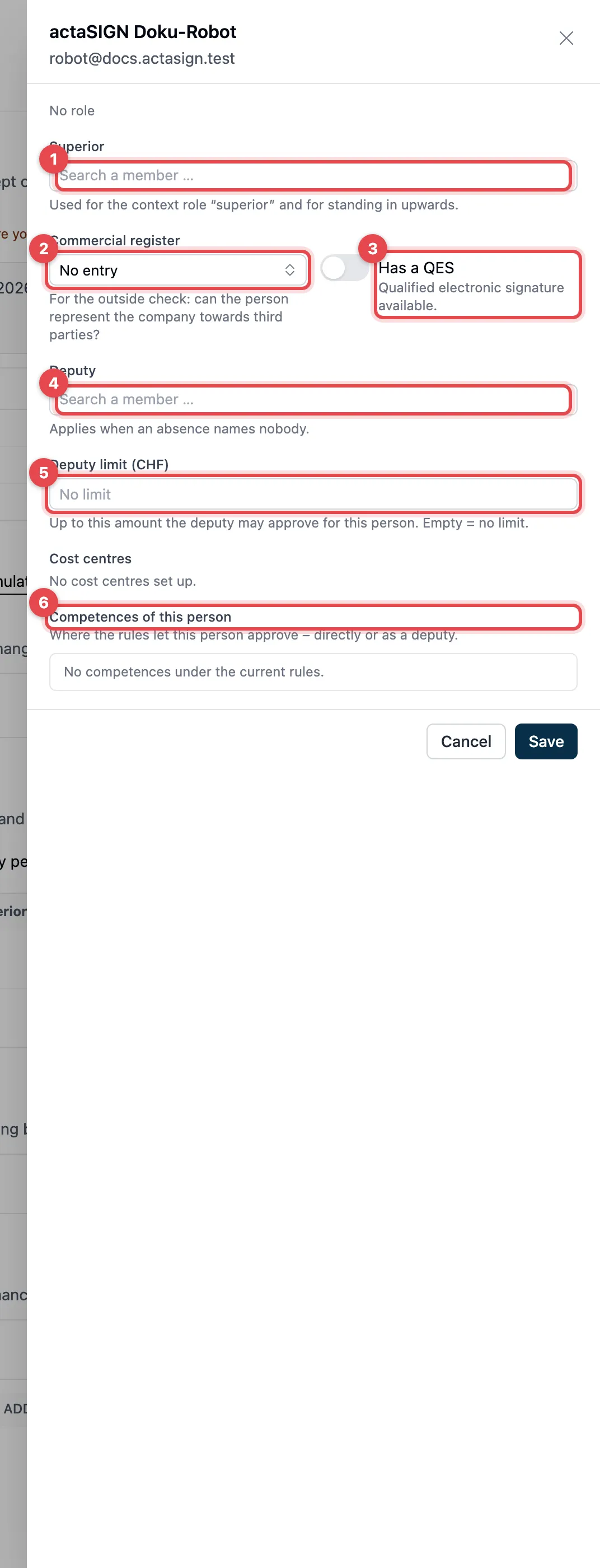
- Superior: for the context role “superior” and for standing in upwards.
- Commercial register: No entry, Single signature or Collective, two together. actaSIGN uses this to check whether the signers can validly represent the company towards third parties (outside check).
- Has a QES: the person has a qualified electronic signature.
- Deputy: applies when an absence names nobody.
- Deputy limit (CHF): up to this amount the deputy may approve for this person. Empty means no limit.
- Competences of this person: where the rules let the person approve, directly, as a deputy or as a superior.
Below, you choose the person’s Cost centres. Click Save.
Cost centres
Section titled “Cost centres”With Add cost centre you enter the Number, the Name, the responsible person under Budget owner and the Remaining budget per Category (in CHF). The remaining budget decides whether a request is budgeted. You load many cost centres at once as ERP data.
Deputies
Section titled “Deputies”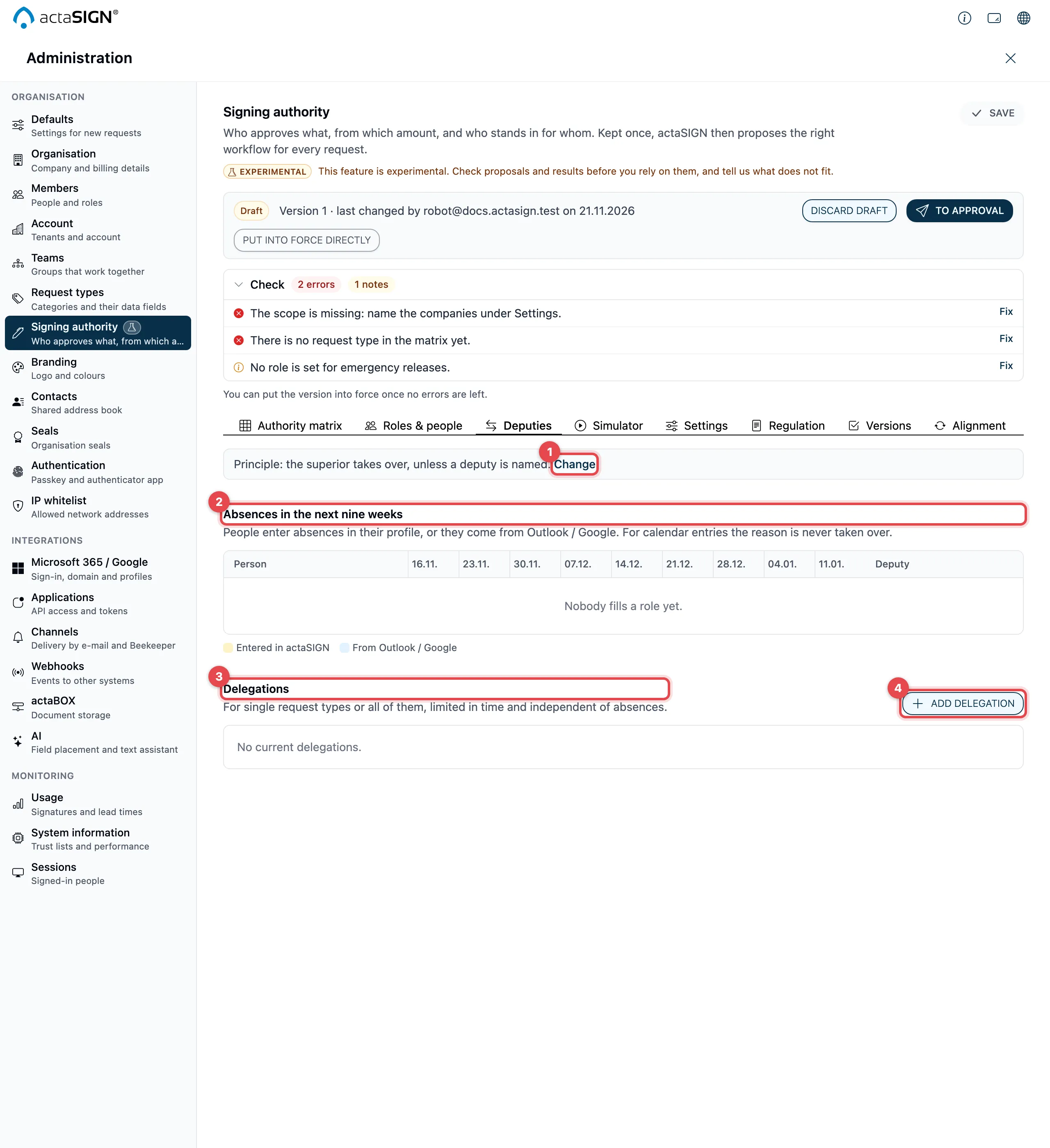
- The Principle is shown at the top. Change leads to the settings.
- Absences in the next nine weeks: for everyone who fills a role. People enter absences in their profile, or they come from Outlook / Google (without the reason). actaSIGN shows who stands in and warns when a person and their deputy are away at the same time.
- Delegations: for single request types or all of them, limited in time and independent of absences.
- Add delegation: Who delegates, To whom, For (a request type or All request types), From, Until (inclusive) and a Note.
Simulator and test cases
Section titled “Simulator and test cases”Play through a case before the rules apply. The simulator works with what is on the screen (even unsaved), with the real members and absences.
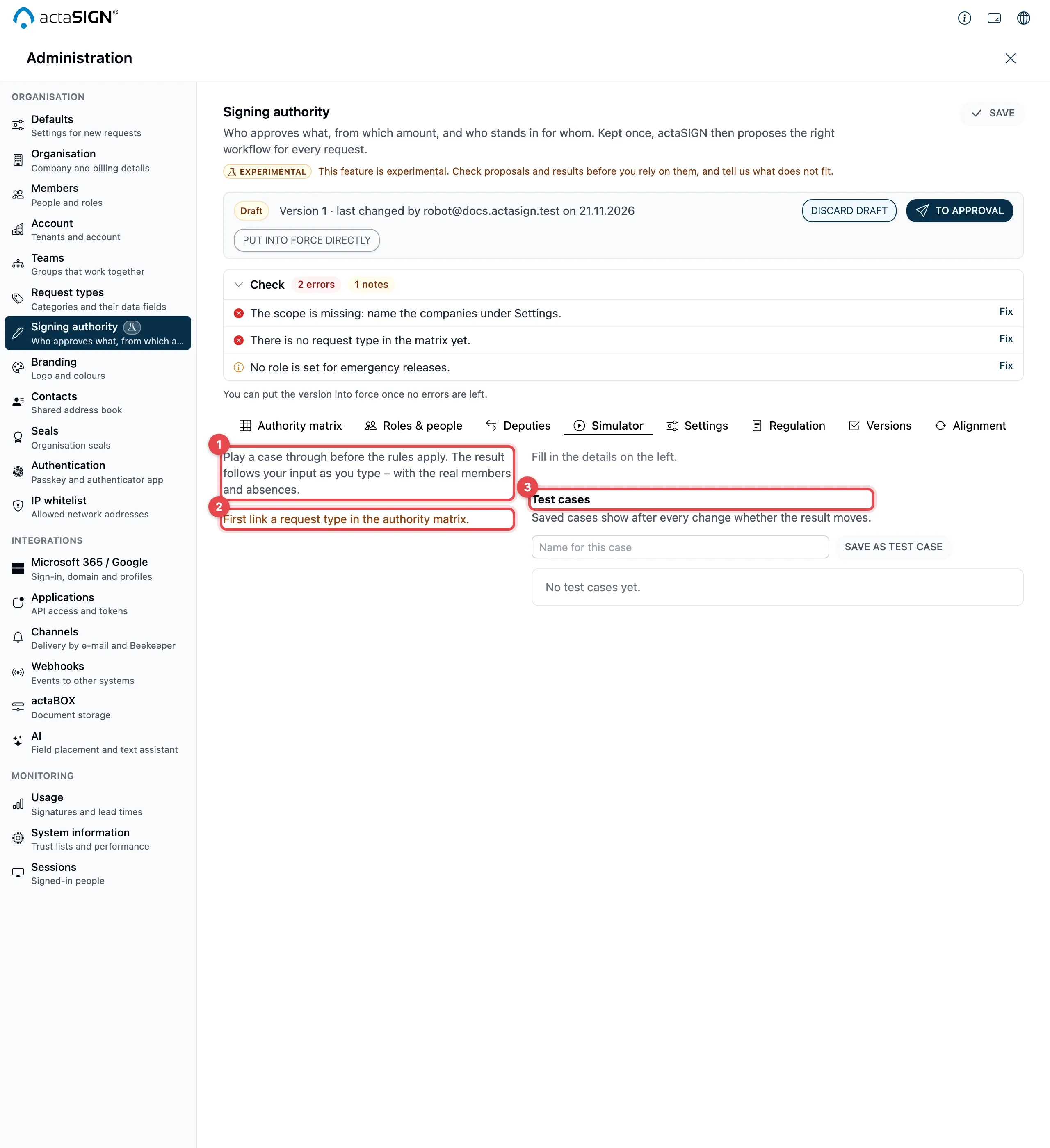
- On the left you enter the case: Request type, the data fields (e.g. amount), the Requester and the Date of the request (decides absences and the currency rate).
- Without a linked request type, this says “First link a request type in the authority matrix.”
- Test cases: Give a result a name and click Save as test case. After every change, Check all shows whether a result moves (unchanged or different).
On the right, the workflow appears: Request, the steps Approval, Approval and signature and Extra approval with the people, then Completed. Show all candidates gives, for each person, the reason why they do not count, e.g. “files the request themself” or “away, the deputy’s limit of CHF … is exceeded”. Below is the outside check: whether the signers validly sign towards third parties according to the commercial register and QES.
With AI help switched on, you ask a question in your own words under Ask the rules, e.g. “Who must approve a leasing contract for 82’000 francs?”, and click Ask.
actaSIGN always applies these rules:
- The requester never counts for their own approval. In their own matter, the approval goes to the next higher level.
- Each person counts only once in a workflow.
- Amounts in a foreign currency are converted into CHF. If a rate is missing, the case cannot be resolved.
- Splitting: earlier requests to the same counterparty within the set period are added up; the higher tier then applies.
Settings
Section titled “Settings”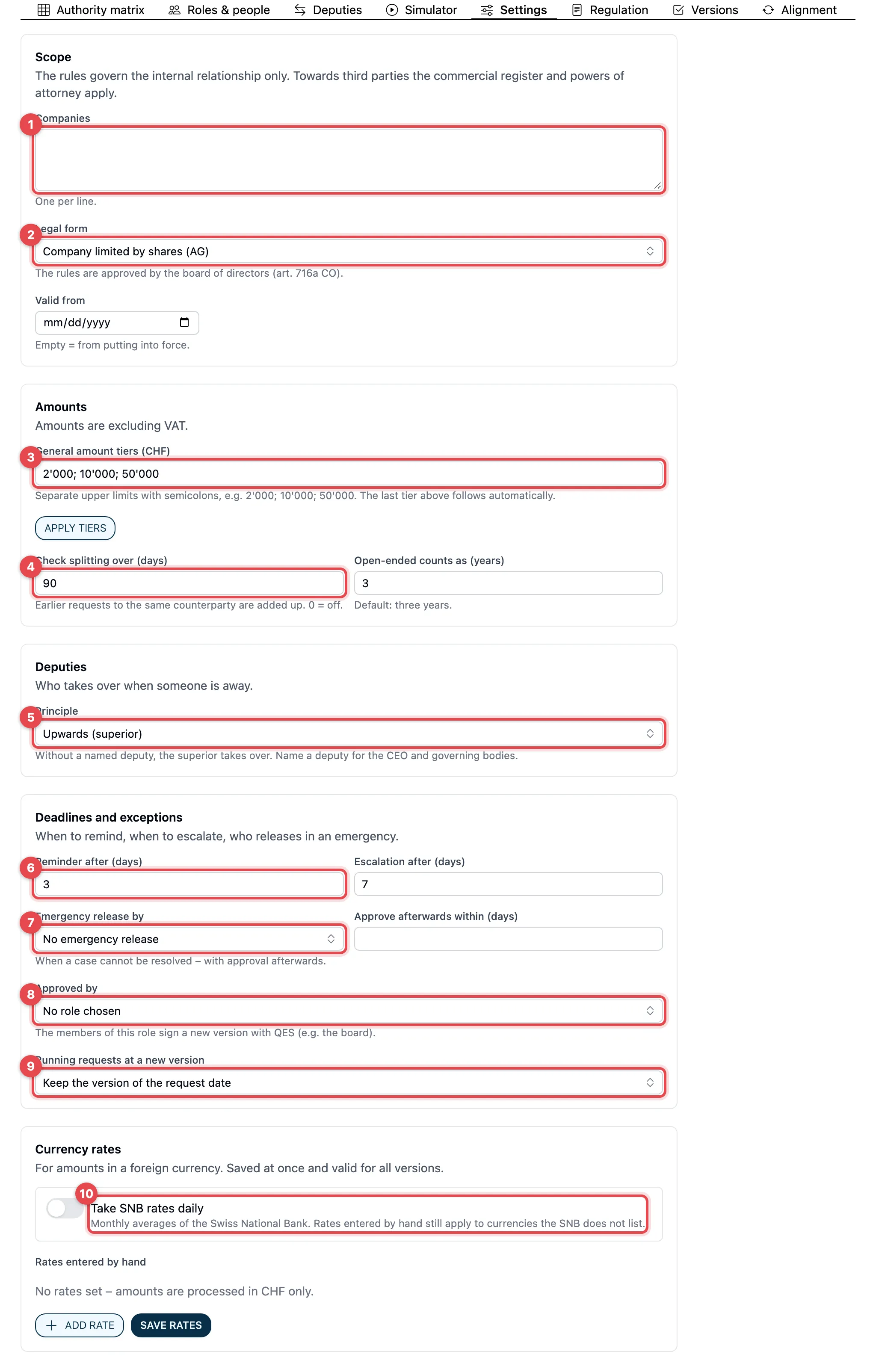
| No. | Setting | What it does | Default with “Start empty” |
|---|---|---|---|
| 1 | Companies | Which companies the rules apply to, one per line. No entry is an error. | empty |
| 2 | Legal form | AG or GmbH. Decides who approves the rules (board of directors or management). Below it, Valid from: empty means from putting into force. | AG |
| 3 | General amount tiers (CHF) | Upper limits separated by semicolons, at most five. The last tier follows above them. Apply with Apply tiers. | 2’000; 10’000; 50’000 |
| 4 | Check splitting over (days) | Period in which earlier requests to the same counterparty are added up; 0 is off. Next to it, Open-ended counts as (years). | 90 days, 3 years |
| 5 | Principle | Upwards (superior) or Named person. | Upwards |
| 6 | Reminder after (days), Escalation after (days) | If a task is still open after the escalation period, the sender gets a notice once saying who may take over according to the rules. Nothing is forwarded automatically. | 3 and 7 days |
| 7 | Emergency release by, Approve afterwards within (days) | Who may release a case the rules cannot fill. Stated in the regulation. | none |
| 8 | Approved by | The role whose members sign a new version with QES, e.g. the board of directors. Without it, nothing can be sent for approval. | none |
| 9 | Running requests at a new version | Keep the version of the request date or Resolve open steps again. Stated in the regulation. | Keep the version of the request date |
| 10 | Take SNB rates daily | Monthly average of the Swiss National Bank (administrators only). Plus rates entered by hand. | off |
Good to know
Section titled “Good to know”- You save a role, a person, a cost centre or a delegation in its own window; this applies at once. Matrix and settings only apply once the version is in force.
- Absences hand over tasks of a request from the rules only up to the deputy’s limit, and never for a role that may not be stood in for.