

Set logo and colors
Under Branding you set your organization’s logo and colors. They appear in the web client, on the signing pages and in the emails. A preview shows every change at once; nothing is stored until you click Save.
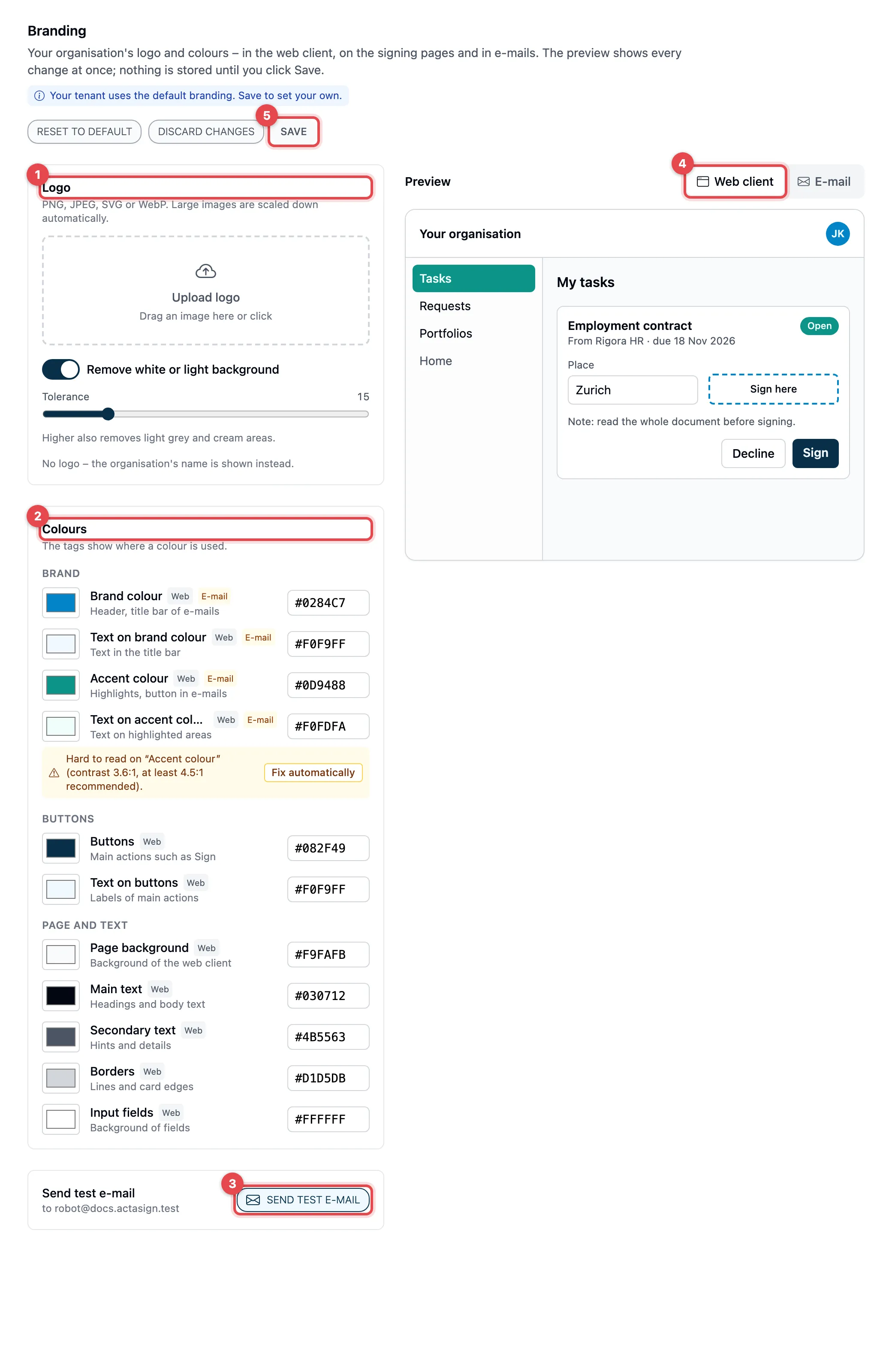
- Logo: Click Upload logo or drag an image into the field. PNG, JPEG, SVG and WebP are allowed; actaSIGN scales large images down by itself. Use Replace and Remove to change it later.
- Colours: Choose a color with the color swatch or type its code, for
example
#1d4ed8. Next to each name it says where the color appears: Web, E-mail or both. - Send test e-mail: sends a sample email with the current draft to your own address, even if you have not saved yet.
- Preview: Web client shows a sample page of actaSIGN, E-mail a signing request in your colors.
- If everything looks right, click Save.
Prepare the logo
Section titled “Prepare the logo”- Remove white or light background is switched on. A white margin around the logo becomes transparent, so that it looks good on any brand color. Original and Result are shown side by side.
- Tolerance: the higher the value, the more light grey and cream areas are removed as well.
- The background of SVG logos stays as it is.
- The switch acts on a logo you have just uploaded. If you want to cut out a saved logo differently, upload it again.
- Take colours from the logo sets the brand color, accent color and button color from the logo, each with a readable text color. Check the preview afterwards.
Colors
Section titled “Colors”| Color | Where it appears |
|---|---|
| Brand colour and Text on brand colour | Header, title bar of the email |
| Accent colour and Text on accent colour | Highlights, button in the email |
| Buttons and Text on buttons | Main actions such as “Sign” |
| Page background | Background of the web client |
| Main text | Headings and body text |
| Secondary text | Hints and details |
| Borders | Lines and card edges |
| Input fields | Background of fields |
The emails only use the brand color and the accent color with their text colors.
Hard-to-read colors
Section titled “Hard-to-read colors”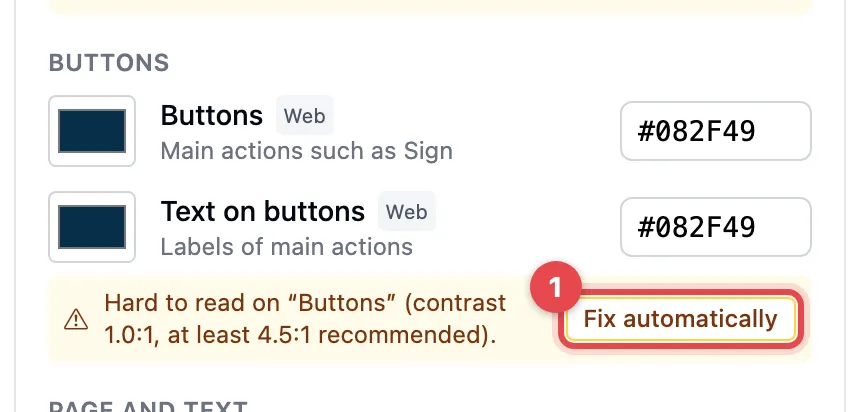
If text is hard to read on its background, a yellow note with the contrast appears below it, for example “Hard to read on “Buttons””. Click Fix automatically (1): actaSIGN sets a readable text color or darkens the background. This too only applies after Save.
Email preview
Section titled “Email preview”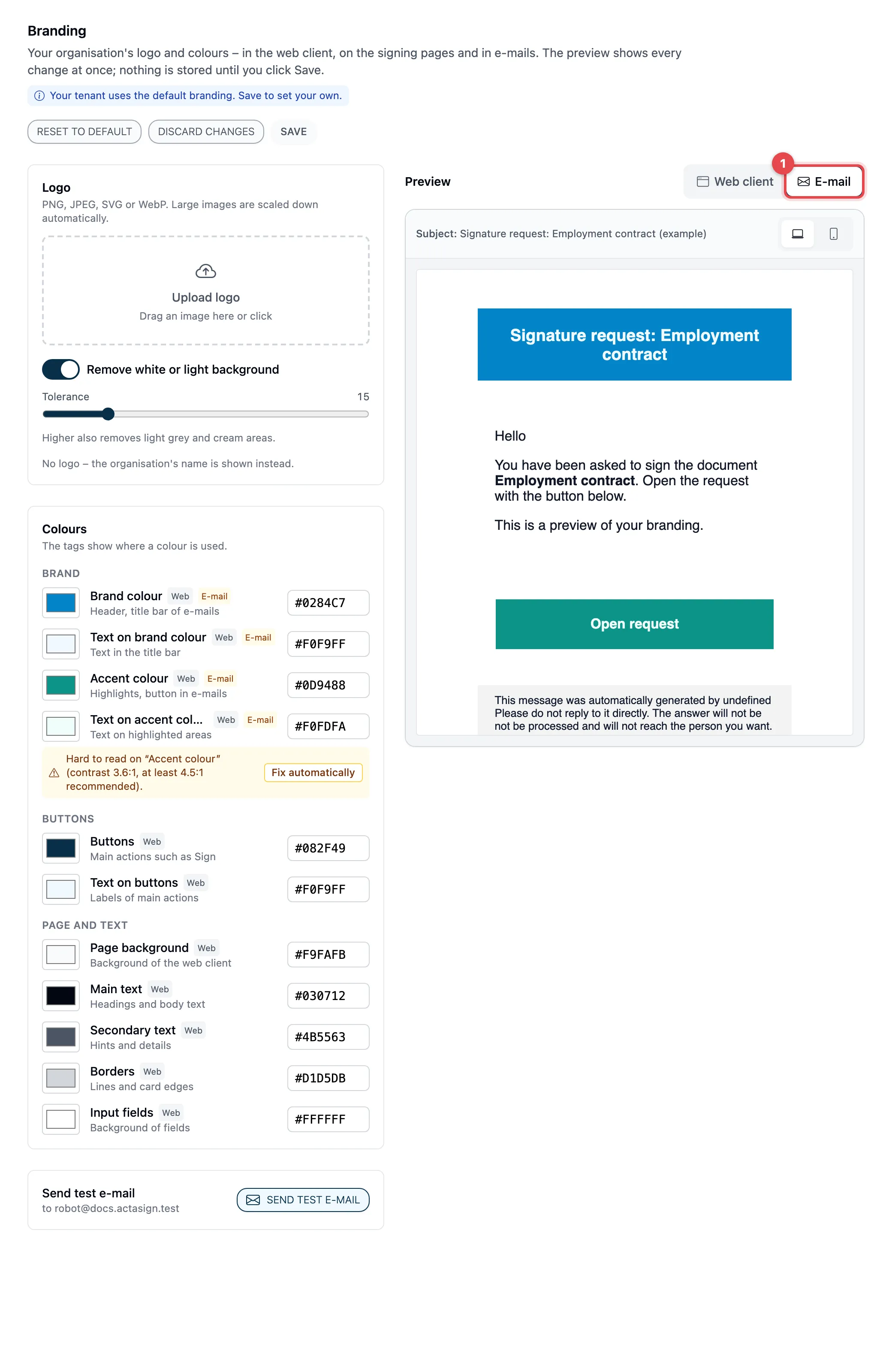
Click E-mail (1). The preview shows the email the way actaSIGN sends it. Use the icons next to it to switch between the Desktop and Mobile views.
Good to know
Section titled “Good to know”- Discard changes restores the saved state. If you leave the area with unsaved changes, actaSIGN asks whether you want to save.
- Reset to default removes your logo and colors. The web client and emails then show the default branding again.
- You can send a test email every 20 seconds.
- The branding applies to the organization you are working in right now. It is the same branding as in actaPASS under Set colors and logo: what you save here you also see there, and vice versa.
- Every change is recorded in the audit log.