

Form teams and assign members
A team groups members of your organization, for example the human resources department. People in the same team see the requests of the other team members and can edit them like their own.
The list of teams
Section titled “The list of teams”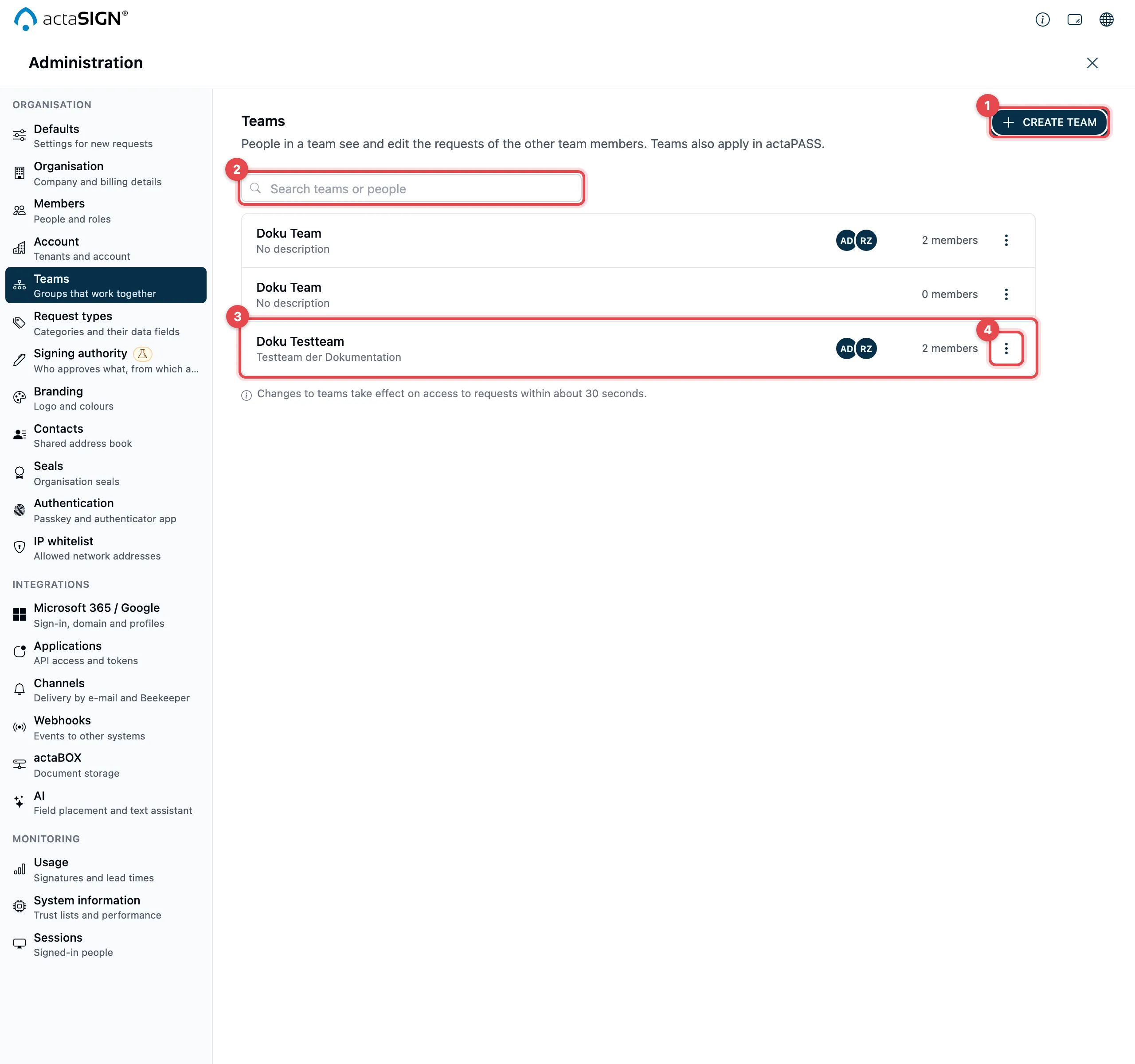
- Use Create team to add a new team.
- In the Search teams or people field, you find a team by its name, its description, or the name or e-mail address of a member.
- Each row shows the name and description, the first four members as circles with their initials, and the number of members.
- Use ⋮ to reach Manage members, Edit and Delete. Clicking the name also opens the team.
If there are no teams yet, you see No teams yet with the button Create team.
Create or change a team
Section titled “Create or change a team”You set the name, description and members in a single dialog.
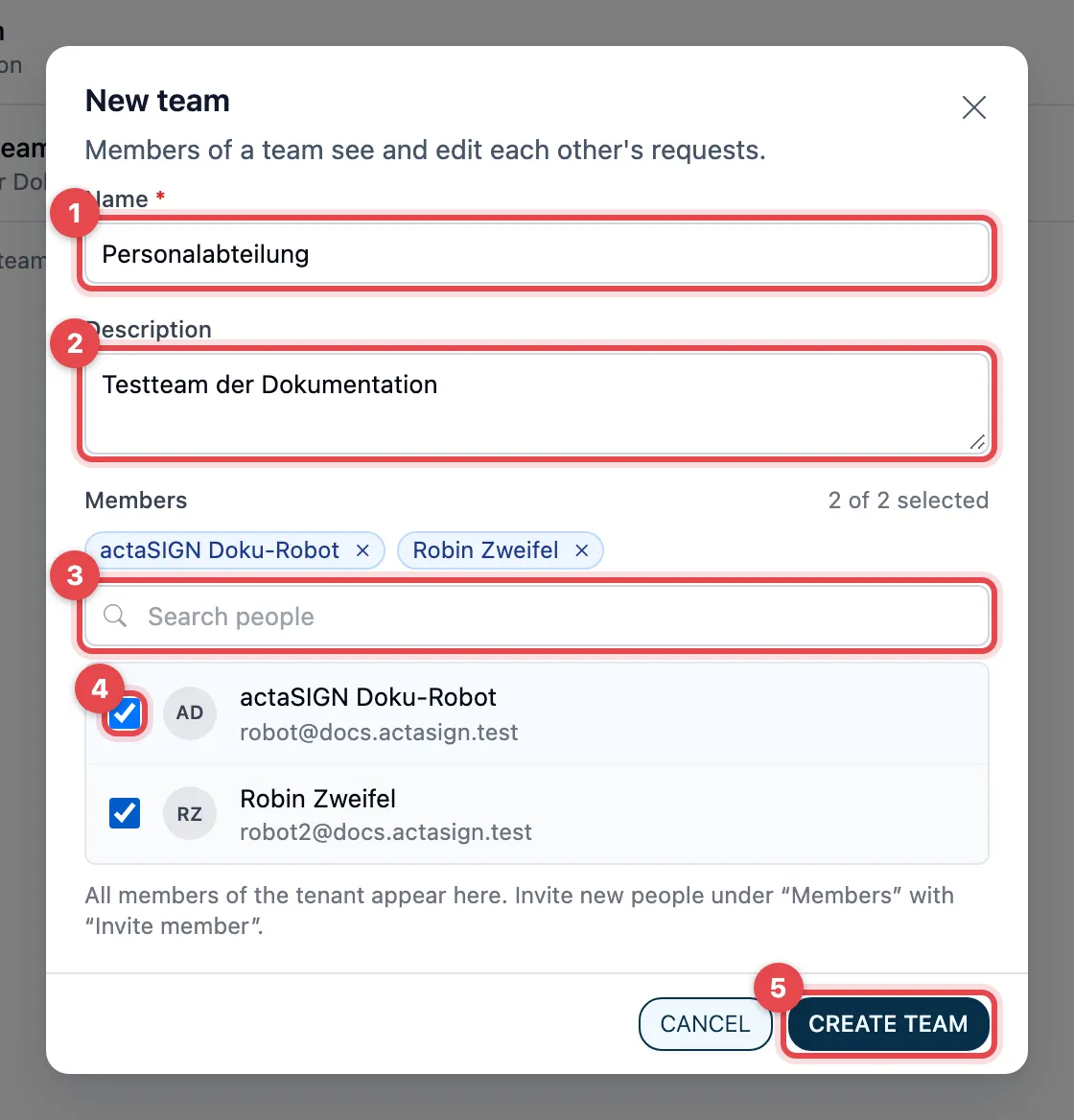
- Name: at least 3 characters, for example “Human resources”. Two teams cannot have the same name.
- Description: optional, what the team is for.
- Search people: type part of the name or e-mail address. If exactly one person is left, the Enter key adds them to the team.
- Tick every person who belongs to the team. The selected people appear at the top of the list and as small cards above the search field; use the × on a card to take a person out again. On the right you see how many people are selected, for example “2 of 14 selected”.
- Click Create team (for an existing team, Save).
You can choose from all members of your organization. Invite new people first, see Invite or import members.
For an existing team, choose ⋮ → Edit or Manage members. Both open the same dialog (Edit team); Manage members puts the cursor straight into the search field. Your changes only take effect when you click Save; Cancel discards them.
Choose the teams of a single person
Section titled “Choose the teams of a single person”If it is about one person rather than one team, choose their teams directly on the person: Members → name of the person → Teams tab. Tick the boxes and click Save teams, see Manage members. Both ways change the same teams.
Delete a team
Section titled “Delete a team”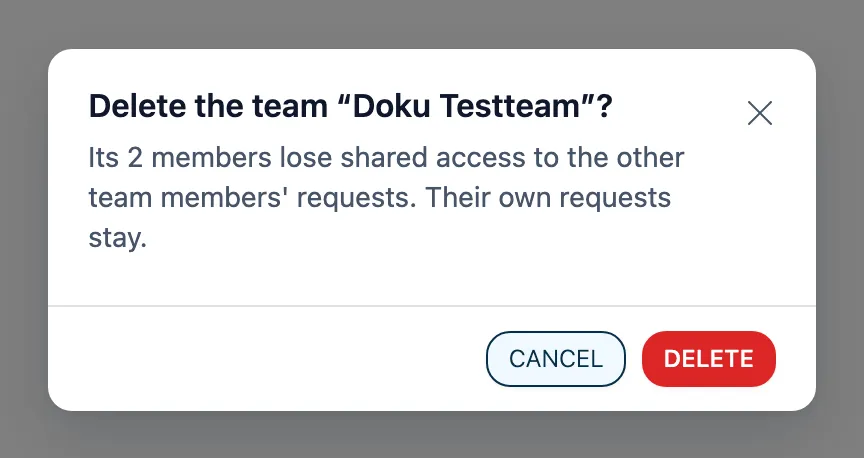
- Choose ⋮ → Delete next to the team.
- actaSIGN asks you to confirm and tells you what happens: the members lose shared access to the other team members’ requests. Their own requests stay.
- Click Delete, or Cancel to keep the team.
The people remain members of your organization; only the team and the assignments disappear.
Also in actaPASS
Section titled “Also in actaPASS”You can also see and change the same teams in actaPASS under Form teams. A change in one place applies in the other right away.
- In actaSIGN (recommended for administrators of an organization): name, description and members in one dialog, with a search across all teams and a confirmation before deleting.
- In actaPASS: when you look after a company account with several tenants. There, every tick under Manage members is saved immediately.
Good to know
Section titled “Good to know”- Changes to teams affect who sees which requests after about 30 seconds.
- A team applies to the organization you are currently working in.
- Every change to a team is recorded in the audit log.
- People who should only share requests under a shared sender address do not need a team: see Send from a shared address.