

Approve signing authority rules
A version of the signing authority rules only applies once the approving body has signed it. For this, actaSIGN writes the regulation, creates a PDF and sends it to the members of the approving role for signing with a qualified electronic signature (QES). As soon as all of them have signed, the version comes into force.
Regulation
Section titled “Regulation”The binding accompanying text is built from the settings: purpose and scope, no approval in one’s own matter, no splitting, deputies, form of signature, exceeding authority, entry into force and approval.
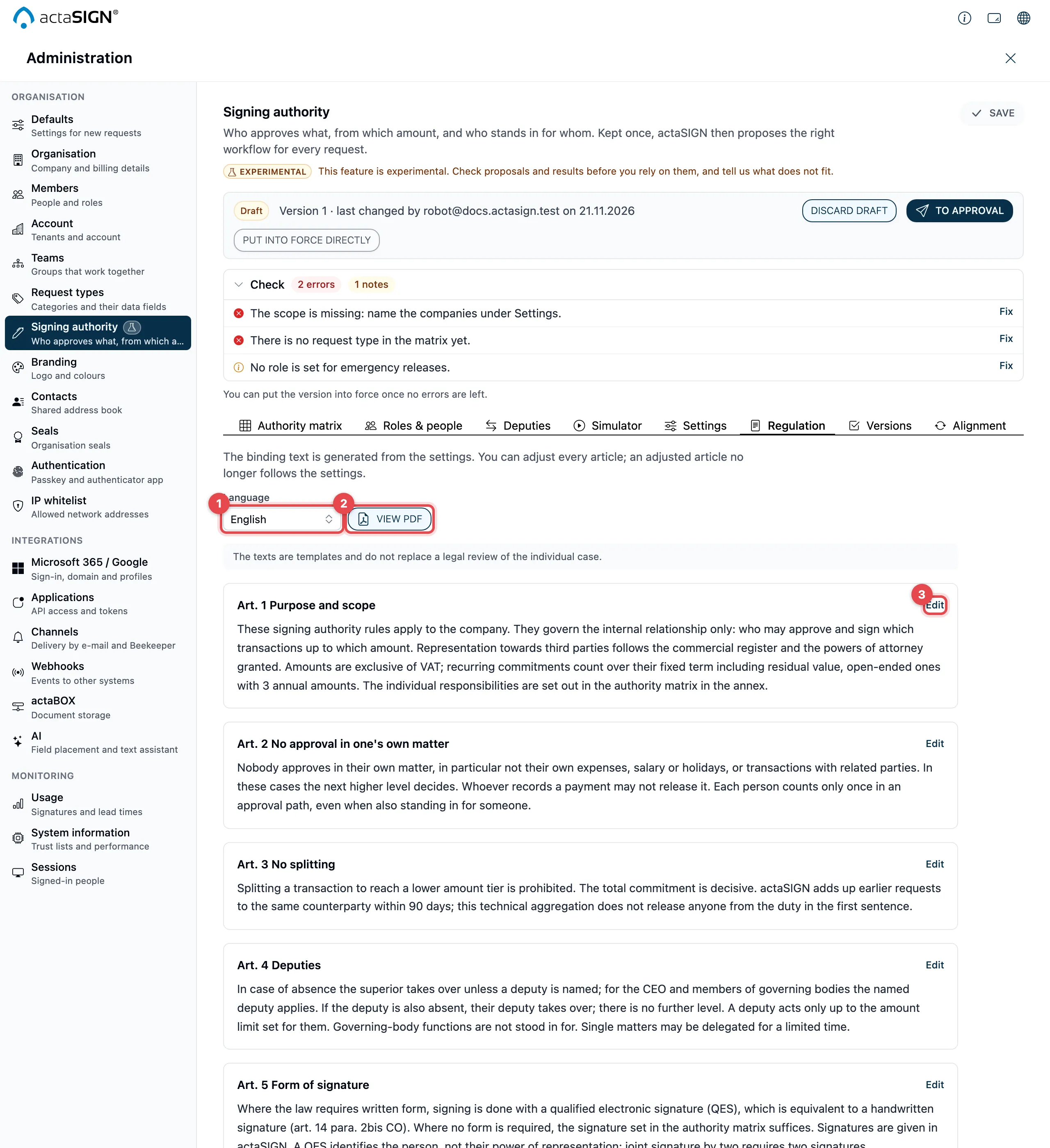
- Language: German, English, French or Italian.
- View PDF: loads the PDF as it goes out for approval. It shows the saved version, so save first.
- Edit: adjusts an article. An adjusted article is marked adjusted, no longer follows the settings and applies in every language as you write it. Restore the generated text undoes this.
Then click Save at the top right.
Send for approval
Section titled “Send for approval”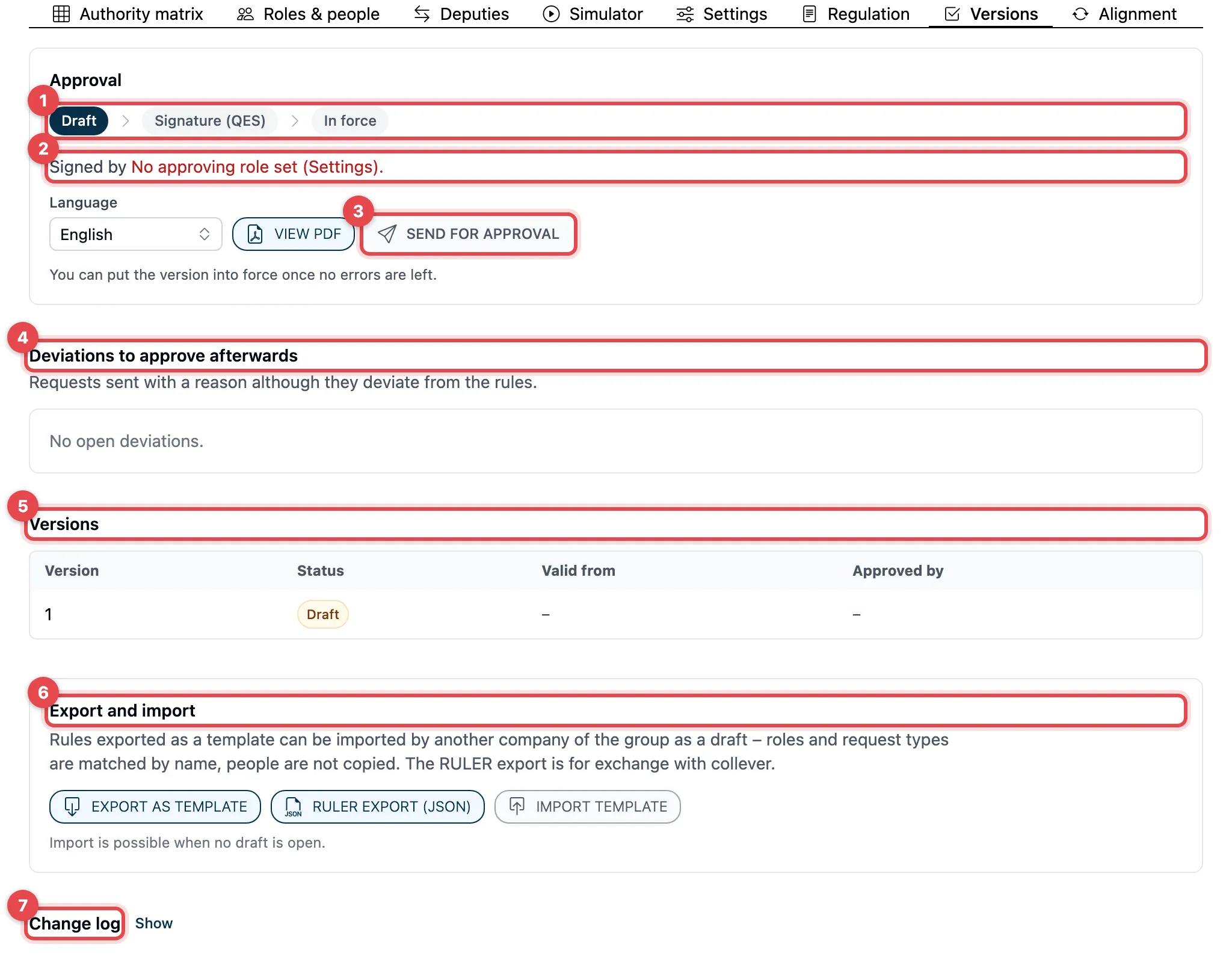
- The Approval path shows where the version stands: Draft → Signature (QES) → In force.
- Signed by names the approving role and its members. Below it, choose the Language of the PDF.
- Click Send for approval and confirm in the Send for approval? window. actaSIGN creates the PDF and sends it to the members of the role as a request, all in the same step, each person with a QES task. You are the sender.
- Deviations to approve afterwards: see below.
- Versions: all versions with Status, Valid from and Approved by.
- Export and import: see Extra features.
- Change log: Show lists who changed what and when.
While signing is under way, the version is Being signed and cannot be changed. Follow the approval leads here, Open request to the request. As soon as all have signed, the version comes into force (or on the Valid from date, if one is set). The previous version is then Superseded.
If someone declines, or the request is cancelled or recalled, the version is a Draft again. With Withdraw approval you recall the request yourself to change something.
Put into force directly
Section titled “Put into force directly”Administrators can put a version into force without QES approval: Put into force directly in the version bar, then confirm. This only works without open errors and without unsaved changes. It is recorded in the change log, and Versions shows “without QES”. The intended way is Send for approval.
Change rules in force
Section titled “Change rules in force”- Click Change in the version bar. actaSIGN creates a draft with the next version number. The version in force keeps applying.
- Change and save the draft. Under Versions, Changes against version … lists what has changed.
- Send the draft for approval. Discard draft deletes it; the version in force stays as it is.
Who fills a role, who stands in for whom, people, cost centres and delegations are not part of the version. These changes apply at once, without a new approval.
Approve deviations
Section titled “Approve deviations”If someone deviates from the rules when creating a request, a reason is needed (see Create a request from the signing authority rules). Such requests appear under Deviations to approve afterwards with subject, date, sender, version, what deviates and the reason. Clicking the subject opens the request.
Administrators write a Note (optional) if needed and click Approve or Reject. The request itself continues in both cases; the decision is recorded.
Good to know
Section titled “Good to know”- A version that is no longer a draft is frozen. Every change is made in a new draft.
- Only the request actaSIGN sent for this version puts it into force. Another request with the same PDF does not.
- The internal control evidence sums up versions, approvals and deviations for the audit.